
1. Introducción
This manual provides detailed instructions for the setup, operation, maintenance, and troubleshooting of your SOLAKAKA A99 Pro Mechanical Keyboard. Please read this manual thoroughly to ensure proper use and to maximize your keyboard's features.
2. Contenido del paquete
- SOLAKAKA A99 Pro Mechanical Keyboard
- Extractor de teclas
- Cable USB (USB-C a USB-A)
- Manual de usuario
3. Producto terminadoview
The SOLAKAKA A99 Pro is a 96% layout mechanical keyboard featuring 97 keys, an LCD screen, and a multifunctional metal knob. It supports tri-mode connectivity (Bluetooth 5.0, 2.4GHz wireless, and USB-C wired) and is compatible with Windows, iOS, Mac, and Android systems. The keyboard includes RGB backlighting, hot-swappable switches, and PBT keycaps.
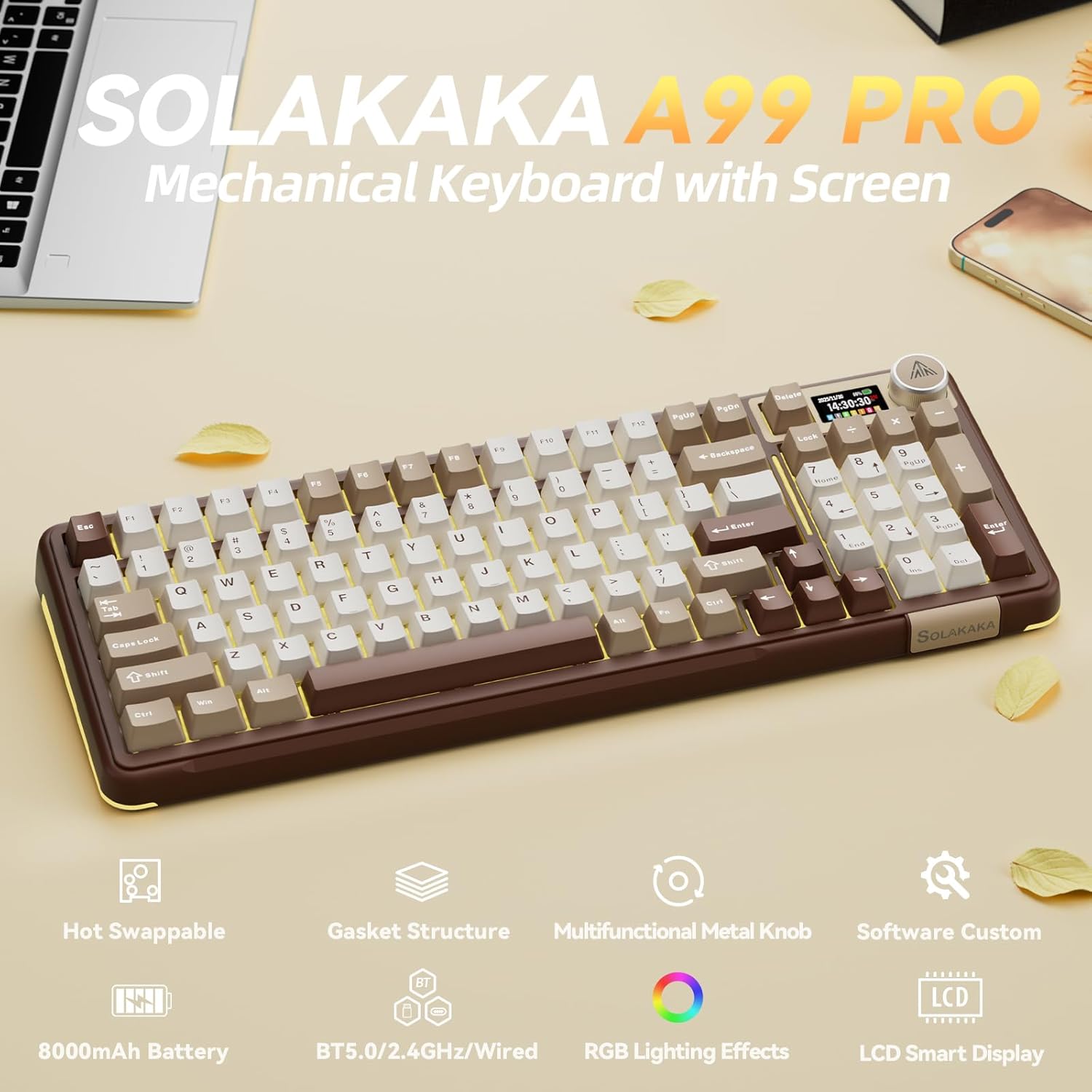
Image: SOLAKAKA A99 Pro Mechanical Keyboard, showcasing its layout, LCD screen, and metal knob.
4. Configuración y conexión
4.1. Encendido / apagado
Locate the power switch on the side or back of the keyboard to turn it on or off.
4.2. Conectividad trimodo
The keyboard supports three connection modes: USB-C wired, 2.4GHz wireless, and Bluetooth 5.0. A switch on the keyboard allows selection between these modes.
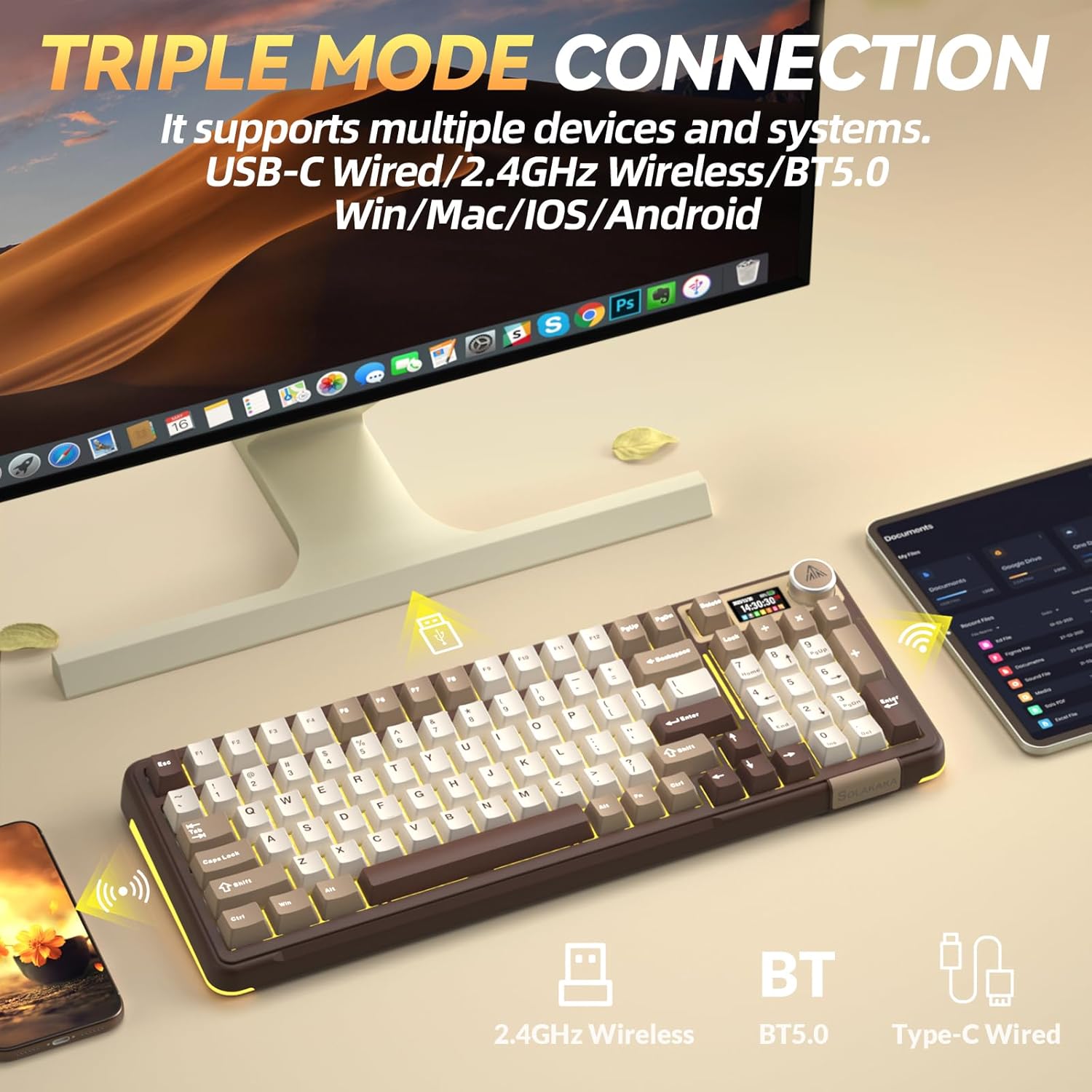
Image: The SOLAKAKA A99 Pro keyboard connected to a desktop and a tablet, illustrating its triple-mode connectivity.
4.2.1. Conexión inalámbrica de 2.4 GHz
- Localice el receptor USB de 2.4 GHz, normalmente almacenado en una ranura del teclado.
- Conecte el receptor USB a un puerto USB disponible en su computadora o dispositivo.
- Switch the keyboard to 2.4GHz mode using the selector switch. The keyboard should automatically connect.
Video: Demonstrates the various connection modes and features of the SOLAKAKA A99 Pro Mechanical Keyboard, including the 2.4GHz wireless connection.
4.2.2. Conexión Bluetooth 5.0
- Cambie el teclado al modo Bluetooth utilizando el interruptor selector.
- En su dispositivo (computadora, tableta, teléfono), habilite Bluetooth y busque nuevos dispositivos.
- Select "SOLAKAKA A99 Pro" (or similar) from the list of available devices to pair.
- The keyboard can save up to 5 devices. Refer to the LCD screen for pairing indicators (B1, B2, A1, etc.).
4.2.3. Conexión por cable USB-C
- Conecte el cable USB-C provisto al puerto USB-C del teclado.
- Connect the other end of the cable (USB-A) to your computer or device.
- El teclado cambiará automáticamente al modo cableado y comenzará a cargarse si es necesario.
4.3. Carga del teclado
Connect the keyboard via the USB-C cable to a powered USB port. The LCD screen will display the battery level. The keyboard features an 8000mAh rechargeable battery.

Image: The SOLAKAKA A99 Pro keyboard highlighting its 8000mAh battery capacity and estimated usage times.
5. Instrucciones de funcionamiento
5.1. LCD Smart Display and Multifunctional Knob
The LCD screen displays essential information such as date, time, battery level, connected system, and connection mode. The metal knob allows for quick adjustments.
- Rotación: Adjusts volume, lighting brightness, or navigates menu options.
- Prensa breve: Confirms selection or switches between modes/settings.
- Pulsación larga: Accesses advanced settings or specific functions.

Imagen: Detallada view of the LCD screen and multifunctional knob, showing various display options like home screen, system connection, lighting modes, colors, brightness, speed, volume, language, time, and GIF display.
Video: Demonstrates how to switch between different operating systems (Windows/Mac) and adjust lighting effects using the keyboard's knob and function keys.
Video: Shows the process of setting up custom GIF images on the keyboard's LCD screen using the driver software.
5.2. Conmutación del sistema
The keyboard is compatible with Windows, iOS, Mac, and Android systems. You can switch between Windows and Mac modes using the LCD screen or shortcut keys.
- Via LCD Screen: Rotate the knob to navigate to "System" settings, then short press to confirm and select "WIN" or "MAC".
- Teclas de atajo:
- Prensa Fn + W to switch to Windows mode.
- Prensa Fn+M to switch to Mac mode.
5.3. Retroiluminación RGB
The keyboard features 16 RGB lighting modes for the main keys and 5 modes for the side lights. South-facing LEDs enhance light transmission.
- Cambiar el modo de luz de fondo: Prensa Fn+\
- Ajustar el brillo de la retroiluminación: Prensa Fn+F5/F6
- Cambiar el color de la luz de fondo: Prensa Fn+D
- Change Side Backlight Lighting Effects: Prensa Fn + P
- Adjust Side Backlight Brightness: Prensa Fn + ↑ / ↓
- Change Side Backlight Color: Prensa Fn + Tab

Image: The RGB backlit keyboard showing various function key combinations for controlling backlight modes, brightness, and colors for both main keys and side lights.
5.4. Software programable
Customize your keyboard functions using the dedicated driver software. This software is compatible with Windows systems only and requires a wired connection for operation.
- Set sleep time, key mapping, and sensitivity.
- Optimize key bounce.
- Add GIF images to the LCD screen.
- Switch lighting modes and colors.
- Add music rhythm backlighting.
- Grabar macro files.
Descarga el programa desde: solakakadriver.com

Image: Screenshot of the SOLAKAKA A99 Pro's programmable software, showing options for adjusting lighting effects, setting shortcut keys, recording macros, and managing GIF images.
6. Mantenimiento
Para garantizar la longevidad y el rendimiento óptimo de su teclado, siga estas pautas de mantenimiento:
- Limpieza: Use a soft, dry cloth to wipe the keyboard surface. For deeper cleaning, use a keycap puller to remove keycaps and clean underneath with compressed air or a small brush. Avoid using harsh chemicals or abrasive materials.
- Almacenamiento: Guarde el teclado en un lugar fresco y seco, alejado de la luz solar directa y de temperaturas extremas.
- Reemplazo del interruptor: The keyboard is hot-swappable, allowing for easy replacement of 3/5-pin switches without soldering. Use the provided keycap puller and switch puller (if included) for safe removal and installation.

Image: A close-up of the SOLAKAKA A99 Pro keyboard demonstrating its full hot-swappable feature, showing switches being removed and the underlying PCB with south-facing LEDs.
7. Solución de problemas
- El teclado no responde:
- Asegúrese de que el teclado esté encendido.
- Verifique el modo de conexión (2.4 GHz, Bluetooth o cableado) y asegúrese de que coincida con la conexión de su dispositivo.
- Para 2.4 GHz, asegúrese de que el receptor USB esté correctamente enchufado.
- Para Bluetooth, asegúrese de que el teclado esté emparejado y seleccionado en su dispositivo.
- Intente conectarse mediante un cable USB-C para descartar problemas inalámbricos.
- Asegúrese de que la batería esté cargada.
- LCD screen issues (e.g., detached):
- If the screen appears loose or detached, gently press it back into place. If the issue persists, contact customer support.
- La iluminación no funciona o es incorrecta:
- Asegúrese de que el teclado esté encendido y no en un estado de bajo consumo.
- Use the Fn key combinations or the multifunctional knob to cycle through lighting modes and adjust brightness/color.
- If using programmable software, ensure settings are correctly applied.
- El software no detecta el teclado:
- Ensure the keyboard is connected via USB-C wired mode. The software only supports Windows systems and requires a wired connection.
- Reinicie el software y/o su computadora.
- Reinstall the driver software from solakakadriver.com.
8. Especificaciones
| Característica | Detalle |
|---|---|
| Modelo | A99 Pro |
| Disposición | 96% (97 teclas) |
| Conectividad | Bluetooth 5.0, conexión inalámbrica de 2.4 GHz, cable USB-C |
| Interruptores | LEOBOG Star Vector Switches, Full Hot-Swappable (3/5-pin) |
| Teclas | Double-shot PBT, OEM Height |
| Contraluz | RGB (16 modes main, 5 modes side), South-facing LEDs |
| Capacidad de la batería | 8000 mAh |
| Características especiales | LCD Screen, Multifunctional Metal Knob, Gasket Structure, Programmable Software |
| Dispositivos compatibles | Ordenador portátil, PC, tableta |
| Sistemas operativos | Windows, iOS, Mac, Android |
| Peso del artículo | 2.99 libras |
| Dimensiones del paquete | 16.61 x 7.2 x 2.28 pulgadas |

Image: An exploded diagram illustrating the multi-layer gasket structure of the SOLAKAKA A99 Pro keyboard, detailing components like the multifunctional knob, PBT keycaps, switches, positioning plate, and various sound-dampalmohadillas de ening.
9. Garantía y soporte
For warranty information, technical support, or any product-related inquiries, please refer to the official SOLAKAKA webSitio web o contacte directamente con el servicio de atención al cliente. Conserve el recibo de compra para reclamaciones de garantía.