
Introducción
Welcome to the user manual for your Rapoo EV310M Wireless Vertical Mouse. This ergonomic mouse is designed for comfort and efficiency, featuring multi-mode wireless connectivity and adjustable DPI settings. Please read this manual carefully to ensure proper setup and optimal performance.
Contenido del paquete
- Rapoo EV310M Wireless Vertical Mouse
- Receptor USB (almacenado dentro del mouse)
- Batería AA (preinstalada o incluida)
- Guía de inicio rápido (este documento)
Producto terminadoview
Familiarize yourself with the components of your Rapoo EV310M mouse.
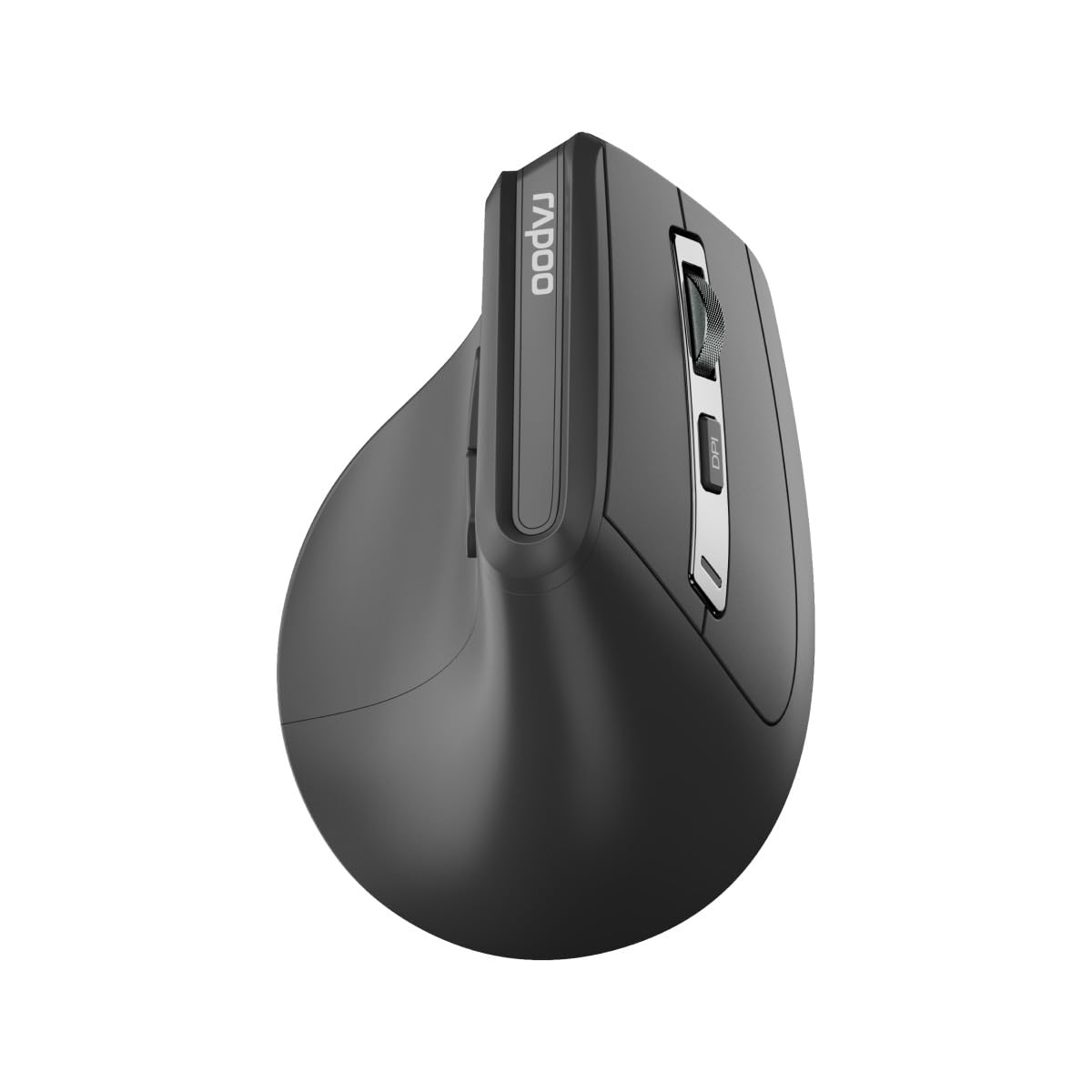
Imagen: Arriba view of the Rapoo EV310M Wireless Vertical Mouse, highlighting the scroll wheel and DPI button.
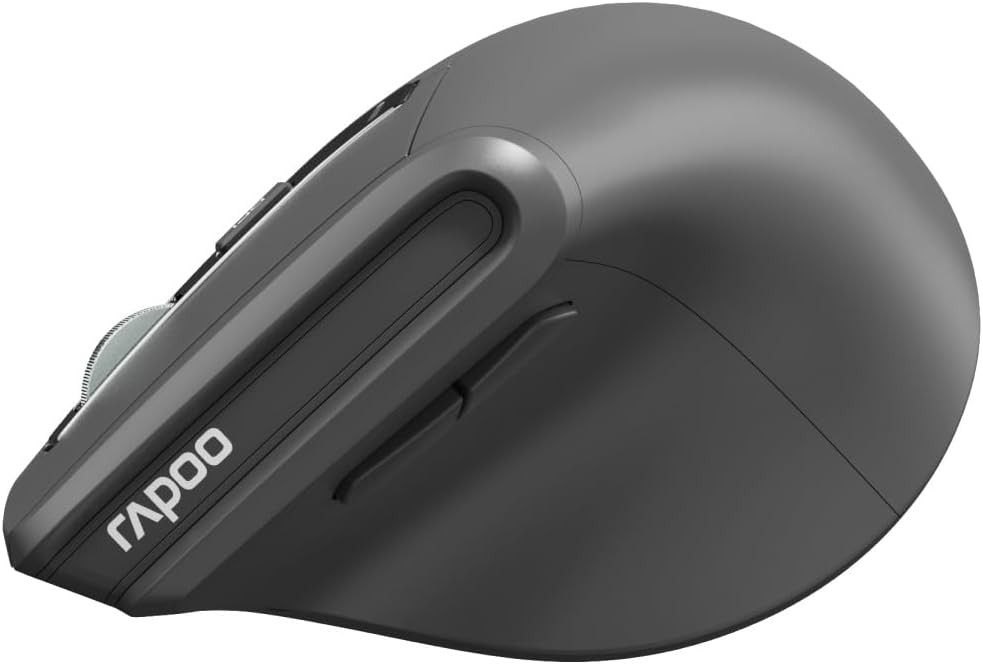
Imagen: Lateral view of the Rapoo EV310M Wireless Vertical Mouse, showing the forward and backward navigation buttons.
Funciones de los botones
- Botón de clic izquierdo: Función de clic izquierdo estándar.
- Botón derecho del ratón: Función estándar de clic derecho.
- Rueda de desplazamiento: Desplácese hacia arriba/abajo y haga clic con el botón central.
- Botón PPP: Ajusta la sensibilidad del cursor (DPI).
- Botón de avance: Navega hacia adelante en web navegadores o file exploradores.
- Botón de retroceso: Navega hacia atrás en web navegadores o file exploradores.
- Mode Switch Button/Indicator: Cambia entre los modos 2.4 GHz y Bluetooth.
Configuración
1. Instalación de la batería
- Ubique el compartimiento de la batería en la parte inferior del mouse.
- Abra la tapa del compartimiento de la batería.
- Inserte una batería AA, asegurándose de la polaridad correcta (+/-).
- Cierre la tapa del compartimento de la batería.
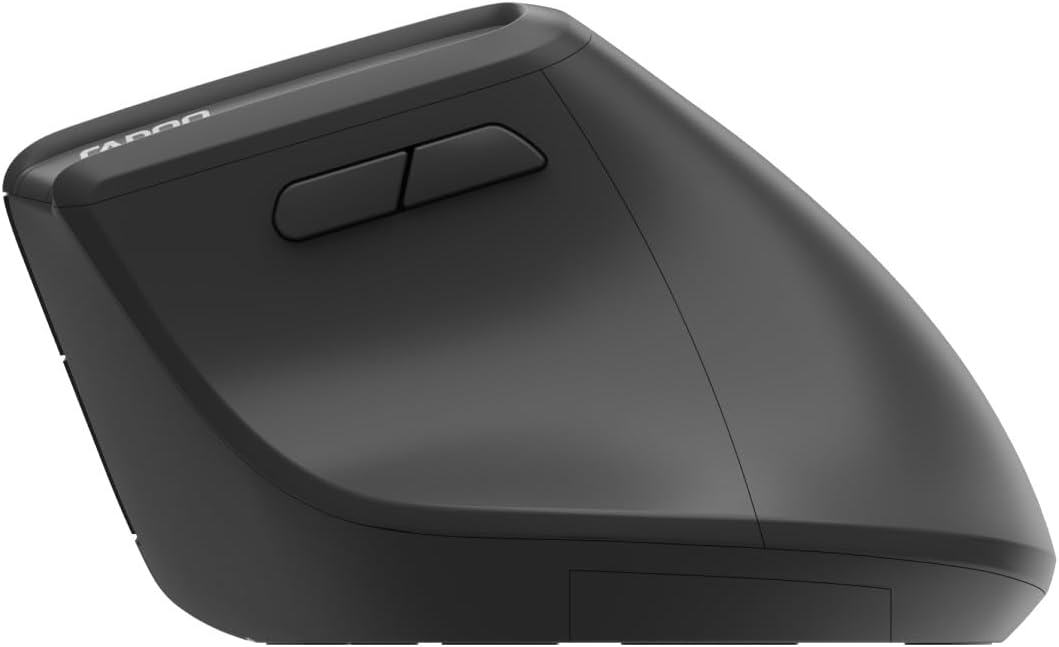
Image: Underside of the mouse, illustrating the battery compartment and the storage slot for the USB receiver.
2. Conexión del ratón
The Rapoo EV310M supports multi-mode wireless connection: 2.4 GHz via USB receiver and Bluetooth 3.0/5.0.
2.1. Conexión inalámbrica de 2.4 GHz
- Retire el receptor USB de su ranura de almacenamiento en la parte inferior del mouse.
- Conecte el receptor USB a un puerto USB disponible en su computadora.
- Turn on the mouse using the power switch (usually on the bottom).
- The mouse should connect automatically. If not, press the mode switch button until the 2.4GHz indicator lights up.
2.2. Conexión Bluetooth
- Encienda el ratón.
- Press the mode switch button to select a Bluetooth channel (e.g., Bluetooth 1 or Bluetooth 2). The indicator light for the selected Bluetooth channel will start blinking slowly.
- Press and hold the mode switch button for 3 seconds until the indicator light blinks rapidly. This indicates the mouse is in pairing mode.
- En su computadora o dispositivo, abra la configuración de Bluetooth y busque nuevos dispositivos.
- Select "RAPOO EV310M" from the list of available devices to pair.
- Una vez emparejado, la luz indicadora dejará de parpadear y permanecerá fija durante unos segundos antes de apagarse.
Instrucciones de funcionamiento
1. Ajuste de DPI
The DPI (Dots Per Inch) button allows you to adjust the cursor speed and sensitivity.
- Presione el Botón DPI located on the top of the mouse to cycle through available DPI settings (e.g., 800, 1200, 1600, 2400 DPI).
- Each press will change the sensitivity, allowing you to find your preferred cursor speed.
2. Cambiar entre dispositivos conectados
The EV310M mouse can be paired with up to three devices (one 2.4GHz and two Bluetooth devices).
- Para cambiar entre dispositivos conectados, simplemente presione el botón de cambio de modo en el ratón.
- The indicator light will briefly show which channel (2.4G, BT1, BT2) is active.
Mantenimiento
Limpieza
Para limpiar el ratón, utilice un paño suave y seco. Para la suciedad difícil, utilice un paño ligeramente seco.ampLave el paño con agua o una solución limpiadora suave. Evite usar productos químicos agresivos o materiales abrasivos.
Reemplazo de batería
When the mouse performance degrades or the indicator light signals low battery, replace the AA battery following the installation steps in the Setup section.
Solución de problemas
El ratón no responde
- Comprobar la batería: Asegúrese de que la batería esté correctamente instalada y tenga suficiente carga. Reemplácela si es necesario.
- Interruptor de alimentación: Verifique que el mouse esté encendido.
- Receptor USB: For 2.4GHz mode, ensure the USB receiver is securely plugged into a working USB port. Try a different port.
- Conexión Bluetooth: For Bluetooth mode, ensure Bluetooth is enabled on your device and the mouse is correctly paired. Re-pair if needed.
- Distancia: Ensure the mouse is within the effective operating range of your computer (typically 10 meters).
El movimiento del cursor es errático
- Superficie: Utilice el ratón sobre una superficie limpia y antirreflectante. Se recomienda usar una alfombrilla.
- Configuración de DPI: Adjust the DPI setting to a lower value if the cursor is too fast or jumpy.
- Limpieza del sensor: Check the optical sensor on the bottom of the mouse for any obstructions or dirt. Clean gently with a soft cloth.
Presupuesto
| Característica | Detalle |
|---|---|
| Marca | RAPOO |
| Número de modelo | EV310M |
| Tecnología de conectividad | Bluetooth (3.0, 5.0), conexión inalámbrica de 2.4 GHz |
| Sensibilidad PPP | Ajustable 800-2400 DPI |
| Número de botones | 6 |
| Orientación de la mano | Diestro |
| Fuente de poder | Funciona con pilas (1 pilas AA) |
| Duración de la batería | Hasta 9 meses |
| Compatibilidad del sistema operativo | PC, Linux, Mac |
| Peso del artículo | 100 gramos |
| Color | Negro |
Garantía y soporte
For warranty information or technical support, please refer to the official RAPOO webSitio web o contacte a su distribuidor local. Conserve el recibo de compra para reclamaciones de garantía.