
1. Introducción
This manual provides essential information for setting up, operating, and maintaining your HP OmniDesk Slim Desktop PC, Model S03-0006. This desktop PC is designed for daily tasks, offering an Intel Core i3-14100 processor, ample memory, and various connectivity options for productivity and entertainment.
2. Contenido del paquete
Verifique que todos los artículos estén presentes en el paquete:
- HP S03-000 OmniDesk Slim Desktop PC
- Fuente de alimentación
- USB Black Wired Keyboard (if included with specific bundle)
- USB Wired Mouse (if included with specific bundle)
Nota: Los accesorios adicionales pueden venderse por separado.
3. Producto terminadoview
The HP OmniDesk Slim Desktop PC features a compact design with essential components for efficient computing.

Figura 3.1: HP OmniDesk Slim Desktop PC showcasing es delgado profile, Intel Core i3-14100 processor, 8GB DDR5 RAM, 256GB SSD, Intel UHD Graphics 710, Wi-Fi 6, Bluetooth 5.4, Windows 11, and dual display support.
3.1. Puertos y conectores
Familiarize yourself with the various ports on your desktop PC for connecting peripherals and displays.
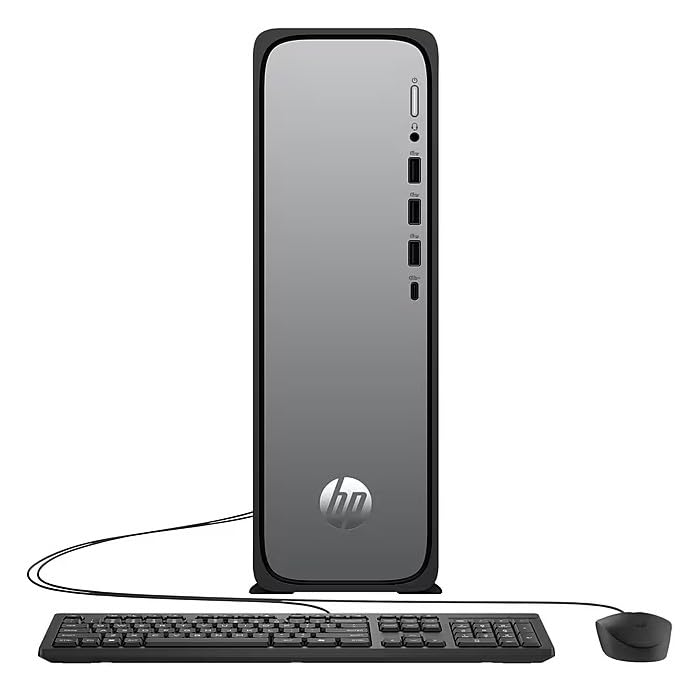
Figura 3.2: Front and rear port layout of the HP OmniDesk Slim Desktop PC. Front ports include a headphone/microphone combo jack, USB Type-A 5Gbps ports, and a USB Type-C 10Gbps port. Additional ports (typically rear) include 4 USB 2.0 Type-A, 1 RJ-45 (Ethernet), 1 HDMI Out, and 1 DisplayPort 1.4.
- Puertos frontales:
- Combinación de auriculares/micrófono
- USB Type-A 5Gbps signaling rate (3 ports)
- USB Type-C 10Gbps signaling rate (1 port)
- Puertos traseros:
- USB 2.0 Type-A (4 ports)
- RJ-45 (Ethernet)
- HDMI 1.4b (1 port)
- DisplayPort 1.4a (1 port)
4. Guía de configuración
Follow these steps to set up your HP OmniDesk Slim Desktop PC:
- Conectar el monitor: Connect your monitor to the PC using an HDMI or DisplayPort cable. Ensure the cable is securely plugged into both the PC and the monitor.
- Conectar periféricos: Plug in your USB keyboard and mouse into the available USB ports on the PC.
- Conecte la electricidad: Connect the power supply cable to the PC's power input, then plug the other end into a wall outlet or surge protector.
- Encendido: Press the power button on the front of the PC. The system will boot up, and you will see the Windows 11 setup screen.
- Configuración inicial de Windows: Siga las instrucciones en pantalla para completar la configuración de Windows 11, incluido el idioma, la región, la conexión de red y la creación de la cuenta de usuario.
5. Instrucciones de funcionamiento
5.1. Funcionamiento básico
- Encendido/apagado: Press the power button to turn on the PC. To shut down, click the Start button, then Power > Shut down.
- Reanudar: Haga clic en el botón Inicio y luego en Energía > Reiniciar.
- Modo de sueño: Haga clic en el botón Inicio y luego en Energía > Suspender.
5.2. Conexión a una red
Your PC supports both wired (Ethernet) and wireless (Wi-Fi) network connections.
- Conexión por cable: Connect an Ethernet cable from your router or modem to the RJ-45 port on the back of the PC.
- Wireless Connection (Wi-Fi 6):
- Haga clic en el icono de Wi-Fi en la barra de tareas.
- Seleccione la red Wi-Fi deseada de la lista.
- Ingrese la clave de seguridad de red (contraseña) si se le solicita y luego haga clic en Conectar.
5.3. Compatibilidad con dos pantallas
To extend your desktop to a second monitor:
- Connect the second monitor to an available video output port (HDMI or DisplayPort) on your PC.
- Haga clic derecho en el escritorio y seleccione Configuración de pantalla.
- Under "Multiple displays," select how you want the displays to behave (e.g., Extend these displays, Duplicate these displays).
6. Mantenimiento
- Actualizaciones de software: Compruebe e instale periódicamente las actualizaciones de Windows para garantizar la estabilidad y la seguridad del sistema. Vaya a Configuración > Actualización de Windows.
- Actualizaciones de controladores: Keep your device drivers updated. HP Support Assistant (MyHP) can help manage these updates.
- Limpieza: Use a soft, dry cloth to clean the exterior of the PC. Avoid liquid cleaners directly on components. Ensure ventilation openings are clear of dust.
- Datos de respaldo: Realizar copias de seguridad periódicamente importantes files a una unidad externa o almacenamiento en la nube para evitar la pérdida de datos.
7. Solución de problemas
| Problema | Posible solución |
|---|---|
| La PC no se enciende. |
|
| No hay visualización en el monitor. |
|
| Sin conexión a Internet. |
|
| Peripherals (keyboard/mouse) not working. |
|
8. Especificaciones
| Nombre del modelo | HP OmniDesk Desktop HP S03-000 PC |
| Número de modelo | OmniDesk Slim S03-0006 |
| Procesador | Intel Core i3-14100 (3.5 GHz, 6 MB Cache) |
| Gráficos | Gráficos Intel UHD 710 (integrados) |
| RAM | 8 GB DDR5 (4800 MT/s), Max 64 GB |
| Almacenamiento | SSD (unidad de estado sólido) de 256 GB |
| Sistema operativo | Inicio de Windows 11 |
| Conectividad | Realtek Wi-Fi 6 (2x2), Bluetooth 5.4, Gigabit Ethernet (RJ-45) |
| Puertos |
|
| Dimensiones (alto x ancho x profundidad) | 11.61 x 3.94 x 11.97 pulgadas |
| Peso | 8.38 libras |
| Certificaciones | ENERGY STAR certified, EPEAT Gold with Climate+ |
9. Garantía y soporte
9.1. Información de garantía
This HP OmniDesk Slim Desktop PC comes with a Garantía limitada de 90 díasConsulte la documentación de garantía incluida con su producto para conocer los términos y condiciones específicos.
9.2. Soporte técnico
Para obtener asistencia técnica, descargas de controladores o más información, visite el soporte oficial de HP. website. You can also utilize the pre-installed MyHP application for device customization, optimization, and access to helpful messages and settings.
Always provide your product model number (S03-0006) and serial number when contacting support.