
GeekShare GC1201A
GeekShare Hall Effect Switch Controller (GC1201A) User Manual
Model: GC1201A
1. Introducción
The GeekShare Hall Effect Switch Controller is a versatile gaming controller designed for multi-platform compatibility, including Nintendo Switch (OLED/NS2/1/Lite), PC (Steam, Windows), and mobile devices (Android, iOS). It features dual-mode connectivity (Bluetooth and 2.4G wireless), a 1000mAh battery, 6-axis gyroscope, dual vibration motors, and customizable RGB lighting for an immersive gaming experience.
Contenido del paquete
- 1 x GeekShare Hall Effect Wireless Controller
- Cable de carga 1 x USB-C
- 1 receptor inalámbrico de 2.4 G
- 1 x Manual de usuario
2. Características principales
- Joysticks de efecto Hall: Provides precise control and prevents stick drift.
- Modos de conectividad dual: Seamlessly switch between Bluetooth 5.0 for mobile and consoles, and 2.4G wireless with the included dongle for PC.
- Compatibilidad multiplataforma: Supports Nintendo Switch (OLED/NS2/1/Lite), PC (Steam, Windows), Android, and iOS devices.
- Comentarios inmersivos: Features a 6-axis gyroscope for motion control and dual vibration motors with 5-level adjustment for realistic haptic feedback.
- Batería de larga duración: Integrated 1000mAh rechargeable battery offers up to 15 hours of continuous gameplay.
- Iluminación RGB personalizable: Enhance your gaming setup with personalized RGB light effects.
- Botones programables: Two back buttons (M1, M2) can be mapped to complex commands for quick execution.
- Función turbo: Auto and manual turbo settings for rapid-fire actions.
Opciones de conectividad
The controller supports three connection methods: Bluetooth, 2.4G wireless (with dongle), and wired USB-C.

Botones programables
The M1 and M2 buttons on the back can be programmed to perform specific actions, allowing for quick execution of complex in-game commands.

Vibración Feedback
Equipped with dual motors, the controller provides adjustable vibration feedback to enhance immersion. There are 5 levels of vibration intensity.

Duración de la batería
The built-in 1000mAh battery provides extended gameplay. A full charge takes approximately 2.5 hours and offers up to 20 hours of continuous use.

Función Turbo
The controller supports both automatic and manual turbo functions, allowing for rapid, repeated input of a button press. This is typically activated by pressing the 'M' button along with a desired action key.

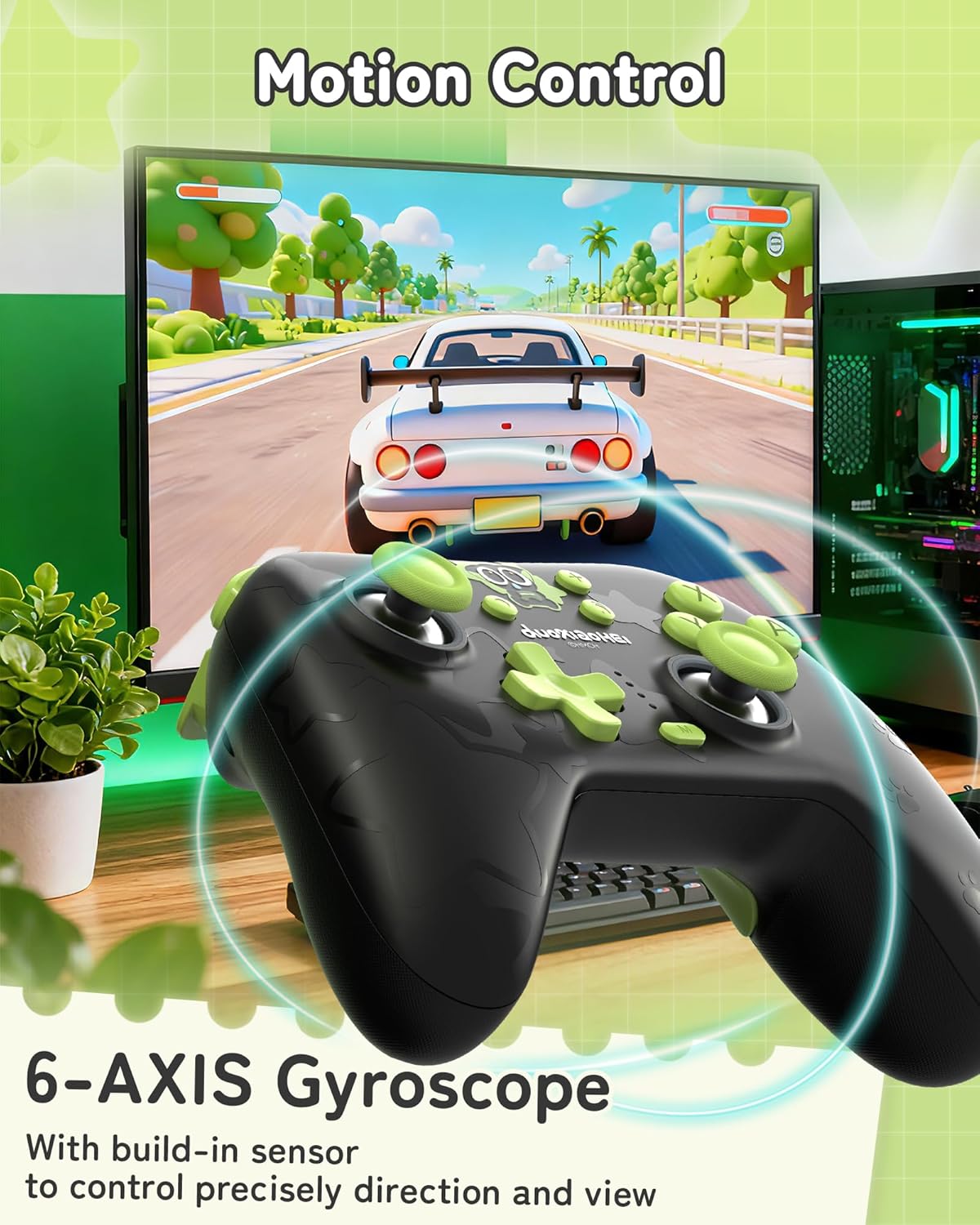
Control de movimiento
A built-in 6-axis gyroscope enables precise motion control, allowing for intuitive direction and view adjustments in compatible games.
3. Configuración y conexión
3.1 Carga del controlador
Before first use, fully charge the controller. Connect the included USB-C cable to the controller's charging port and the other end to a USB power source (e.g., console, PC, or USB wall adapter). The indicator lights will show charging status and turn off when fully charged.
3.2 Connecting to Nintendo Switch (Bluetooth)
- En tu Nintendo Switch, ve al menú HOME.
- Seleccione “Controladores” > “Cambiar agarre/orden”.
- Press and hold the Pairing button on the top of the GeekShare controller until the indicator lights begin to flash rapidly.
- The Switch will detect the controller. Once paired, the indicator light(s) on the controller will remain solid.
- Note: This controller may not support waking up the Switch console from sleep mode. You may need to manually wake the console before connecting.
3.3 Connecting to PC (2.4G Wireless)
- Inserte el receptor inalámbrico 2.4G en un puerto USB disponible en su PC.
- Turn on the GeekShare controller.
- The controller should automatically connect to the receiver. The indicator light(s) on the controller will remain solid once connected.
- If connection fails, press the pairing button on the controller and the button on the 2.4G receiver simultaneously to initiate pairing.
3.4 Conexión a dispositivos móviles (Bluetooth)
- Asegúrese de que Bluetooth esté habilitado en su dispositivo Android o iOS.
- On your device, go to Bluetooth settings and scan for new devices.
- Press and hold the Pairing button on the top of the GeekShare controller until the indicator lights begin to flash rapidly.
- Select "GeekShare Controller" (or similar name) from the list of available devices.
- Una vez emparejado, las luces indicadoras del controlador permanecerán fijas.
3.5 conexiones cableadas
Connect the controller directly to your device (Switch dock, PC) using the USB-C cable. The controller will function as a wired controller and will also charge simultaneously.
4. Instrucciones de funcionamiento
4.1 Controles básicos
The controller features standard button layouts including A/B/X/Y buttons, D-pad, Left/Right joysticks, L/R/ZL/ZR shoulder buttons, and Home/Capture/Plus/Minus buttons. Refer to in-game prompts for specific button functions.
4.2 Programación de los botones M1/M2
The M1 and M2 buttons on the back can be assigned to replicate other button presses or sequences. Consult the full user manual (included in the box) for detailed programming instructions, as the process may vary based on desired complexity.
4.3 Turbo Function Activation
Para activar la función Turbo para un botón específico:
- Press and hold the 'M' button.
- While holding 'M', press the desired action button (e.g., A, B, X, Y, L, R, ZL, ZR).
- Release both buttons. The selected button will now have the Turbo function enabled.
To adjust between manual and auto turbo, or to clear the turbo setting, refer to the detailed instructions in the included user manual.
4.4 Ajuste de la intensidad de la vibración
The controller offers 5 levels of vibration intensity. Specific button combinations (e.g., 'M' button + D-pad Up/Down) are typically used to cycle through these levels. Refer to the included user manual for the exact key combinations.
4.5 Control de iluminación RGB
The RGB lighting can be customized. This usually involves pressing a dedicated button or a combination of buttons to change colors, patterns, or turn the lighting on/off. Consult the included user manual for specific instructions.
5. Mantenimiento y cuidado
- Mantenga el controlador seco y alejado de temperaturas extremas.
- Limpie el controlador con un paño suave y seco. No utilice productos químicos agresivos ni materiales abrasivos.
- Evite dejar caer el controlador o someterlo a impactos fuertes.
- Guarde el controlador en un entorno limpio y sin polvo cuando no esté en uso.
- Charge the controller regularly, even if not used frequently, to maintain battery health.
6. Solución de problemas
6.1 El controlador no se conecta
- Asegúrese de que el controlador esté suficientemente cargado.
- Verify that the correct connection mode (Bluetooth, 2.4G, Wired) is selected or attempted for your device.
- For Bluetooth, ensure your device's Bluetooth is on and the controller is in pairing mode (flashing lights).
- For 2.4G, ensure the receiver is properly inserted into the PC and try re-pairing if necessary.
- Intente reiniciar tanto el controlador como el dispositivo al que intenta conectarse.
- Si se conecta a Switch, asegúrese de estar en el menú "Cambiar agarre/orden".
6.2 Retraso de entrada o desconexiones
- Asegúrese de que no haya fuertes interferencias electromagnéticas cerca.
- Move closer to the connected device (for wireless connections).
- For PC, ensure the 2.4G receiver is in a clear line of sight and not obstructed.
- Pruebe una conexión por cable para descartar interferencias inalámbricas.
6.3 Botones o joysticks que no responden
- Check if the controller is properly connected and powered on.
- Reinicie el controlador y el dispositivo de juego.
- Asegúrese de que no haya residuos alojados alrededor de los botones o joysticks.
- If the issue persists, a factory reset (if available, consult the included manual) might be necessary.
6.4 El controlador no se carga
- Asegúrese de que el cable USB-C esté conectado de forma segura tanto al controlador como a la fuente de alimentación.
- Pruebe con un cable USB-C o una fuente de alimentación diferente.
- Verifique que la fuente de alimentación esté activa y proporcione suficiente energía.
7. Especificaciones
| Número de modelo | GC1201A |
| Conectividad | Bluetooth 5.0, 2.4G Wireless (with receiver), USB-C Wired |
| Compatibilidad | Nintendo Switch (OLED/NS2/1/Lite), PC (Windows), Android, iOS |
| Capacidad de la batería | 1000 mAh |
| Recreo | Up to 15-20 hours (approx.) |
| Tiempo de carga | Aproximadamente 2.5 horas |
| Sensor de movimiento | Giroscopio de eje 6 |
| Vibración | Dual Motors with 5-level adjustment |
| Características especiales | Hall Effect Joysticks, Programmable M1/M2 buttons, Turbo function, RGB Lighting |
8. Garantía y soporte
For warranty information and technical support, please refer to the official GeekShare webSitio web o contacte directamente con el servicio de atención al cliente. Normalmente, encontrará información detallada en el empaque del producto o en el manual de usuario incluido.
GeekShare Official Websitio: Visit GeekShare Store on Amazon
Ask a question about this manual
Ask about setup, troubleshooting, compatibility, parts, safety, or missing instructions. Manuals+ will review the question and use this page’s manual context to help answer it.