
Introducción
Thank you for choosing the Trueque Wireless Keyboard and Mouse Combo. This product is designed to provide a comfortable and efficient computing experience with its ergonomic design, backlit keys, and wireless connectivity. This manual will guide you through the setup, operation, maintenance, and troubleshooting of your new device.
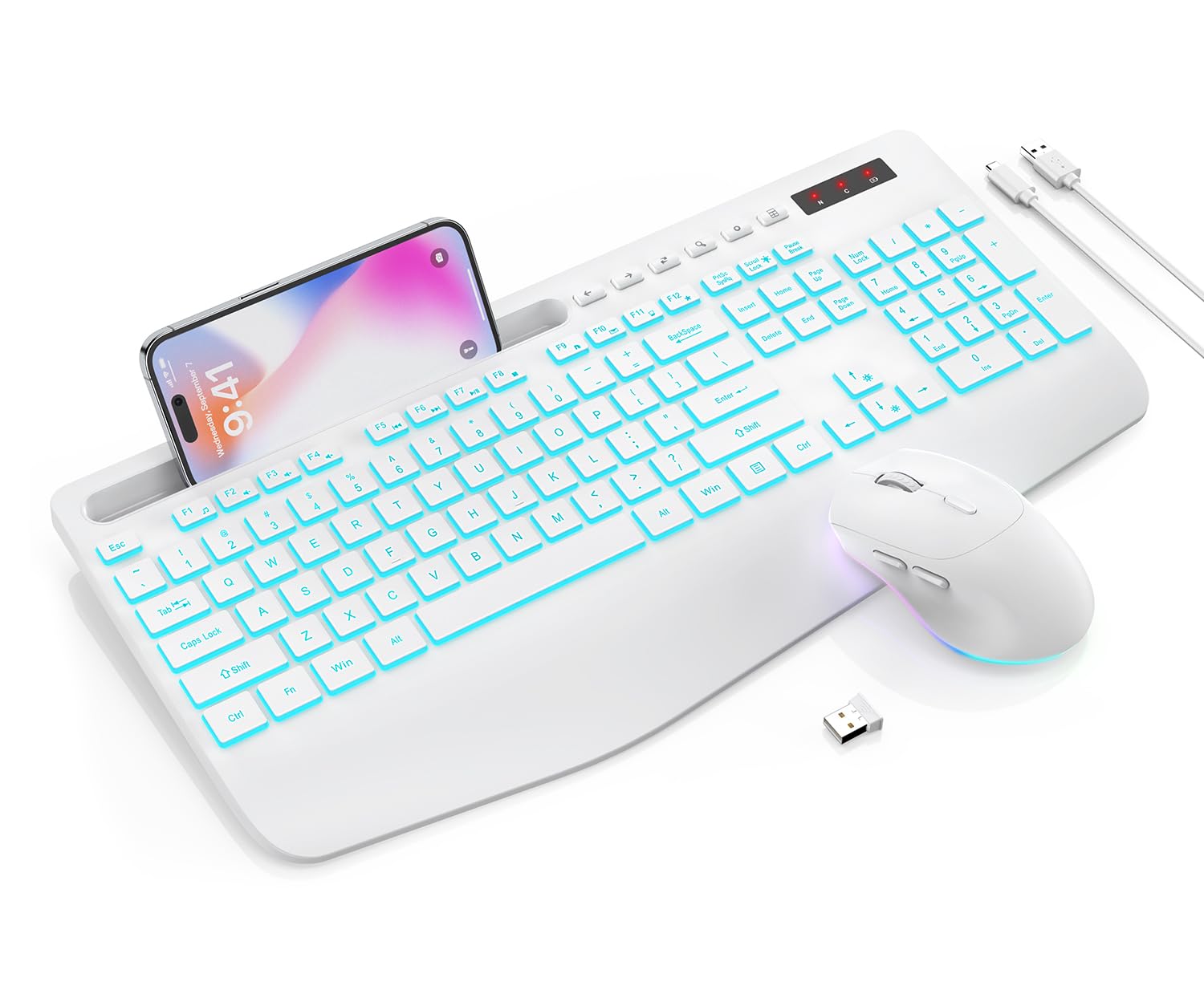
Image: The Trueque Wireless Keyboard and Mouse Combo in Cloud White, showcasing su diseño de tamaño completo y ergonómico.
Contenido del paquete
Por favor revise el paquete para asegurarse de que todos los artículos estén presentes:
- Teclado inalámbrico 1 x
- Ratón inalámbrico 1 x
- 1 x Receptor USB (almacenado dentro del mouse)
- 1 x cable de carga tipo C
- 1 x Manual de usuario

Image: An illustration showing the wireless keyboard, mouse, USB receiver, Type-C charging cable, and user manual included in the box.
Instrucciones de instalación
1. Conexión del receptor USB
- Localice el receptor USB. Normalmente se guarda en un compartimento en la parte inferior del ratón inalámbrico.
- Retire el receptor USB del mouse.
- Conecte el receptor USB a un puerto USB disponible en su computadora (PC, portátil, etc.).

Image: The underside of the keyboard and mouse, highlighting the compartment where the USB receiver is stored in the mouse.
2. Encendido
- Teclado: Locate the power switch on the keyboard, usually on the top right or back edge. Slide it to the 'ON' position.
- Ratón: Locate the power switch on the underside of the mouse. Slide it to the 'ON' position.
The keyboard and mouse should automatically connect to your device via the USB receiver. No additional drivers are typically required for Windows, Mac OS, Android, Linux, or Chrome OS.
3. Carga inicial
For optimal performance, it is recommended to fully charge both the keyboard and mouse before first use. Use the provided Type-C charging cable.
- Connect the Type-C end of the cable to the charging port on the keyboard/mouse.
- Conecte el extremo USB-A del cable a una fuente de alimentación USB (por ejemplo, puerto USB de computadora, adaptador de pared USB).
- A blue indicator light will appear during charging. The light will turn off when fully charged.

Image: The keyboard and mouse connected to a power source using the Type-C charging cable, indicating the charging process.
Instrucciones de funcionamiento
1. Control de la retroiluminación del teclado
The keyboard features 7 colored backlights and 3 adjustable brightness levels.
- Turn ON/OFF Backlight & Switch Colors: Prensa Fn + Bloqueo de desplazamiento to cycle through the 7 available backlight colors or turn the backlight off.
- Ajustar el brillo: Prensa Fn + ↑ (Flecha hacia arriba) para aumentar el brillo y Fn + ↓ (Flecha abajo) para disminuir el brillo. Hay 3 niveles de brillo.

Image: Visual representation of the keyboard displaying various backlight colors and the key combinations for adjusting brightness and changing colors.
2. Mouse Lighting Effects
The mouse features 15 switchable lighting effects to enhance your setup.
- The mouse lighting effects will cycle automatically.
- To turn off the mouse lighting, use the dedicated switch on the underside of the mouse, if available, or allow it to enter smart sleep mode.

Imagen: El ratón inalámbrico mostradoasing its RGB lighting effects and indicating options for 3 levels of tracking speed and quiet clicks.
3. Function Keys and Shortcut Keys
The keyboard includes 12 combined function keys (Fn + F1-F12) and 6 independent shortcut keys for increased efficiency.
- Fn+F1: Reproductor multimedia
- Fn+F2: Bajar volumen
- Fn+F3: Aumentar el volumen
- Fn+F4: Silenciar
- Fn+F5: Pista anterior
- Fn+F6: Pista siguiente
- Fn+F7: Reproducir/Pausa
- Fn+F8: Detener
- Fn+F9: Página principal
- Fn+F10: Correo electrónico
- Fn+F11: Mi computadora
- Fn+F12: Favoritos
Additional shortcut keys are located above the number pad for functions like Previous Page, Next Page, Refresh, Search, Stop Loading, and Calculator.

Image: The keyboard layout with callouts for the Fn key combinations and dedicated shortcut keys for various functions.
4. Soporte del dispositivo
The keyboard features an integrated device holder designed to securely hold your smartphone or tablet, allowing for convenient multi-tasking or media viewEn.
- Simply place your phone or tablet into the slot above the function keys.
- The holder supports devices in both horizontal and vertical orientations.

Image: The keyboard with a smartphone placed in its integrated device holder, demonstrating its utility.
5. Mouse Tracking Speed
The mouse offers 3 adjustable tracking speed (DPI) levels to suit your preference and task requirements.
- Press the DPI button (usually located behind the scroll wheel) to cycle through the tracking speed settings.
Mantenimiento
1. Limpieza
Para limpiar el teclado y el ratón:
- Asegúrese de que ambos dispositivos estén apagados.
- Utilice un paño suave y seco.amp cloth to wipe the surfaces. Avoid harsh chemicals or abrasive materials.
- The keyboard features a spill-resistant design, but it is not fully waterproof. Avoid submerging it in liquids.

Image: The keyboard surface with water droplets, illustrating its waterproof and dustproof design for easy cleaning.
2. Battery Care and Smart Sleep Mode
The keyboard and mouse are equipped with rechargeable batteries and a smart energy-saving feature.
- Recarga: Recharge the devices when the battery indicator (red light flashes) signals low power. Use the provided Type-C cable. A blue light indicates charging, and it turns off when fully charged.
- Modo de suspensión inteligente: The backlight automatically turns off after 90 seconds of inactivity. The devices will enter a smart sleep mode after a period of non-use to conserve power. To wake them up, simply press any key on the keyboard or click a mouse button.
- For extended storage, ensure the devices are fully charged and powered off.
Image: The keyboard and mouse illustrating the smart sleep mode feature, with indicators for 365 days standby time and 15 minutes auto sleep.
Solución de problemas
1. Devices Not Responding or Lagging
- Comprobar la batería: Ensure both the keyboard and mouse are sufficiently charged. Recharge if necessary.
- Receptor USB: Asegúrese de que el receptor USB esté conectado correctamente a un puerto USB que funcione en su computadora. Pruebe con otro puerto USB.
- Interruptores de potencia: Confirm that both the keyboard and mouse power switches are in the 'ON' position.
- Distancia: Ensure the devices are within the 33ft (10m) wireless range of the USB receiver and there are no major obstructions.
- Interferencia: Move away from other wireless devices (e.g., Wi-Fi routers, other 2.4GHz devices) that might cause interference.
- Reparar: In rare cases, you might need to re-pair the devices. Turn off both devices, unplug the receiver, plug it back in, then turn on the mouse and keyboard.
2. La retroiluminación del teclado no funciona
- Comprobar la batería: The backlight consumes power. Ensure the keyboard is charged.
- Encendido/apagado de la luz de fondo: Prensa Fn + Bloqueo de desplazamiento to ensure the backlight is not turned off. Cycle through the colors.
- Brillo: Ajuste el brillo usando Fn + ↑ (Flecha hacia arriba).
3. El cursor del ratón salta o es impreciso
- Superficie: Ensure you are using the mouse on a clean, non-reflective, and even surface.
- Configuración de DPI: Adjust the tracking speed (DPI) using the DPI button on the mouse.
- Limpieza del sensor: Check the optical sensor on the underside of the mouse for any dust or debris and clean it gently.
Presupuesto
| Característica | Detalle |
|---|---|
| Marca | Trueque |
| Modelo | B0G5NF61MX |
| Color | Nube blanca |
| Tecnología de conectividad | 2.4GHz Radio Frequency (Wireless) |
| alcance inalámbrico | Hasta 33 pies (10 m) |
| Características especiales | Backlit (7 colors, 3 brightness levels), Ergonomic, Phone Holder, Quiet Keys, Rechargeable, Wrist Rest |
| Dispositivos compatibles | Windows XP/Vista/7/8/10/X, MacBook Pro, MacBook Air, iMac, Tablet, Television, Smartphone |
| Soporte de color de retroiluminación de teclado | RGB |
| Fuente de poder | AC & Battery Powered (Rechargeable) |
| Tipo de batería | 1 batería no estándar (incluida) |
| Disposición del teclado | QWERTY |
| Descripción del teclado | Membrana |
| Peso del artículo | 1.03 kilogramos |
Información de garantía
Trueque offers a 24-month warranty for each backlit wireless ergonomic keyboard and mouse combo. Please retain your proof of purchase for warranty claims.
Atención al cliente
If you encounter any issues or have questions not covered in this manual, please refer to the contact information provided with your product packaging or visit the official Trueque webSitio de soporte.