
1. Introducción
Thank you for choosing the ELECROW 5-inch IPS Touch Screen Monitor. This compact display offers a high-definition visual experience with responsive touch functionality, designed for a wide range of applications including single-board computers and mini PCs. This manual provides essential information for the proper installation, operation, and care of your device.

The ELECROW 5-inch IPS Touch Screen Monitor, a versatile display solution.
Las características principales incluyen:
- HD Display Experience: 5-inch IPS capacitive touchscreen with a 1024 x 600 resolution, 178° viewing angle, and support for up to 1080P signal input.
- Tacto responsivo: Supports 5-point multi-touch on Windows and single-touch on Raspberry Pi/Jetson Nano.
- Fácil de conectar y usar: No additional drivers required for most compatible systems.
- Funciones Profesionales: Features a headphone jack for audio output and a built-in OSD menu for display adjustments.
2. ¿Qué hay en la caja?
Verifique que todos los artículos enumerados a continuación estén incluidos en su paquete:
- 1x 5-inch Touch Screen Monitor
- 1x HD Cable (1m)
- 1x USB-A to USB-C Cable (1m)
- 1x Micro-HD Adapter (for Raspberry Pi 4B & 5)
- 4x Hexagonal Copper Standoff Kit (M2.5)
- 2x Pro Stand
- 1x destornillador
- 1x Manual de usuario (Guía de inicio rápido)
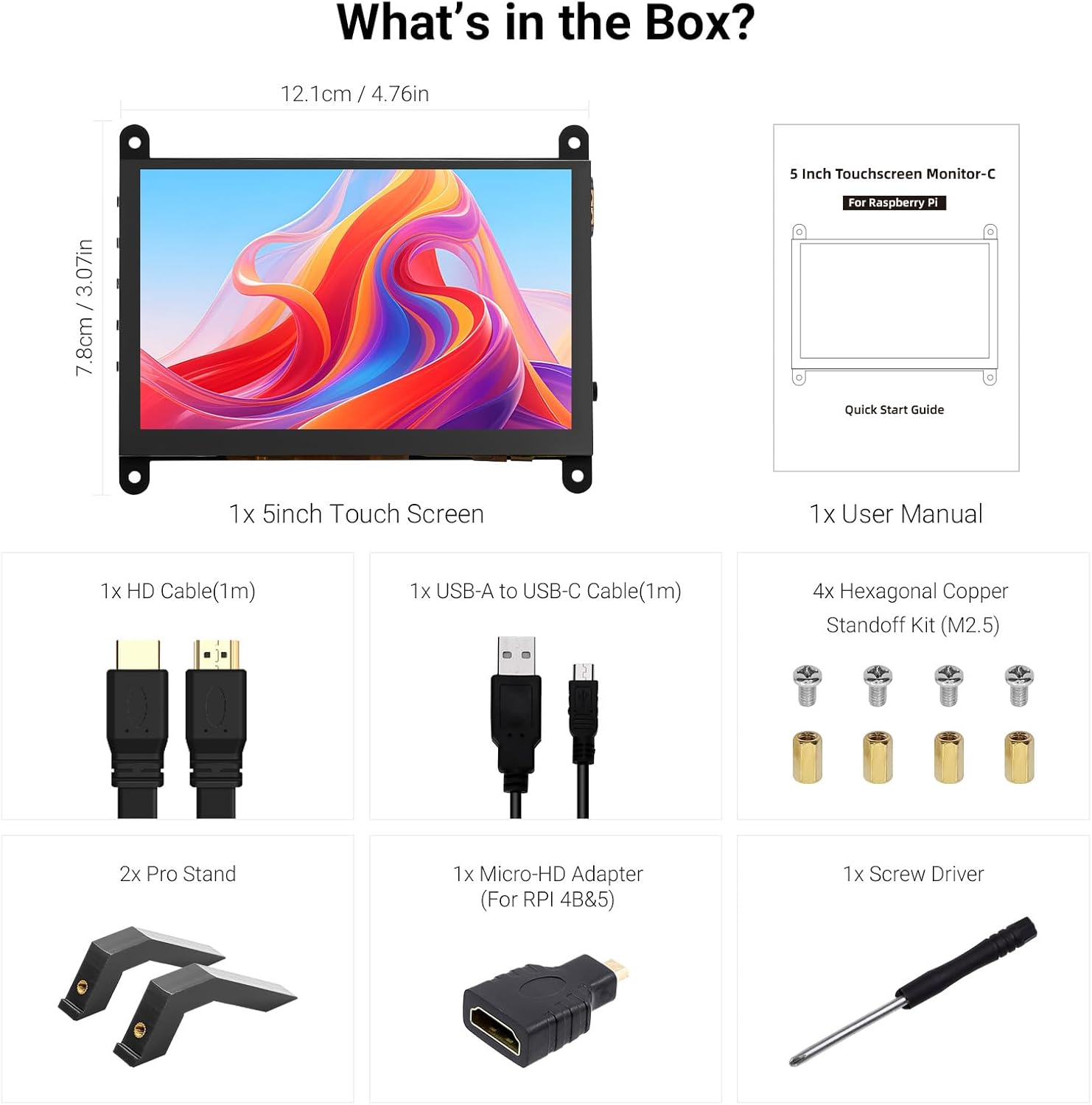
Todos los componentes incluidos en el paquete del producto.
3. Producto terminadoview
Familiarize yourself with the ports and buttons on your ELECROW 5-inch Touch Screen Monitor:

Detallado view de los puertos y botones de control del monitor.
- HD Input Port: Para entrada de señal de vídeo.
- Puerto USB-C: For power supply and touch signal transmission.
- Toma de auriculares de 3.5 mm: Para salida de audio.
- Botón de menú: Accede al menú de visualización en pantalla (OSD).
- Left/Up Button: Navigates left or up in the OSD menu.
- Right/Down Button: Navigates right or down in the OSD menu.
- Botón de retorno: Exits a menu or returns to the previous option.
- Botón de encendido: Enciende o apaga la pantalla.
- 20P-FPC-0.5mm Display Port: For flexible cable expansion in embedded systems.
4. Instrucciones de configuración
Follow these steps to connect your ELECROW 5-inch Touch Screen Monitor to a compatible device:
4.1 Conexión a Raspberry Pi
- Conectar el cable HD: Use the provided HD cable to connect the monitor's HD Input Port to the HDMI port on your Raspberry Pi. If using Raspberry Pi 4B or 5, use the included Micro-HD adapter.
- Conecte el cable USB: Connect the USB-C port on the monitor to a USB-A port on your Raspberry Pi using the provided USB-A to USB-C cable. This supplies power to the monitor and enables touch functionality.
- Encendido: Power up your Raspberry Pi. The display should automatically detect the signal and power on.
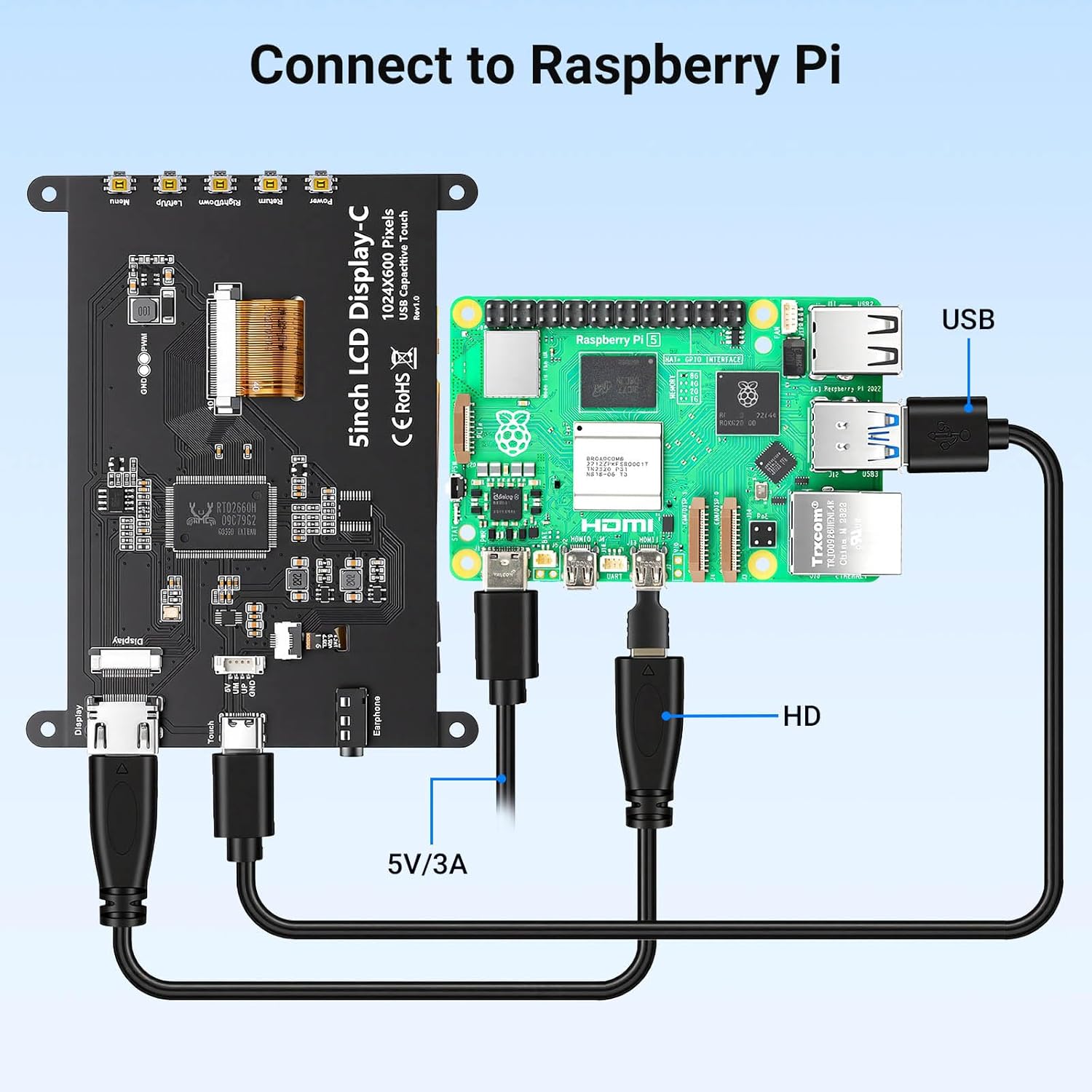
Connection diagram for Raspberry Pi.
4.2 Connecting to Windows PC/Laptop
- Conectar el cable HD: Use the provided HD cable to connect the monitor's HD Input Port to the HDMI port on your PC/laptop.
- Conecte el cable USB: Connect the USB-C port on the monitor to a USB-A port on your PC/laptop using the provided USB-A to USB-C cable. This provides power and enables touch functionality.
- Encendido: Power on your PC/laptop. The display should be recognized automatically. No additional drivers are typically required for Windows 7/8/10/11.
5. Instrucciones de funcionamiento
5.1 Funcionamiento básico
- Encendido/apagado: Press the Power Button (8) to turn the display on or off.
- Funcionalidad táctil: The monitor features a capacitive touchscreen. On Windows systems, it supports 5-point multi-touch. On Raspberry Pi (Raspbian, Ubuntu, Kali, Retropie) and Jetson Nano, it supports single-touch operation.

Responsive touch experience for various devices.
5.2 Navegación por el menú OSD
The On-Screen Display (OSD) menu allows you to adjust various display settings:
- Presione el Menu Button (4) para abrir el menú OSD.
- Utilice el Left/Up Button (5) y Right/Down Button (6) para navegar por las opciones del menú.
- Presione el Menu Button (4) de nuevo para seleccionar una opción o confirmar una configuración.
- Presione el Botón de retorno (7) to exit the current menu or return to the previous level.
Common adjustable settings include Brightness, Contrast, and other display parameters.
5.3 salida de audio
Connect headphones or external speakers to the 3.5mm Headphone Jack (3) for audio output from the connected device.
6. Compatibilidad
The ELECROW 5-inch Touch Screen Monitor offers broad compatibility with various operating systems and hardware platforms:
- Sistemas operativos: Raspbian, Ubuntu, Kali, Retropie, Windows 7/8/10/11, Windows 10 IoT.
- Dispositivos compatibles: Raspberry Pi 5, Raspberry Pi 4, Raspberry Pi 3 B+, BB Black, Banana Pi, Jetson Nano, PS4, Xbox.

Broad compatibility with popular operating systems and devices.
7. Especificaciones
| Característica | Detalle |
|---|---|
| Marca | ELECTROVICULTURA |
| Número de modelo | DLH04950B |
| Tamaño de pantalla | 5 pulgadas |
| Resolución | 1024 x 600 píxeles |
| Tipo de pantalla | IPS |
| Viewángulo de ing | 178 grados |
| Brillo | 410 cd/m² |
| Frecuencia de actualización | 60 Hz |
| Tiempo de respuesta | 2 milisegundos |
| Conectividad | HDMI, USB tipo C |
| Volumentage | 5 voltios |
| Dimensiones (An x Al) | 12.1 cm x 7.8 cm (4.76 pulgadas x 3.07 pulgadas) |
| Características adicionales | Portable, Touchscreen, Headphone Jack, OSD Menu |

Visual representation of key display specifications.
8. Mantenimiento
Proper care and maintenance will ensure the longevity and optimal performance of your monitor:
- Limpieza de la pantalla: Utilice un paño suave y sin pelusa ligeramente seco.ampLimpie con agua o una solución limpiadora de pantallas. Evite productos químicos agresivos, materiales abrasivos o humedad excesiva.
- Limpieza general: Wipe the exterior of the monitor with a dry, soft cloth.
- Almacenamiento: Cuando no utilice el monitor durante períodos prolongados, guárdelo en un lugar fresco y seco, alejado de la luz solar directa y de temperaturas extremas.
- Manejo: Avoid dropping the monitor or subjecting it to strong impacts. Do not apply excessive pressure to the screen.
- Ventilación: Ensure the monitor has adequate ventilation to prevent overheating. Do not block any vents.
9. Solución de problemas
If you encounter issues with your ELECROW 5-inch Touch Screen Monitor, refer to the following common problems and solutions:
9.1 Sin pantalla/pantalla negra
- Comprobar conexiones: Ensure the HD cable is securely connected to both the monitor and the source device.
- Fuente de alimentación: Verify that the USB-C cable is properly connected and providing sufficient power (5V). Try a different USB port or power adapter if available.
- Dispositivo de origen: Confirm that your source device (e.g., Raspberry Pi, PC) is powered on and outputting a video signal.
- Configuración de resolución: Ensure the output resolution of your source device is compatible with the monitor (1024x600 or a resolution that can be scaled).
9.2 Touch Function Not Working
- Conexión USB: The USB-C cable is essential for touch functionality. Ensure it is connected to both the monitor and the source device.
- Soporte del sistema operativo: Verify that your operating system supports touch input and that necessary drivers (if any, though usually plug-and-play) are installed. For Raspberry Pi, ensure the OS is configured for touch.
- Recalibración: Some operating systems may require touch screen calibration. Refer to your OS documentation for instructions.
9.3 Problemas de calidad de la imagen (parpadeo, colores distorsionados)
- Integridad del cable: Try a different HD cable to rule out a faulty cable.
- Señal de origen: Test the monitor with a different source device to determine if the issue is with the monitor or the source.
- Configuración de OSD: Adjust brightness, contrast, and other color settings via the OSD menu.
10. Garantía y soporte
10.1 Información de garantía
This ELECROW 5-inch Touch Screen Monitor comes with a 1 año de garantía del fabricante. This warranty covers defects in materials and workmanship under normal use. It does not cover damage caused by misuse, accident, modification, or unauthorized repair.
10.2 Soporte técnico
For technical assistance, troubleshooting beyond this manual, or warranty claims, please contact ELECROW customer support through their official website or the platform where you purchased the product. Please have your model number (DLH04950B) and purchase details ready when contacting support.