
1. Introducción
The Strong 4G LTE N300 WiFi Router provides high-speed internet access using a 4G SIM card, offering reliable Cat4 LTE speeds up to 150 Mbps and stable N300 Mbps Wi-Fi coverage. This device is designed for easy setup and use, supporting up to 32 devices simultaneously, making it suitable for both home and small office environments where wired broadband may not be available.
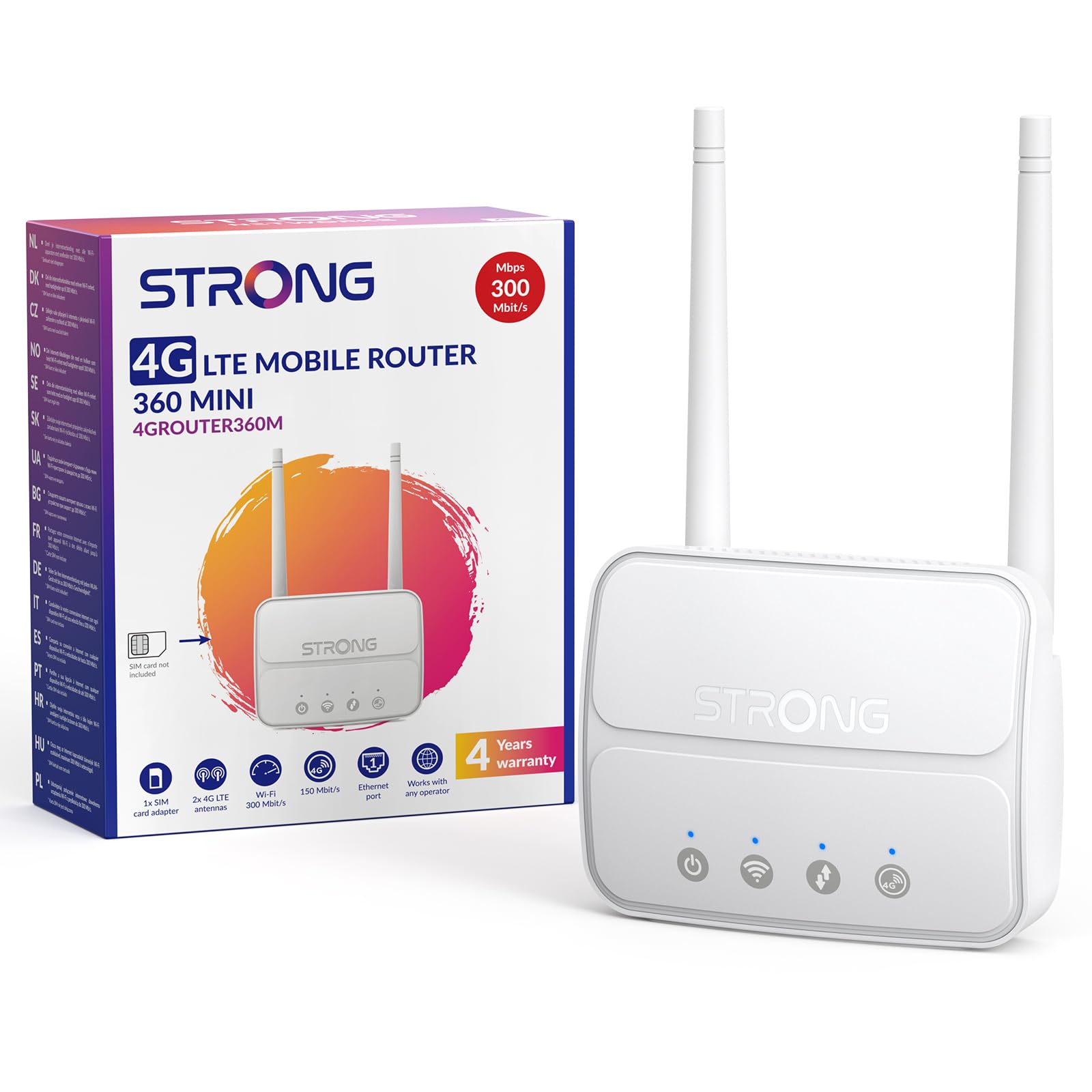
Image 1: The Strong 4G LTE N300 WiFi Router, a compact device with two external antennas for enhanced signal reception.
2. ¿Qué hay en la caja?
Revise cuidadosamente el contenido del paquete. Si falta algún artículo o está dañado, contacte con atención al cliente.
- Strong 4G LTE N300 WiFi Router
- External Antennas (2 units)
- Cable Ethernet RJ45
- Fuente de alimentación externa
- Nano to Micro SIM Card Adapter
- Guía de instalación rápida
- Tarjeta de seguridad y garantía
3. Guía de configuración
Follow these steps for a quick and easy setup of your Strong 4G LTE N300 WiFi Router.
3.1. Prepare Your SIM Card
Before inserting your SIM card, ensure that any PIN protection is disabled. You can do this by inserting the SIM card into a smartphone and disabling the PIN request through the phone's settings.
3.2. Insert the SIM Card
- Localice la ranura de la tarjeta SIM en el enrutador.
- If you have a Nano SIM, use the provided Nano to Micro SIM adapter to fit it into the standard SIM slot.
- Gently insert the prepared SIM card into the slot until it clicks into place.
3.3. Attach External Antennas
Screw the two external 4G antennas onto the designated connectors at the back of the router. Adjust their orientation for optimal signal reception.
3.4. Encienda el enrutador
Connect the external power supply to the router's DC-in port and then plug it into a power outlet. The router will automatically power on and begin the startup sequence.
3.5. Connect to the Network (Plug & Play)
The router is designed for Plug & Play operation. Once powered on and with a valid SIM card, it will automatically connect to the 4G LTE network. You can then connect your devices via Wi-Fi or Ethernet.

Image 2: Visual guide for SIM card insertion and powering on the router for instant connection. The image also shows the SIM card slot supporting standard, micro, and nano SIMs with an adapter.
3.6. Acceder a la Web Interfaz
For advanced settings and network management, access the router's web interfaz escribiendo 192.168.188.1 En tu web browser's address bar. Refer to the Quick Installation Guide for default login credentials.
4. Instrucciones de funcionamiento
This section details how to use your Strong 4G LTE N300 WiFi Router for optimal performance.
4.1. Conexión de dispositivos
The router supports connections for up to 32 devices simultaneously.
- Conexión Wi-Fi: Locate the Wi-Fi network name (SSID) and password printed on the label at the bottom of the router. Select this network on your device and enter the password to connect.
- Conexión Ethernet: Use an RJ45 Ethernet cable to connect devices such as PCs, game consoles, or Smart TVs to the router's 100 Mbps LAN port for a stable wired connection.
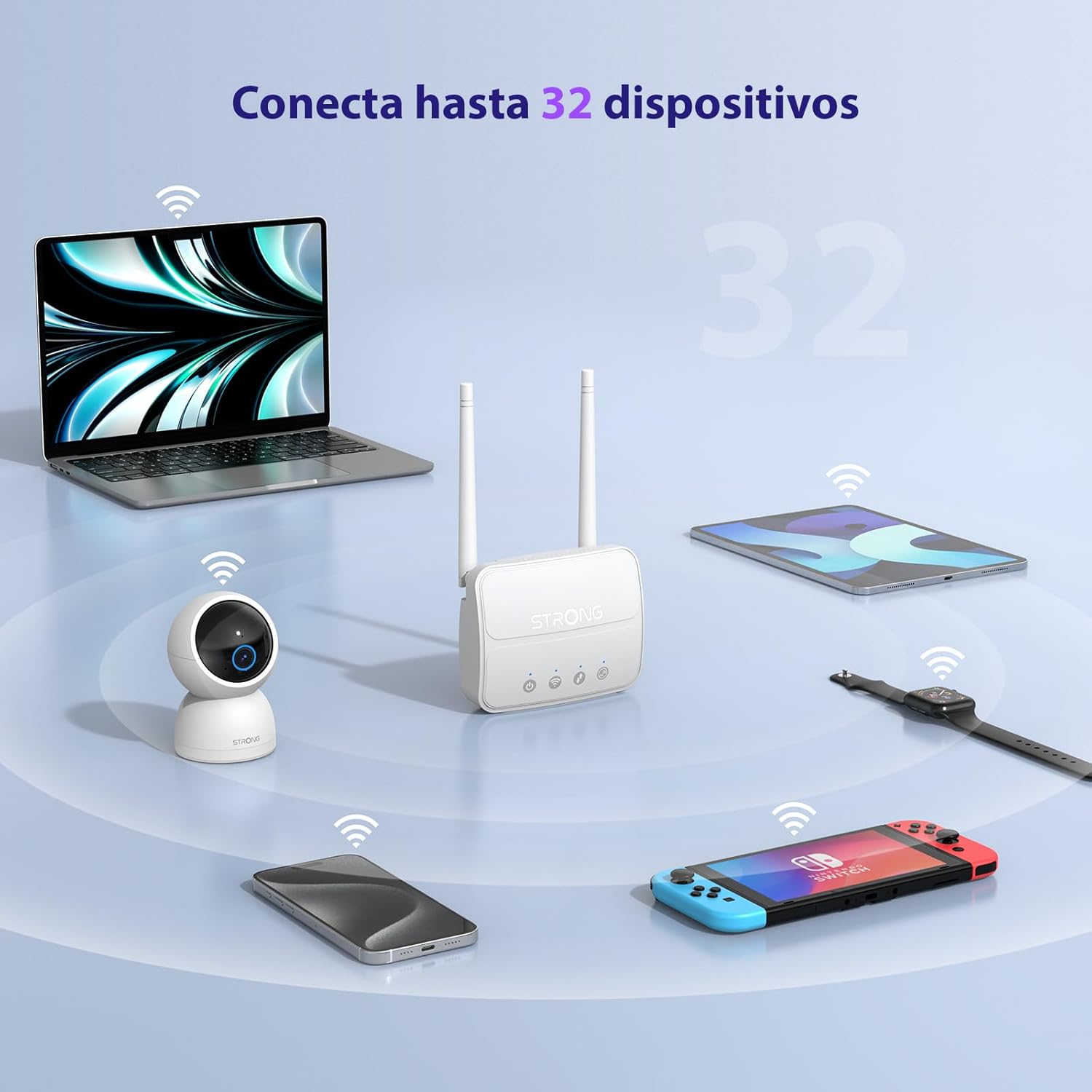
Image 3: The router connecting various devices including laptops, tablets, smartphones, and gaming consoles, demonstrating its capacity for up to 32 simultaneous connections.
4.2. Network Management and Security
The router offers robust security features to protect your network:
- Cifrado WPA / WPA2: Garantiza una comunicación inalámbrica segura.
- PIN Control: Manage SIM card PIN settings.
- Filtrado MAC: Controle qué dispositivos pueden conectarse a su red en función de sus direcciones MAC.
- Advanced Firewall Settings: Customize firewall rules for enhanced protection.
All these settings can be managed through the easy-to-use web interfaz (192.168.188.1).

Image 4: A user managing network settings on a laptop, illustrating the router's WPA/WPA2 encryption and PIN control features for secure network management.
5. Mantenimiento
Un mantenimiento adecuado garantiza la longevidad y el rendimiento óptimo de su enrutador.
- Limpieza: Utilice un paño suave y seco para limpiar el exterior del router. No utilice limpiadores líquidos ni aerosoles.
- Colocación: Coloque el enrutador en un área bien ventilada, lejos de la luz solar directa, fuentes de calor y campos electromagnéticos fuertes.
- Actualizaciones de firmware: The router features a USB port specifically for firmware updates. Regularly check the Strong official website for the latest firmware versions to ensure improved performance and security. Follow the instructions provided with the firmware update package carefully.
6. Solución de problemas
Si tiene problemas con su enrutador, consulte los siguientes pasos de solución de problemas comunes:
- Sin conexión a Internet:
- Asegúrese de que la tarjeta SIM esté insertada correctamente y tenga un plan de datos activo.
- Verify that the SIM card's PIN protection is disabled.
- Check the signal strength indicators on the router. If the signal is weak, try adjusting the external antennas or relocating the router.
- Reinicie el enrutador desenchufando y volviendo a enchufar el adaptador de corriente.
- Wi-Fi Not Visible or Connecting:
- Ensure the Wi-Fi function is enabled (check the router's LED indicators).
- Verifique que esté ingresando la contraseña de Wi-Fi correcta (el SSID y la contraseña están en la etiqueta del enrutador).
- Try connecting a device via Ethernet to confirm the router has internet access.
- Velocidades lentas:
- Check the 4G signal strength. Weak signal can lead to slower speeds.
- Asegúrese de que ninguna otra aplicación o dispositivo consuma un ancho de banda excesivo.
- Consider the number of connected devices; the router supports up to 32, but performance may vary with heavy usage.
- No se puede acceder Web Interfaz:
- Asegúrese de que su dispositivo esté conectado a la red del enrutador (Wi-Fi o Ethernet).
- Confirm you are typing the correct IP address: 192.168.188.1.
- Prueba una opción diferente web navegador.
If these steps do not resolve the issue, please contact Strong customer support.
7. Especificaciones
Detailed technical specifications for the Strong 4G LTE N300 WiFi Router (Model 4GROUTER360M).
| Característica | Especificación |
|---|---|
| Marca | Fuerte |
| Nombre del modelo | 4 GROUTER360M |
| Tecnología de conectividad | 4G, Ethernet, LTE, Wi-Fi |
| Estándar inalámbrico | 802.11n (N300 Mbps) |
| Velocidad 4G LTE | Up to 150 Mbps (Cat4) |
| Puertos Ethernet | 1 x 100 Mbps LAN Port |
| Ranura para tarjeta SIM | Standard (2FF), includes Nano to Micro adapter |
| Tipo de antena | 2 x External, Detachable 4G Antennas; 2 x Internal Wi-Fi Antennas |
| Máximo de dispositivos conectados | Hasta 32 |
| Características de seguridad | WPA/WPA2 Encryption, PIN Control, MAC Filtering, Firewall |
| Sistema operativo | StrongOS |
| Dimensiones (paquete) | 18.1 x 15.6 x 7.3 cm |
| Peso del producto | 204 gramos |
| Fuente de alimentación | Adaptador de corriente externo |
| Características especiales | Secure Network Management, Plug & Play, Connect up to 32 devices, USB port for firmware updates |
8. Garantía y soporte
Strong is committed to providing reliable products and excellent customer service.
8.1. Información de garantía
Your Strong 4G LTE N300 WiFi Router comes with a 4-year protection plan, ensuring long-term peace of mind. Please refer to the included Safety and Warranty Card for detailed terms and conditions.
8.2. Atención al cliente
For any technical assistance, troubleshooting, or warranty inquiries, please contact our expert support team:
- Correo electrónico: support_at@strong-eu.com
Our support team offers solid service and extended coverage to assist you.

Image 5: Visual representation of Strong's reliable support, highlighting the 4-year protection and contact email for assistance.


