
Introducción
This manual provides detailed instructions for the setup, operation, and maintenance of your AceGamer Wireless Pocket Controller. Designed for multi-platform compatibility, this controller offers a compact and portable gaming experience across various devices.
¿Qué hay en la caja?
- 1x AceGamer Wireless Pocket Controller
- 1x cable de carga
- 1x Manual de usuario
Características del producto
Pocket-Sized Design with Lift-and-Lock Joysticks
The controller features an ultra-compact design (4.7" x 2.6" x 1.2") and is lightweight (3.3 oz), making it highly portable. The innovative lift-and-lock joystick mechanism allows you to retract the joysticks for protection during travel and extend them for immediate use.
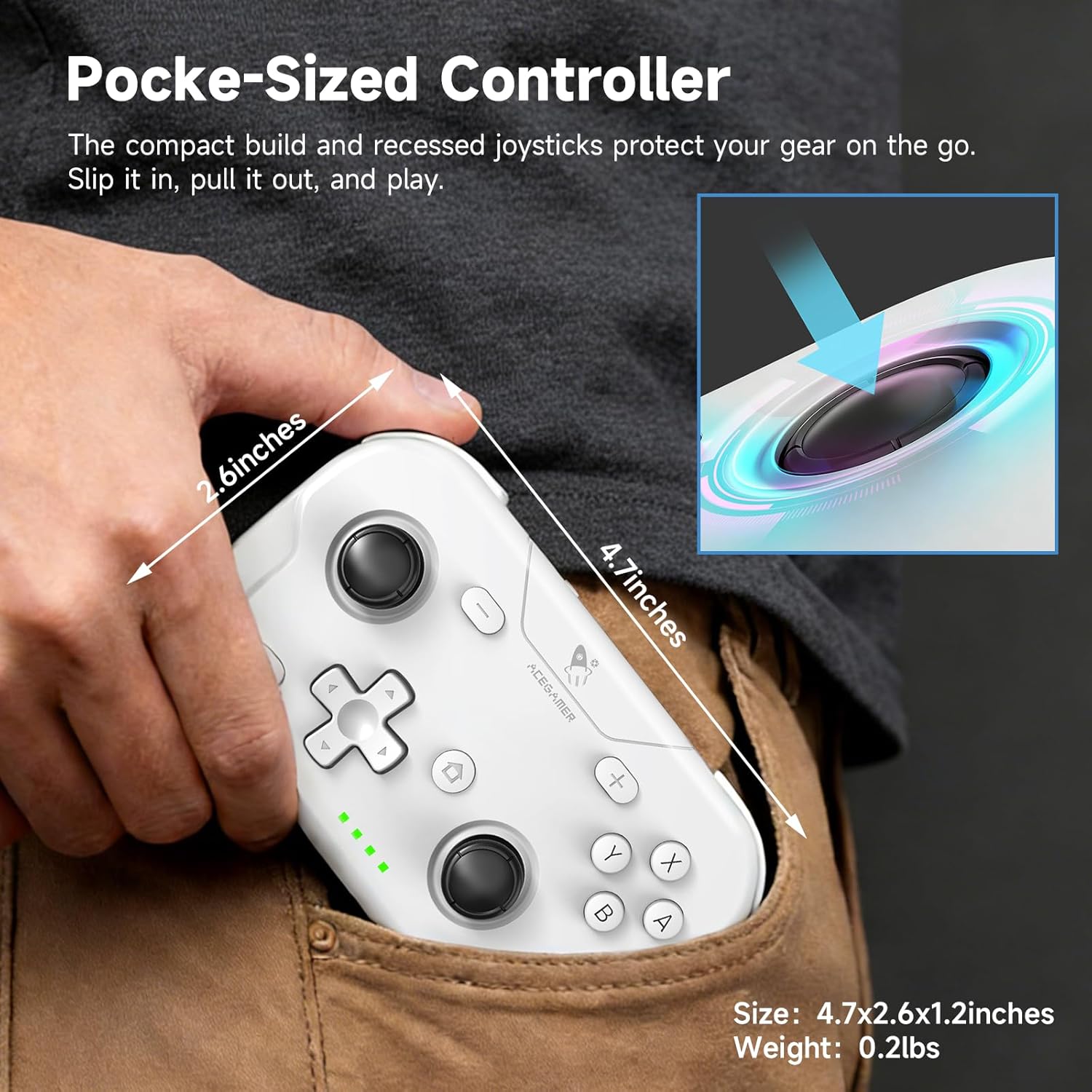
Image: The AceGamer Wireless Pocket Controller demonstrating its compact size and dimensions, easily fitting into a pocket. Dimensions are shown as 4.7 inches by 2.6 inches by 1.2 inches, with a weight of 0.2 lbs.

Imagen: Un detalle view of the controller's precision lift-and-lock joysticks, illustrating how to flick a rear latch to retract them for storage.
Amplia compatibilidad
This wireless controller is compatible with a broad range of devices, including Nintendo Switch, Switch 2, Switch Lite, Switch OLED, PC, iOS, Android, Steam Deck, tablets, and phones. It supports instant switching between X-Input (for PC/Windows) and Nintendo Switch modes. Additionally, it features one-button wake-up functionality for Switch and Switch 2 consoles.

Image: The controller highlighting its compatibility with Nintendo Switch, PC/Laptop (Windows), iOS (13.0 and above), Steam OS, Android TV/Box, and Android (8.0 and above). It also shows the ABXY key interchange feature.
Precision Controls and Responsiveness
Experience precise control with 360° refined analog sticks that are free of dead zones. The built-in 6-axis gyroscope provides accurate motion sensing. Optimized buttons and triggers, combined with a 1000Hz polling rate, ensure instant response for an enhanced gaming experience.
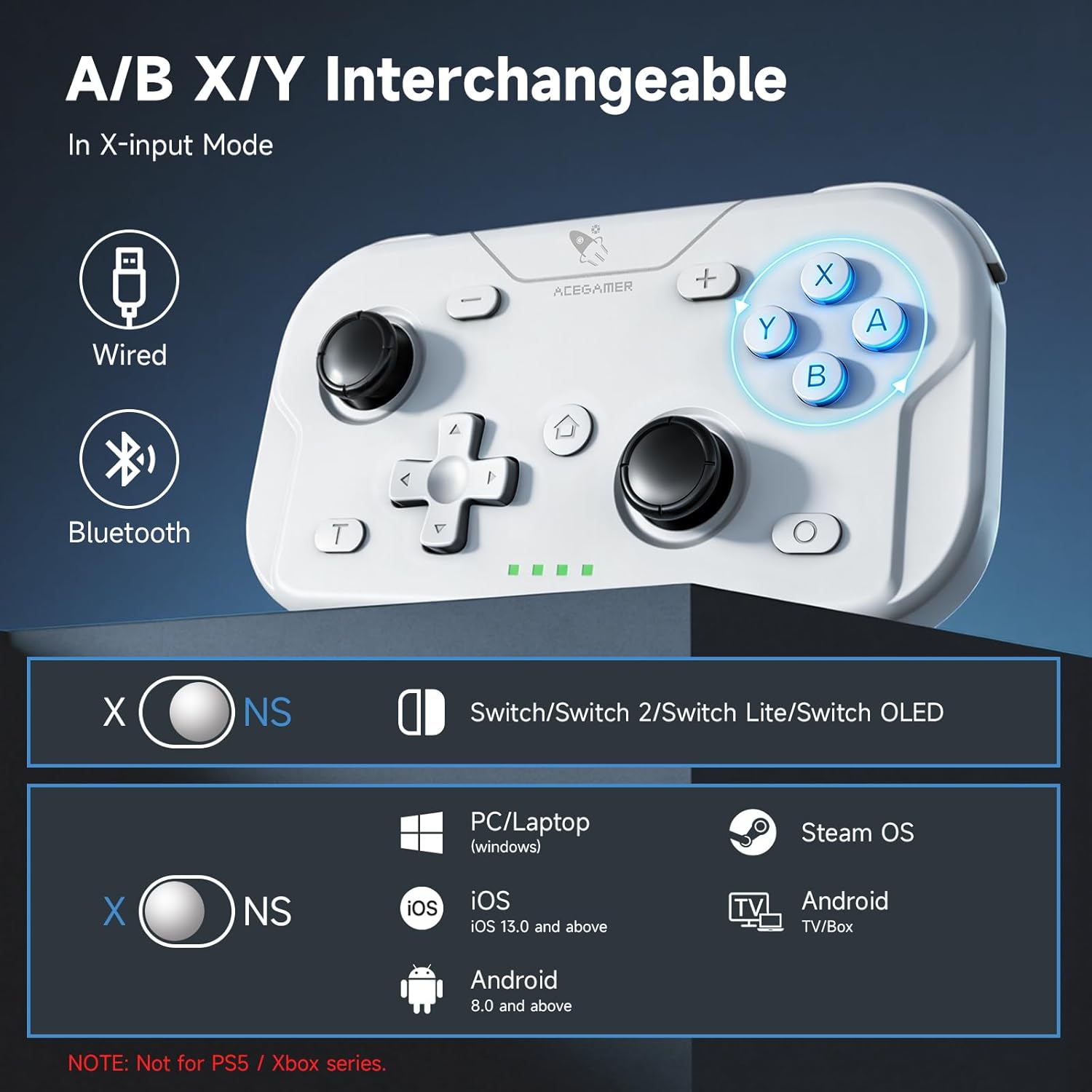
Image: The AceGamer controller illustrating its 6-axis gyroscope feature, enabling precise movements and seamless integration into virtual environments, depicted with a racing game.
Configuración
Carga del controlador
Before initial use, fully charge the controller using the provided charging cable. Connect the USB-C end of the cable to the controller and the USB-A end to a power source (e.g., computer USB port, USB wall adapter).
Emparejamiento inicial (Bluetooth)
- Asegúrese de que el controlador esté apagado.
- Press and hold the pairing button (usually located on the top or back of the controller) until the indicator lights begin to flash rapidly.
- On your device (Switch, PC, phone), navigate to the Bluetooth settings.
- Select the AceGamer controller from the list of available devices to pair.
- Once paired, the indicator lights on the controller will become solid.
Instrucciones de funcionamiento
Encendido/apagado
- Encendido: Press the Home button (or designated power button) to turn on the controller.
- Apagado: Press and hold the Home button for a few seconds, or if idle for an extended period, the controller will automatically power off.
Conexión a dispositivos
- Nintendo Switch/Switch 2: After initial pairing, press the Home button to wake up the console and automatically reconnect the controller.
- PC (Windows): Ensure the controller is in X-Input mode. Connect via Bluetooth or USB cable.
- iOS/Android: Ensure the controller is in the appropriate mode for mobile devices. Connect via Bluetooth through your device's settings.
Cambio de modo
The controller supports one-key switching between X-Input mode (for PC/Windows) and Nintendo Switch mode. Refer to the indicator lights or on-screen prompts for the current mode.

Image: The AceGamer controller illustrating the one-key switch for changing between X-Input (X) and NS-Switch (S) modes, with a physical switch on the back.
One-Button Wake-up (N-S Mode)
In Nintendo Switch mode, you can wake up and reconnect your console by pressing the designated Home button on the controller.

Image: The AceGamer controller with a glowing Home button, indicating its one-button wake-up functionality for Nintendo Switch consoles.
Función Turbo
The Turbo function allows for rapid, repeated input of a button. To assign Turbo to a button, hold the Turbo key and then press your desired action button (A, B, X, Y, LB, RB, LT, RT).
You can adjust the firing speed on the fly: hold the Turbo key and move the right analog stick up or down to cycle through 5Hz, 12Hz (default), or 20Hz speeds. Note that Turbo settings may not be saved after the controller is powered off.

Image: The AceGamer controller highlighting the one-tap wake-up button and the 3-speed Turbo Rapid Fire function, with speeds of 5, 12 (default), and 20 shots/s.
Ajuste de vibración
The controller features dual motor vibration for immersive force feedback. You can adjust the vibration intensity to four levels: 0%, 30%, 70% (default), and 100%. Note that vibration cannot be turned off completely in some modes, and mobile games may not support vibration.

Image: The AceGamer controller illustrating the four levels of vibration adjustment: 0%, 30%, 70% (default), and 100%, with visual representation of dual motor feedback.
ABXY Key Interchange
The ABXY button layout can be interchanged to match either PC game layouts or Nintendo Switch game layouts, providing flexibility for different gaming preferences. This feature is typically available in X-Input Mode. Note that these settings may not be saved after the controller is powered off.
Image: The AceGamer controller demonstrating the ABXY key value interchange feature, allowing users to switch between different button layouts.
Mantenimiento
- Limpieza: Utilice un paño suave y seco para limpiar el mando. Evite utilizar productos químicos agresivos o materiales abrasivos.
- Almacenamiento: Store the controller in a cool, dry place away from direct sunlight and extreme temperatures. Utilize the lift-and-lock joystick feature to protect the analog sticks when not in use or during transport.
- Cuidado de la batería: Para prolongar la vida útil de la batería, evite descargar completamente el mando con frecuencia. Cárguelo regularmente, incluso si no lo usa constantemente.
Solución de problemas
| Problema | Posible causa | Solución |
|---|---|---|
| El controlador no se enciende. | Batería baja. | Cargue el controlador durante al menos 30 minutos. |
| No se puede emparejar mediante Bluetooth. | El controlador no está en modo de emparejamiento; dispositivo Bluetooth desactivado; interferencia. | Ensure controller is in pairing mode (flashing lights). Check device Bluetooth. Move closer to the device. Restart both controller and device. |
| Los botones o joysticks no responden. | Problema de conexión; falla del software. | Reconnect the controller. Restart the controller. Update device drivers if on PC. |
| La vibración no funciona. | Vibration intensity set to 0%; game does not support vibration; mobile device limitation. | Adjust vibration intensity. Check game settings. Note that mobile games may not support vibration. |
Presupuesto
- Nombre de marca: Ace Gamer
- Modelo: Wireless Pocket Controller
- Dispositivos compatibles: Android, iOS, Nintendo Switch, PC
- Tipo de controlador: Mando para juegos
- Características adicionales: Motion Sensing (6-axis gyro), Multiuse, Rumble (Dual Vibration), Wireless (Bluetooth)
- Plataforma de hardware: Gaming Console, Smartphone, Steam Deck
- Tasa de votación: 1000 Hz
- Color: Blanco
Garantía y soporte
AceGamer provides warranty service for this product. If you encounter any questions or problems with your Wireless Pocket Controller, please contact our customer support for assistance. We are committed to providing reliable support to ensure your gaming confidence.
For support, please visit the official AceGamer store or contact us through the platform where you purchased the product.
Conserve su comprobante de compra para reclamos de garantía.