
1. Configuración
This section guides you through the initial setup of your CHUWI CoreBook X laptop.
1.1 Desempaquetado y encendido inicial
- Retire con cuidado la computadora portátil y todos los accesorios del embalaje.
- Connect the provided USB-C power adapter to the laptop's USB-C port (PD Charging/USB 2.0) and then to a power outlet.
- Open the laptop lid. The laptop may power on automatically or you may need to press the power button located on the keyboard.
- Siga las instrucciones en pantalla para completar la configuración inicial de Windows 11 Pro, incluida la selección de idioma, la conexión de red y la creación de la cuenta de usuario.
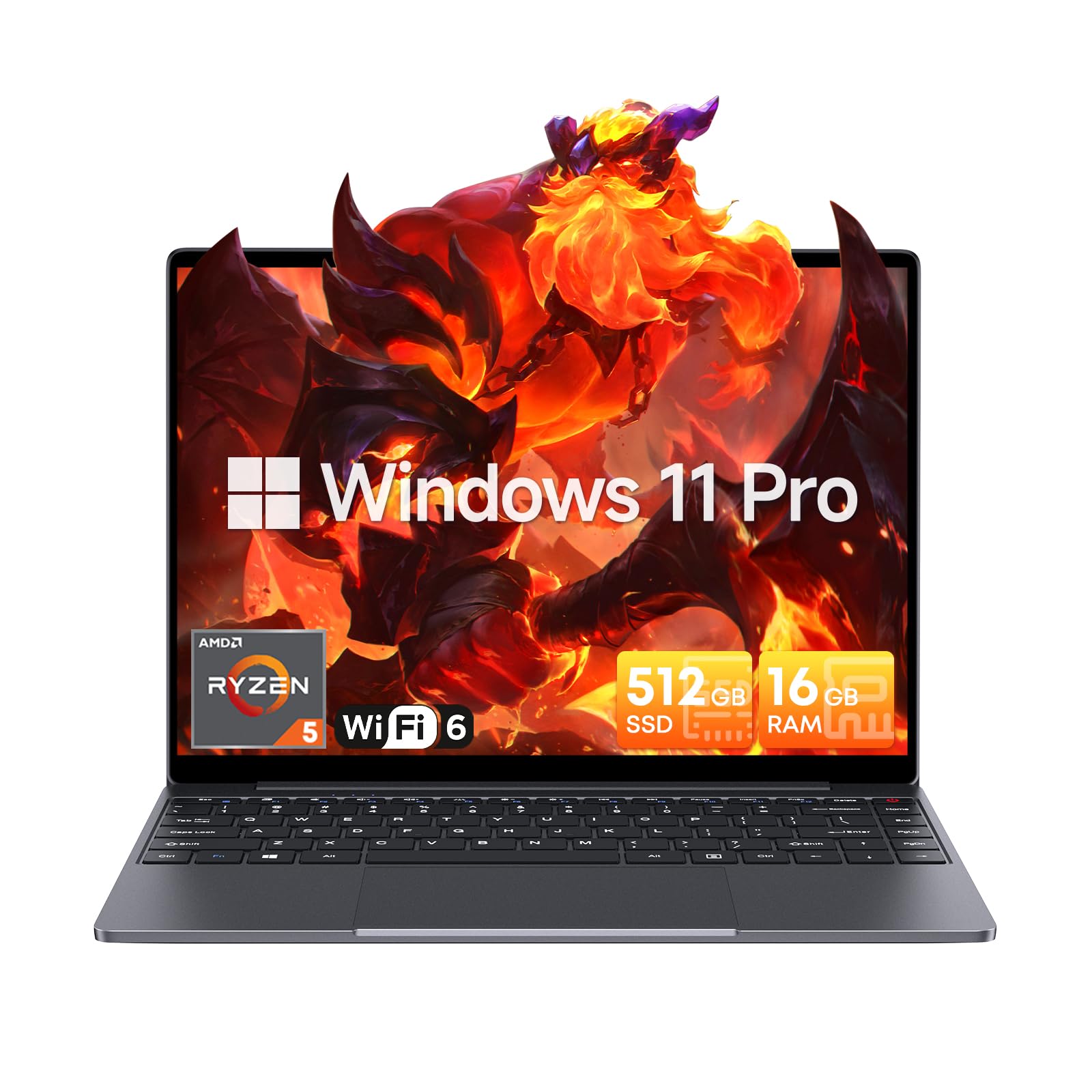
Image: The CHUWI CoreBook X laptop open on a desk, ready for use.
1.2 Conexión de periféricos
- Dispositivos USB: Connect USB mice, keyboards, or external storage devices to the available USB 3.0 ports.
- Pantalla externa: Use the HDMI 1.4 port or the full-featured USB Type-C port to connect an external monitor.
- Dispositivos de audio: Conecte auriculares o altavoces externos al conector de audio de 3.5 mm.
- Tarjeta TF: Insert a TF card into the TF card slot for additional storage.

Imagen: Detallada view of the laptop's ports, including TF Card Slot, 3.5mm Headphone Jack, USB 3.0 Port, Lock Slot, USB Type-C (PD Charging/USB 2.0), HDMI 1.4, and Full-featured USB Type-C Port.
1.3 Conexión de red y Bluetooth
- Wifi 6: Para conectarse a una red inalámbrica, haga clic en el ícono de Wi-Fi en la barra de tareas, seleccione su red e ingrese la contraseña.
- Bluetooth 5.2: To pair Bluetooth devices, go to Windows Settings > Bluetooth & devices, turn on Bluetooth, and select your device to pair.
2. Operando
This section covers the basic operation of your CHUWI CoreBook X laptop.
2.1 Gestión de energía
- Encendido: Presione el botón de encendido.
- Modo de sueño: Cierre la tapa o seleccione “Suspender” en el menú Inicio.
- Cerrar: Select "Shut down" from the Start menu.
- Reanudar: Select "Restart" from the Start menu.
2.2 Teclado y panel táctil
- The laptop features a full-sized backlit keyboard with white illumination. Use the function keys (Fn) in combination with other keys for shortcuts like adjusting brightness, volume, or toggling the backlight.
- The large touchpad supports multi-touch gestures for navigation. Refer to Windows settings for customizing touchpad gestures.

Imagen: Un primer plano view of the laptop's backlit keyboard and large touchpad, highlighting its navigation features.
2.3 Pantalla y audio
- The 14-inch IPS display offers a 2160*1440 resolution. Adjust display settings (brightness, resolution, scaling) through Windows Display Settings.
- The laptop is equipped with stereo speakers. Volume can be controlled via the keyboard function keys or the Windows sound settings.
- Un HD webcam is integrated for video conferencing.

Image: The laptop's 14-inch 2K IPS display showcasing vibrant colors and a comparison of 3:2 and 16:9 aspect ratios.
2.4 Vídeo terminadoview
Video: An official product video demonstrating various features and usage scenarios of the CHUWI CoreBook X laptop, including its performance, display, and connectivity options.
3. Mantenimiento
Un mantenimiento adecuado garantiza la longevidad y el rendimiento óptimo de su computadora portátil.
3.1 Limpieza
- Utilice un paño suave que no suelte pelusa para limpiar la pantalla. Para manchas difíciles,ampEnjuague ligeramente el paño con agua o un limpiador de pantallas.
- Wipe the chassis and keyboard with a soft, dry cloth. Avoid using harsh chemicals or abrasive materials.
- Periodically use compressed air to clear dust from the vents to maintain efficient cooling.
3.2 Cuidado de la batería
- Avoid fully discharging the battery frequently. Charge the laptop when the battery level is low.
- Store the laptop in a cool, dry place if not used for extended periods, with the battery charged to around 50-70%.
- Use only the original or certified compatible USB-C PD charger.
3.3 Actualizaciones de almacenamiento y memoria
The laptop supports RAM and SSD upgrades.
- The 16GB DDR4 RAM can be expanded up to 64GB via 2 SODIMM slots.
- The 512GB PCIe SSD can be expanded up to 2TB using the M.2 2280 PCIe slot.
- A convenient detachable bottom cover allows for easier access to upgrade components without removing the entire back panel.

Image: The underside of the laptop with the detachable cover removed, revealing the dual-channel SO-DIMM slot for RAM upgrades.
4. Solución de problemas
Esta sección proporciona soluciones a problemas comunes que puedas encontrar.
4.1 Problemas comunes y soluciones
- La computadora portátil no enciende:
- Asegúrese de que el adaptador de corriente esté conectado de forma segura tanto a la computadora portátil como a una toma de corriente que funcione.
- Verifique que la toma de corriente funcione.
- Intente mantener presionado el botón de encendido durante 10 a 15 segundos para realizar un restablecimiento completo.
- Problemas de visualización (sin imagen, parpadeo):
- Ajuste el brillo de la pantalla utilizando las teclas de función.
- Si hay un monitor externo conectado, intente desconectarlo.
- Reinicie la computadora portátil.
- Problemas de conectividad Wi-Fi o Bluetooth:
- Asegúrese de que Wi-Fi/Bluetooth esté habilitado en la configuración de Windows.
- Reinicie su enrutador/módem para problemas de Wi-Fi.
- Remove and re-pair Bluetooth devices.
- Update network and Bluetooth drivers through Device Manager.
- Rendimiento lento:
- Cierre las aplicaciones innecesarias que se ejecutan en segundo plano.
- Check for Windows updates and driver updates.
- Asegúrese de que haya suficiente espacio libre en el SSD.
- Ejecutar un análisis de malware.
If you encounter issues not covered here or require further assistance, please refer to the Support section.
5. Especificaciones
Detailed technical specifications for the CHUWI CoreBook X laptop.

Image: An illustration of the AMD Ryzen 5 processor, highlighting its core count, threads, and clock speed.
| Característica | Especificación |
|---|---|
| Nombre del modelo | Corebook X |
| Procesador | AMD Ryzen 5 (6 Cores, 12 Threads, up to 4.3 GHz) |
| Gráficos | AMD Radeon Graphics (1800MHz, Max 2GB Memory) |
| RAM | 16GB DDR4 (Expandable up to 64GB via 2 SODIMM slots) |
| Almacenamiento | 512GB PCIe SSD (Expandable up to 2TB via M.2 2280 PCIe slot) |
| Mostrar | 14-inch IPS, 2160*1440 Resolution, 100% sRGB Color Gamut |
| Sistema operativo | Windows 11 Pro |
| Conectividad | Wi-Fi 6 (802.11ax), Bluetooth 5.2 |
| Puertos | USB Type-C (PD Charging/USB 2.0), USB 3.0, HDMI 1.4, Full-featured USB Type-C, 3.5mm Audio Jack, TF Card Slot, Lock Slot |
| Batería | 46.2Wh Lithium-Ion Battery, 65W USB-C PD Fast Charging |
| Teclado | Full-sized Backlit Keyboard with White Illumination |
| Panel táctil | Large Touchpad, Multi-touch |
| Webleva | HD Webleva |
| Dimensiones | 12.2"L x 9"W x 0.67"Th (17mm thin) |
| Peso | 2.2 libras (1.4 kg) |
6. Garantía
The CHUWI CoreBook X laptop comes with a Garantía del fabricante de 1 años.
This warranty covers defects in materials and workmanship under normal use. It does not cover damage caused by accidents, misuse, unauthorized repairs, or modifications. Please retain your proof of purchase for warranty claims.
7. Soporte
For technical assistance, warranty claims, or further inquiries, please contact CHUWI customer support.
- Soporte del fabricante: Visit the official CHUWI webSitio para recursos de soporte, preguntas frecuentes e información de contacto.
- Soporte al vendedor: If purchased through a retailer, you may also contact the seller for assistance.