
1. Introducción
Thank you for choosing the AULA G7 Pro Wireless Gaming Headset. This manual provides detailed instructions for setting up, operating, and maintaining your headset to ensure optimal performance and an immersive audio experience. Please read this manual thoroughly before using the product.
2. Producto terminadoview
2.1 Contenido del paquete
The AULA G7 Pro package includes the following items:
- Auriculares inalámbricos para juegos AULA G7 Pro
- Micrófono de brazo desmontable
- Cable de carga USB-C a USB-A
- Cable de audio de 3.5 mm
- 2.4G Wireless USB-A Receiver
- Adaptador USB-C a USB-A
- Manual de usuario
2.2 Componentes y controles de los auriculares
Familiarize yourself with the various parts and controls of your AULA G7 Pro headset.
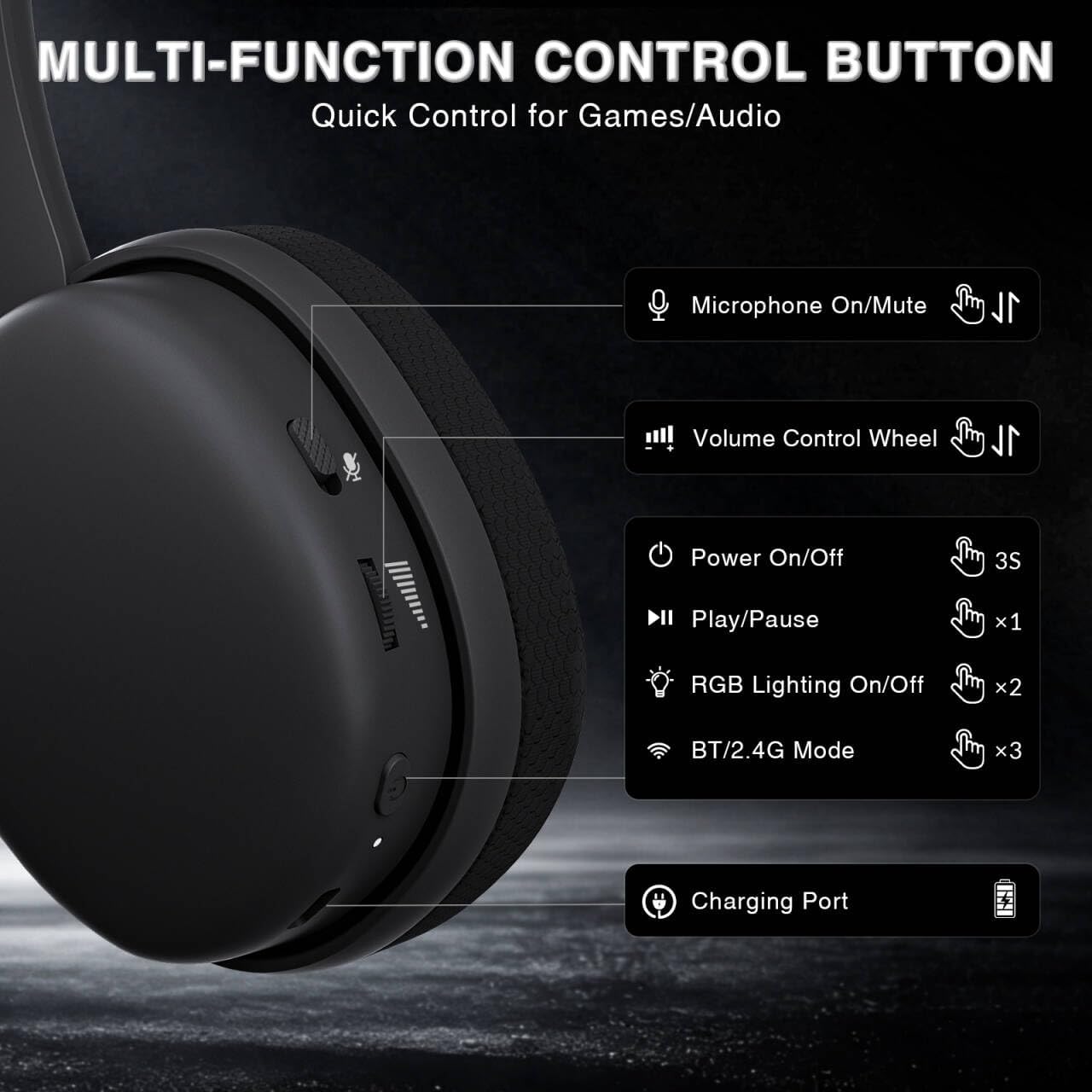
Image: Multi-function control buttons on the AULA G7 Pro headset, showing the microphone on/off toggle, volume control wheel, power switch, play/pause button, RGB lighting on/off button, BT/2.4G mode switch, and charging port.
- Microphone On/Off Toggle: Deslice para silenciar o reactivar el micrófono.
- Rueda de control de volumen: Ajusta el volumen de salida de audio.
- Interruptor de alimentación: Mantenga presionado durante 3 segundos para encender/apagar.
- Botón de reproducción/pausa: Presione una vez para reproducir o pausar el audio.
- Iluminación RGB encendida/apagada: Press twice to toggle RGB lighting.
- BT/2.4G Mode Switch: Press three times to switch between Bluetooth and 2.4G wireless modes.
- Puerto de carga: Puerto USB-C para cargar los auriculares.
- Conector de audio de 3.5 mm: Para conexión por cable.
- Puerto de micrófono: Para fijar el micrófono con brazo desmontable.
Vídeo: Un overview of the AULA G7 Pro Wireless Gaming Headset, showcasing its design, features, and different color options (black and pink).
3. Configuración y conectividad
3.1 2.4G Wireless Connection (PC, PS5, PS4, Switch)
For low-latency gaming, use the 2.4G wireless connection.
- Insert the 2.4G USB-A receiver into an available USB port on your PC, PS5, PS4, or Nintendo Switch dock. If your device only has USB-C ports, use the provided USB-C to USB-A adapter.
- Power on the AULA G7 Pro headset by pressing and holding the power button for 3 seconds.
- The headset will automatically attempt to connect to the receiver. The indicator light on the headset will show a stable color once connected.
- On your device, ensure the audio output is set to the AULA G7 Pro headset.

Image: The AULA G7 Pro headset demonstrating its tri-mode connectivity options: 3.5mm wired, Bluetooth 5.3, and 2.4G wireless with USB-C and USB-A receivers, compatible with various devices including PC, PS5, PS4, Switch, and smartphones.
3.2 Bluetooth 5.3 Connection (PC, Smartphones, Tablets)
Connect your headset via Bluetooth for general use with compatible devices.
- Power on the AULA G7 Pro headset.
- Press the BT/2.4G mode switch three times to enter Bluetooth pairing mode. The indicator light will flash.
- On your device (PC, smartphone, tablet), go to Bluetooth settings and search for available devices.
- Select "AULA G7 Pro" from the list to pair. The indicator light on the headset will become stable once connected.
3.3 3.5mm Wired Connection (Xbox, PC, PS5, PS4, Switch, Smartphones)
Use the 3.5mm audio cable for a universal wired connection, especially for Xbox consoles.
- Conecte un extremo del cable de audio de 3.5 mm al conector de audio de 3.5 mm del auricular.
- Connect the other end of the 3.5mm audio cable to the audio output port of your device (e.g., Xbox controller, PC audio jack).
- The headset will operate in wired mode. Note that some advanced features like virtual 7.1 surround sound may not be available in wired mode, depending on the device.
4. Instrucciones de funcionamiento
4.1 Uso del micrófono
The AULA G7 Pro features a detachable noise-canceling microphone.
- Cómo conectar el micrófono: Align the 3.5mm plug of the boom microphone with the microphone port on the headset and insert it firmly.
- Silenciar/Activar el sonido: Use the microphone on/off toggle switch on the headset to quickly mute or unmute your microphone.
- Cancelación de ruido: The 360° omnidirectional microphone filters out approximately 80% of background noise. For enhanced noise cancellation and voice clarity, install the driver software (Windows 2.4G mode only).
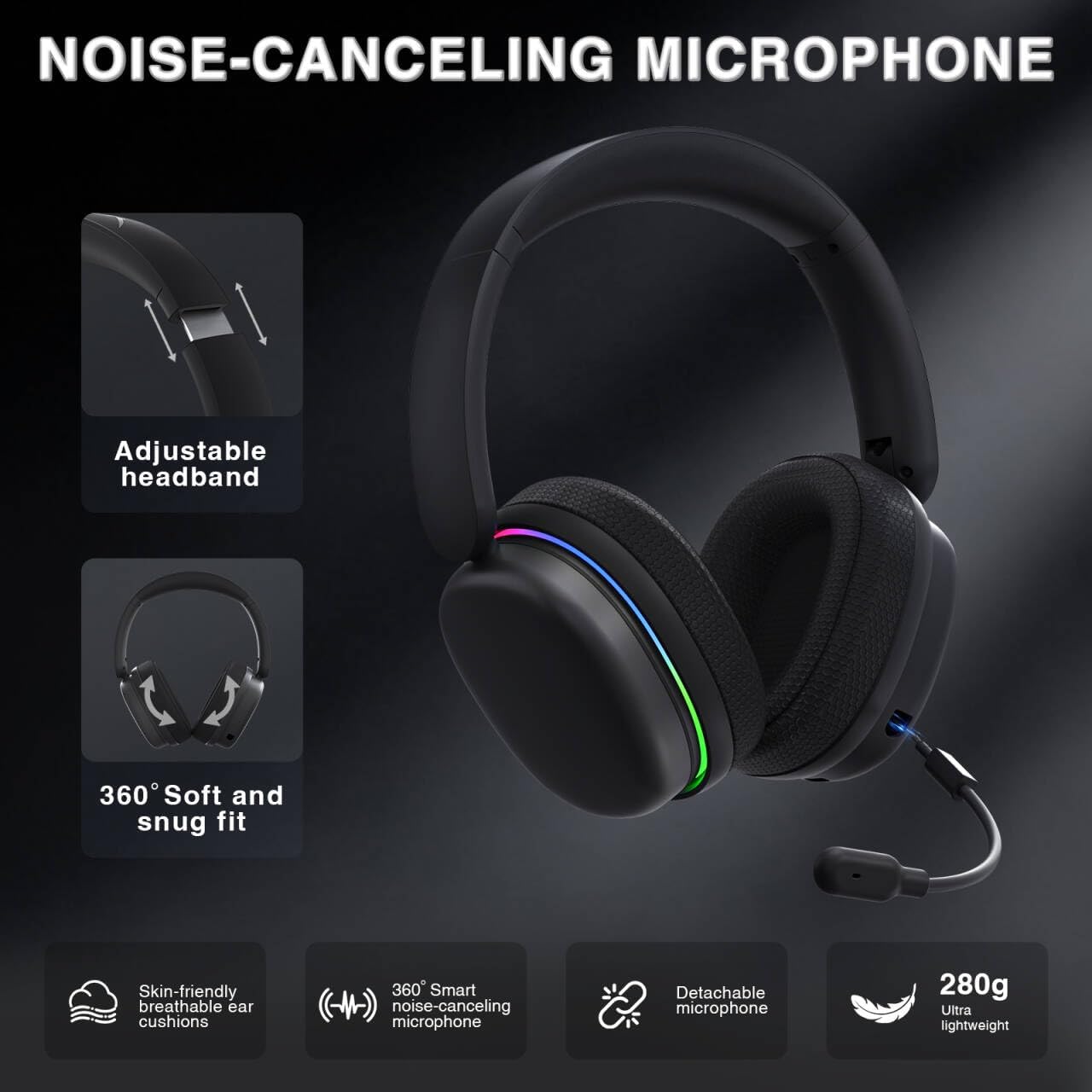
Image: The AULA G7 Pro headset highlighting its adjustable headband, soft and snug fit, skin-friendly breathable ear cushions, 360° smart noise-canceling microphone, detachable microphone, and ultra-lightweight 280g design.
4.2 Virtual 7.1 Surround Sound and EQ Software
Experience immersive audio with virtual 7.1 surround sound and customize your sound profile.
- Sonido envolvente virtual 7.1: Available in Windows 2.4G mode, this feature provides precise audio positioning for gaming.
- EQ Software: Descargue e instale el controlador desde soaidriver.com (Windows 2.4G mode only). The software allows for customizable EQ settings, dynamic bass boost, vocal enhancement, and voice morphing.
- Nota de instalación: First, insert the 2.4G receiver into your computer, then install the driver. After entering the driver interface, right-click the icon on the left side of the screen to access the audio settings menu.
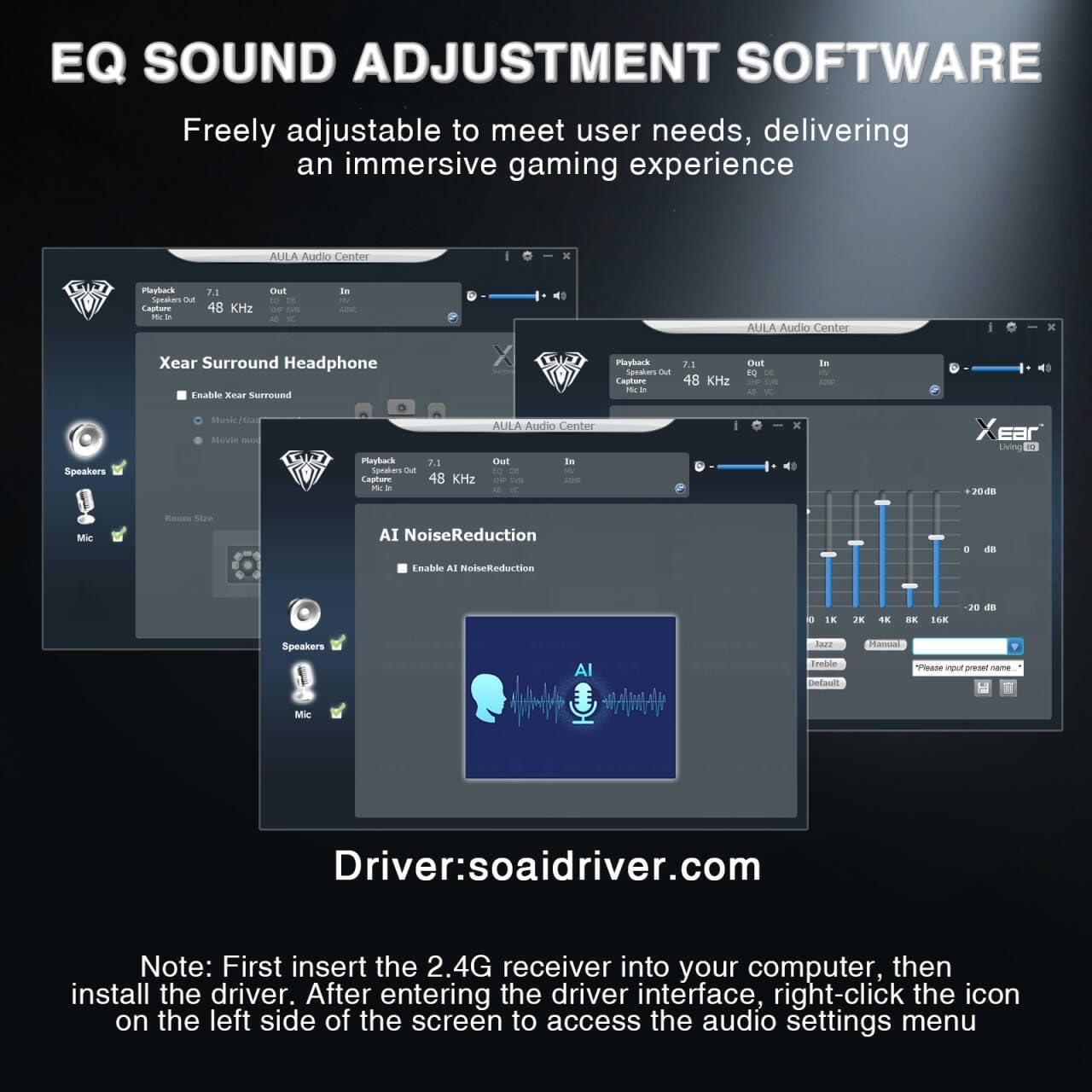
Image: Screenshots of the AULA Audio Center software interface, showing options for Xear Surround Headphone, AI Noise Reduction, and Equalizer settings for sound customization.
4.3 Iluminación RGB
The headset features 16 million-color RGB lighting.
- Alternar RGB: Press the RGB Lighting On/Off button twice to activate or deactivate the lighting.
- Sincronización: RGB lighting can synchronize with gaming peripherals for an immersive atmosphere.
5. Carga y duración de la batería
The AULA G7 Pro is equipped with a 1000mAh rechargeable battery.
- Cargando: Connect the USB-C charging cable to the headset's charging port and the other end to a USB power source (e.g., computer, wall adapter). The indicator light will show charging status.
- Duración de la batería: Up to 65 hours of playback with RGB lighting off, and approximately 20 hours with RGB lighting activated.
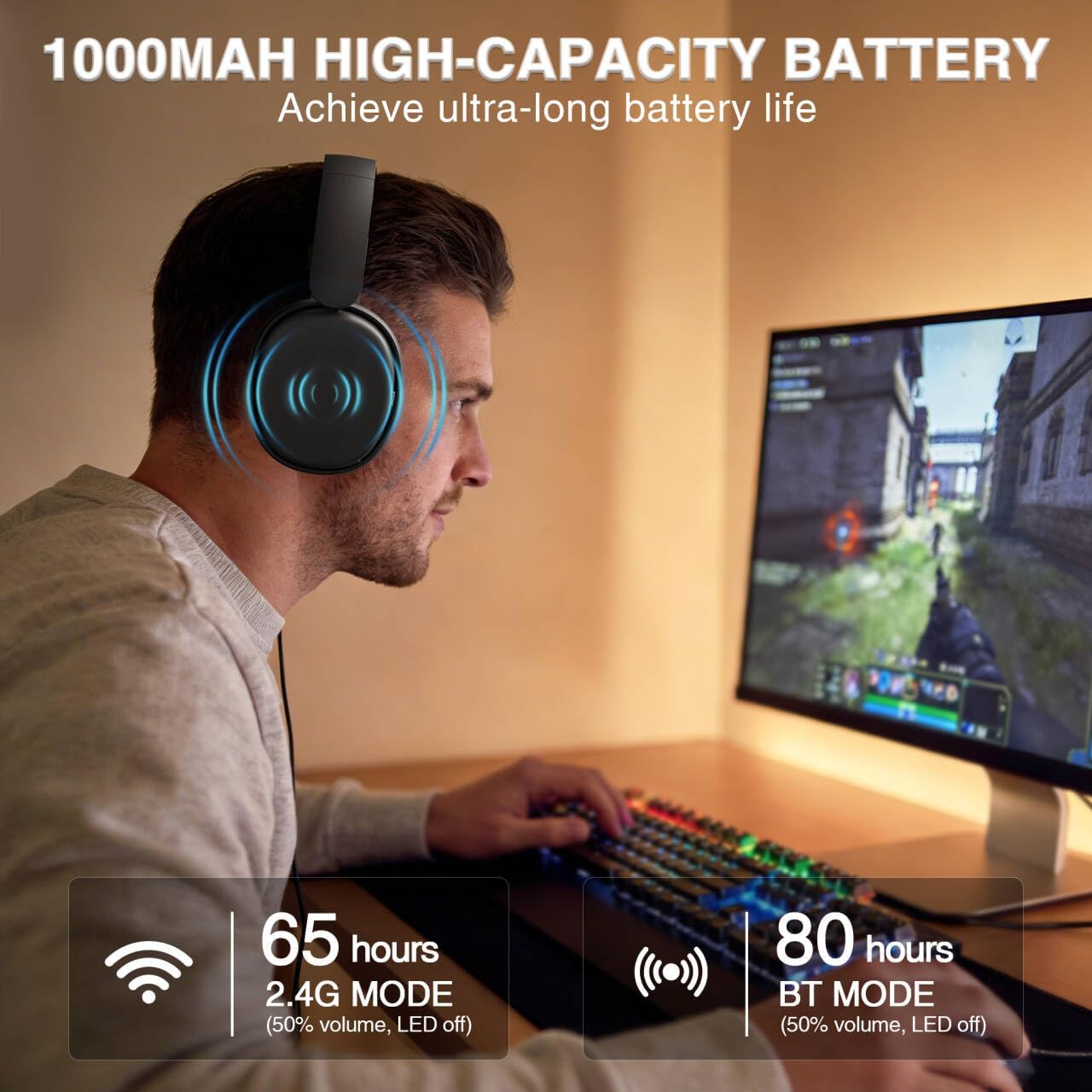
Image: A user wearing the AULA G7 Pro headset while gaming, illustrating the 65 hours of battery life in 2.4G mode (50% volume, LED off) and 80 hours in BT mode (50% volume, LED off).
6. Comodidad y diseño
The headset is designed for extended wear comfort.
- Ligero: Weighing 280g, the headset is designed to minimize pressure during long gaming sessions.
- Ajuste ergonómico: Features an ergonomic headband with protein leather padding and breathable mesh ear cushions.
- Ajustable: An 8-position adjustable steel frame and 360° acoustic chamber conform to facial contours, with micro-adjustable horizontal angles for a personalized fit.
7. Especificaciones
| Característica | Detalle |
|---|---|
| Marca | AULA |
| Nombre del modelo | G7 Pro |
| Tecnología de conectividad | 2.4G Wireless, BT5.3, Wired (3.5mm Jack) |
| Versión de Bluetooth | 5.3 |
| Tamaño del controlador de audio | 40 milímetros |
| Impedancia | 32 ohmios |
| Control de ruido | Cancelación activa de ruido (micrófono) |
| Capacidad de la batería | 1000 mAh |
| Duración de la batería (RGB desactivado) | Up to 65 Hours (2.4G Mode), Up to 80 Hours (BT Mode) |
| Peso | 280 gramos |
| Dispositivos compatibles | PC, PS5, PS4, Switch, Smartphones, Xbox (wired mode only) |
8. Solución de problemas
If you encounter issues with your AULA G7 Pro headset, refer to the following common solutions:
- Sin sonido:
- Asegúrese de que los auriculares estén encendidos y cargados.
- Check that the correct audio output device is selected in your system settings.
- Verify the volume control wheel on the headset is not at minimum.
- For 2.4G/BT modes, ensure the headset is properly paired/connected. Try re-pairing if necessary.
- For wired mode, ensure the 3.5mm cable is fully inserted into both the headset and the device.
- El micrófono no funciona:
- Asegúrese de que el micrófono desmontable esté bien conectado.
- Check the microphone on/off toggle switch on the headset is in the 'on' position.
- Verifique que el dispositivo de entrada de micrófono correcto esté seleccionado en la configuración de su sistema.
- Ensure the microphone is not muted in your operating system or communication software.
- Problemas de conectividad (2.4G/Bluetooth):
- Ensure the headset is within range of the receiver/device.
- Evite fuertes interferencias electromagnéticas de otros dispositivos inalámbricos.
- Intente reiniciar tanto el auricular como el dispositivo conectado.
- Para 2.4G, intente conectar el receptor a un puerto USB diferente.
- El sonido envolvente 7.1 no funciona:
- Ensure you are in 2.4G wireless mode on a Windows PC.
- Verify that the AULA driver software is installed and configured correctly.
9. Mantenimiento
Para garantizar la longevidad y el rendimiento óptimo de sus auriculares, siga estas pautas de mantenimiento:
- Limpieza: Utilice un paño suave y seco para limpiar los auriculares. No utilice limpiadores abrasivos ni disolventes.
- Almacenamiento: Guarde los auriculares en un lugar fresco y seco, alejado de la luz solar directa y de temperaturas extremas.
- Cuidado de cables: Evite curvas cerradas o tirones excesivos de los cables para evitar daños.
- Cuidado de la batería: Para una duración óptima de la batería, evite descargarla por completo con frecuencia. Cargue los auriculares regularmente, incluso si no los usa durante periodos prolongados.
10. Garantía y soporte
10.1 Información de garantía
The AULA G7 Pro Wireless Gaming Headset comes with a 1 año de garantía Desde la fecha de compra. Esta garantía cubre defectos de fabricación y mano de obra en condiciones normales de uso. No cubre daños causados por mal uso, accidentes, modificaciones no autorizadas ni desgaste normal.
10.2 Atención al cliente
For technical assistance, warranty claims, or any questions regarding your AULA G7 Pro headset, please contact AULA customer support through the retailer where you purchased the product or visit the official AULA websitio para información de contacto.
Please have your purchase receipt and product model number (G7 Pro) ready when contacting support.


