
1. Introducción
This manual provides essential instructions for the safe and efficient operation of your TATTMUSE A28U Portable Thermal Printer. Please read this manual thoroughly before using the device and retain it for future reference. The TATTMUSE A28U is a compact, inkless thermal printer designed for portability and convenience, supporting various paper sizes including A4, A5, and B5.
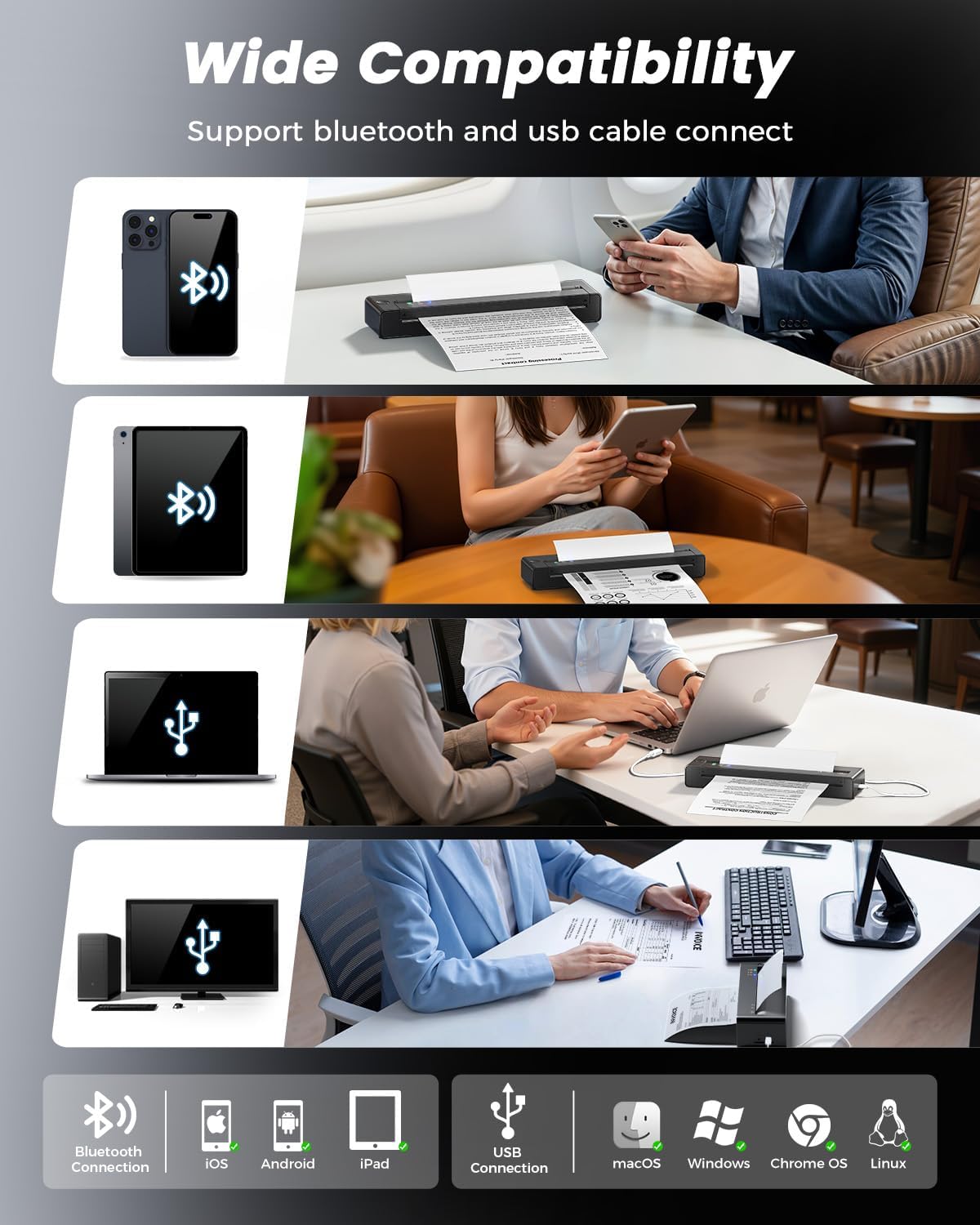
The printer utilizes advanced thermal direct technology, eliminating the need for ink cartridges, toner, or ribbons. It features an upgraded print head with dual-zone heat control for consistent print quality and a jam reversal function for reliable paper handling. Connectivity options include Bluetooth and USB, making it compatible with iOS, Android, tablets, and laptops.
2. ¿Qué hay en la caja?
Verifique que todos los elementos estén presentes en el embalaje antes de continuar con la instalación.
- 1 x TATTMUSE A28U Portable Printer
- 10 x A4 Size Thermal Papers
- 1 x Manual de usuario
- 1 cable USB-C

3. Configuración
3.1 Encendido y carga
To power on the printer, press and hold the power button until the indicator lights illuminate. For initial use, ensure the printer is fully charged using the provided USB-C cable. The printer features cool charging technology to extend battery lifespan.


3.2 Carga de papel
The TATTMUSE A28U printer supports thermal paper only. It is compatible with single sheets and continuous roll thermal paper in various sizes (A4, A5, B5, Letter). To load paper, gently insert the paper into the paper slot until the printer automatically feeds it into position. Ensure the paper is centered for optimal printing.


Video: Instructions on how to correctly load roll thermal paper into the printer for the first time, including removing the initial adhesive section.
3.3 Instalación de aplicaciones y controladores
For mobile devices (iOS/Android), download the "SoPrint" app from your device's app store. For computers (Windows/macOS/Chrome OS/Linux), drivers can be found on the official TATTMUSE website (refer to the included Quick Start Guide for the specific URL).


3.4 Conectividad
The printer supports both Bluetooth and USB connectivity.
- Conexión Bluetooth: After installing the "SoPrint" app, enable Bluetooth on your mobile device. Open the app and follow the on-screen instructions to pair with the A28U printer.
- Conexión USB: Connect the printer to your computer using the provided USB-C cable. Ensure the appropriate drivers are installed for your operating system. The printer should then appear as an available printing device.

4. Instrucciones de funcionamiento
4.1 Printing from the Mobile App
- Ensure the printer is powered on and connected via Bluetooth to your mobile device.
- Open the "SoPrint" app.
- Select the document or image you wish to print. The app supports various file types including Word, TXT, PDF, Excel, JPG, and PPT.
- Adjust print settings (e.g., paper size, density) within the app if necessary.
- Toque el botón de impresión para iniciar la impresión.

4.2 Impresión desde una computadora
- Ensure the printer is powered on and connected via USB to your computer, or paired via Bluetooth if supported by your computer's operating system.
- Abra el documento o file desea imprimir en su computadora.
- Vaya a la opción de impresión (normalmente File > Imprimir).
- Select "TATTMUSE A28U" from the list of available printers.
- Ajuste la configuración de impresión según sea necesario (por ejemplo, tamaño del papel, orientación).
- Haga clic en "Imprimir" para enviar el trabajo a la impresora.
Video: A general user operation guide for a portable thermal printer, demonstrating basic printing steps.
5. Mantenimiento
5.1 Limpieza del cabezal de impresión
To maintain optimal print quality, regularly clean the print head. Turn off the printer and allow it to cool. Gently wipe the print head with a soft, lint-free cloth lightly dampened with isopropyl alcohol. Do not use abrasive materials or harsh chemicals.
5.2 Cuidado de la batería
To prolong battery life, avoid fully discharging the printer frequently. Store the printer in a cool, dry place when not in use for extended periods. Charge the printer regularly, even if not in active use, to prevent deep discharge.
6. Solución de problemas
6.1 Atasco de papel
If a paper jam occurs, the TATTMUSE A28U features an automatic jam reversal function. Double-tap the designated area on the printer (refer to the Quick Start Guide for exact location) to activate this function, which will automatically reverse stuck paper. Avoid manually pulling out jammed paper, as this can damage the printer mechanism.

6.2 Mala calidad de impresión
- Asegúrate de estar usando papel térmico. This printer does not support regular copy paper.
- Limpie el cabezal de impresión como se describe en la sección Mantenimiento.
- Check the paper for any damage or wrinkles before loading.
- Ensure the paper is loaded correctly and centered.
6.3 Problemas de conectividad
- Bluetooth: Ensure Bluetooth is enabled on your device and the printer is within range. Restart both the printer and your device. Try unpairing and re-pairing the printer in your device's Bluetooth settings.
- USB: Verify the USB-C cable is securely connected to both the printer and the computer. Ensure the correct drivers are installed on your computer. Try a different USB port or cable.
7. Especificaciones
| Característica | Especificación |
|---|---|
| Marca | TATTMUSE |
| Nombre del modelo | A28U |
| Tecnología de conectividad | Bluetooth, USB |
| Tecnología de impresión | Térmico |
| Salida de impresora | Monocromo |
| Velocidad máxima de impresión monocromo | 15 ppm |
| Peso del artículo | 841 gramos |
| Dimensiones del producto (Pr. x An. x Al.) | 10.6D x 34.8W x 7.9H centímetros |
| Tipo de controlador | Android, iOS |
| Medios impresos | Papel térmico |
| Resolución | 203 x 203 ppp |
| Tamaño máximo de papel admitido | Letter (8.5 x 11 inches) / A4 / A5 / B5 |
| Capacidad máxima de hojas | 50 |
| Capacidad de la batería | 1500 mAh |
| Impresión a doble cara | No |
8. Garantía y soporte
8.1 Garantía del producto
The TATTMUSE A28U Portable Thermal Printer comes with a 1-year product warranty from the date of purchase. This warranty covers manufacturing defects and malfunctions under normal use. It does not cover damage caused by misuse, accidents, unauthorized modifications, or use of non-approved consumables.
8.2 Atención al cliente
For technical assistance, troubleshooting, or warranty claims, please contact TATTMUSE customer support through the official website or the contact information provided in your purchase documentation. Please have your model number (A28U) and proof of purchase ready when contacting support.