
1. Introducción
This manual provides detailed instructions for the setup, operation, and maintenance of your Eyoyo EYH2 Handheld USB 2D Barcode Scanner and Eyoyo EY-045 2-in-1 Wireless Mouse Barcode Scanner. Please read this manual thoroughly before using the devices to ensure proper functionality and to prevent damage.
2. Producto terminadoview
2.1 Eyoyo EY-H2 Handheld USB 2D Barcode Scanner
The Eyoyo EY-H2 is a wired USB 2D barcode scanner designed for efficient data capture. It offers plug-and-play functionality, requiring no software or driver installation. This scanner is suitable for various environments including retail, warehouses, libraries, and inventory management.

Imagen 2.1.1: The Eyoyo EY-H2 2D Barcode Scanner demonstrates superior decoding capabilities compared to traditional laser scanners, accurately reading various 1D and 2D barcodes, including those with damage or complex formats.

Imagen 2.1.2: The EY-H2 scanner offers plug-and-play connectivity via USB, compatible with Windows, macOS, Linux, and POS systems, requiring no additional drivers or software.

Imagen 2.1.3: The EY-H2 scanner features adjustable sound settings, allowing users to turn the beep sound on or off as needed for different working environments.

Imagen 2.1.4: The EY-H2 scanner is designed with drop resistance, capable of sustaining drops from up to 1.5 meters (5 feet) without damage.
2.2 Eyoyo EY-045 2-in-1 Wireless Mouse Barcode Scanner
The Eyoyo EY-045 combines the functionality of a high-precision optical mouse with a powerful 2D barcode scanner. This device aims to streamline workflows by integrating two essential tools into one, reducing desk clutter and improving efficiency. It supports multiple connection methods and features a long-lasting battery with a visual indicator.

Imagen 2.2.1: The EY-045 offers a 2-in-1 design, functioning as both a wireless mouse for office tasks and a barcode scanner for data entry, activated by a dedicated button.

Imagen 2.2.2: The mouse-style barcode scanner facilitates faster data entry, particularly in retail Point-of-Sale (POS) environments, by allowing seamless transition between mouse and scanning functions.

Imagen 2.2.3: The EY-045 supports two wireless connection methods: Bluetooth Mode for laptops, tablets, and phones, and 2.4G Mode via a USB dongle for PCs.
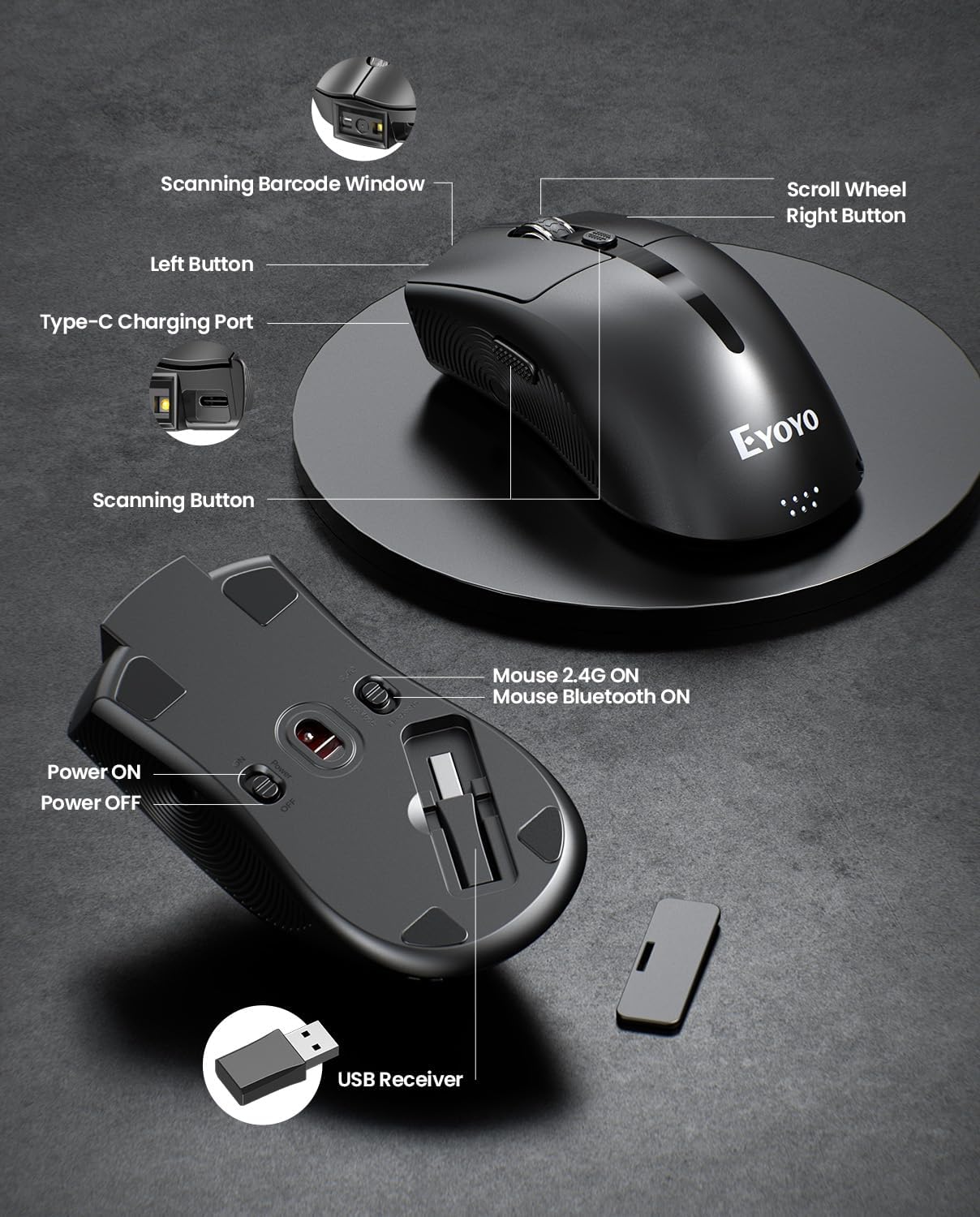
Imagen 2.2.4: This diagram highlights the key components of the EY-045, including the Scanning Barcode Window, Scroll Wheel, Left/Right Buttons, Type-C Charging Port, Scanning Button, Power ON/OFF switch, Mouse 2.4G/Bluetooth ON switches, and the USB Receiver storage slot.
3. Configuración
3.1 Eyoyo EY-H2 Handheld Scanner Setup
- Conecte el cable USB: Plug the USB cable from the EY-H2 scanner into an available USB port on your computer or POS system.
- Reconocimiento del sistema: The operating system (Windows, macOS, Linux, or POS) will automatically detect and install the necessary drivers. No manual driver installation is required.
- Listo para usar: Once recognized, the scanner is ready to use. Open any application where you want to input scanned data (e.g., Notepad, Word, Excel, POS software).
3.2 Eyoyo EY-045 Mouse Scanner Setup
El EY-045 ofrece tres métodos de conexión:
3.2.1 2.4G Wireless Connection (for PC)
- Recuperar receptor USB: Locate the 2.4G USB receiver stored in the bottom slot of the EY-045 mouse.
- Insertar receptor: Plug the USB receiver into an available USB port on your PC.
- Encendido: Slide the power switch on the bottom of the EY-045 to the 'ON' position.
- Seleccione el modo 2.4G: Ensure the mode switch on the bottom is set to 'Mouse 2.4G ON'. The device will automatically connect.
3.2.2 Bluetooth 5.0 Connection (for Laptops/Tablets/Phones)
- Encendido: Slide the power switch on the bottom of the EY-045 to the 'ON' position.
- Seleccionar modo Bluetooth: Ensure the mode switch on the bottom is set to 'Mouse Bluetooth ON'. The device will enter pairing mode (indicator light may flash).
- Habilitar Bluetooth en el dispositivo host: On your laptop, tablet, or phone, go to Bluetooth settings and turn Bluetooth on.
- Emparejar dispositivo: Buscar available devices and select 'Eyoyo EY-045' (or similar name) to pair.
3.2.3 USB-C Wired Connection (for Charging and Working)
- Conectar el cable USB-C: Plug the provided USB-C charging cable into the Type-C charging port on the front of the EY-045.
- Conectarse al host: Plug the other end of the USB-C cable into a USB port on your computer.
- Funcionalidad: The device will charge and function as a wired mouse and scanner simultaneously.
4. Instrucciones de funcionamiento
4.1 Using the Eyoyo EY-H2 Handheld Scanner
- Apuntar y escanear: Apunte la ventana del escáner hacia el código de barras que desea leer.
- Presione el gatillo: Press the trigger button on the handle. A red scanning line or light will appear.
- Confirmación: A successful scan will typically be indicated by a beep sound (if enabled) and the data appearing in your active application.
- Ajustar el sonido: To adjust the sound, scan the appropriate configuration barcodes provided in the full user manual (e.g., 'Turn On Sound' or 'Turn Off Sound' barcodes).
4.2 Using the Eyoyo EY-045 Mouse Scanner
- Función del ratón: When connected, the EY-045 functions as a standard optical mouse for navigation and clicking.
- Switch to Scanner Mode: To scan a barcode, press the dedicated scanning button located on the side of the mouse. The scanning light will activate.
- Escanear código de barras: Aim the scanning window at the barcode and press the scanning button. The scanned data will be transmitted to your connected device.
- Indicador de batería: Monitor the 4-level LED power indicator (25%-50%-75%-100%) on the tail of the mouse to check the battery status. Recharge when the indicator shows low power.
- Almacenamiento sin conexión: The EY-045 can store up to 100,000 barcodes when operating away from a computer. To upload stored data, connect the scanner to your computer and follow the instructions in the full user manual for data transfer.
5. Mantenimiento
- Limpieza: Use a soft, dry cloth to clean the exterior of the scanner. For the scanning window, use a lint-free cloth lightly dampLimpie con un limpiador suave y no abrasivo. Evite productos químicos agresivos o materiales abrasivos.
- Almacenamiento: Guarde los escáneres en un lugar fresco y seco, alejado de la luz solar directa y de temperaturas extremas.
- Cuidado de cables: Avoid bending or twisting the USB cables excessively to prevent internal damage.
- Battery Care (EY-045): For optimal battery life, avoid fully discharging the battery frequently. Recharge the device regularly. If storing for an extended period, charge the battery to about 50% before storage.
6. Solución de problemas
- El escáner no lee códigos de barras:
- Asegúrese de que el código de barras esté limpio y no esté excesivamente dañado.
- Verifique la distancia y el ángulo del escáner con respecto al código de barras.
- Verify that the scanner is properly connected (EY-H2: USB cable; EY-045: 2.4G dongle, Bluetooth, or USB-C cable).
- For EY-045, ensure it is in scanner mode by pressing the dedicated scan button.
- Sin salida de datos:
- Confirme que el escáner esté conectado correctamente a su dispositivo.
- Ensure an application (e.g., Notepad, Word, POS software) is open and active to receive input.
- Restart the computer and reconnect the scanner.
- EY-045 Not Connecting Wirelessly:
- Check if the EY-045 is powered on and the correct wireless mode (2.4G or Bluetooth) is selected.
- Para 2.4G, asegúrese de que el receptor USB esté conectado de forma segura a la computadora.
- For Bluetooth, ensure Bluetooth is enabled on your host device and the EY-045 is paired. Try unpairing and re-pairing if issues persist.
- Asegúrese de que la batería esté cargada.
- EY-045 Battery Drains Quickly:
- Asegúrese de que el dispositivo esté apagado cuando no esté en uso.
- Check the battery indicator for its current level.
- Cargue completamente el dispositivo utilizando el cable USB-C proporcionado.
7. Especificaciones
7.1 Eyoyo EY-H2 Handheld USB 2D Barcode Scanner
- Conectividad: USB con cable
- Capacidad de decodificación: 1D and 2D barcodes (including QR codes)
- Instalación: Plug and Play, no se requieren controladores
- Compatibilidad: Windows, macOS, Linux, POS systems
- Durabilidad: Drop resistance up to 1.5m (5ft)
- Longitud del cable: 1.8M / 5.9ft
- Características: Adjustable sound (on/off)
7.2 Eyoyo EY-045 2-in-1 Wireless Mouse Barcode Scanner
- Diseño: 2-in-1 (Optical Mouse + 2D Barcode Scanner)
- Conectividad: Bluetooth 5.0, 2.4G Wireless (via USB dongle), USB-C Wired
- Capacidad de decodificación: 1D, 2D, and QR codes (including from digital screens)
- Batería: Batería recargable de 1200 mAh
- Duración de la batería: 10+ hours continuous scanning, 20 days daily mouse use
- Indicador de batería: 4-level LED (25%-50%-75%-100%)
- Almacenamiento sin conexión: Hasta 100,000 códigos de barras
- Compatibilidad: Windows (XP/7/8/10/11), macOS, Android, iOS
- Características: Adjustable beep sounds, dedicated scan button
8. Garantía y soporte
Eyoyo products are designed for reliability and performance. For specific warranty information, please refer to the warranty card included with your product or visit the official Eyoyo website. For technical support, troubleshooting assistance, or further inquiries, please contact Eyoyo customer service through the contact information provided on the product packaging or the official websitio.