
Introducción
This manual provides comprehensive instructions for setting up, operating, maintaining, and troubleshooting your Apple iPad Air (M4) 13-inch. Please read this manual thoroughly to ensure proper use and to maximize the device's capabilities. The iPad Air features a Liquid Retina display, the powerful M4 chip, advanced cameras, Wi-Fi 7, and 5G Cellular connectivity.
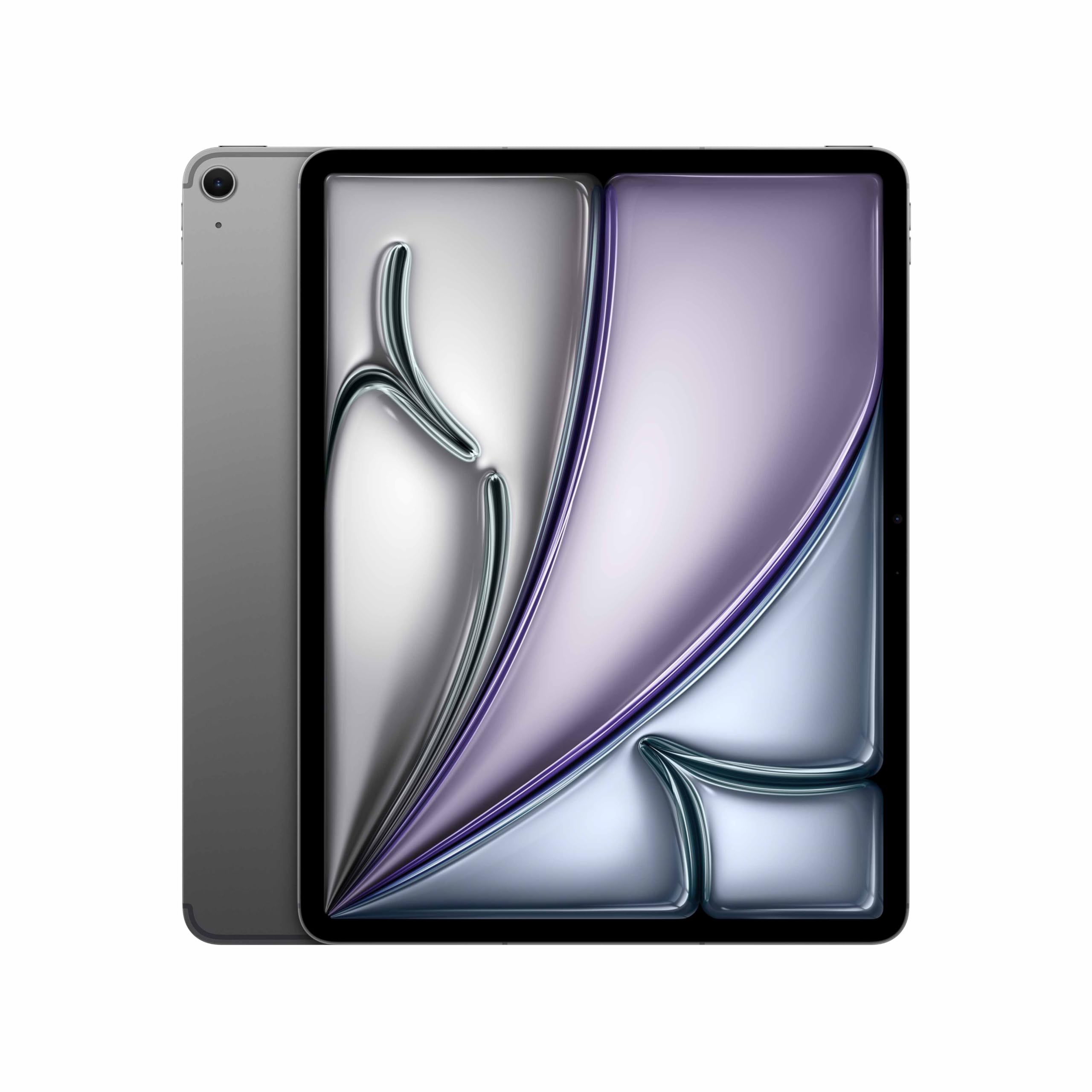
Image: The Apple iPad Air (M4) 13-inch in Space Gray, showcasing su elegante diseño.
1. Configuración
1.1 Desempaquetado y componentes incluidos
Retire con cuidado todos los artículos del embalaje. Asegúrese de que estén presentes los siguientes componentes:
- iPad Air (M4) 13-inch
- Cable de carga USB‑C
- Adaptador de corriente 20W USB-C

Image: The iPad Air, USB-C charge cable, and 20W USB-C power adapter, illustrating the contents of the box.
1.2 Encendido inicial y configuración básica
- Encendido: Mantenga presionado el botón superior hasta que aparezca el logotipo de Apple.
- Siga las instrucciones en pantalla: Seleccione su idioma y región.
- Conectarse a Wi-Fi: Elija su red Wi-Fi e ingrese la contraseña.
- Datos y privacidad: Review Información de datos y privacidad de Apple.
- Configuración de Touch ID: Follow the prompts to set up Touch ID for secure authentication.
- Crear un código de acceso: Set a six-digit passcode for additional security.
- Transferir aplicaciones y datos: Choose to restore from a backup (iCloud or computer) or set up as a new iPad.
- ID de Apple: Inicia sesión con tu ID de Apple o crea uno nuevo. Esto es esencial para acceder a la App Store, iCloud y otros servicios de Apple.
- Location Services & Siri: Configure these settings as desired.
- Tiempo de pantalla: Set up parental controls or monitor your usage.
- Análisis de aplicaciones: Choose whether to share analytics with Apple.
- Pantalla de tono verdadero: Enable or disable True Tone for automatic white balance adjustment.
1.3 Charging the iPad Air
Connect the USB-C Charge Cable to the iPad Air's USB-C port and the 20W USB-C Power Adapter. Plug the power adapter into a wall outlet. The battery icon in the status bar will indicate charging status.
2. Instrucciones de funcionamiento
2.1 Navegación básica y gestos
- Pantalla de inicio: Deslice el dedo hacia arriba desde el borde inferior de la pantalla para ir a la pantalla de inicio.
- Cambiador de aplicaciones: Desliza el dedo hacia arriba desde el borde inferior y haz una pausa en el medio de la pantalla para view aplicaciones abiertas.
- Centro de control: Deslice el dedo hacia abajo desde la esquina superior derecha para acceder a la configuración rápida.
- Notificaciones: Desliza el dedo hacia abajo desde la esquina superior izquierda o el centro para view notificaciones.
- Buscar: Swipe down from the middle of the Home Screen to open Search.
2.2 Uso de Touch ID
Touch ID is integrated into the top button. Place your registered finger on the top button to unlock your iPad, make purchases, or authenticate within apps.
2.3 Wi-Fi and 5G Cellular Connectivity
- Wifi: Ir a Configuración > Wi-Fi to connect to available networks. The iPad Air supports Wi-Fi 7 for faster wireless speeds.
- Celular 5G: Insert a nano-SIM card or set up an eSIM. Go to Configuración > Datos móviles to manage your cellular plan and data usage.
2.4 Cámaras
The iPad Air features 12MP front and back cameras. Open the Camera app to take photos, record videos, or use features like Center Stage for video calls.
2.5 iPadOS and Apple Intelligence
iPadOS provides a powerful and intuitive operating system. The M4 chip enhances performance for demanding tasks and enables advanced Apple Intelligence features, offering personalized assistance and improved productivity.

Image: The iPad Air screen showing a presentation outline and a trend search report, highlighting the M4 chip and iPadOS for speed, power, and flexibility.

Image: The iPad Air screen showing detailed notes on whale vocalizations, illustrating how Apple Intelligence provides effortlessly helpful features.

Image: The iPad Air attached to a Magic Keyboard, showcasing an enhanced typing and trackpad experience.
3. Mantenimiento
3.1 Limpieza de tu iPad Air
To clean your iPad Air, use a soft, lint-free cloth. Avoid abrasive materials, aerosols, solvents, or ammonia-based cleaners. For stubborn marks, slightly dampEnjuague el paño con agua. No rocíe limpiadores directamente sobre el dispositivo.
3.2 Cuidado de la batería
For optimal battery life, avoid exposing your iPad to extreme temperatures. Charge your device regularly, but it is not necessary to fully discharge it before recharging. If storing the iPad for an extended period, charge it to about 50% to prevent deep discharge.
3.3 Actualizaciones de software
Keep your iPad Air's software up to date to ensure the latest features, security enhancements, and performance improvements. Go to Configuración > General > Actualización de software para comprobar e instalar las actualizaciones disponibles.
4. Solución de problemas
4.1 Problemas comunes y soluciones
- El dispositivo no responde: Si tu iPad no responde, fuerza su reinicio. Presiona y suelta rápidamente el botón para subir el volumen, presiona y suelta rápidamente el botón para bajar el volumen y, luego, mantén presionado el botón superior hasta que aparezca el logotipo de Apple.
- Problemas de conectividad Wi-Fi: Try turning Wi-Fi off and on in Control Center or Settings. Restart your Wi-Fi router. If issues persist, reset network settings (Ajustes > General > Transferir o restablecer iPad > Restablecer > Restablecer ajustes de red).
- Las aplicaciones se bloquean o se congelan: Close the app from the App Switcher and reopen it. If the problem continues, restart your iPad. Ensure the app and iPadOS are updated to the latest versions.
- La batería se agota rápidamente: Comprobar el uso de la batería en Configuración> Batería to identify apps consuming significant power. Reduce screen brightness, disable unnecessary background app refresh, and ensure software is up to date.
4.2 Restablecimiento de fábrica
As a last resort for persistent issues, you can factory reset your iPad. This will erase all data and settings. Before proceeding, ensure you have backed up your data to iCloud or a computer. Go to Ajustes > General > Transferir o restablecer iPad > Borrar todo el contenido y los ajustes.
5. Especificaciones
| Marca | Manzana |
| Nombre del modelo | 13-inch iPad Air (M4, 2026) |
| Número de modelo | MH9H4HN/A |
| Tamaño de pantalla | 13 pulgadas (32.78 cm) |
| Resolución máxima de pantalla | 2732 x 2048 píxeles |
| Sistema operativo | Sistema operativo iPad |
| Procesador | Manzana M4 |
| Memoria RAM instalada | 12 GB |
| Hard-Drive Size | 256 GB |
| Tipo de tecnología inalámbrica | Wi-Fi 7, 5G Cellular |
| Tipo de celda de la batería | Lithium Ion (36.59 Watt Hours) |
| Peso del artículo | 0.62 kilogramos |
| Dimensiones del artículo (largo x ancho x grosor) | 21.5L x 28.1W x 0.6Centímetros |
| Componentes incluidos | iPad Air, USB-C Charge Cable, 20W USB-C Power Adapter |
6. Información de garantía
Your Apple iPad Air (M4) 13-inch is covered by an Garantía limitada de un (1) año de Apple from the date of original retail purchase. This warranty covers manufacturing defects and workmanship under normal use. For full terms and conditions, please refer to the warranty documentation included with your product or visit the official Apple support websitio.
The warranty does not cover damage caused by accidents, unauthorized modifications, or misuse. Proof of purchase may be required for warranty service.
7. Soporte
For further assistance, technical support, or service inquiries, please contact Apple Support:
- Soporte en línea: Visit the official Apple Support website for articles, troubleshooting guides, and contact options. soporte.apple.com
- Contacto del fabricante: Apple Inc, One Apple Park Way, Cupertino, CA 95014, USA.
- India Specific Contact: Apple India Private Limited, 13th Floor, Prestige Minsk Square, Municipal No. 6, Cubbon Road, Bengaluru, Karnataka - 560001, India.
Before contacting support, it is recommended to have your device's serial number available. This can be found in Configuración > General > Acerca de.