1. Introducción
This manual provides detailed instructions for the Gembird KB-BT-001-W-DE Slimline Bluetooth Keyboard. Please read this manual thoroughly before using the product to ensure proper operation and to maximize its lifespan. This keyboard is designed for seamless wireless connectivity with various Bluetooth-enabled devices.
2. Contenido del paquete
- Gembird KB-BT-001-W-DE Bluetooth Keyboard (German QWERTZ Layout, White)
- Cable USB
- Manual de usuario
3. Características principales
- Slimline Bluetooth V 3.0 Wireless Keyboard (German QWERTZ Layout)
- Ultra-flat and ergonomic design
- Supports common Bluetooth-enabled devices: smartphones, tablets, PCs, and laptops
- Soft-touch keys for comfortable typing
- Convenient multimedia keys
- Compact size (28.7 x 2 x 13.7 cm) ideal for travel
- Compatible with Windows (XP, Vista, 7, 8) and Apple (iPad, iPhone, iPod Touch, MAC OS)
- Alcance operativo: hasta 10 metros
4. Requisitos del sistema
- Device with Bluetooth connectivity (e.g., PC, laptop, tablet, smartphone)
- Supported Operating Systems: Windows XP/Vista/7/8, Apple iOS (iPad, iPhone, iPod Touch), Mac OS
5. Configuración y emparejamiento
5.1. Encender el teclado
Locate the power switch on the keyboard, usually on the side or back. Slide it to the "ON" position. The keyboard's indicator light (often blue or green) should illuminate briefly, indicating it is powered on and ready for pairing.
5.2. Emparejamiento con su dispositivo
- Habilite Bluetooth en su dispositivo: Go to your device's settings and ensure Bluetooth is turned on.
- Ingrese al modo de emparejamiento: On the Gembird keyboard, press the Conectar or Emparejamiento button (if available, typically a small button on the back or bottom, or a key combination like Fn + C). The indicator light should start blinking rapidly, signifying it is in pairing mode.
- Buscar Dispositivos: On your device, search for available Bluetooth devices. The keyboard should appear as "Gembird KB-BT-001-W-DE" or similar.
- Seleccionar y conectar: Select the keyboard from the list. Your device may prompt you to enter a pairing code displayed on the screen. Type this code using the Gembird keyboard and press Ingresar.
- Confirmación: Once successfully paired, the indicator light on the keyboard will stop blinking and remain solid or turn off, and your device will show the keyboard as "Connected."
Note: The exact pairing process may vary slightly depending on your device's operating system. Refer to your device's manual for specific Bluetooth pairing instructions.
6. Instrucciones de funcionamiento
6.1. Uso básico
Once paired, the keyboard functions like a standard QWERTZ keyboard. Simply begin typing. Ensure the keyboard is within the 10-meter operating range of your device for optimal performance.
6.2. Teclas multimedia y de función
The Gembird KB-BT-001-W-DE keyboard includes dedicated function keys (F1-F12) and multimedia shortcuts. To activate the secondary functions (blue icons) on the F-keys, press and hold the Fn key (located near the left Ctrl key) and then press the desired F-key.
| Combinación de teclas | Función | Descripción |
|---|---|---|
| Fn + F1 | F11 | Standard F11 key function. |
| Fn + F2 | F12 | Standard F12 key function. |
| Fn + F3 | Correo electrónico | Opens default email client. |
| Fn + F4 | Browser/Home | Opens default web browser or navigates to home page. |
| Fn + F5 | Reproductor multimedia | Launches default media player. |
| Fn + F6 | Pista anterior | Salta a la pista anterior en la reproducción multimedia. |
| Fn + F7 | Reproducir/Pausa | Activa o desactiva la reproducción/pausa de la reproducción multimedia. |
| Fn + F8 | Pista siguiente | Salta a la siguiente pista en la reproducción multimedia. |
| Fn + F9 | Silenciar | Silencia/activa el audio. |
| Fn + F10 | Bajar volumen | Disminuye el volumen del sistema. |
| Fn + F11 | Subir volumen | Aumenta el volumen del sistema. |
| Fn + F12 | Pantalla de bloqueo | Bloquea la pantalla de la computadora. |
| Fn + Num Lock | Numeric Keypad Toggle | Activates/deactivates the embedded numeric keypad (U, I, O, J, K, L, M keys). |
6.3. Keyboard Layout (German QWERTZ)
This keyboard features a German QWERTZ layout. Key positions for special characters and symbols may differ from standard QWERTY layouts. Refer to the keycaps for specific character placements.
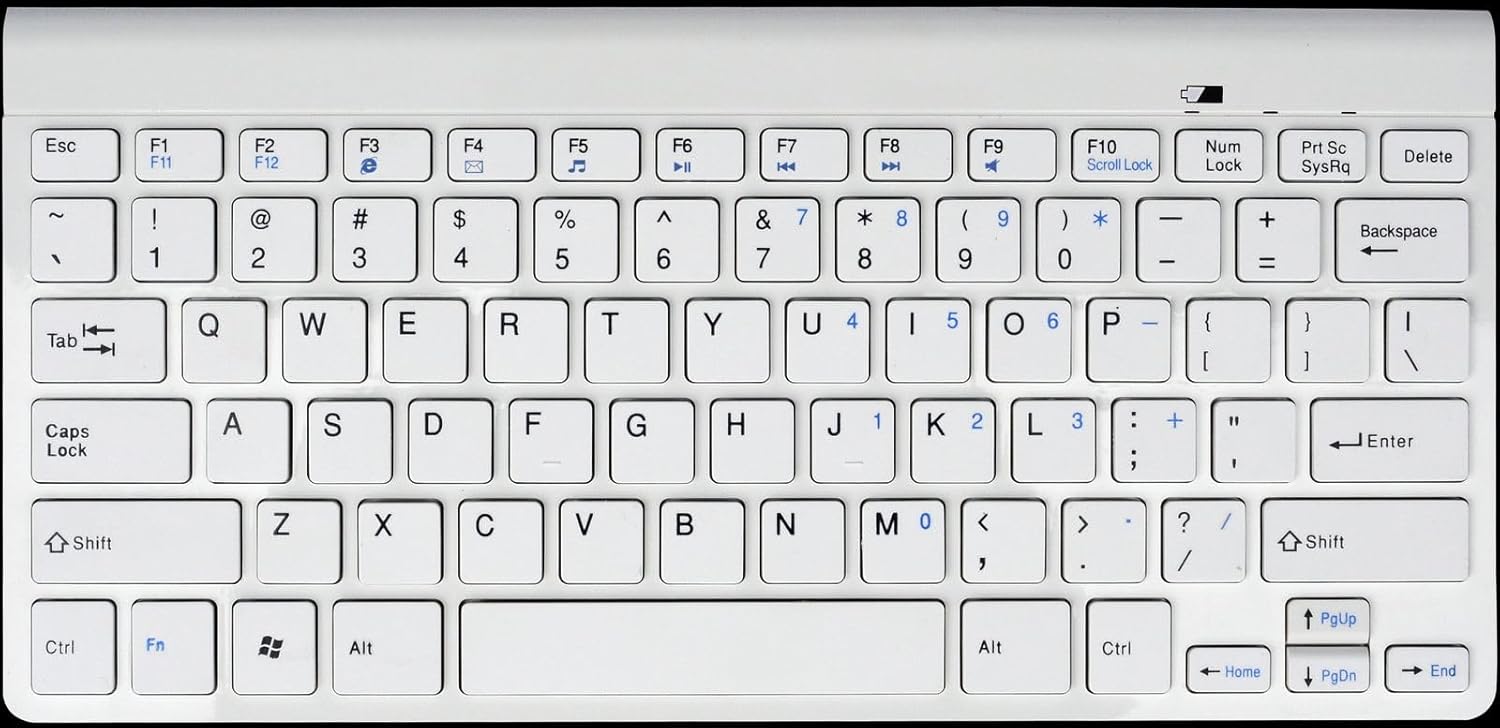
Figura 1: Gembird KB-BT-001-W-DE Slimline Bluetooth Keyboard. This image displays the full keyboard, highlighting its compact design and German QWERTZ key layout, including function keys with multimedia shortcuts and the embedded numeric keypad on the right side.
7. Mantenimiento
7.1. Limpieza
- Desconecte el teclado de la alimentación y apáguelo antes de limpiarlo.
- Utilice un paño suave y sin pelusa ligeramente seco.amplimpiado con agua o una solución de limpieza suave.
- Evite la humedad excesiva y no rocíe limpiadores directamente sobre el teclado.
- Para eliminar el polvo y los residuos entre las teclas, utilice aire comprimido.
7.2. Cuidado de la batería
- If the keyboard uses rechargeable batteries, charge it regularly using the provided USB cable.
- If it uses disposable batteries, replace them when the low battery indicator (if present) illuminates or performance degrades.
- Apague el teclado cuando no lo utilice durante períodos prolongados para conservar la vida útil de la batería.
8. Solución de problemas
| Problema | Posible causa | Solución |
|---|---|---|
| El teclado no se conecta/empareja. | Bluetooth is off on device; keyboard not in pairing mode; low battery; too far from device. | Ensure Bluetooth is enabled. Put keyboard in pairing mode. Charge/replace batteries. Move keyboard closer to device (within 10m). Try re-pairing. |
| Las teclas no responden o la entrada se retrasa. | Batería baja; interferencia; fuera de rango. | Charge/replace batteries. Move away from other wireless devices. Ensure keyboard is within range. |
| Incorrect characters typed (e.g., Y and Z swapped). | Device's keyboard layout is set to QWERTY instead of QWERTZ. | Change your device's keyboard input language/layout to German (QWERTZ). |
| Las teclas multimedia no funcionan. | Fn key not pressed; software incompatibility. | Asegúrese de que está sosteniendo el Fn key while pressing the F-key. Update device drivers if applicable. |
9. Especificaciones
| Característica | Detalle |
|---|---|
| Marca | Pájaro gema |
| Número de modelo | KB-BT-001-W-DE |
| Tecnología de conectividad | Bluetooth v3.0 |
| Dispositivos compatibles | PC, teléfono inteligente, tableta |
| Descripción del teclado | Multimedia |
| Número de llaves | 78 |
| Disposición del teclado | QWERTZ (alemán) |
| Componentes incluidos | Cable USB |
| Rango de operación | Hasta 10 metros |
| Dimensiones (aprox.) | 28.7 x 13.7 x 2 cm (11.3 x 5.4 x 0.8 pulgadas) |
10. Garantía y soporte
For warranty information and technical support, please refer to the documentation included with your purchase or visit the official Gembird website. Contact details for support are typically provided in the product packaging or on the manufacturer's websitio.
- Fabricante: Pájaro gema
- Apoyo: Telephone support and email support are mentioned in the product features. Please check the included manual or Gembird's official webSitio para obtener información de contacto actualizada.