1. Producto terminadoview
The Gioteck EX-05S High Definition Headset is designed to deliver superior stereo game sound and crystal-clear voice communication. It is compatible with multiple platforms including PS4, PS3, Xbox 360, PC, and Mac. This headset features 40mm high-quality stereo drivers, a noise-isolating microphone, and breathable micro-fibre ear cups for extended comfort.
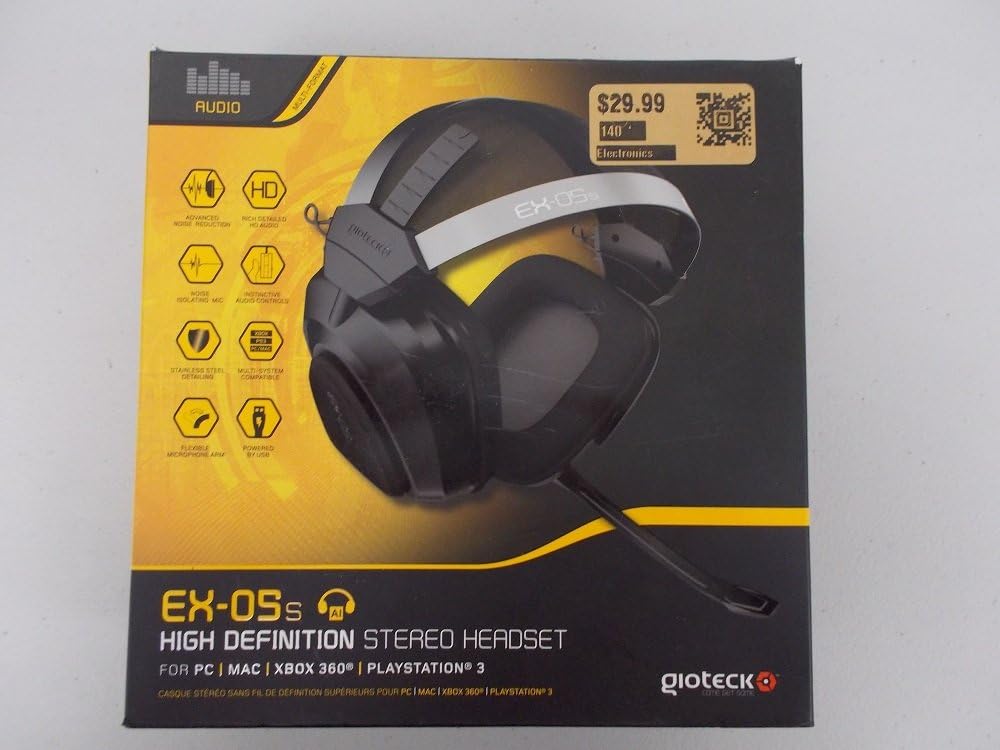
Figure 1.1: Gioteck EX-05S Headset packaging, highlighting key features and compatibility.

Figura 1.2: Lado view of the Gioteck EX-05S Headset, showing the ear cup and microphone arm.
2. Características
- 40mm High Quality Stereo Drivers: Delivering rich, detailed audio for an immersive gaming experience.
- Noise Isolating Microphone: Designed to eliminate echo and external noise for clear communication.
- Breathable Micro-Fibre Ear Cups: Ensures comfort during long gaming sessions.
- Reducción de ruido avanzada: Minimizes game sound interference from external speakers.
- Flexible and 180-Degree Rotating Microphone Arm: Permite un posicionamiento óptimo del micrófono.
- Instinctive and Accessible Controls: Conveniently located controls for voice and game sound adjustments.
- Stainless Steel Detailing: Provides durability and a premium finish.
- Compatibilidad multiplataforma: Works with PS4, PS3, Xbox 360, PC, and Mac.
3. Contenido del paquete
Asegúrese de que todos los siguientes elementos estén presentes en su paquete:
- Gioteck EX-05S Universal High Definition Stereo Headset
4. Guía de configuración
4.1 Connecting to Gaming Consoles (PS4, PS3, Xbox 360)
- Locate the 3.5mm audio jack on your gaming controller or console.
- Insert the 3.5mm connector from the EX-05S headset firmly into the audio jack.
- Ensure your console's audio settings are configured to output game audio and chat through the connected headset. Refer to your console's system settings for specific audio output configurations.
4.2 Conexión a PC/Mac
- For PCs with separate audio and microphone jacks, you may need a PC splitter cable (not included) to connect the single 3.5mm headset jack to your computer's audio output and microphone input ports.
- For devices with a combined 3.5mm audio/microphone jack, simply plug the headset's 3.5mm connector directly into the port.
- Adjust your computer's sound settings to select the EX-05S headset as the default playback and recording device.
5. Instrucciones de funcionamiento
5.1 Control de volumen
The EX-05S headset features an inline control box on the cable. Use the volume dial to adjust the overall audio level of your game and chat sound.
5.2 Silenciar el micrófono
A switch or button on the inline control box allows you to quickly mute or unmute your microphone. Ensure the microphone is unmuted when you wish to communicate.
5.3 Posicionamiento del micrófono
The flexible microphone arm can be rotated 180 degrees. Position the microphone approximately 1-2 inches from your mouth for optimal voice clarity and to minimize background noise.
6. Mantenimiento y cuidado
- Limpieza: Use a soft, dry cloth to clean the headset. For ear cups, a slightly damp Se puede usar un paño, pero asegúrese de que no entre humedad en las rejillas del altavoz. No utilice productos químicos agresivos ni limpiadores abrasivos.
- Almacenamiento: Guarde los auriculares en un lugar fresco y seco, alejados de la luz solar directa y de temperaturas extremas. Evite que el cable se enrede.
- Manejo: Always grasp the plug when disconnecting the cable, rather than pulling on the cable itself, to prevent damage to the wiring.
- Auriculares: The breathable micro-fibre ear cups can be gently wiped clean. Avoid excessive pressure or stretching.
7. Solución de problemas
7.1 No hay sonido en los auriculares
- Asegúrese de que el conector de 3.5 mm esté completamente insertado en el puerto de audio.
- Verifique el control de volumen en línea en el cable de los auriculares y asegúrese de que esté subido.
- Verify your device's (console, PC, Mac) audio output settings are configured to send sound to the headset.
- Pruebe los auriculares en otro dispositivo para descartar un problema específico del dispositivo.
7.2 El micrófono no funciona
- Check the microphone mute switch on the inline control box and ensure it is unmuted.
- Verify your device's (console, PC, Mac) microphone input settings are configured to receive input from the headset.
- Asegúrese de que el brazo del micrófono esté colocado correctamente y no esté obstruido.
- Test the microphone on another device or application to confirm functionality.
7.3 Static or Distorted Audio
- Asegúrese de que la conexión sea segura y libre de residuos.
- Try adjusting the volume levels on both the headset and the connected device.
- Move away from potential sources of electromagnetic interference (e.g., Wi-Fi routers, cordless phones).
- Pruebe con otra fuente o dispositivo de audio.
8. Especificaciones
| Característica | Detalle |
|---|---|
| Nombre del modelo | E5SUNI-11-MU |
| Tecnología de conectividad | Cableado |
| Componentes incluidos | Auriculares |
| Rango de edad (descripción) | Adulto |
| Material | Acero inoxidable |
| Usos específicos del producto | Juego de azar |
| Dispositivos compatibles | Consolas de juegos, computadoras |
| Tipo de control | Control de volumen |
| Función del cable | Retráctil |
| Peso del artículo | 669 gramos (1.47 libras) |
| Método de control | Voz |
| Tipo de controlador de audio | Controlador dinámico |
| Forma del auricular | Sobre la oreja |
| Toma de auriculares | 3.5 mm Jack |
| Dimensiones del producto | 8.46 x 7.87 x 3.94 pulgadas |
9. Garantía y soporte
Gioteck products are manufactured to high standards and undergo rigorous testing. For information regarding warranty coverage, technical support, or service, please refer to the official Gioteck webSitio web o contacte directamente con el servicio de atención al cliente. Conserve su comprobante de compra para cualquier reclamación de garantía.
Para obtener la información de soporte más actualizada, visite: www.gioteck.com/support