1. Másview
The GIGABYTE GA-X99-Phoenix SLI is an ATX motherboard designed for high-performance computing. It supports Intel Core i7 Broadwell-E processors on the LGA2011-3 socket and features the Intel X99 chipset. This motherboard is equipped with Quad Channel DDR4 memory support, multiple PCIe slots for 3-Way/2-Way SLI and CrossFire configurations, and advanced storage options including NVMe PCIe Gen3 x4 M.2 and U.2 interfaces. It also integrates Intel USB 3.1 with Type-C, dual Intel Gigabit Ethernet, and Intel 802.11ac wireless connectivity.
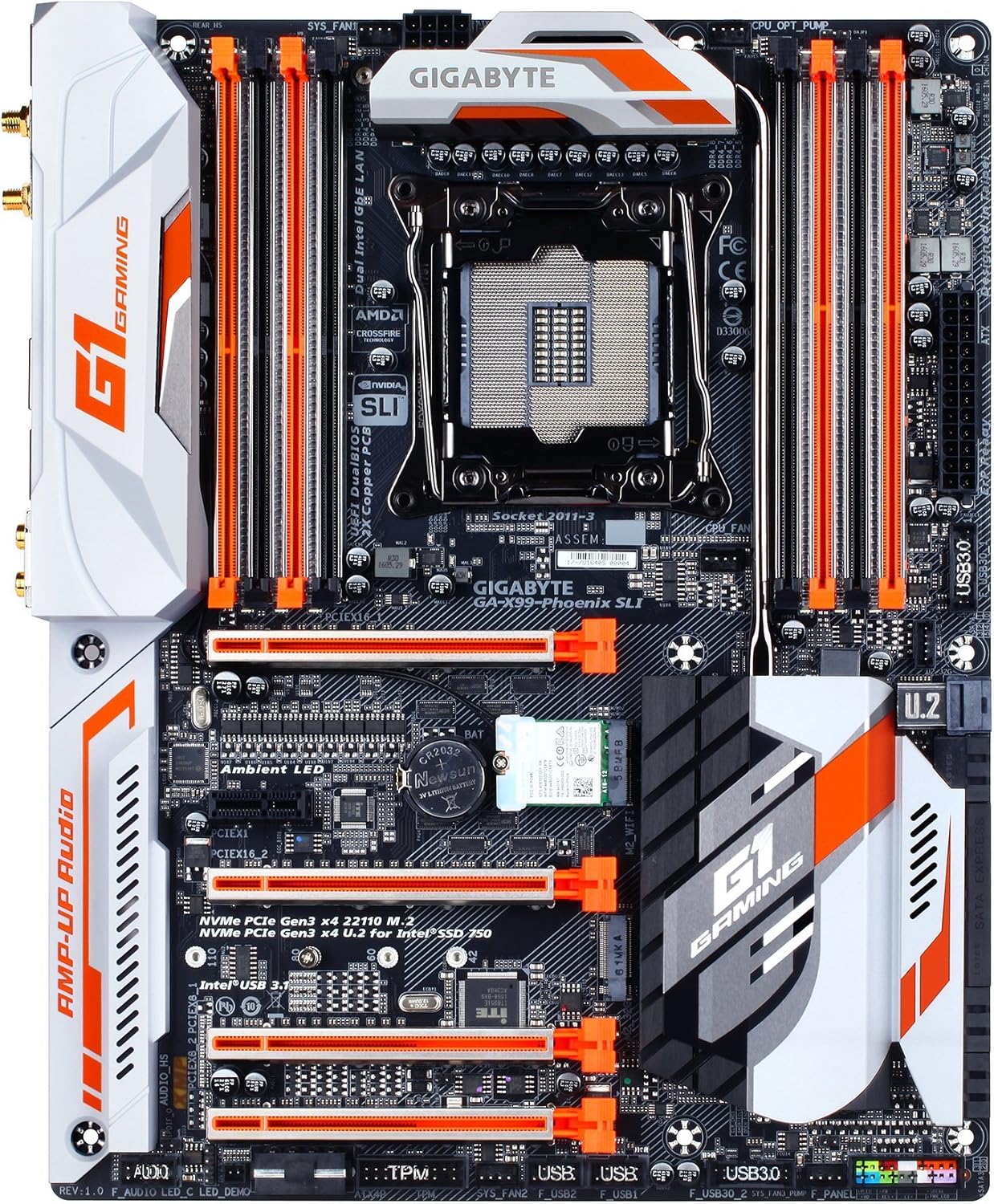
Figura 1: De arriba hacia abajo view of the GIGABYTE GA-X99-Phoenix SLI motherboard, showcasing its layout including the CPU socket, RAM slots, PCIe slots, and various connectors.
2. Configuración e instalación
2.1 Lista de verificación previa a la instalación
- Compatibilidad de casos: Ensure your PC case supports the E-ATX form factor. Standard ATX cases may not accommodate this motherboard.
- Procesador: Verify you have an Intel Core i7 processor compatible with the LGA 2011-3 socket.
- Memoria: Use DDR4 DIMMs. The motherboard supports Quad Channel, Registered / Non-ECC Unbuffered DDR4.
- Fuente de alimentación: Una unidad de fuente de alimentación (PSU) estable con suficiente aguatage is crucial for system stability.
2.2 Instalación de la placa base
- Preparar el caso: Instale el protector de E/S en la abertura trasera de la carcasa de su PC.
- Monte la placa base: Alinee cuidadosamente la placa base con los separadores de su carcasa y fíjela con tornillos.
- Instalar CPU: Open the CPU socket lever, align the CPU with the socket (matching the golden triangle on the CPU to the mark on the socket), gently place the CPU, and close the lever.
- Instalar enfriador de CPU: Conecte el disipador de CPU elegido de acuerdo con las instrucciones del fabricante.
- Instalar memoria (RAM): Open the clips on the DDR4 DIMM slots. Align the memory modules with the slots, ensuring the notch on the module matches the key in the slot. Press down firmly until the clips snap into place. For optimal performance, populate memory in a quad-channel configuration as recommended by the motherboard manual.
- Conecte la electricidad: Connect the 24-pin ATX main power connector and the 8-pin CPU power connector from your PSU to the motherboard.
- Conectar dispositivos de almacenamiento: Connect SATA, M.2, or U.2 drives to the appropriate ports.
- Conectar periféricos: Connect front panel headers (power, reset, USB, audio), USB devices, and other peripherals.

Figura 2: Angulado view of the motherboard, highlighting the rear I/O panel and the layout of the PCIe and RAM slots.
2.3 Arranque inicial y acceso al BIOS
After connecting all necessary components, power on your system. During the Power-On Self-Test (POST), press the DEL key repeatedly to enter the UEFI BIOS setup. You may also press the Fin key during POST to access Q-Flash for BIOS updates.
3. Funcionamiento de la placa base
3.1 UEFI BIOS Navigation
The GIGABYTE UEFI BIOS provides a graphical interface for system configuration. While mouse navigation is available, some users may find the keyboard more responsive for precise control due to potential mouse lag within the BIOS environment.
3.2 Overclocking Features
This motherboard offers robust overclocking capabilities. For users new to overclocking, GIGABYTE's EasyTune utility (part of the APP Center) provides one-click overclocking options (e.g., 3.8GHz, 4.0GHz, 4.2GHz) for compatible CPUs. Memory overclocking can be adjusted directly in the BIOS by selecting desired speeds from a dropdown menu, allowing the motherboard to manage voltage settings automatically.
3.3 Utilidades de software
El GIGABYTE APP Center provides access to various utilities, including:
- EasyTune: For system tuning, monitoring, and overclocking.
- Cloud Station: For cloud-based data management and sharing.
- Other utilities for fan control, system information, and more.
3.4 Audio and Network
The motherboard features 115dB SNR HD Audio with a built-in rear audio amplifier for enhanced sound quality. Network connectivity is provided by Dual Intel Gigabit Ethernet LAN ports, which can be optimized with cFosSpeed Internet Accelerator Software, and integrated Intel 802.11ac Dual Band Wireless with Bluetooth 4.2.

Figure 3: Close-up of the rear I/O panel, showing various ports including USB, Ethernet, audio jacks, and wireless antenna connectors.
4. Mantenimiento
Batería 4.1 CMOS
The motherboard uses a Lithium Metal battery (CR2032) to retain BIOS settings and the system clock when the computer is powered off. If you experience issues with incorrect time/date or lost BIOS settings, the CMOS battery may need replacement. Refer to the motherboard diagram for its location.
4.2 Actualizaciones del BIOS
GIGABYTE's Q-Flash Plus utility allows you to update the BIOS without installing a CPU, memory, or graphics card. Simply download the latest BIOS version from the GIGABYTE website, place it on a USB flash drive, and follow the instructions for Q-Flash Plus. Regular BIOS updates can improve system stability, compatibility, and performance.
5. Solución de problemas
5.1 Problemas comunes
- System Fails to POST (Power-On Self-Test):
- Verifique todas las conexiones de alimentación (ATX de 24 pines, CPU de 8 pines).
- Asegúrese de que la CPU y la RAM estén instaladas correctamente.
- Verify the CPU cooler is properly installed.
- Intente arrancar sólo con los componentes esenciales (CPU, una memoria RAM, GPU si no tiene gráficos integrados).
- System Freezes or is Unstable:
- Ensure the BIOS is updated to the latest stable version. Early BIOS versions may have compatibility issues.
- Verifique las temperaturas de la CPU y la GPU para descartar sobrecalentamiento.
- Si realiza overclocking, vuelva a la configuración predeterminada para verificar la estabilidad.
- Ejecute herramientas de diagnóstico de memoria para comprobar la integridad de la RAM.
- No Debug Code LED: This motherboard does not feature a debug code LED. Troubleshooting will rely on beep codes (if enabled) or visual inspection of components.
- Mouse Lag in BIOS: This is a known characteristic for some users. Use keyboard navigation for a more responsive experience.
6. Especificaciones
| Característica | Especificación |
|---|---|
| Marca | GIGABYTE |
| Nombre del modelo | GA-X99-Phoenix SLI |
| Zócalo de CPU | LGA 2011-3 |
| Procesadores compatibles | Intel Core i7 (Broadwell-E) |
| Tipo de chipset | Intel X99 |
| Tecnología de memoria RAM | Memoria SDRAM DDR4 |
| Canales de memoria | Canal cuádruple |
| Capacidad máxima de memoria | Up to 256 GB (8 DIMMs) |
| Interfaz gráfica | PCIe Gen3 x16 slots (Supports 3-Way/2-Way SLI & CrossFire) |
| Interfaces de almacenamiento | NVMe PCIe Gen3 x4 22110 M.2, U.2, SATA Express, SATA 6Gb/s |
| Puertos USB | Intel USB 3.1 (Type-A & Type-C), USB 3.0, USB 2.0 |
| Red local | Dual Intel Gigabit Ethernet |
| Conectividad inalámbrica | Intel 802.11ac Dual Band Wireless, Bluetooth 4.2 |
| Audio | 115dB SNR HD Audio with Built-in Rear Audio Ampmás vivaz |
| Factor de forma | E-ATX (14.48 x 12.2 x 3.85 inches) |
| Características especiales | Ambient Surround LED, Ultra Durable Metal Shielding, Anti-Sulfur Resistors, Anti-Rust Rear I/O, Dual Hybrid Fan Headers, GIGABYTE UEFI Dual BIOS with Q-Flash Plus |
| Batería CMOS | Se requiere 1 batería de metal de litio |