1. Producto terminadoview
The Kit Magnetic Bluetooth Keyboard Case transforms your 9-10 inch tablet into a portable laptop, offering both protection and enhanced typing capabilities. Its sleek design features a leather-effect finish and an integrated stand for versatile use. The detachable Bluetooth keyboard ensures quick and easy pairing with a wide range of devices.
Características principales:
- Conectividad Bluetooth: Seamlessly connect the wireless keyboard to your tablet.
- Amplia compatibilidad: Designed for 9-10 inch iOS, Android, and Windows tablets, including various iPad and Samsung Galaxy Tab models.
- Batería de larga duración: The rechargeable battery provides approximately 65 hours of continuous typing.
- Soporte integrado: Folds into a stable stand for comfortable viewÁngulos de escritura y mecanografía.
- Diseño magnético: Securely holds the tablet and keyboard in place.

Image: The Kit Magnetic Bluetooth Keyboard Case with a tablet securely placed, illustrating its use as a portable workstation.
2. Primeros pasos
2.1 Contenido del paquete
- Kit Magnetic Bluetooth Keyboard Case
- Cable de carga USB
- Manual de usuario
2.2 Carga del teclado
Before first use, fully charge the keyboard. Connect the provided USB charging cable to the keyboard's charging port and plug the other end into a USB power source (e.g., computer USB port, USB wall adapter). The charging indicator light will illuminate during charging and turn off when fully charged.
2.3 Inserción de su tableta
- Open the keyboard case flat.
- Carefully slide your 9-10 inch tablet into the designated slot or frame within the case. Ensure it is securely seated and aligned with any cutouts for buttons or ports.
- The magnetic design will help hold the tablet in place.
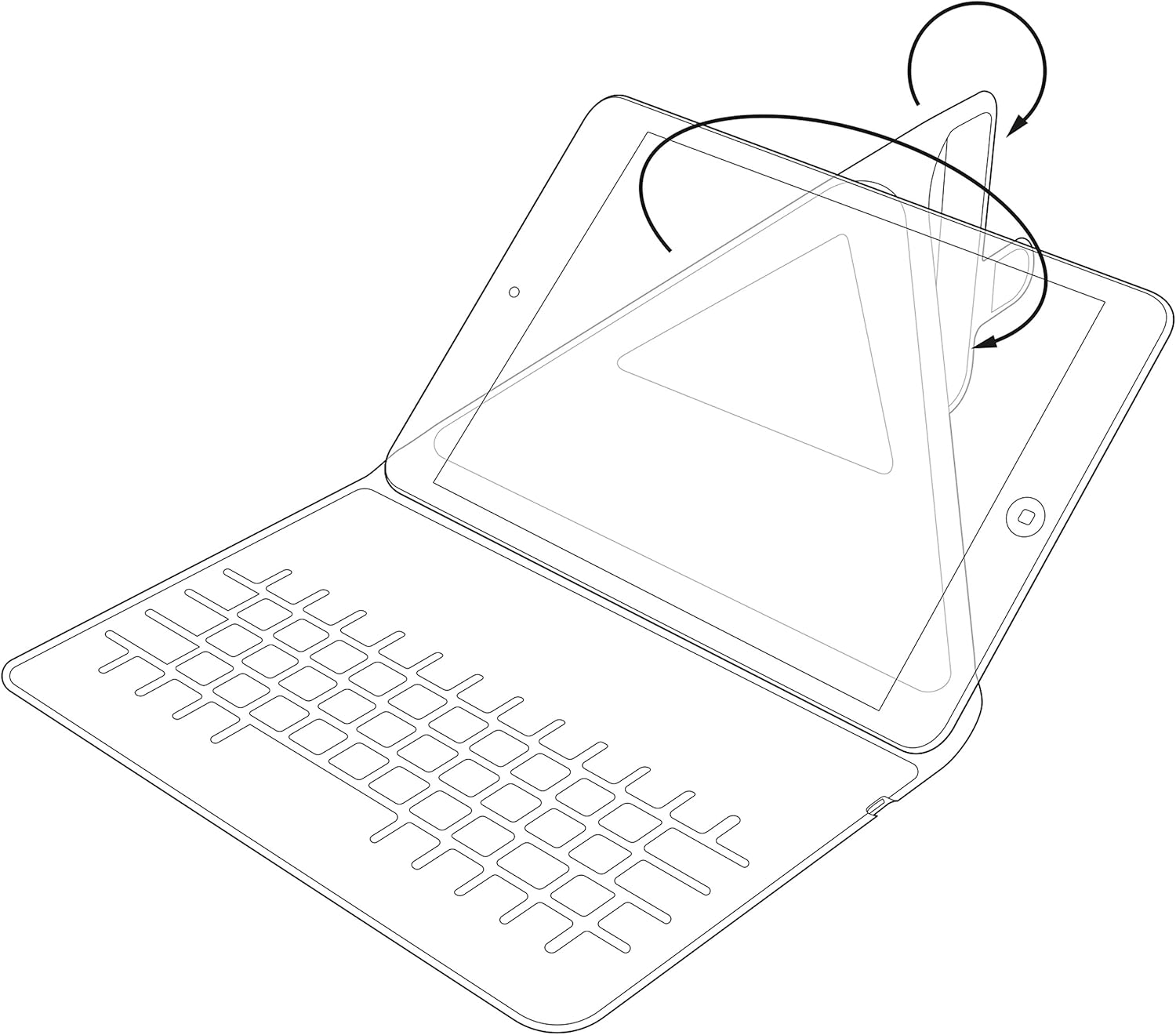
Image: Diagram showing the process of inserting a tablet into the case's holding mechanism.
2.4 Emparejamiento del teclado Bluetooth
- Encienda el teclado deslizando el interruptor de encendido a la posición "ON". El indicador de encendido se iluminará brevemente.
- Press the 'Connect' or 'Pair' button on the keyboard (refer to the keyboard layout for exact button location). The Bluetooth indicator light will start blinking, indicating it is in pairing mode.
- On your tablet, go to 'Settings' > 'Bluetooth'. Ensure Bluetooth is enabled.
- Your tablet will search for available Bluetooth devices. Select 'Kit Keyboard' or a similar name from the list of found devices.
- If prompted, enter the pairing code displayed on your tablet screen using the keyboard, then press 'Enter'.
- Once paired, the Bluetooth indicator light on the keyboard will stop blinking and remain solid or turn off, and your tablet will show the keyboard as 'Connected'.
3. Instrucciones de funcionamiento
3.1 Funciones del teclado
The keyboard features a standard QWERTY layout with additional function keys (Fn) for quick access to multimedia controls, volume, and other tablet-specific functions. Refer to the key labels for their specific actions. For example, you may find keys for Home, Search, Volume Up/Down, Play/Pause, etc.

Imagen: Detallada view of the keyboard layout, highlighting various function keys and standard alphanumeric keys.
3.2 Uso del soporte integrado
The case is designed to fold into a stable stand, allowing you to position your tablet at an optimal viewing angle for typing, watching videos, or making video calls. Simply fold the back cover of the case to create a triangular support structure.

Image: Diagram demonstrating the folding mechanism of the case to create a stable viewing stand for the tablet.
4. Cuidado y mantenimiento
- Limpieza: Utilice un paño suave y seco.amp cloth to wipe the exterior of the case. For the keyboard, use a dry, lint-free cloth. Avoid harsh chemicals or abrasive cleaners.
- Almacenamiento: Cuando no vaya a utilizarlo durante períodos prolongados, guarde el estuche del teclado en un lugar fresco y seco.
- Cuidado de la batería: Para prolongar la vida útil de la batería, evite descargarla por completo con frecuencia. Cárguela regularmente, incluso si no está completamente agotada.
- Evite los líquidos: Keep the keyboard case away from water and other liquids to prevent damage to electronic components.
5. Solución de problemas
5.1 El teclado no se conecta ni se empareja
- Asegúrese de que el teclado esté encendido y completamente cargado.
- Asegúrese de que Bluetooth esté habilitado en su tableta.
- Coloque el teclado y la tableta cerca (a menos de 10 metros).
- Delete any previous pairings of the keyboard from your tablet's Bluetooth settings and attempt to pair again.
- Restart both the keyboard (turn off and on) and your tablet.
5.2 Las teclas no responden
- Verifique el nivel de batería del teclado y cárguelo si es necesario.
- Ensure the keyboard is properly connected via Bluetooth. Re-pair if needed.
- Limpie cualquier residuo alrededor de las teclas.
5.3 Problemas de carga
- Verify that the charging cable is securely connected to both the keyboard and the power source.
- Pruebe con un puerto USB o adaptador de corriente diferente.
- Asegúrese de que el cable de carga no esté dañado.
6. Especificaciones del producto
| Marca | Equipo |
| Número de modelo | KBMAG10BK |
| Dimensiones del producto | 1.6 x 20 x 24.5 cm |
| Peso del artículo | 356 gramos |
| Color | Negro |
| Material | Cuero |
| Tecnología de conectividad | Bluetooth |
| Tipo de batería | Polímero de litio |
| Contenido de energía de la batería | 1 vatios horas |
| Dispositivos compatibles | 9-10 inch iOS, Android, Windows Tablets (e.g., iPad, Samsung Galaxy Tab) |
7. Garantía y soporte
This Kit Magnetic Bluetooth Keyboard Case comes with a full one-year warranty from the date of purchase. For any technical assistance, troubleshooting, or warranty claims, please contact Kit's experienced and friendly UK-based customer service team. Refer to your purchase documentation for specific contact details.