1. Introducción
The HyperX Cloud Pro Gaming Headset is engineered for serious console and PC gamers, offering superior comfort and audio performance. Featuring a durable aluminum frame, memory foam ear cushions, and 53mm drivers, this headset delivers crystal clear highs, mids, and lows. The convenient in-line audio control provides easy access to volume adjustments and microphone muting, ensuring an immersive gaming experience.
2. Contenido del paquete
- HyperX Cloud Pro Gaming Headset
- Micrófono desmontable con cancelación de ruido
- In-line Audio Control Box
- PC Extension Cable (2M) with Stereo and Mic Plugs
- Bolsa de transporte

Image: All components included with the HyperX Cloud Pro Gaming Headset.
3. Producto terminadoview
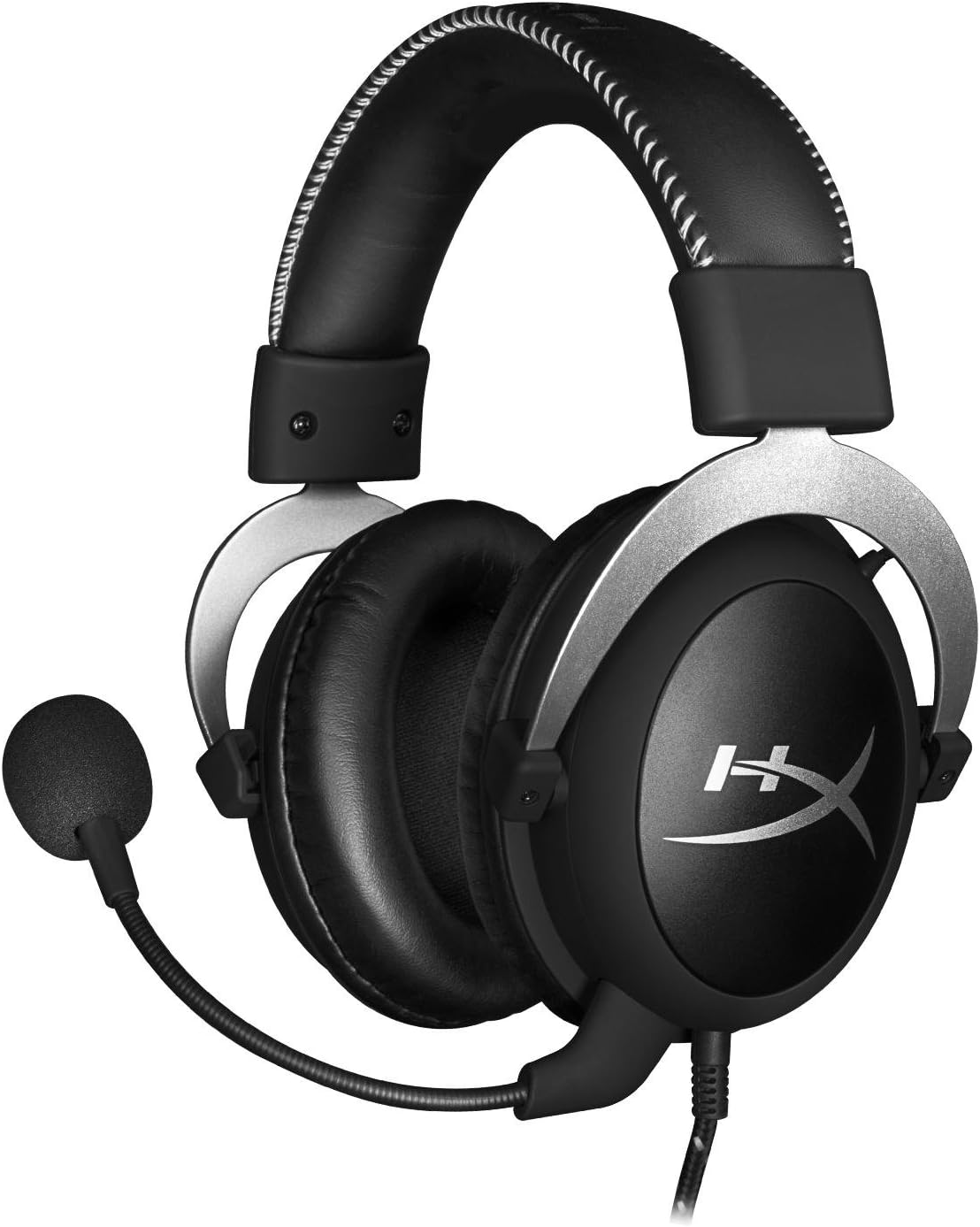
Frente view of the headset with microphone.
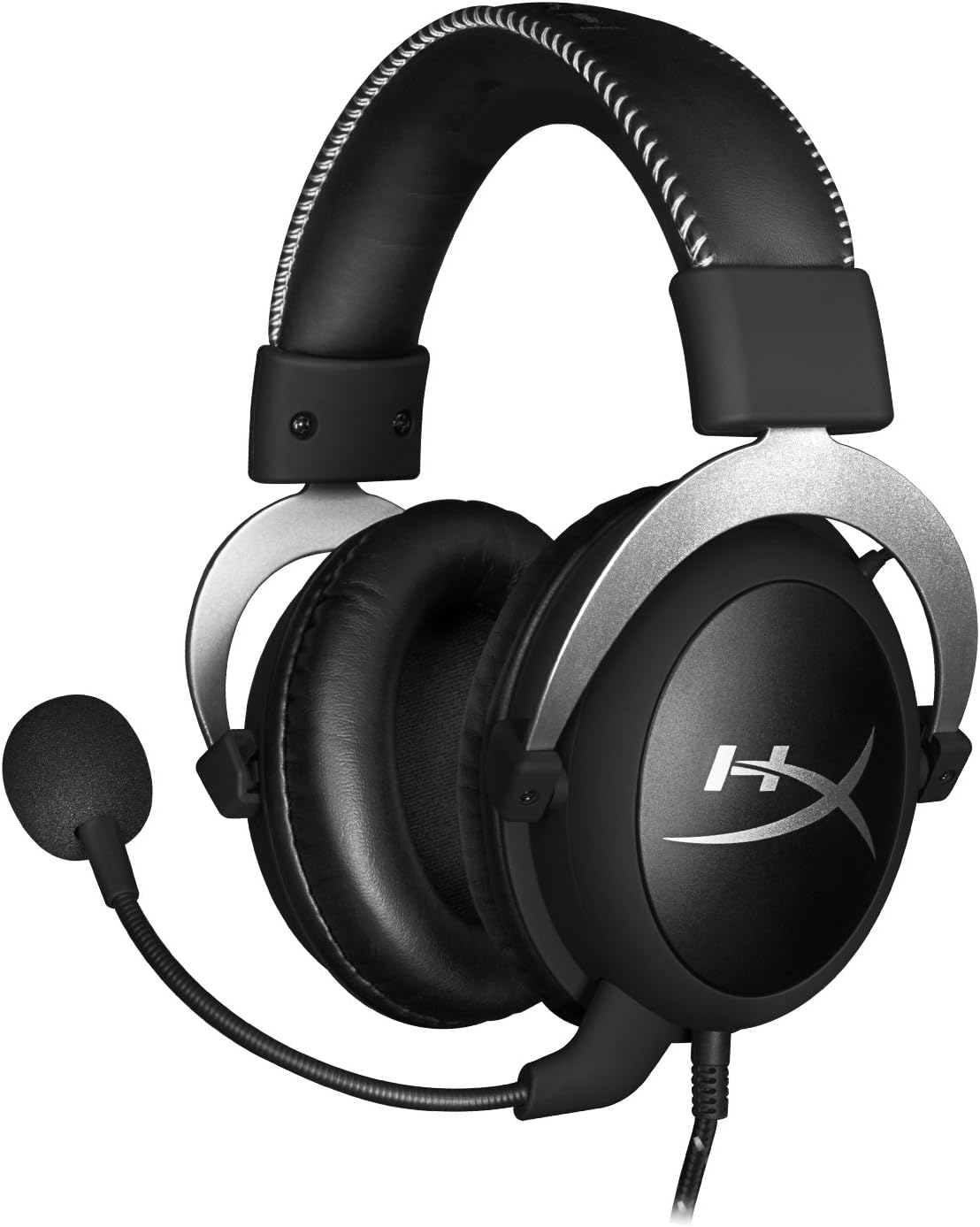
Lado view del auricular.

Headset folded flat for storage.

Arriba view of the headband.
Componentes clave:
- Venda: Padded with leatherette for comfort during extended use.
- Auriculares: Over-ear design with memory foam cushions, providing passive noise isolation.
- Micrófono desmontable: Micrófono flexible con cancelación de ruido para una comunicación clara.
- In-line Audio Control: Integrated unit on the cable for volume adjustment and microphone mute.
4. Configuración y conexión
4.1 Conexión a la computadora
- Connect the headset's 3.5mm plug to the in-line audio control box.
- Attach the PC extension cable to the in-line audio control box.
- Plug the green audio jack of the extension cable into your PC's audio output (headphone) port.
- Plug the pink microphone jack of the extension cable into your PC's microphone input port.
- Ensure the detachable microphone is securely inserted into the headset's microphone port.
4.2 Console Connection (PS4, Xbox One, Wii U)
- Connect the headset's 3.5mm plug directly into your console controller's 3.5mm port.
- Ensure the detachable microphone is securely inserted into the headset's microphone port.
- Adjust audio settings on your console as needed to route chat and game audio through the headset.
4.3 Mobile Device Connection
- Connect the headset's 3.5mm plug directly into your mobile device's 3.5mm audio jack.
- The microphone can be attached for calls or detached if not needed.

Image: In-line audio control unit.
5. Instrucciones de funcionamiento
5.1 Control de volumen
The in-line audio control features a rotary volume wheel. Rotate the wheel upwards to increase volume and downwards to decrease volume. This adjusts the headset's output volume independently of your device's master volume.
5.2 Silenciar el micrófono
A switch on the in-line audio control allows you to quickly mute or unmute the microphone. Slide the switch to the 'Mute' position to disable the microphone, and slide it back to enable it. This is useful for privacy or when you do not wish your voice to be transmitted.
6. Mantenimiento y cuidado
- Limpieza: Utilice un paño suave y seco para limpiar los auriculares. Para las almohadillas, utilice un paño ligeramente seco.amp Se puede usar un paño, pero asegúrese de que esté completamente seco antes de usarlo. Evite productos químicos agresivos o limpiadores abrasivos.
- Almacenamiento: When not in use, store the headset in the provided carrying pouch to protect it from dust and scratches. Avoid extreme temperatures and humidity.
- Cuidado de cables: Do not excessively bend or pull the cables. Store them neatly to prevent tangling and damage.
7. Solución de problemas
| Asunto | Posible causa | Solución |
|---|---|---|
| No hay audio de los auriculares | Conexión incorrecta; Volumen demasiado bajo; Configuración de audio del dispositivo. | Ensure all cables are securely connected. Increase volume using the in-line control and device settings. Verify audio output settings on your PC/console. |
| El micrófono no funciona | Microphone muted; Incorrect connection; Device microphone settings. | Check the microphone mute switch on the in-line control. Ensure the microphone is fully inserted. Verify microphone input settings on your PC/console. |
| Mala calidad de sonido / Estática | Conexión suelta; Interferencia; Cable dañado. | Reconnect all cables. Test on another device to rule out interference. If issues persist, the cable may be damaged. |
| Auriculares incómodos | Ajuste inadecuado. | Adjust the headband for a comfortable fit. The memory foam ear cushions are designed for extended comfort. |
8. Especificaciones técnicas
- Nombre del modelo: HyperX Cloud Pro Gaming Headset - Silver - with In-Line Audio Control
- Número de modelo: HX-HSCL-SR/NA
- Conectividad: Con cable (conector de 3.5 mm)
- Conductores: Controladores dinámicos de 53 mm
- Respuesta de frecuencia: 15 Hz - 25 kHz
- Material: Foam, Aluminum, Leather
- Peso del artículo: 0.6 kilogramos (1.32 libras)
- Dispositivos compatibles: PS5, PS4, Xbox One, Wii U, Mac, Mobile Devices, PC
- Tipo de control: Control de volumen, silenciamiento del micrófono
- Control de ruido: Cancelación activa de ruido (micrófono)
9. Garantía y soporte
The HyperX Cloud Pro Gaming Headset is backed by a 2 año de garantía. For technical support or warranty claims, please contact HyperX customer service. You can also refer to the official Manual de usuario (PDF) Para obtener información adicional.


