1. Másview
The Aerocool Cylon RGB Midi-Tower PC Case, model ACCM-PV10012.11, is designed to house computer components, offering both functionality and aesthetic appeal. It features a side window panel for showcasing internal hardware and an RGB LED illumination strip on the front panel for customizable lighting effects. This case supports ATX motherboards and provides ample space for various components, including multiple storage drives and cooling solutions.

Figura 1: Frente view of the Aerocool Cylon RGB Midi-Tower PC Case, highlighting its distinctive RGB LED strip.
2. Contenido del paquete
Por favor verifique que todos los artículos estén presentes en el paquete:
- Aerocool Cylon RGB Midi-Tower PC Case (ACCM-PV10012.11)
- Caja de accesorios (que contiene tornillos, separadores, bridas, etc.)
- Manual de usuario (este documento)
3. Información de seguridad
Read and understand all safety instructions before installing or operating the PC case. Failure to do so may result in injury or damage to the product.
- Desconecte siempre la fuente de alimentación de la toma de pared antes de realizar cualquier instalación o mantenimiento.
- Manipule todos los componentes con cuidado para evitar daños.
- Avoid touching electronic components directly; use anti-static precautions if possible.
- Mantenga las piezas pequeñas y los accesorios fuera del alcance de los niños.
- Asegúrese de que haya una ventilación adecuada alrededor de la caja para evitar el sobrecalentamiento.
4. Configuración e instalación
4.1 Preparación del caso
Before installing components, remove the side panels to access the interior of the case.
- Coloque el estuche sobre una superficie plana y estable.
- Locate the thumbscrews on the rear of the case securing the side panel.
- Unscrew the thumbscrews and carefully slide the side panel backward, then lift it off. Repeat for the other side panel if necessary.
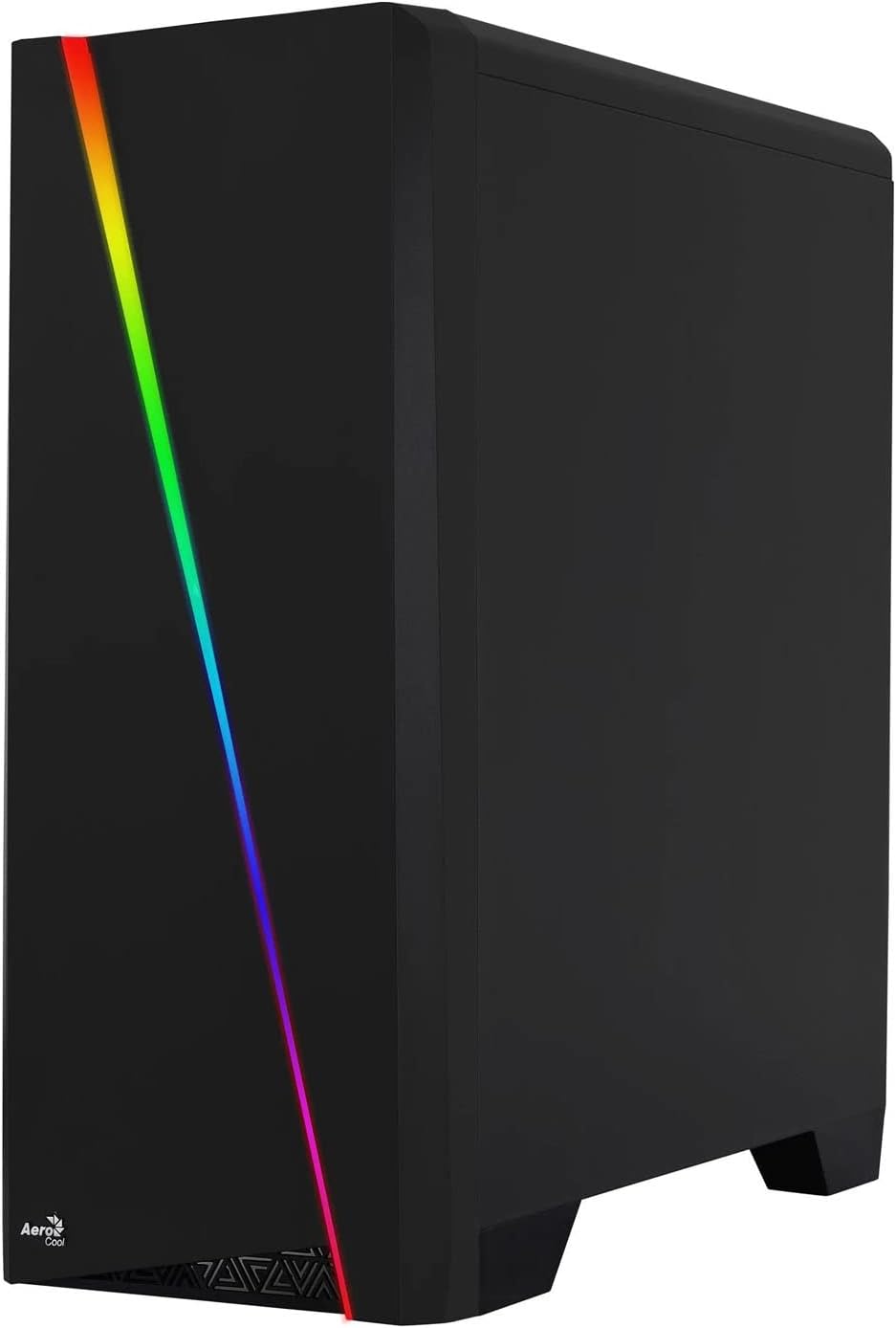

Figure 2: Left image shows the side panel attached, right image shows the side panel removed for access.
4.2 Instalación de la placa base
The Aerocool Cylon case supports ATX motherboards.
- Install the I/O shield that came with your motherboard into the opening at the rear of the case.
- Ensure motherboard standoffs are correctly aligned with your motherboard's screw holes. Install any missing standoffs from the accessory box.
- Coloque con cuidado la placa base sobre los separadores, alineando los orificios de los tornillos.
- Asegure la placa base con los tornillos apropiados de la caja de accesorios.
4.3 Drive Installation (2.5" / 3.5")
The case provides bays for 2.5-inch and 3.5-inch drives.
- Locate the drive bays within the case. Refer to the case diagram for specific locations.
- For 3.5-inch HDDs, slide the drive into the designated tray or bay and secure it with screws.
- For 2.5-inch SSDs, mount the drive onto the designated bracket or tray and secure it with screws.
4.4 Instalación de la unidad de fuente de alimentación (PSU)
The PSU is typically mounted at the bottom rear of the case.
- Deslice la fuente de alimentación en su compartimento designado desde la parte trasera de la carcasa.
- Align the PSU's screw holes with those on the case.
- Secure the PSU with the provided screws.
4.5 Expansion Card (GPU) Installation
Install your graphics card or other expansion cards into the PCIe slots.
- Remove the necessary PCI-E slot covers from the rear of the case corresponding to your expansion card's size.
- Carefully insert the expansion card into the appropriate PCI-E slot on the motherboard until it clicks into place.
- Secure the expansion card with screws.

Figura 3: Posterior view of the PC case, showing the expansion slots and I/O area.
4.6 Fan / Liquid Cooling Radiator Installation
The Aerocool Cylon case supports various cooling configurations.
- Trasero: 1 x 120mm fan (pre-installed or optional).
- Arriba: Supports 2 x 120mm fans or 1 x 240mm radiator.
- Abajo: Admite 2 ventiladores de 120 mm.
- Mount fans or radiators to their respective positions using the appropriate screws.
- Connect fan power cables to the motherboard or a fan controller.

Figure 4: An interior shot of the case, illustrating potential fan and liquid cooling radiator placements.
4.7 Gestión de cables
Effective cable management improves airflow and aesthetics.
- Route cables through the cutouts and behind the motherboard tray.
- Use cable ties (included in the accessory box) to bundle and secure cables.
4.8 Conexión de E/S del panel frontal
Conecte los cables del panel frontal a los conectores correspondientes en su placa base.
- USB 3.0: Connect the USB 3.0 cable to the motherboard's USB 3.0 header.
- USB 2.0: Connect the USB 2.0 cables (x2) to the motherboard's USB 2.0 headers.
- Audio HD: Conecte el cable de audio HD al encabezado de audio de la placa base.
- Encendido/Reinicio/LED: Connect the small individual cables (Power SW, Reset SW, HDD LED, Power LED) to the motherboard's front panel headers according to your motherboard manual.
5. Funcionamiento de la carcasa del PC
Once all components are installed and connected, reattach the side panels and power on your system.
- Encendido: Press the power button located on the top I/O panel of the case.
- Control de iluminación RGB: The front panel RGB LED illumination can be controlled via a dedicated button on the top I/O panel or through compatible motherboard software, depending on your setup. Refer to your motherboard manual for software control options.
6. Mantenimiento
El mantenimiento regular ayuda a garantizar un rendimiento óptimo y la longevidad de la carcasa y los componentes de su PC.
- Limpieza del filtro de polvo: The case features dust filters (e.g., on the top and bottom). Regularly remove and clean these filters to prevent dust buildup and maintain good airflow. Use compressed air or a soft brush.
- Limpieza general: Utilice un paño suave y seco.amp cloth to wipe down the exterior of the case. Avoid abrasive cleaners or solvents. For the transparent side panel, use a microfiber cloth to prevent scratches.
7. Solución de problemas
Si encuentra problemas, tenga en cuenta los siguientes pasos comunes de solución de problemas:
- Sin energía: Ensure the PSU is properly connected to the wall outlet and the power switch on the PSU is in the 'ON' position. Verify all power cables to the motherboard and components are securely seated.
- Los ventiladores no giran: Check that all fan cables are correctly connected to the motherboard or fan controller. Ensure the system is receiving power.
- RGB no funciona: Confirm RGB cables are properly connected. If using motherboard software, ensure it is installed and configured correctly.
- Conexiones sueltas: Recheck all internal connections (power, data, front panel I/O) to ensure they are firmly seated.
8. Especificaciones
| Característica | Especificación |
|---|---|
| Nombre del modelo | ACCM-PV10012.11 |
| Tipo de caso | Midi-Tower |
| Compatibilidad de la placa base | ATX |
| Dimensiones (LxAnxAl) | 16.26 x 7.8 x 18.07 pulgadas |
| Peso del artículo | 8.36 libras |
| Material | Acrílico |
| Puertos USB 3.0 | 1 |
| Puertos USB 2.0 | 2 |
| Método de enfriamiento | Aire |
| Fan Size (Rear) | 120 milímetros |
| Iluminación RGB | Front Panel LED Strip |
9. Información de garantía
The Aerocool Cylon RGB Midi-Tower PC Case is covered by a manufacturer's warranty. Please refer to the warranty card included with your product or visit the official AeroCool webSitio para conocer los términos y condiciones detallados de la garantía, incluido el período de cobertura y los procedimientos de reclamación.
10. Soporte
For further assistance, technical support, or to download the latest drivers and software, please visit the official AeroCool websitio:
Websitio: www.aerocool.io
You may also contact AeroCool customer service through the contact information provided on their websitio.