1. Introducción
The Technomate TM-RF HD IR is an advanced HDMI RF Modulator designed to convert an HDMI signal into a DVB-T compatible RF signal. This allows you to distribute high-definition 1080p video and audio over existing coaxial cable systems to multiple televisions. This model features 9V Infra-Red (IR) control over the coaxial cable, enabling remote control of your source device from other rooms, and an HDMI loop-through for local viewEn.
This manual provides detailed instructions for the installation, operation, and maintenance of your TM-RF HD IR modulator. Please read this manual thoroughly before use to ensure proper setup and optimal performance.
2. Información de seguridad
Please observe the following safety precautions to prevent damage to the device and ensure your safety:
- Fuente de alimentación: Utilice únicamente el adaptador de corriente proporcionado. Asegúrese de que la toma de corriente coincida con el voltaje.tagy requisitos del adaptador.
- Ventilación: No bloquee las aberturas de ventilación. Asegúrese de que haya suficiente flujo de aire alrededor del dispositivo para evitar el sobrecalentamiento.
- Agua y humedad: Do not expose the device to water, moisture, or excessive humidity. Do not operate with wet hands.
- Limpieza: Desconecte la alimentación antes de limpiar. Utilice un paño suave y seco. No utilice limpiadores líquidos ni en aerosol.
- Ubicación: Place the device on a stable, flat surface. Avoid placing it near heat sources, direct sunlight, or in areas with high vibration.
- Servicio: No intente reparar este producto usted mismo. Refiera todo el servicio a personal de servicio calificado.
- cables: Asegúrese de que todos los cables estén conectados de forma segura y no estén pellizcados ni dañados.
3. Contenido del paquete
Verifique que todos los artículos enumerados a continuación estén incluidos en su paquete:
- Technomate TM-RF HD IR Modulator Unit
- IR Transmitter Cable
- IR Receiver ("Magic Eye")
- Adaptador de corriente
- Manual de usuario (este documento)
4. Producto terminadoview
4.1. Panel frontal
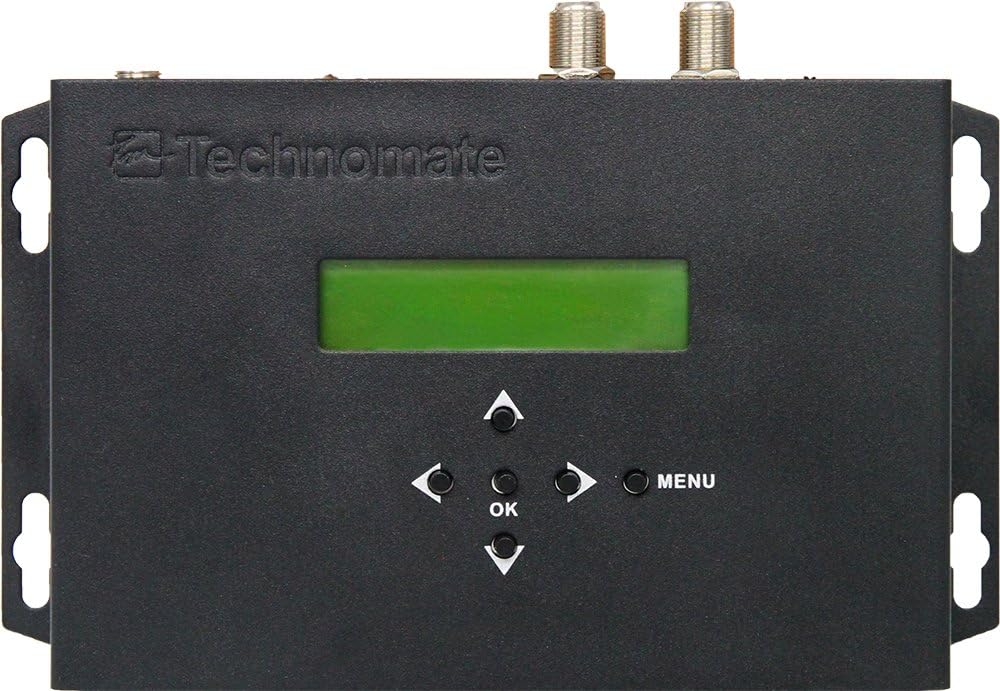
Figura 1: Frente View of TM-RF HD IR Modulator
The front panel features a green LCD display for status and menu navigation, along with directional buttons (Up, Down, Left, Right), an OK button for selection, and a MENU button to access settings.
- Pantalla LCD: Shows current channel, settings, and menu options.
- Botones de navegacion: Se utiliza para navegar por los menús y ajustar la configuración.
- Botón OK: Confirma selecciones.
- Botón MENÚ: Enters and exits the main menu.
4.2. Panel trasero

Figura 2: Posterior View of TM-RF HD IR Modulator Ports
The rear panel provides all necessary connection ports for input, output, and control.
- SALIDA DE IR: Connects the IR Transmitter cable.
- 9V IR OFF/ON Switch: Enables or disables the 9V power for the IR system over the coaxial cable.
- SALIDA RF: Connects to your TV's antenna input or RF distribution system.
- RF EN: For cascading multiple modulators or connecting an existing RF signal.
- SALIDA HDMI (en bucle): Connects to a local TV or display for direct HDMI viewEn.
- ENTRADA HDMI: Connects to your HDMI source device (e.g., satellite receiver, Blu-ray player).
- SERVICE PORT (USB): Used for firmware updates or configuration file transferencias.
- 12 V CC: Entrada de alimentación para el adaptador de corriente incluido.
4.3. IR Receiver ("Magic Eye")
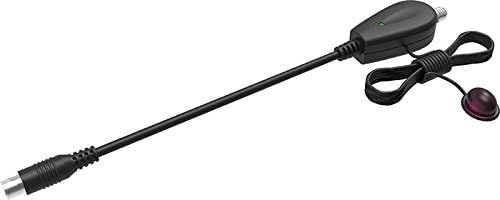
Figure 3: IR Receiver ("Magic Eye")
The IR Receiver is connected to the coaxial cable at the remote TV location and receives IR signals from your remote control, sending them back to the modulator to control the source device.
5. Instrucciones de configuración
Follow these steps for initial setup of your TM-RF HD IR modulator:
5.1. Conexión básica
- Conectar fuente HDMI: Connect an HDMI cable from your source device (e.g., satellite receiver, Blu-ray player, CCTV system) to the HDMI EN port on the TM-RF HD IR modulator.
- Connect to TV (RF): Conecte un cable coaxial desde el RF OUT port of the modulator to the antenna/RF input of your television.
- Connect to Local TV (HDMI Loop-through - Optional): Si lo deseas view the source locally via HDMI, connect an HDMI cable from the SALIDA HDMI port of the modulator to an HDMI input on your local TV.
- Connect IR Transmitter: Plug the IR Transmitter cable into the Salida IR port on the modulator. Position the small IR emitter head directly in front of the IR sensor of your HDMI source device.
- Encendido: Conecte el adaptador de corriente proporcionado a la 12 V CC input on the modulator and then plug it into a power outlet. The modulator will power on.
- Buscar canales: On your television, perform an automatic channel scan (or manual scan for DVB-T/UHF channels). The modulator's output will appear as a new digital channel.
5.2. IR Control Setup for Remote TVs
To enable IR control from a remote television:
- Asegúrese de que 9V IR OFF/ON switch on the rear of the modulator is set to ON.
- At the remote TV location, connect the IR Receiver ("Magic Eye") to the coaxial cable coming from the modulator. This typically involves connecting the coaxial cable to the IR Receiver, and then the IR Receiver to the TV's antenna input.
- Point your source device's remote control at the IR Receiver to control the source device connected to the modulator.
Note: For multiple remote TVs with IR control, a mains-powered bypass amplifier/splitter (e.g., Technomate TM-AMP B models) is required to send the 9V IR signal to all locations. Additional IR Receivers ("Magic Eyes") may be needed.
5.3. Connecting to Existing RF Systems
If you have an existing RF distribution system, you can integrate the TM-RF HD IR:
- Connect your existing RF signal (e.g., from an antenna or another modulator) to the ENTRADA DE RF port of the TM-RF HD IR.
- The modulator will combine its output with the incoming RF signal and send the combined signal out through the RF OUT puerto.
- Ensure the output channel of the TM-RF HD IR does not conflict with existing channels in your system. Adjust the output channel via the modulator's menu if necessary.
5.4. Cascading Multiple Modulators
Up to 35 TM-RF HD IR units can be cascaded in one system to distribute multiple HDMI sources:
- Conectar el RF OUT of the first modulator to the ENTRADA DE RF of the second modulator.
- Continue this chain for all modulators. The final modulator's RF OUT connects to your main RF distribution system or TV.
- Ensure each modulator is set to a unique output channel to avoid interference.
- For easier configuration of multiple units, you can use the USB PUERTO DE SERVICIO to upload and download settings. Refer to the "Operating Instructions" section for details.
6. Instrucciones de funcionamiento
6.1. Básico ViewEn
Once connected and your TV has scanned for channels, simply select the channel assigned to the TM-RF HD IR modulator on your television to view the HDMI source content.
6.2. Using the On-Screen Menu (LCD Display)
The front panel LCD and buttons allow you to configure various settings:
- Presione el MENÚ botón para entrar en el menú principal.
- Utilice el Arriba/Abajo navigation buttons to scroll through menu options.
- Prensa OK para seleccionar una opción o ingresar a un submenú.
- Usar Izquierda/Derecha buttons to adjust values or settings.
- Prensa MENÚ again to exit the current menu or save changes (if prompted).
Las configuraciones clave que se pueden configurar incluyen:
- Canal de salida: Select the UHF channel for the RF output (Channels 21-69).
- Ancho de banda: Configure 6 MHz, 7 MHz, or 8 MHz.
- Constellation, FEC, ONID, LCN: Advanced DVB-T parameters for specific system requirements.
- Video/Audio Settings: Adjust encoding parameters if necessary.
6.3. USB Configuration (Advanced)
El SERVICE PORT (USB) allows for advanced configuration and firmware updates:
- You can upload configuration data from the modulator to a USB device.
- Edit these settings on a PC using compatible software (contact Technomate Support for details).
- Download the modified settings back to the modulator via the USB port. This is particularly useful for configuring multiple units with identical or similar settings.
7. Mantenimiento
The Technomate TM-RF HD IR modulator requires minimal maintenance:
- Limpieza: Disconnect the power adapter before cleaning. Use a soft, dry, lint-free cloth to wipe the exterior of the unit. Do not use liquid cleaners, aerosols, or abrasive materials.
- Ventilación: Ensure that the ventilation holes are not obstructed by dust or debris. Periodically check and clean if necessary.
- Almacenamiento: Si va a almacenar el dispositivo durante un período prolongado, desconéctelo de la alimentación y guárdelo en un lugar fresco y seco, alejado de la luz solar directa y de temperaturas extremas.
8. Solución de problemas
If you encounter issues with your TM-RF HD IR modulator, refer to the following common problems and solutions:
No Picture or Sound on TV
- Comprobar potencia: Ensure the modulator is powered on and the power adapter is securely connected.
- Conexión HDMI: Verify the HDMI cable from your source device is securely connected to the HDMI EN puerto.
- Conexión RF: Ensure the coaxial cable from RF OUT is securely connected to your TV's antenna input.
- Escaneo de canales de TV: Perform a new channel scan on your TV. Ensure your TV is set to the correct input (Antenna/RF).
- Compatibilidad de televisores: The TM-RF HD IR only works with 1080p Full HD & 4K UHD TVs. If your TV is 720p HD Ready, it will not work directly. You may need a Freeview HD box (DVB-T2 box) connected between the modulator and your HD Ready TV.
- Output Channel Conflict: If using with an existing RF system, ensure the modulator's output channel does not conflict with other active channels. Adjust the modulator's output channel via its menu.
IR Control Not Working
- 9V IR Switch: Asegúrese de que 9V IR OFF/ON switch on the modulator's rear panel is set to ON.
- IR Transmitter Placement: Verify the IR emitter head is directly in front of the IR sensor of your source device.
- IR Receiver Connection: Ensure the IR Receiver ("Magic Eye") is properly connected to the coaxial cable at the remote TV location.
- Derivación Amplifier (for multiple TVs): If using multiple remote TVs, confirm you are using a mains-powered bypass amplifier/splitter that supports 9V IR signal pass-through.
- Baterías de control remoto: Verifique las baterías en el control remoto de su dispositivo fuente.
Lip Sync Issues (Audio/Video Out of Sync)
- The TM-RF HD IR is designed for minimal delay. If you experience lip sync issues, ensure your source device and TV are functioning correctly.
- Try restarting both the modulator and the source device.
- If issues persist, contact Technomate Support for further assistance.
Poor Picture Quality / Signal Interference
- Calidad del cable: Use high-quality coaxial and HDMI cables.
- Longitud del cable: Excessive cable length can degrade signal quality.
- Interferencia de canal: If you have other RF signals, try changing the output channel of the modulator to an unused frequency.
- Intensidad de la señal: For long cable runs or multiple TVs, a signal amppuede ser necesario un salvavidas.
9. Especificaciones
| Modelo | TM-RF HD IR |
| Aporte | HDMI (1080p Full HD, 4K UHD compatible) |
| Producción | DVB-T (UHF Channels 21-69) |
| HDMI Loop-through | Sí |
| Control por infrarrojos | 9V Infra-Red over Coaxial Cable |
| Demora | Less than 0.8s (can be reduced to < 0.5s for video-only devices) |
| Ancho de banda | 6 MHz, 7 MHz, 8 MHz configurable |
| en cascada | Hasta 35 unidades |
| Dimensiones | 10 x 14.5 x 2.3 cm |
| Peso | 700 gramos |
| Fuente de alimentación | 12 V CC (mediante adaptador incluido) |
| Compatibilidad | 1080p Full HD & 4K UHD TVs (720p HD Ready TVs require DVB-T2 box) |
10. Garantía y soporte
For warranty information, please refer to the documentation provided with your purchase or visit the official Technomate website. If you encounter any issues not covered in this manual or require further assistance, please contact Technomate Support.
When contacting support, please have your product model number (TM-RF HD IR) and a detailed description of the issue ready.
Contact information for Technomate Support can typically be found on their official websitio o en el embalaje de su producto.


