Introducción
This manual provides detailed instructions for the installation, operation, and maintenance of your Amazon Basics Electronic Keypad Deadbolt Door Lock. Please read this manual thoroughly before installation and use to ensure proper function and safety. Keep this manual for future reference.

Image: The Amazon Basics Electronic Keypad Deadbolt Door Lock, featuring a touch-control keypad and a traditional key cylinder, in an oil bronze finish.
Información de seguridad
Always follow basic safety precautions when installing and operating this electronic deadbolt. Failure to do so may result in injury, damage to the product, or property damage.
- No intente desmontar ni modificar la cerradura. Esto podría anular la garantía y comprometer la seguridad.
- Use only the specified battery type (4 AA 1.5V Alkaline batteries). Do not mix old and new batteries or different types of batteries.
- Ensure the door is properly aligned and the deadbolt operates smoothly before relying on the electronic locking mechanism.
- Keep your programming code and user codes confidential.
- Avoid exposing the lock to extreme temperatures or direct moisture.
Contenido del paquete
Verifique que todos los componentes estén presentes antes de comenzar la instalación. Si alguna pieza falta o está dañada, contacte con atención al cliente.

Image: A complete set of components for the deadbolt lock, including the keypad assembly, interior assembly, deadbolt latch, strike plate, screws, and keys.
El paquete debe incluir:
- Drive-in Sleeve x 1
- Square corner latch x 1
- Placa de golpe x 1
- Cylinder x 1
- Deadbolt Latch x 1
- Placa de montaje x 1
- Deadbolt Chassis Screws x 2
- Tornillos de máquina x 3
- Tornillos para madera x 5
- Clave x 2
- Deadbolt Keypad Assembly x 1
- Receiver Assembly x 1
For a visual guide on package contents, refer to the video below:
Video: A segment from the official product video demonstrating the package contents of the electronic keypad deadbolt door lock.
Instalación
This section guides you through the step-by-step installation process of your new electronic keypad deadbolt. Ensure you have the necessary tools, such as a screwdriver, before you begin.
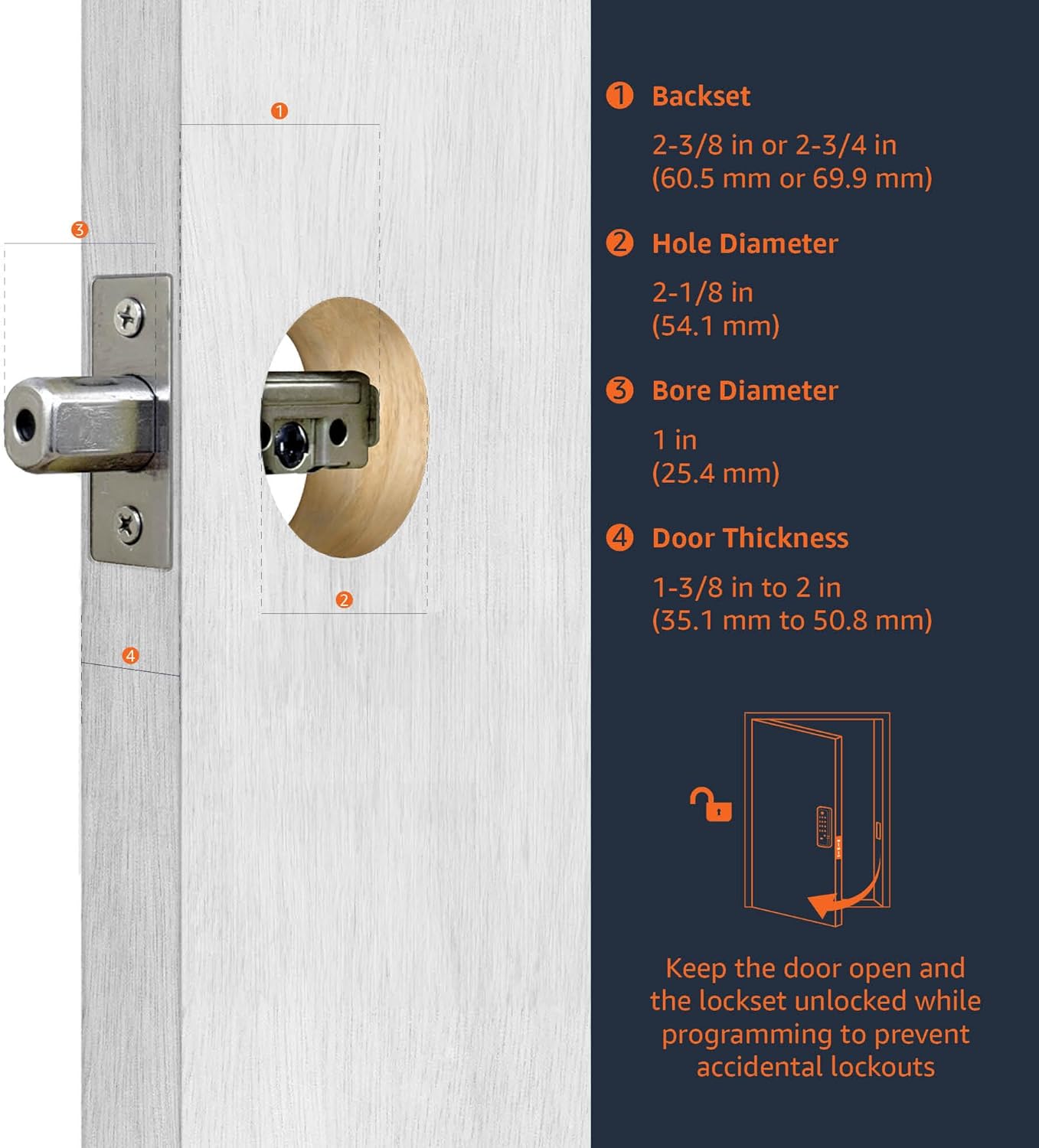
Image: A detailed diagram illustrating the required door measurements for proper deadbolt installation, including backset, hole diameter, bore diameter, and door thickness.
Step 1: Install Latch & Keypad Assembly
Determine if the latch needs to be adjusted to the 2-3/4" (70mm) backset. To adjust, rotate the latch until it stops. Reverse the direction to return to the 2-3/8" (60mm) backset. Insert the latch and ensure it is parallel to the door face. Use 2 wood screws to secure the latch.
Video: A segment from the official product video demonstrating how to install the latch and keypad assembly, including adjusting the backset and securing the latch.
Step 2: Install Inside Mounting Plate
Insert the tailpiece of the outside assembly until it passes through the latch. The tailpiece should fit through the black cam. Pass the harness under the latch to the interior side of the door. Attach the mounting plate with screws, tightening them lightly at first. Adjust the outside lock assembly position as needed, then fully tighten the screws.
Video: A segment from the official product video detailing the installation of the inside mounting plate, including routing the harness and securing the plate.
Paso 3: Identifique el manejo de la puerta
Face the door from the outside. The door is left-handed if the hinges are on the left side of the door. Whereas, the door is right-handed if the hinges are on the right side of the door.

Image: A visual guide to determine if your door is left-handed or right-handed based on hinge placement when viewed desde el exterior.
Video: A segment from the official product video explaining how to identify door handing (left-handed vs. right-handed).
Step 4: Adjust Turn Piece
Rotate the turn piece to the RIGHT at 45° for left-handed doors. Rotate the turn piece to the LEFT at 45° for right-handed doors.
Video: A segment from the official product video demonstrating how to adjust the turn piece based on the door's handing.
Paso 5: Instale el ensamblaje interior
Connect the inner and outer harness connectors. Then attach the interior assembly to the door with screws. Insert 4 (AA) 1.5V Alkaline batteries and cover the battery lid. Alkaline batteries are recommended to stabilize the power supply.
Video: A segment from the official product video detailing the installation of the interior assembly, including connecting wires and inserting batteries.
Instrucciones de funcionamiento
Learn how to program and manage your lock's features for optimal security and convenience.
Proceso de identificación de entrega de puertas
The lock needs to learn if this is a right-handed or left-handed door. This must be done first after installation or restoring default settings. Enter the Programming Code (PC), then press the lock/unlock button, then '0', then the lock/unlock button again. The default Programming Code (PC) is 0000.
Video: A segment from the official product video demonstrating the door handing identification process for the lock.
Cambiar código de programación (PC)
To change the Programming Code, enter the current PC, then press the lock/unlock button, then '4', then the lock/unlock button again. Then enter your New PC and press the lock/unlock button. Programming Codes should be 4-10 digits in length.
Video: A segment from the official product video showing how to change the Programming Code (PC) of the lock.
Create New User Code (UC)
Up to 6 sets of user codes can be saved. To create a new User Code, enter the PC, then press the lock/unlock button, then '1', then the lock/unlock button again. Then enter your New User Code and press the lock/unlock button. User codes should be 4-10 digits in length.
Video: A segment from the official product video demonstrating the process of creating a new User Code (UC).
Delete an Existing User Code (UC)
To delete an existing User Code, enter the PC, then press the lock/unlock button, then '2', then the lock/unlock button again. Then enter the User Code you want to delete and press the lock/unlock button.
Video: A segment from the official product video showing how to delete an existing User Code (UC) from the lock.
Delete All User Codes (UC) at once
Auto-locking and Keypad locking functions will be invalid when User Codes are deleted. The lock can only be operated by key during that time. To delete all user codes, enter the PC, then press the lock/unlock button, then '3', then the lock/unlock button again.
Video: A segment from the official product video explaining how to delete all User Codes (UC) at once.
Activar / desactivar bloqueo automático
The preset delay-time is 30 sec. You can change the time by following instructions in the 'Set Auto-Lock Time Delay' section. To toggle auto-lock, enter the PC, then press the lock/unlock button, then '5', then the lock/unlock button again. Repeat the steps to cancel the auto-locking function.
Video: A segment from the official product video demonstrating how to toggle the auto-lock feature on and off.
Establecer retardo de tiempo de bloqueo automático
10 - 99 sec. delay-time available. To set the auto-lock time delay, enter the PC, then press the lock/unlock button, then '6', then the lock/unlock button again. Then enter the desired seconds (10-99) and press the lock/unlock button.
Video: A segment from the official product video showing how to set the auto-lock time delay for the lock.
Enable / Disable All User Codes
Auto-locking and keypad locking functions will be invalid when user codes are disabled. The lock can only be operated by key during the time. To enable/disable all user codes, enter the PC, then press the lock/unlock button, then '8', then the lock/unlock button again. Repeat the steps to enable the user codes again.
Video: A segment from the official product video demonstrating how to enable or disable all user codes.
Create a One-Time User Code
User Codes should be 4-10 digits in length. The one-time user code will automatically cancel after it is used one time. To create a one-time user code, enter the PC, then press the lock/unlock button, then '9', then the lock/unlock button again. Then enter the One Time Code and press the lock/unlock button.
Video: A segment from the official product video showing how to create a one-time user code for temporary access.
Mantenimiento
Regular maintenance ensures the longevity and optimal performance of your electronic keypad deadbolt.
- Reemplazo de batería: Replace all four AA batteries when the low battery indicator appears or when the lock's response becomes sluggish. Always use new, high-quality alkaline batteries.
- Limpieza: Clean the keypad and lock body with a soft, dry cloth. Avoid abrasive cleaners, solvents, or harsh chemicals that could damage the finish or electronic components.
- Lubricación: Periodically lubricate the deadbolt latch mechanism with a silicone-based lubricant to ensure smooth operation. Do not lubricate the key cylinder.
- Alineación de la puerta: Ensure your door and frame remain properly aligned. Misalignment can cause the deadbolt to bind, leading to premature wear or malfunction.
Solución de problemas
If you encounter issues with your Amazon Basics Electronic Keypad Deadbolt, refer to the common problems and solutions below.
| Problema | Posible causa | Solución |
|---|---|---|
| El teclado no se ilumina ni responde. | Baterías agotadas o instalación incorrecta de las baterías. | Replace all four AA batteries. Ensure they are inserted with correct polarity. |
| La cerradura no se bloquea ni desbloquea electrónicamente. | Incorrect programming code or user code. Door handing not identified. Deadbolt binding due to misalignment. | Verify codes. Perform the Door Handing Identification Process (Step 7). Check door alignment and adjust if necessary. |
| Auto-lock feature is not working. | Auto-lock is disabled or user codes were deleted. | Toggle Auto-Lock On/Off (Step 12) to enable it. If user codes were deleted, re-enable them (Step 14) or restore default settings (Step 16) and re-program. |
| Bloquear emite un pitido de forma continua. | Advertencia de batería baja. | Reemplace las cuatro baterías AA inmediatamente. |
Presupuesto
- Marca: Conceptos básicos de Amazon
- Nombre del modelo: PL13910
- Tipo de bloqueo: Cerrojo del teclado
- Material: Bronce
- Color: Oil Bronze
- Dimensiones del artículo (largo x ancho x alto): 9.05 x 6.13 x 2.99 pulgadas
- Peso del artículo: 2.07 libras (0.94 kilogramos)
- Fuente de energía: 4 pilas alcalinas AA de 1.5 V (no incluidas)
- Compatibilidad de espesor de puerta: 1-3/8 a 1-3/4 pulgadas
- Contracorriente: Adjustable 2-3/8 inches (60mm) or 2-3/4 inches (70mm)
- Características especiales: Alarm, Keyless Entry, Auto-locking, Customizable User Codes, One-Time User Codes
- Componentes incluidos: Paquete de pestillo, cerraderos y tornillos
Garantía y soporte
This Amazon Basics product is backed by a limited warranty. For specific warranty details, please refer to the warranty document provided with your purchase or visit the official Amazon Basics websitio.
For technical support, troubleshooting assistance, or to inquire about replacement parts, please contact Amazon Basics customer service through your Amazon account or the contact information provided on the product packaging.
También puede encontrar recursos adicionales y preguntas frecuentes en Tienda Amazon Basics.


