Introducción
The HyperX Alloy Core RGB Gaming Keyboard is designed to provide a responsive and durable typing experience with dynamic RGB lighting. This manual provides detailed instructions for setting up, operating, and maintaining your keyboard, ensuring optimal performance.

Image: The HyperX Alloy Core RGB Gaming Keyboard, showcasing su disposición y diseño completo.
Características
- Iluminación RGB dinámica: Features a distinctive light bar and dynamic RGB lighting effects with multiple customizable patterns.
- Construcción duradera: Built with a reinforced plastic frame for enhanced durability and stability.
- Teclas silenciosas y sensibles: Equipped with soft-touch membrane keys that offer a quiet typing experience and anti-ghosting functionality for accurate input.
- Diseño resistente a derrames: Tested to withstand up to 120ml of liquid spills, providing protection against accidental damage.
- Controles de medios dedicados: Convenient buttons for audio playback, volume adjustment, and mute functions.
- Botones de acceso rápido: Dedicated buttons for adjusting brightness, changing lighting modes, and activating game mode.
- Modo de bloqueo del teclado: Prevents accidental key presses during intense gaming sessions.
- Compatibilidad: Supports Windows 7, 8, 8.1, and 10.
- Dimensiones: Approximately 443.20mm (width) x 175.31mm (depth) x 35.68mm (height).
Configuración
- Desembalaje del teclado: Retire con cuidado el teclado de su embalaje.
- Conectar a la computadora: Plug the USB-A connector of the keyboard cable into an available USB port on your computer. The keyboard is a plug-and-play device and typically does not require additional drivers for basic functionality.
- Ajuste de las patas del teclado: For ergonomic comfort, you can extend the adjustable feet located on the underside of the keyboard to tilt it to your preferred angle.
Video: This video demonstrates the physical handling of the keyboard, including adjusting the feet for optimal typing angle, and showcases the initial RGB lighting effects upon connection.

Image: A hand connecting the USB-A cable of the keyboard to a computer's USB port.
Instrucciones de funcionamiento
Control de iluminación RGB
The HyperX Alloy Core RGB keyboard features dynamic RGB lighting. Use the dedicated quick access buttons located above the function keys to customize your lighting experience.
- Ajuste de brillo: Press the sun icon button to cycle through different brightness levels.
- Selección del modo de iluminación: Press the color palette icon button to switch between various lighting effects (e.g., Color Cycle, Spectrum Wave, Breathing, Solid, 5 Zones, Aurora).
- Effect Speed: Use the FN key + Up/Down arrow keys to increase or decrease the speed of lighting effects.
- Solid Color Selection: Use the FN key + Left/Right arrow keys to switch between solid colors.
- 5-Zone Customization: For 5-zone lighting, press the FN key + F1-F5 keys multiple times to customize the color of each zone.
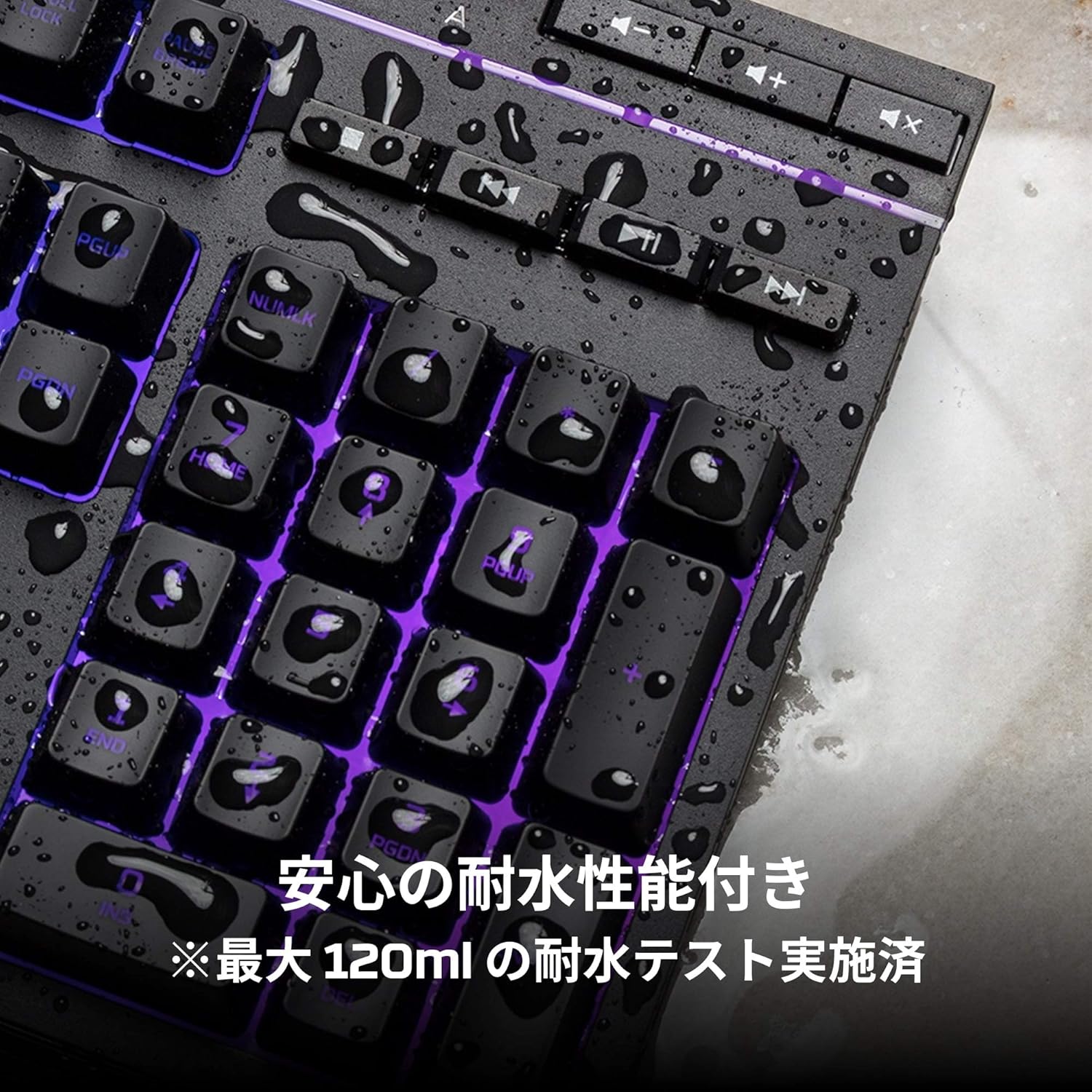
Image: Visual representation of various RGB lighting patterns and key combinations for controlling them.
Controles de medios
Dedicated media control buttons are located on the top right of the keyboard for easy access to audio functions.
- Subir/Bajar volumen: Ajuste el volumen del sistema.
- Silenciar: Silenciar o activar el audio.
- Reproducir/Pausa: Controlar la reproducción de medios.
- Pista anterior/siguiente: Skip to the previous or next media track.

Image: Close-up of the dedicated media control buttons on the top right of the keyboard.
Game Mode and Keyboard Lock
- Modo de juego: Press the game controller icon button to activate Game Mode, which disables the Windows key to prevent accidental interruptions during gameplay.
- Bloqueo de teclado: Press FN + F12 to enable keyboard lock mode, which temporarily disables all key inputs.
Mantenimiento
Para garantizar la longevidad y el rendimiento óptimo de su teclado HyperX Alloy Core RGB, siga estas pautas de mantenimiento:
- Limpieza: Regularly clean the keyboard with a soft, dry cloth. For stubborn dirt, a slightly damp Se puede utilizar un paño, asegurándose de que no entre líquido en los interruptores de llave.
- Resistencia a derrames: While the keyboard is spill-resistant (up to 120ml), it is not waterproof. In case of a spill, immediately disconnect the keyboard from your computer, wipe off any liquid, and allow it to air dry completely before reconnecting.
- Evite condiciones extremas: No exponga el teclado a temperaturas extremas, humedad o luz solar directa.

Image: The keyboard with water droplets on its surface, illustrating its spill-resistant feature.
Solución de problemas
If you encounter issues with your HyperX Alloy Core RGB keyboard, refer to the following common solutions:
- El teclado no responde:
- Asegúrese de que el cable USB esté conectado de forma segura tanto al teclado como a la computadora.
- Intente conectar el teclado a un puerto USB diferente en su computadora.
- Reinicie su computadora.
- Check if Keyboard Lock Mode (FN + F12) is active.
- La iluminación RGB no funciona:
- Ensure the brightness is not set to the lowest level using the brightness adjustment button.
- Cycle through different lighting modes using the lighting mode selection button.
- Verifique que el teclado esté conectado correctamente y recibiendo energía.
- Las claves no se registran correctamente:
- Limpie alrededor de las teclas afectadas para eliminar cualquier residuo.
- Ensure your operating system is compatible (Windows 7/8/8.1/10).
- Problemas con el modo de juego:
- Ensure Game Mode is properly activated by pressing the game controller icon button. The indicator light should be on.
If the issue persists after trying these steps, please contact HyperX customer support for further assistance.
Presupuesto
| Característica | Detalle |
|---|---|
| Marca | HiperX |
| Número de modelo | HX-KB5ME2-JP |
| Conectividad | USB-A |
| Tipo de teclado | Teclado para juegos de membrana |
| Color de la luz de fondo | RGB |
| Características especiales | Backlit, Spill-Resistant |
| Dimensiones (L x An x Al) | 44.32 x 17.53 x 3.57 cm |
| Peso | 1.1 kilogramos |
| Sistema operativo compatible | Windows 7/8/8.1/10 |
Garantía y soporte
The HyperX Alloy Core RGB Gaming Keyboard comes with a 2 año de garantía A partir de la fecha de compra. Conserve el comprobante de compra para reclamaciones de garantía.
For technical support, warranty inquiries, or additional information, please visit the official HyperX support websitio o comuníquese con su departamento de servicio al cliente.
HyperX oficial Websitio: www.hyperx.com