1. Introducción
Welcome to the user manual for your RugGear RG910 Rugged 8-inch Tablet. This document provides essential information for setting up, operating, maintaining, and troubleshooting your device. The RG910 is engineered for demanding environments, offering superior durability and connectivity for outdoor work and extreme conditions.
Please read this manual carefully to ensure proper use and to maximize the lifespan of your tablet.
2. Producto terminadoview
The RugGear RG910 is a robust tablet featuring an 8-inch WUXGA touchscreen, designed to withstand harsh conditions. It incorporates advanced sealing technology for high water and dust resistance, and is built to endure drops and impacts.

Figura 2.1: Frente view of the RugGear RG910 rugged tablet, showcasing su diseño y pantalla duraderos.
Key features include Push-to-Talk (PTT) functionality, a long-lasting 6000 mAh battery, and an Android 8 (Oreo) operating system optimized for performance and power efficiency. The device is IP68 certified, allowing submersion in water up to 1.2 meters for 60 minutes, and is drop-resistant up to 1.5 meters.

Figure 2.2: Infographic highlighting the RG910's reliable performance, PTT capability, long battery life, Android 8 optimization, IP68 rating, and dual stereo speakers.
Connectivity options include 4G LTE, Wi-Fi 802.11b/g/n, and Bluetooth 4.0. It also features 8MP and 2MP cameras, GPS, A-GPS, GLONASS, and Beidou for navigation. The display is protected by Corning Gorilla Glass for enhanced durability and readability in sunlight.
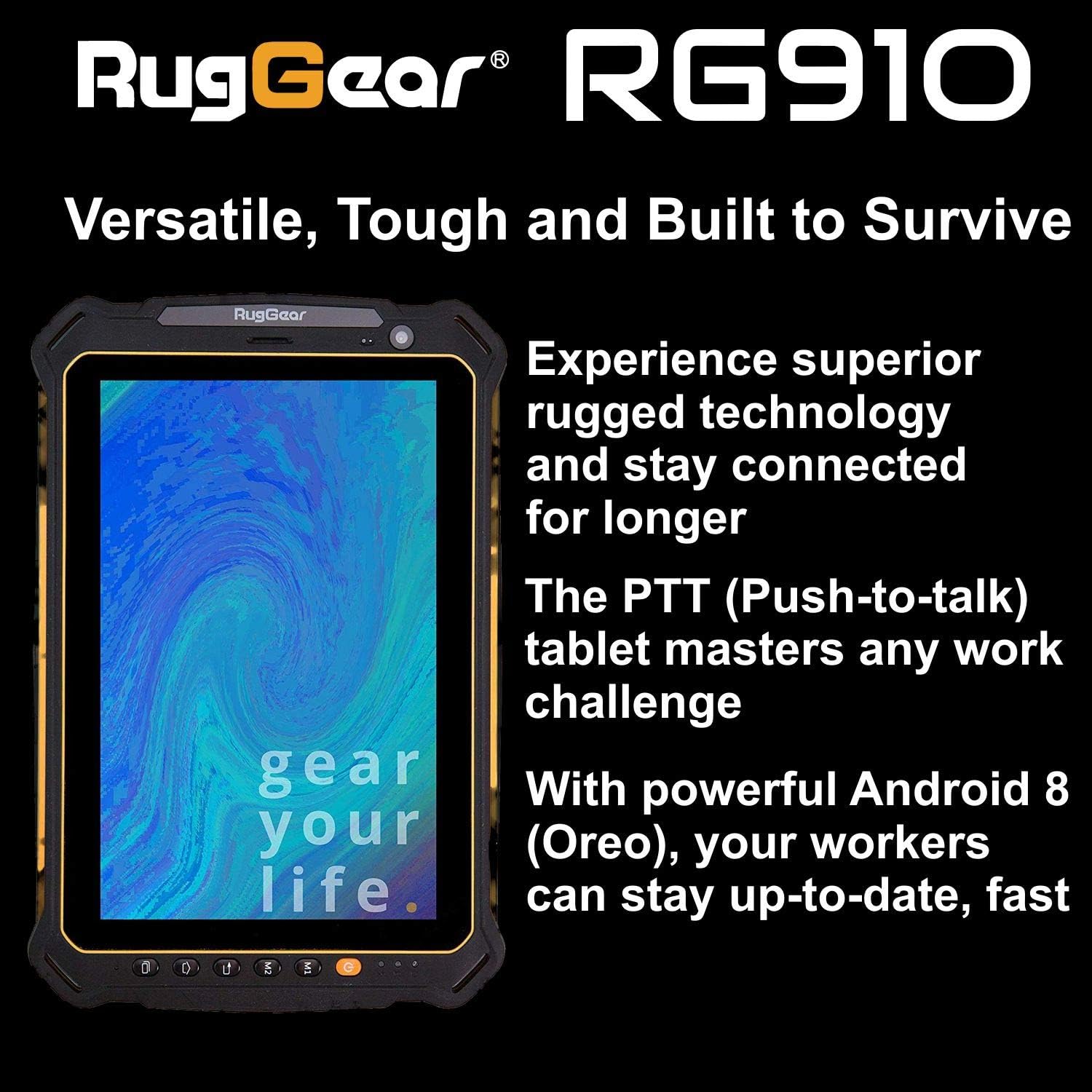
Figure 2.3: The RugGear RG910 tablet being used, illustrating its robust construction and suitability for various tasks.
3. Configuración
3.1 Carga del dispositivo
Before initial use, fully charge the tablet using the provided charger and USB cable. Connect the charger to a power outlet and the USB cable to the tablet's charging port. The charging indicator will show the charging status.
3.2 Inserción de tarjetas SIM y Micro-SD
- Locate the SIM/Micro-SD card slot cover on the side of the tablet.
- Abra la tapa con cuidado.
- Insert the Nano-SIM card into the designated slot with the gold contacts facing down, ensuring it is correctly oriented.
- If using, insert a Micro-SD card (up to 64GB) into its dedicated slot.
- Close the cover securely to maintain the device's water and dust resistance.
3.3 Encendido y configuración inicial
Press and hold the Power button until the RugGear logo appears. Follow the on-screen instructions to complete the initial setup, which includes selecting your language, connecting to a Wi-Fi network, and setting up your Google account.
4. Instrucciones de funcionamiento
4.1 Encendido y apagado
- Para encender: Mantenga presionado el botón de encendido hasta que la pantalla se ilumine.
- Para apagar: Mantenga presionado el botón de Encendido hasta que aparezcan las opciones de energía, luego seleccione “Apagar”.
- Para reiniciar: Mantenga presionado el botón de Encendido hasta que aparezcan las opciones de energía, luego seleccione “Reiniciar”.
4.2 Navegación básica
The RG910 uses a capacitive touchscreen. Use standard Android gestures:
- Grifo: Seleccione un elemento o abra una aplicación.
- Golpe fuerte: Desplácese por las listas o cambie entre pantallas de inicio.
- Pellizco: Acercar o alejar las imágenes y web páginas.
- Pulsación larga: Acceder a los menús contextuales o mover iconos.
4.3 Funcionalidad Pulsar para hablar (PTT)
The RG910 supports Push-to-Talk (PTT) communication. A dedicated PTT button may be present on the device. Consult your service provider or PTT application instructions for specific setup and usage details.
4.4 Operación de la cámara
To use the cameras:
- Abra la aplicación Cámara desde la pantalla de inicio o el cajón de aplicaciones.
- Toque la pantalla para enfocar.
- Toque el botón Obturador para tomar una fotografía o iniciar/detener la grabación de un video.
- Cambie entre la cámara frontal y trasera usando el ícono de alternancia de la cámara.
4.5 Conectividad
- Wifi: Ir a Configuración > Red e Internet > Wi-Fi para conectarse a redes disponibles.
- 4G LTE: Ensure your SIM card is inserted and mobile data is enabled in Ajustes > Red e Internet > Red móvil.
- Bluetooth: Habilitar Bluetooth en Configuración > Dispositivos conectados > Bluetooth para emparejar con otros dispositivos.
5. Mantenimiento
5.1 Limpieza del dispositivo
Para limpiar su tableta, utilice un paño suave yamp cloth. Avoid using harsh chemicals, abrasive cleaners, or solvents, as these can damage the device's ruggedized coating and seals. Ensure all port covers are securely closed before cleaning with moisture.
5.2 Resistencia al agua y al polvo (IP68)
The RG910 is IP68 certified, meaning it is protected against dust ingress and can withstand submersion in fresh water up to 1.2 meters for 60 minutes. To maintain this rating:
- Ensure all port covers (USB, SIM/Micro-SD slot) are firmly closed before exposure to water or dust.
- Do not expose the device to salt water, chlorinated water, or other liquids.
- Si el dispositivo se moja, séquelo completamente con un paño limpio antes de abrir las cubiertas o cargarlo.
5.3 Cuidado de la batería
- Evite temperaturas extremas, que pueden degradar el rendimiento de la batería.
- Utilice únicamente el cargador y cable originales o certificados como compatibles.
- No perfore, desmonte ni modifique la batería.
5.4 Actualizaciones de software
Verifique e instale periódicamente las actualizaciones de software para garantizar un rendimiento óptimo, seguridad y acceso a nuevas funciones. Ir a Configuración > Sistema > Actualización del sistema.
6. Solución de problemas
This section addresses common issues you might encounter with your RugGear RG910 tablet.
| Asunto | Posible solución |
|---|---|
| El dispositivo no enciende | Asegúrese de que la batería esté cargada. Conecte el cargador y espere unos minutos antes de volver a encenderlo. Si no responde, fuerce el reinicio manteniendo pulsado el botón de encendido durante 10-15 segundos. |
| La pantalla no responde | Reinicie el dispositivo. Si el problema persiste, asegúrese de que la pantalla esté limpia y seca. |
| No se puede conectar a Wi-Fi/4G | Check Wi-Fi settings and ensure the network password is correct. For 4G, verify SIM card insertion, mobile data is enabled, and you have network coverage. Restart the tablet. |
| La batería se agota rápidamente | Reduce screen brightness, close unused applications, disable unnecessary connectivity features (Bluetooth, GPS), and check for background app activity in settings. |
| El dispositivo es lento o se congela | Close background applications. Clear cache for problematic apps. Restart the device. Consider a factory reset if the issue is persistent (back up data first). |
7. Especificaciones
Detailed technical specifications for the RugGear RG910 tablet:
| Característica | Descripción |
|---|---|
| Marca | RugGear |
| Número de modelo | 98300000 |
| Sistema operativo | Android 8 (Oreo) |
| Mostrar | 8-inch WUXGA (1920 x 1200 pixels) with Corning Gorilla Glass |
| Procesador | Qualcomm Snapdragon 625 |
| RAM | 3 GB |
| Almacenamiento interno | 32 GB (expandable up to 64 GB via Micro-SD) |
| Batería | 6000 mAh de litio-ion |
| Conectividad | 4G LTE, Wi-Fi 802.11b/g/n, Bluetooth 4.0, GPRS |
| Cámaras | Trasera: 8 MP, Delantera: 2 MP |
| Navegación | GPS, A-GPS, GLONASS, Beidou |
| Durabilidad | IP68 certified (water/dust resistant), Drop-resistant up to 1.5 meters |
| Dimensiones (L x An x Al) | 21.3 x 14.1 x 2 cm |
| Peso | 906 gramos |
| Características especiales | Ruggedized Construction, Push-to-Talk (PTT) functionality, Adjustable back strap |
| Año del modelo | 2018 |
8. Garantía y soporte
Your RugGear RG910 tablet is covered by a manufacturer's warranty. Please refer to the warranty card included with your product packaging for specific terms and conditions, including warranty duration and coverage details. For technical support, service, or further assistance, please contact RugGear customer service or your authorized dealer.


