Introducción
Welcome to the user manual for your Google Pixel 3 smartphone. This guide provides comprehensive instructions on setting up, operating, maintaining, and troubleshooting your device. The Google Pixel 3 is designed to offer a seamless and intelligent smartphone experience, featuring an advanced camera system, the Google Assistant, and an all-day battery.
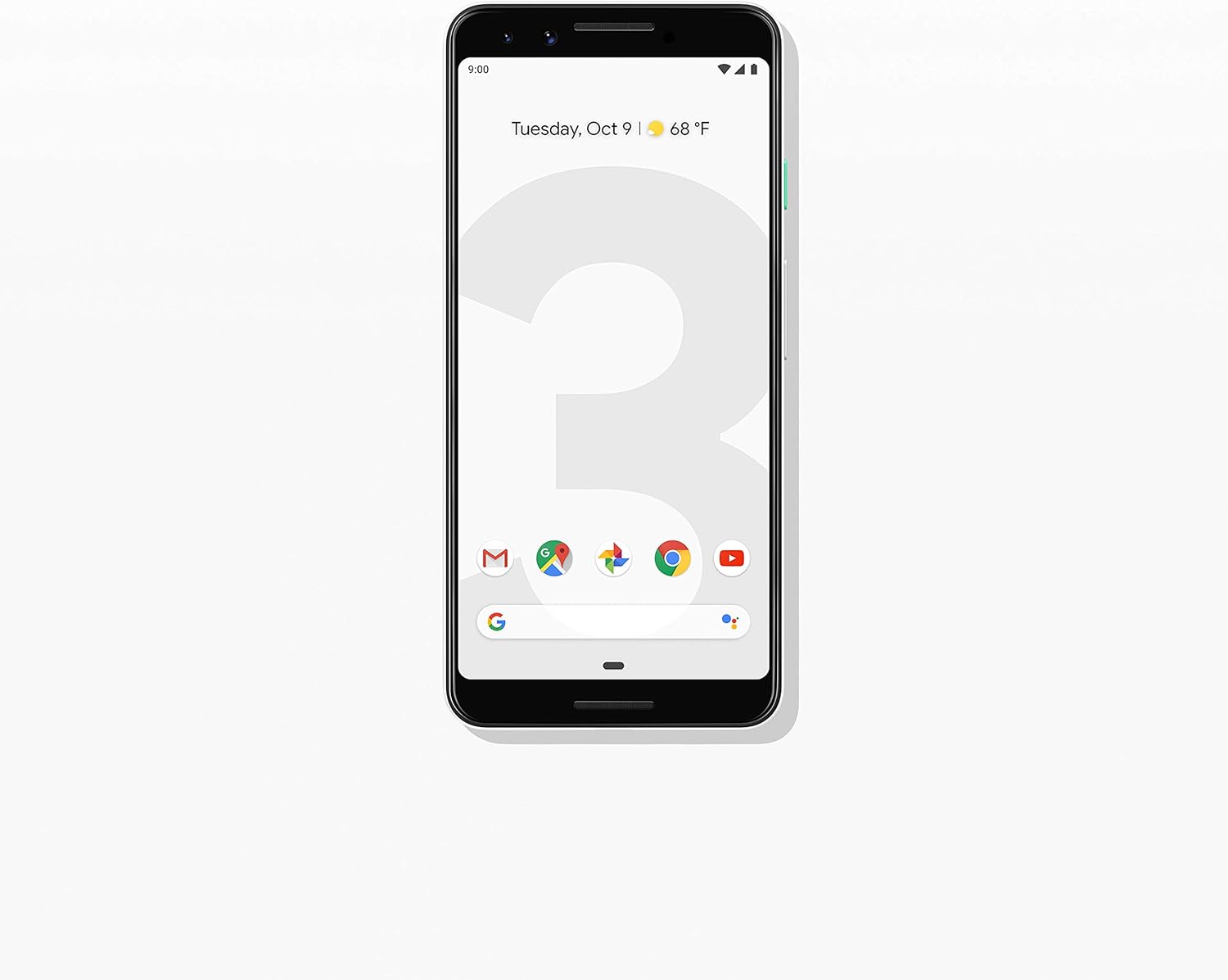
Imagen: Frente view of the Google Pixel 3 smartphone, showcasing its display and sleek design in Clearly White.
Configuración
1. Desembalaje e inspección inicial
Upon opening the package, ensure all components are present and in good condition. The standard package for your Google Pixel 3 includes:
- Teléfono inteligente Google Pixel 3
- USB-C digital earbud
- Cable USB-C a USB-C
- USB-C to 3.5mm headphone adapter
- Quick Switch Adapter (USB-A to USB-C)
- Herramienta SIM
2. Instalación de la tarjeta SIM
Para instalar su tarjeta Nano-SIM:
- Localice la bandeja de la tarjeta SIM en el lado izquierdo del teléfono.
- Insert the SIM tool into the small hole on the tray to eject it.
- Coloque su tarjeta Nano-SIM en la bandeja con los contactos dorados hacia abajo.
- Empuje suavemente la bandeja hacia el teléfono hasta que encaje en su lugar.

Imagen: Lateral view of the Google Pixel 3, highlighting the location of the SIM card tray and volume/power buttons.
3. Asistente de encendido inicial y configuración
Press and hold the power button on the right side of the phone until the Google logo appears. Follow the on-screen instructions to complete the initial setup, including connecting to Wi-Fi, signing in with your Google account, and setting up security features.
4. Carga del dispositivo
Connect the USB-C cable to the phone's charging port at the bottom and the other end to the power adapter. Plug the adapter into a wall outlet. The Pixel 3 supports fast charging and wireless charging. A full charge typically takes approximately 2 hours.
Instrucciones de funcionamiento
1. Basic Navigation (Android 9 Pie)
The Google Pixel 3 runs on Android 9 Pie, offering intuitive gesture navigation.
- Pantalla de inicio: Desliza el dedo hacia arriba desde la parte inferior de la pantalla para ir a la pantalla de inicio.
- Cajón de aplicaciones: Desliza hacia arriba desde la pantalla de inicio para acceder a todas tus aplicaciones.
- Aplicaciones recientes: Desliza el dedo hacia arriba desde la parte inferior y mantén presionado para view aplicaciones usadas recientemente.
- Atrás: Tap the back arrow icon or swipe from the left or right edge of the screen (if gesture navigation is enabled).
- Notificaciones: Deslice hacia abajo desde la parte superior de la pantalla para view notificaciones y configuraciones rápidas.

Image: The Google Pixel 3 display showing the home screen with various app icons and the date/weather widget.
2. Características de la cámara
The Pixel 3 camera is equipped with advanced features to capture high-quality photos and videos.
- Selfies grupales: Utiliza la cámara frontal gran angular para incluir a más personas en tus selfies.
- Modo retrato: Create professional-looking photos with a blurred background (bokeh effect).
- Mejor toma: Automatically recommends the best shot from a burst of photos, ensuring no blinks or missed moments.
- Visión nocturna: Enhances low-light photography, capturing vibrant details in dark environments.
- Grabación de vídeo 4K: Record high-resolution videos at 30 frames per second.
3. Asistente de Google
Access the Google Assistant by squeezing the sides of your phone or by saying "Hey Google" or "Ok Google." The Assistant can help with tasks such as setting alarms, getting directions, making calls, sending messages, and providing information.
4. Call Screening
The Call Screen feature allows the Google Assistant to answer calls from unknown numbers and provide a real-time transcription of the conversation, helping you avoid spam and nuisance calls.
5. Digital Wellbeing
Monitor and manage your screen time with Digital Wellbeing. Set app timers, enable Wind Down mode to grayscale your screen and mute notifications for better sleep, and focus on what matters.
6. Google Lens
Use Google Lens to search what you see. Point your camera at objects, text, or landmarks to get information, translate languages, or identify plants and animals.
Mantenimiento
1. Cuidado de la batería
To maximize battery life (2915 mAh capacity):
- Evite temperaturas extremas.
- Use the provided charger or a certified wireless charger.
- Enable Adaptive Battery in settings to limit battery usage for infrequently used apps.
- Consider using Battery Saver mode when battery is low.
2. Actualizaciones de software
Keep your device's software up to date to ensure optimal performance, security, and access to new features. Navigate to Configuración > Sistema > Avanzado > Actualización del sistema para buscar e instalar actualizaciones.
3. Limpieza del dispositivo
Use a soft, lint-free cloth to clean the screen and body of your Pixel 3. Avoid abrasive materials or harsh chemicals. For stubborn smudges, slightly dampen el paño con agua.
4. Gestión del almacenamiento
The Pixel 3 comes with 64GB of internal storage. To manage storage effectively:
- Regularly clear app caches.
- Eliminar innecesario files, fotos y videos.
- Utilize cloud storage services like Google Photos (which offers free unlimited storage for Pixel users at original quality for photos and videos uploaded from the device).
Solución de problemas
This section addresses common issues you might encounter with your Google Pixel 3.
| Problema | Solución |
|---|---|
| El teléfono no enciende | Ensure the battery is charged. Connect to a charger for at least 15 minutes. If unresponsive, press and hold the power button for 30 seconds. |
| Mala duración de la batería | Check battery usage in settings to identify draining apps. Reduce screen brightness, disable unnecessary features (Bluetooth, GPS when not in use), and enable Adaptive Battery. |
| Las aplicaciones se bloquean o se congelan | Borrar el caché y los datos de la aplicación (Settings > Apps & notifications > App info > [App Name] > Storage & cache). Update the app or reinstall it. Ensure system software is up to date. |
| Problemas de conectividad (Wi-Fi/Bluetooth) | Toggle Wi-Fi/Bluetooth off and on. Restart the phone. Forget and reconnect to the network/device. Reset network settings (Settings > System > Advanced > Reset options > Reset Wi-Fi, mobile & Bluetooth). |
| El teléfono es lento o no responde | Restart the phone. Clear cached data. Uninstall unused apps. Check for system updates. As a last resort, consider a factory reset (back up data first). |
Restablecimiento de fábrica
A factory reset will erase all data from your phone's internal storage. Haga una copia de seguridad de todos los datos importantes antes de continuar.
- Ir a Configuración > Sistema > Avanzadas > Opciones de restablecimiento.
- Grifo Borrar todos los datos (restablecer valores de fábrica).
- Confirme su decisión e ingrese su PIN/patrón/contraseña si se le solicita.
- Grifo Borrar todos los datos.
Presupuesto
Key technical specifications for the Google Pixel 3 (Model: G013A):
| Característica | Detalle |
|---|---|
| Dimensiones del producto | 5.73 x 2.69 x 0.31 pulgadas |
| Peso del artículo | 12.8 onzas |
| Sistema operativo | Android 9.0 Pie |
| RAM | 4 GB |
| Capacidad de almacenamiento de memoria | 64 GB |
| Tamaño de pantalla | 5.5 pulgadas |
| Resolución | 2560 x 1440 |
| Capacidad de la batería | 2915 miliamp Horas |
| Tiempo de carga | 2 horas (aprox.) |
| Tecnologías de conectividad | Bluetooth, celular 4G |
| Características especiales | 4K Video Recording, GPS |
| Color | Clearly White |
Garantía y soporte
Your Google Pixel 3 is covered by a limited warranty provided by Google LLC. For detailed warranty terms and conditions, please refer to the warranty information included with your device packaging or visit the official Google support websitio.
Cómo ponerse en contacto con el servicio de asistencia
For technical assistance, troubleshooting beyond this manual, or warranty claims, please contact Google Support:
- Soporte en línea: Visita soporte.google.com/pixelphone
- Foros de la comunidad: Engage with other Pixel users and experts on Google's official forums.
When contacting support, please have your device's model number (G013A) and serial number ready.