Introducción
The Logitech K400 Plus Wireless Touch Keyboard is designed for comfortable control of your entertainment from a distance. Featuring a full-size keyboard layout and a large, integrated touchpad, it offers seamless navigation for your PC-connected TV, media center, or other compatible devices. This manual provides essential information for setting up, operating, and maintaining your keyboard.
Configuración
1. Instalación de la batería
The Logitech K400 Plus requires two AAA batteries (included). To install them:
- Localice la tapa del compartimiento de la batería en la parte inferior del teclado.
- Deslice la tapa para abrirla.
- Inserte dos pilas AAA, asegurándose de la polaridad correcta (+/-).
- Cierre bien la tapa del compartimento de la batería.
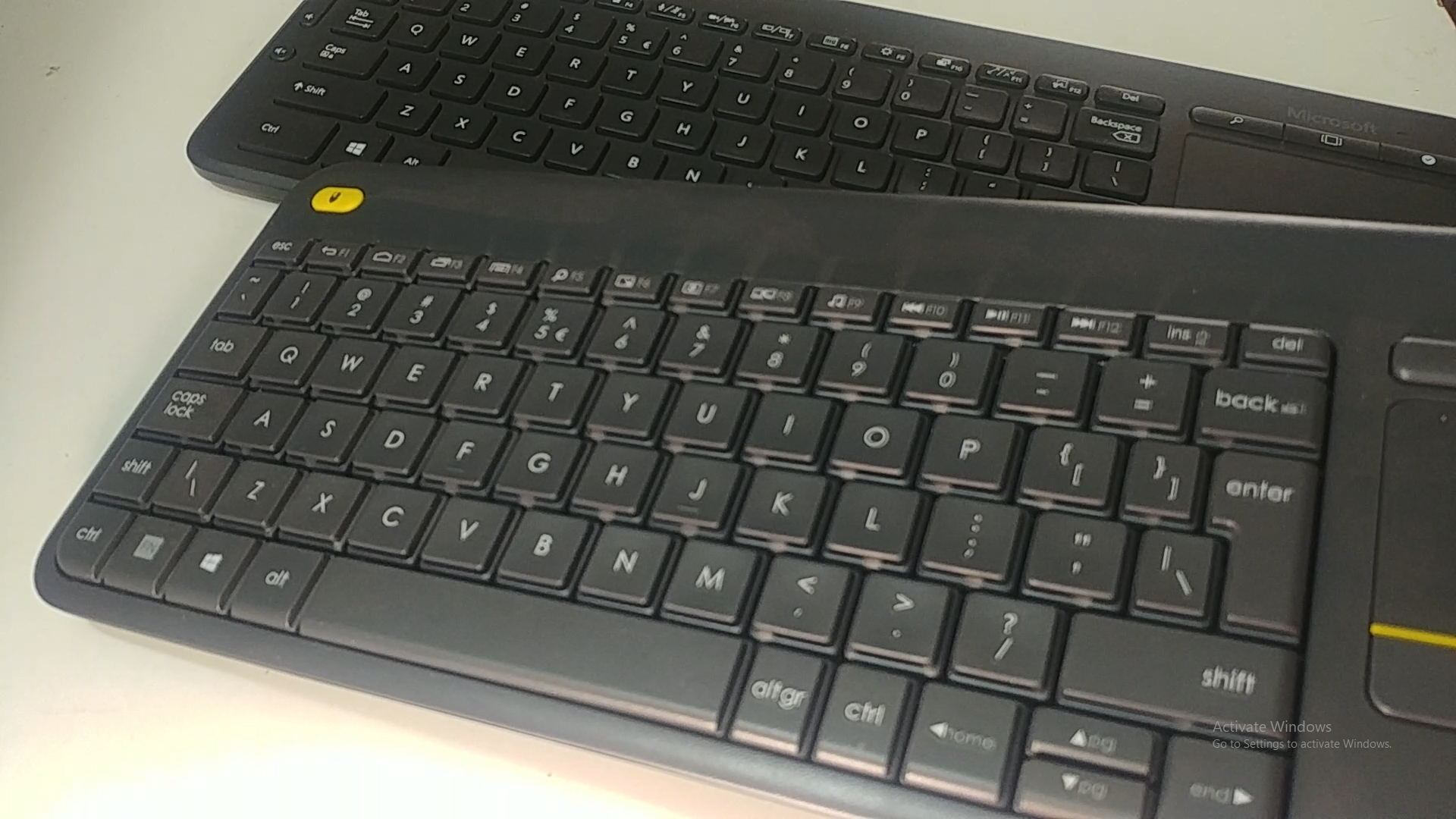
Image: Underside of the Logitech K400 Plus keyboard with the battery compartment open, showing two AAA batteries.
2. Connecting the Keyboard (USB Unifying Receiver)
The K400 Plus connects wirelessly via a small USB Unifying receiver. This receiver is typically stored inside the battery compartment for safekeeping.
- Open the battery compartment cover and remove the USB Unifying receiver.
- Plug the USB Unifying receiver into an available USB port on your PC, smart TV, or other compatible device.
- Turn on the keyboard using the On/Off switch located on the top right edge of the keyboard. A green indicator light will appear.
- Your keyboard should automatically connect. If not, refer to the troubleshooting section or visit the Logitech support website for the Unifying software.

Image: The Logitech K400 Plus Wireless Touch Keyboard, showing its compact design with integrated touchpad.
Instrucciones de funcionamiento
Disposición del teclado
The K400 Plus features a standard QWERTY layout with additional function keys and an integrated touchpad.
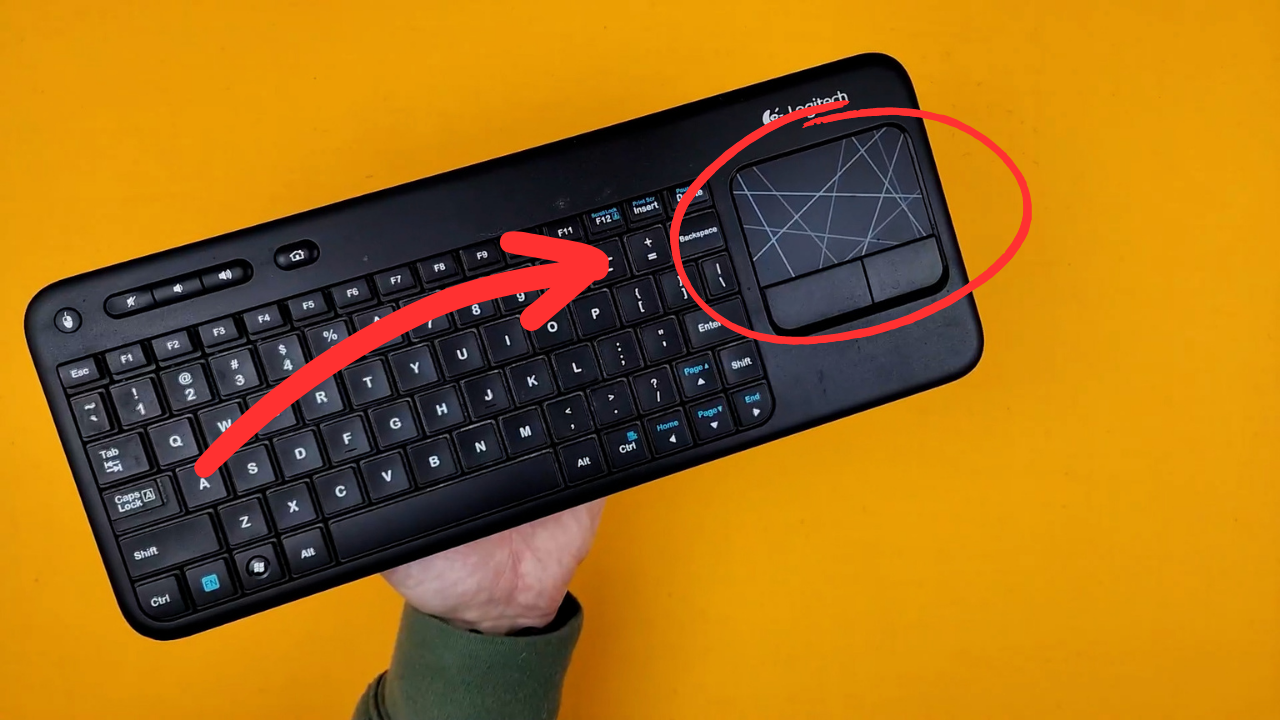
Imagen: Un detalle view of the Logitech K400 Plus keyboard keys, highlighting the QWERTY layout.
Uso del panel táctil
The large 3.5-inch touchpad allows for intuitive navigation. It supports multi-touch gestures for enhanced control.
- Toque con un solo dedo: Click izquierdo.
- Toque con dos dedos: Botón derecho del ratón.
- Desplazamiento con dos dedos: Desplácese vertical u horizontalmente.
- Pellizcar para hacer zoom: Acercar o alejar (si la aplicación lo permite).
- Dedicated left and right-click buttons are located below the touchpad for traditional mouse button functionality.
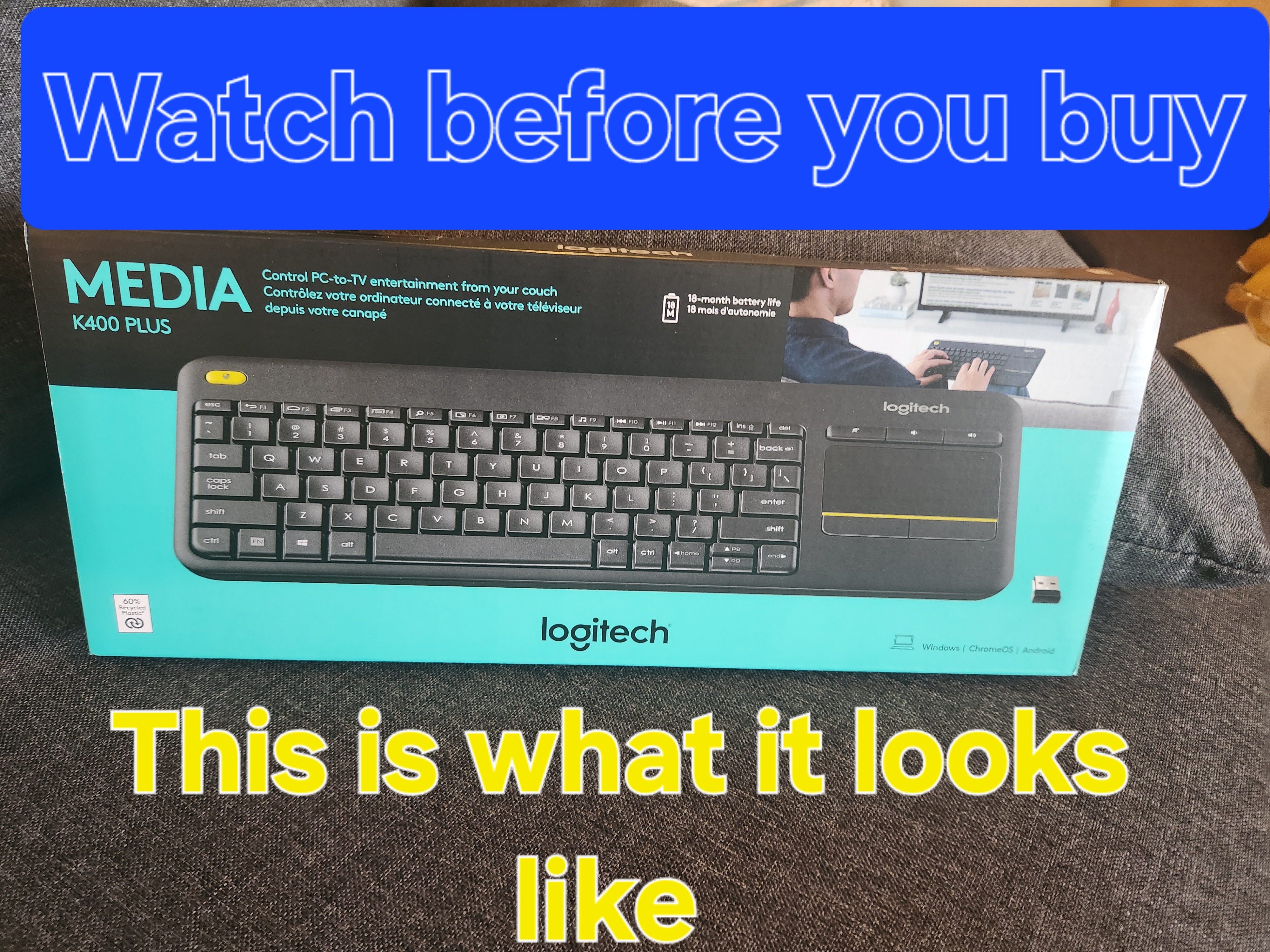
Image: A hand demonstrating the use of the integrated touchpad on the Logitech K400 Plus.
Teclas multimedia y de función
The top row of keys includes dedicated multimedia controls and function keys (F1-F12) with secondary actions. To activate the secondary actions (indicated by blue icons), press and hold the Fn key (located near the left Ctrl key) while pressing the desired function key.
- Controles de volumen: Dedicated buttons for mute, volume down, and volume up are located above the touchpad.
- Botón de inicio: Access your device's home screen or browser home page.
- Page Up/Down, End: Navegar por documentos y web páginas.
- Left Mouse Button (top left): An additional left-click button is located on the top left corner of the keyboard for convenient two-hand operation.
Mantenimiento
Limpieza
Para limpiar su teclado:
- Apague el teclado utilizando el interruptor de encendido/apagado.
- Utilice un paño suave y sin pelusa ligeramente seco.amplimpiado con agua o una solución de limpieza suave.
- Avoid excessive moisture and do not immerse the keyboard in liquid.
- Para la suciedad incrustada entre las teclas, utilice aire comprimido.
Reemplazo de batería
When the battery indicator light (usually located near the On/Off switch) turns red or the keyboard becomes unresponsive, it's time to replace the batteries. Follow the "Battery Installation" steps in the Setup section to replace the two AAA batteries.
Solución de problemas
Teclado no responde
- Comprobar potencia: Ensure the keyboard is turned on and the battery indicator light is green. Replace batteries if necessary.
- Comprobar receptor: Make sure the USB Unifying receiver is securely plugged into a working USB port on your device. Try a different USB port.
- Distancia: Ensure the keyboard is within the operating range (up to 10 meters or 33 feet) of the USB receiver.
- Interferencia: Aleje el teclado y el receptor de otros dispositivos inalámbricos u objetos metálicos grandes que puedan causar interferencias.
- Reparar: If issues persist, you may need to re-pair the keyboard with the Unifying receiver using the Logitech Unifying software, available for download from the official Logitech support websitio.
Touchpad Not Working Correctly
- Superficie limpia: Asegúrese de que la superficie del panel táctil esté limpia y libre de residuos.
- Actualización del controlador: Check your device's operating system for updated drivers for the Logitech Unifying receiver or touchpad.
- Ajustes: Verify touchpad settings in your device's control panel or system preferences.
Presupuesto
| Marca | Logitech |
| Número de modelo | 920-009280 |
| Tecnología de conectividad | Wireless (2.4 GHz via USB Unifying Receiver) |
| alcance inalámbrico | Hasta 10 metros (33 pies) |
| Baterías | Baterías 2 x AAA (incluidas) |
| Duración de la batería | Hasta 18 meses (puede variar según el uso) |
| Panel táctil integrado | Panel táctil multitáctil de 3.5 pulgadas |
| Dispositivos compatibles | PC (Windows 7, 8, 10 or later), Android TV, Chrome OS |
| Dimensiones (L x An x Al) | Aproximadamente 13.9 x 5.5 x 0.9 pulgadas (354 x 139.9 x 23.5 mm) |
| Peso | Approximately 13.76 oz (390 g) with batteries |
Garantía y soporte
Logitech provides a limited hardware warranty for this product. For detailed warranty information, technical support, and driver downloads, please visit the official Logitech support websitio:
También puede encontrar preguntas frecuentes y foros de la comunidad para obtener asistencia adicional.


