1. Introducción
The SONOFF DW2 Wi-Fi Wireless Door Window Sensor is a smart home device designed to enhance security and automation by detecting the open/closed status of doors and windows. This sensor operates without the need for a separate gateway, connecting directly to your Wi-Fi network and allowing control and monitoring via a mobile application. This manual provides detailed instructions for installation, operation, maintenance, and troubleshooting to ensure optimal performance of your device.
2. Producto terminadoview
2.1 Componentes
The SONOFF DW2 sensor consists of two main parts: a main sensor unit and a magnetic strip. These components work together to detect changes in proximity, indicating whether a door or window is open or closed.

Image: The SONOFF DW2 sensor units shown alongside a smartphone displaying the eWeLink app interface, indicating the sensor's status.
2.2 Características principales
- No se requiere puerta de enlace: Connects directly to your Wi-Fi network (2.4GHz) for easy setup and control via the eWeLink app.
- Real-time Status Sync: Provides instant updates on the open/closed status of your doors or windows directly to your smartphone.
- Notificaciones push: Sends immediate alerts to your phone when a door or window is opened, enhancing security.
- Low-Battery Reminder: Notifies you when the battery level is low, ensuring continuous operation.
- Fácil instalación: Tool-free installation using 3M adhesive, suitable for various surfaces.
- History Records Check: Automatically saves notification messages, allowing you to review activity over the last 3 months.
- Integración de escenas inteligentes: Can be integrated with other SONOFF devices or smart home systems (e.g., cameras) to trigger actions based on sensor status.

Image: Visual representation of the SONOFF DW2's main features, including direct Wi-Fi connection, push notifications, low-battery alerts, simple installation, and smart scene compatibility.
3. Configuración
3.1 antes de la instalación
- Asegúrese de que su red Wi-Fi sea de 2.4 GHz. El dispositivo no es compatible con Wi-Fi de 5 GHz.
- Descargue la aplicación eWeLink desde la App Store (iOS) o Google Play Store (Android).
- Regístrese e inicie sesión en su cuenta eWeLink.
- Ensure the sensor has fresh batteries installed (2 x AAA 1.5V batteries).
3.2 Instalación física
- Identify a suitable location on your door or window frame. The main sensor unit and the magnetic strip must be mounted on adjacent surfaces (e.g., one on the door and one on the frame).
- Clean the installation surface thoroughly to ensure proper adhesion.
- Peel off the protective film from the 3M adhesive on the back of both the main sensor unit and the magnetic strip.
- Attach the main sensor unit to the fixed part of the door/window frame.
- Attach the magnetic strip to the moving part of the door/window, aligning it with the main sensor unit. Ensure the alignment marks on both parts face each other.
- The gap between the main sensor unit and the magnetic strip must be less than 5mm when the door/window is closed for proper operation. This is recommended for non-metallic surfaces.

Imagen: Un primer plano view of the SONOFF DW2 sensor installed on a door frame, illustrating the recommended installation gap of less than 5mm between the main unit and the magnetic component.
3.3 Device Pairing with eWeLink App
- Abra la aplicación eWeLink en su teléfono inteligente.
- Ensure your phone is connected to the 2.4GHz Wi-Fi network you intend to use for the sensor.
- Press and hold the pairing button on the main sensor unit for 5 seconds until the LED indicator flashes rapidly. This indicates the device is in pairing mode.
- In the eWeLink app, tap the '+' icon at the bottom center or top right to add a device.
- Select 'Add Device' and follow the on-screen instructions. The app should detect the DW2 sensor.
- Confirm your Wi-Fi network and enter the password when prompted.
- Wait for the app to connect to the device. Once successfully paired, the LED indicator on the sensor will stop flashing and remain solid for a few seconds before turning off.
- You can rename the device in the app for easier identification (e.g., 'Front Door Sensor', 'Bedroom Window').

Image: The SONOFF DW2 sensor installed on a door frame, with a smartphone displaying the eWeLink app, emphasizing that no separate hub is needed for operation.
4. Instrucciones de funcionamiento
4.1 Monitoreo del estado del dispositivo
Una vez emparejado, puede view the real-time status of your door/window sensor directly from the eWeLink app. The app will display whether the sensor is 'Open' or 'Closed'.
4.2 Recibir notificaciones
The sensor is configured to send push notifications to your smartphone whenever the door or window it is attached to changes status (e.g., opens). Ensure notifications are enabled for the eWeLink app in your phone's settings.

Image: A person checking their smartphone, which displays a push notification from the eWeLink app indicating that the DW2 sensor has detected an opening event.
4.3 Automatización de escenas inteligentes
The SONOFF DW2 sensor can be integrated into smart scenes within the eWeLink app to automate actions with other smart devices. For exampen:
- Trigger a SONOFF camera to record when the door sensor detects an opening.
- Turn on lights when a door is opened.
- Activate an alarm or send a notification to other family members.

Image: An illustration of a smart home security scenario where a SONOFF DW2 sensor triggers a camera recording and a hub alarm when a door is opened, demonstrating smart scene functionality.
4.4 Control de voz
The SONOFF DW2 is compatible with voice assistants like Google Home and Amazon Alexa. You can link your eWeLink account to these platforms and use voice commands to inquire about the sensor's status (e.g., "Hey Google, is the front door open?").

Image: A visual demonstrating the voice control capability of the SONOFF DW2 sensor, showing integration with Google Home and Amazon Alexa for checking device status.
5. Mantenimiento
5.1 Reemplazo de batería
The SONOFF DW2 sensor is powered by two AAA 1.5V batteries. The eWeLink app will send a low-battery reminder when replacement is needed.
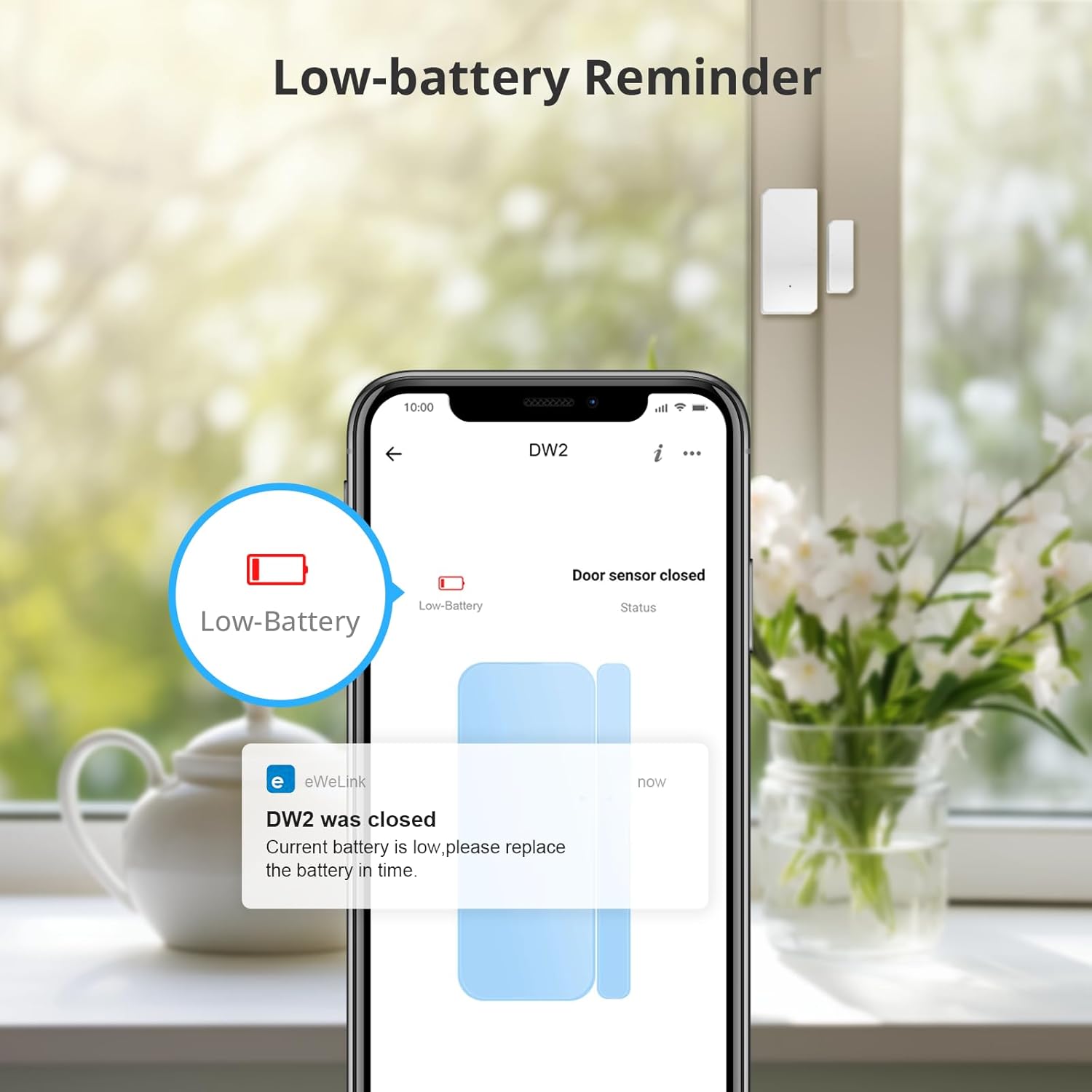
Image: A smartphone screen showing a low-battery notification from the eWeLink app for the DW2 sensor, prompting the user to replace batteries.
- Gently open the casing de la unidad del sensor principal.
- Retire las pilas AAA viejas.
- Inserte dos pilas nuevas AAA de 1.5 V, asegurándose de la polaridad correcta.
- Cierra la casing de forma segura.
5.2 Limpieza
Wipe the sensor units with a dry, soft cloth. Avoid using liquid cleaners or abrasive materials.
6. Solución de problemas
| Problema | Posible causa | Solución |
|---|---|---|
| Device fails to pair with app | Incorrect Wi-Fi band (5GHz instead of 2.4GHz), incorrect Wi-Fi password, Wi-Fi router settings (e.g., 'b' protocol not enabled), device not in pairing mode. | Ensure your phone is connected to a 2.4GHz Wi-Fi network. Verify Wi-Fi password. Check router settings to ensure 802.11b protocol is supported/enabled. Re-enter pairing mode by holding the button for 5 seconds. Try pairing via Bluetooth option in eWeLink if available. |
| Sensor not reporting status changes | Low battery, incorrect installation gap, Wi-Fi connectivity issues. | Check battery level in the app and replace if low. Ensure the gap between the sensor and magnet is less than 5mm. Verify Wi-Fi signal strength at the sensor's location. |
| Sin notificaciones push | App notifications disabled, phone's power saving mode, network issues. | Check eWeLink app settings and phone's system settings to ensure notifications are enabled. Disable power-saving modes for the app. Ensure stable internet connection. |
| Device disconnects after power/Wi-Fi outage | Temporary network disruption. | Remove and reinsert the batteries to power cycle the sensor. This often helps re-establish the connection after a network interruption. |
| Duración corta de la batería | Frequent triggers, poor quality batteries, extreme temperatures. | Use high-quality alkaline batteries. Consider the placement to avoid excessive triggering. Ensure the operating temperature is within the specified range. |
7. Especificaciones

Image: A detailed diagram showing the physical dimensions and technical specifications of the SONOFF DW2 sensor.
| Parámetro | Valor |
|---|---|
| Modelo | DW2 WIFI |
| Modelo de batería | AAA 1.5 V (x2) |
| Vol de trabajotage | 3 V CC |
| Estándar Wi-Fi | IEEE 802.11 b 2.4 GHz |
| Temperatura de trabajo | -10 ° C ~ 40 ° C (14 ° F ~ 104 ° F) |
| Corriente de reposo | ≤40uA |
| Corriente de emisión | ≤15 mA |
| Espacio de instalación | <5 mm |
| Sistemas operativos | Android 4.1 y iOS 9.0 o superior |
| Material | PC |
| Dimensiones del transmisor | 70 x 31 x 19 mm (2.75 x 1.22 x 0.75 pulgadas) |
| Dimensiones del imán | 42 x 14 x 16 mm (1.65 x 0.55 x 0.62 pulgadas) |
8. Garantía y soporte
Para obtener información sobre la garantía, soporte técnico y más ayuda, consulte el sitio web oficial de SONOFF. website or contact their customer service directly. Details regarding product warranty periods and support channels are typically available on the manufacturer's official resources.


