1. Introducción
This manual provides essential information for the safe and efficient use of your Amazon Fire HD 10 tablet (2021 release). Please read it thoroughly before operating your device.
Características principales
- Fast and Responsive: Powered by an octa-core processor and 3 GB RAM, offering 50% more RAM than the previous generation.
- Batería de larga duración: Up to 12 hours of battery life for reading, browsing, video, and music.
- Pantalla vívida: 10.1-inch 1080p Full HD display, 10% brighter than the previous generation, with over 2 million pixels.
- AmpAlmacenamiento: Available with 32 GB or 64 GB internal storage, expandable up to 1 TB with a microSD card (sold separately).
- Compatibilidad de aplicaciones: Access to popular apps like Netflix, Facebook, Disney+, Instagram, TikTok, and more via Amazon’s Appstore.
- Herramientas de productividad: Supports apps like Microsoft Office, OneNote, and Dropbox for enhanced productivity.
- Diseño duradero: Thinner and lighter than the previous generation, with a screen strengthened by aluminosilicate glass.
- Funcionalidad de pantalla dividida: Allows two compatible apps to be open side-by-side for multitasking.
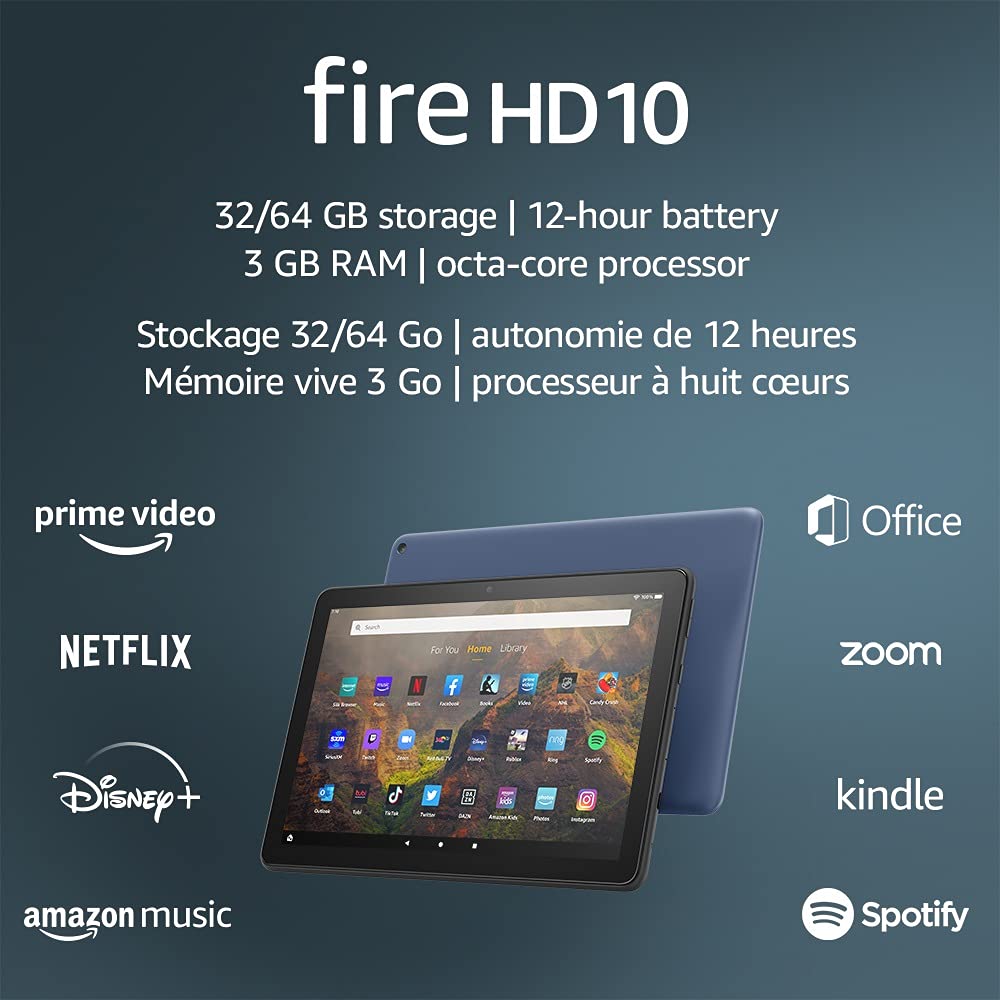
Image 1.1: The Amazon Fire HD 10 tablet highlighting its 32/64 GB storage, 12-hour battery, 3 GB RAM, and octa-core processor, alongside logos of supported applications such as Prime Video, Netflix, Disney+, Amazon Music, Office, Zoom, Kindle, and Spotify.
2. Configuración
2.1 Desempaquetado y carga inicial
Upon receiving your Fire HD 10 tablet, carefully remove all components from the packaging. Before first use, it is recommended to fully charge the device.
- Connect the provided USB-C (2.0) cable to the tablet's USB-C port.
- Plug the other end of the USB-C cable into the 9W power adapter.
- Conecte el adaptador de corriente a una toma de pared.
- A full charge from 0% to 100% typically takes approximately 4 hours while the device is in standby mode.
2.2 Encendido / Apagado
- Para encender: Press and hold the power button located on the side of the tablet until the Amazon logo appears on the screen.
- Para apagar: Press and hold the power button until a power options menu appears. Select 'Power Off'.
- Para reiniciar: Desde el menú de opciones de energía, seleccione “Reiniciar”.
2.3 Conectividad Wi-Fi
To access online content and services, connect your Fire HD 10 to a Wi-Fi network.
- From the Home screen, swipe down from the top to open the Quick Settings panel.
- Presiona el ícono de wifi.
- Seleccione la red Wi-Fi deseada de la lista de redes disponibles.
- Si se le solicita, ingrese la contraseña de la red y toque “Conectar”.
- The tablet supports 2.4 GHz and 5.0 GHz networks. Ad-hoc (peer-to-peer) Wi-Fi networks are not supported.
2.4 Configuración de la cuenta
During the initial setup process, you will be guided to register your Fire HD 10 to an Amazon account. This is necessary to download apps, access Amazon content, and utilize cloud services.
- Follow the on-screen prompts to sign in with an existing Amazon account or create a new one.
- Ensure your account details are accurate for full functionality.
3. Instrucciones de funcionamiento
3.1 Navegación por la interfaz
The Fire HD 10 tablet features a touch-sensitive display for interaction.
- Grifo: Para seleccionar un elemento, abrir una aplicación o activar un botón.
- Golpe fuerte: Para desplazarse por páginas, listas o cambiar entre pantallas de inicio.
- Pellizcar para hacer zoom: To zoom in or out on images, web páginas o documentos.
- Pulsación larga: Para acceder a los menús contextuales o mover los íconos de las aplicaciones.
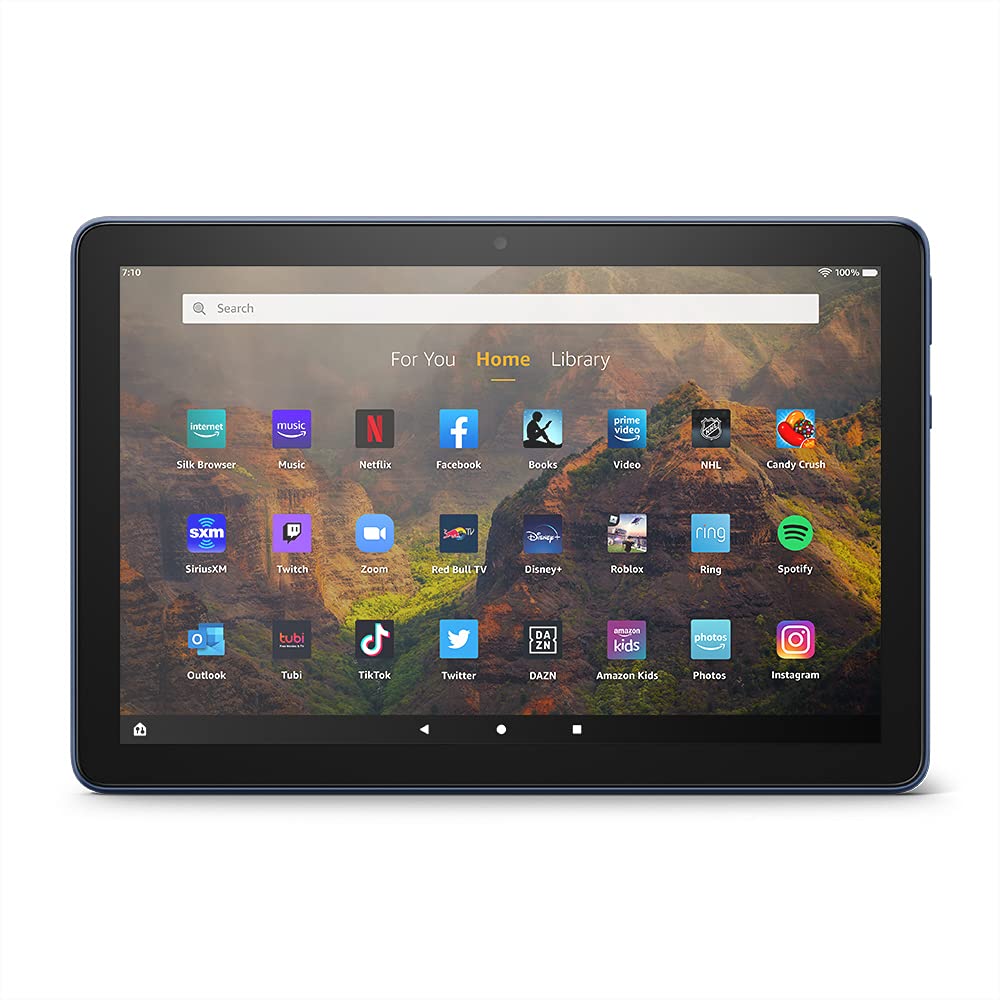
Image 3.1: The Amazon Fire HD 10 tablet's home screen, showcasing a grid of application icons including Silk Browser, Music, Netflix, Facebook, Books, Video, NHL, Candy Crush, SiriusXM, Twitch, Zoom, Red Bull TV, Disney+, Roblox, Ring, Spotify, Outlook, Tubi, TikTok, Twitter, DAZN, Amazon Kids, Photos, and InstagRAM.
3.2 Uso de aplicaciones
Applications can be downloaded from the Amazon Appstore. Google Play is not supported.
- Tap an app icon on the Home screen to launch it.
- To find new apps, open the 'Appstore' application.
- Some apps may require a subscription for full access.

Image 3.2: A collage of content available on the Amazon Fire HD 10 tablet, featuring book covers like 'The Silent Patient', Amazon Original series and movies such as 'The Wilds', 'Coming to America', 'The Expanse', 'Dune', 'Hanna', 'One Night in Miami', 'Sound of Metal', 'The Marvelous Mrs. Maisel', 'Upload', and 'The Boys', alongside social media app logos for TikTok, Facebook, and Twitter.
3.3 Multitarea en pantalla dividida
The Fire HD 10 supports split screen functionality, allowing two compatible applications to run side-by-side.
- Abra la primera aplicación que desee utilizar.
- Swipe up from the bottom of the screen to reveal the navigation bar.
- Mantenga presionado el ícono de la primera aplicación en las aplicaciones recientes view.
- Select 'Split Screen' from the options.
- Choose a second compatible app from your recent apps or app drawer to fill the other half of the screen.

Image 3.3: The Amazon Fire HD 10 tablet, shown with an optional Bluetooth keyboard case, demonstrating its split-screen capability. Two applications are open simultaneously: a calendar app on the left and a messaging app on the right, illustrating enhanced productivity.
3.4 Uso de la cámara
The tablet is equipped with a 2 MP front-facing camera and a 5 MP rear-facing camera, both capable of 720p HD video recording.
- Open the 'Camera' app from your Home screen or app drawer.
- Toque el botón del obturador para tomar una foto.
- Cambie entre la cámara frontal y trasera usando el ícono de alternancia de la cámara.
- Seleccione el modo de vídeo para grabar vídeos.
3.5 Audio y Bluetooth
The Fire HD 10 includes dual integrated speakers and a 3.5 mm stereo jack for headphones. It also supports Bluetooth 5.0 LE.
- Connect wired headphones or external speakers via the 3.5 mm jack.
- To pair Bluetooth devices (headphones, speakers, microphones, LE accessories):
- Go to 'Settings' > 'Connected Devices' > 'Bluetooth'.
- Asegúrese de que Bluetooth esté encendido.
- Select your device from the list of available devices and follow pairing instructions.
3.6 Gestión del almacenamiento
Your Fire HD 10 comes with either 32 GB or 64 GB of internal storage. You can expand this by up to 1 TB using a microSD card.
- To insert a microSD card: Locate the microSD slot on the side of the tablet, open the cover, and gently insert the card until it clicks into place.
- Manage storage by going to 'Settings' > 'Storage'. Here you can view usage and move compatible apps or media to the microSD card.
4. Mantenimiento
4.1 Cuidado de la batería
- Avoid exposing the tablet to extreme temperatures, as this can degrade battery performance.
- Para una óptima duración de la batería, evite descargarla por completo con frecuencia o mantenerla con el 100 % de carga durante períodos prolongados.
- Use only the provided 9W power adapter and USB-C cable for charging.
4.2 Limpieza del dispositivo
- Turn off the tablet before cleaning.
- Utilice un paño suave que no suelte pelusa para limpiar suavemente la pantalla y el cuerpo.
- Para manchas difíciles, un poco deampEnjuague el paño con agua. Evite usar productos químicos agresivos, limpiadores abrasivos o aerosoles.
4.3 Actualizaciones de software
Amazon periodically releases software updates to improve performance and add new features. Ensure your device is connected to Wi-Fi to receive these updates.
- Updates are typically downloaded and installed automatically.
- You can manually check for updates by going to 'Settings' > 'Device Options' > 'System Updates'.
5. Solución de problemas
5.1 El dispositivo no responde
- If the device is frozen or unresponsive, press and hold the power button for approximately 20 seconds to force a restart.
- Ensure the device has sufficient battery charge. Connect it to the charger and try powering it on again.
5.2 Problemas de conexión Wi-Fi
- Verify that Wi-Fi is enabled in Quick Settings or 'Settings' > 'Wireless'.
- Asegúrese de estar dentro del alcance de su enrutador Wi-Fi.
- Reinicie su enrutador Wi-Fi y módem.
- Forget the network in 'Settings' > 'Wireless' and reconnect, re-entering the password if necessary.
5.3 Las aplicaciones se bloquean o no se cargan
- Cierre y vuelva a abrir la aplicación.
- Clear the app's cache: Go to 'Settings' > 'Apps & Games' > 'Manage All Applications', select the problematic app, and tap 'Clear Cache'.
- Asegúrese de que el software de su tableta esté actualizado.
- Si el problema persiste, considere desinstalar y reinstalar la aplicación.
5.4 Duración corta de la batería
- Reducir el brillo de la pantalla.
- Cierre las aplicaciones no utilizadas que se ejecutan en segundo plano.
- Desactive el Wi-Fi o Bluetooth cuando no esté en uso.
- Limite el uso de datos en segundo plano para las aplicaciones.
- Check 'Settings' > 'Battery' to identify apps consuming the most power.
6. Especificaciones
| Característica | Detalle |
|---|---|
| Generación | 11.ª generación, versión 2021 |
| Mostrar | Brillante pantalla de 10.1” 1080p (1920 x 1200) con más de 2 millones de píxeles (224 ppp). Pantalla reforzada con vidrio de aluminosilicato. |
| Tamaño | 247mm x 166mm x 9.2 mm |
| Peso | 465 gramos (El tamaño y el peso reales pueden variar) |
| CPU y RAM | Octa-core de 2.0 GHz con 3 GB de RAM |
| Almacenamiento | 32 GB (24.2 GB available) or 64 GB (55.0 GB available) internal storage. Expandable up to 1 TB with microSD card. |
| Duración de la batería | Up to 12 hours of mixed usage (reading, web, video, music). Varies by settings and usage. |
| Tiempo de carga | Approx. 4 hours (0-100%) with provided 9W adapter in standby. |
| Conectividad WiFi | Supports 2.4 GHz and 5.0 GHz networks. Does not support ad-hoc networks. |
| Puertos | USB-C (2.0) for charging, microSD slot for external storage. |
| Audio | 3.5 mm stereo jack, dual integrated speakers, external volume controls. |
| Sensores | Accelerometer, ambient light sensors. |
| Especificaciones de la cámara | 2 MP front-facing, 5 MP rear-facing cameras with 720p HD video recording. |
| Micrófonos | 2 built-in microphones. |
| Servicios de localización | Location-based services via WiFi. |
| Colores disponibles | Black, Denim. |
| Bluetooth | Built-in Bluetooth 5.0 LE with A2DP support for stereo headphones, speakers, microphone, and LE accessories. |
6.1 Funciones de accesibilidad
The Fire HD 10 tablet includes various accessibility features to assist users. These can be accessed via 'Settings' > 'Accessibility'.
- VozView Lector de pantalla: Provides spoken feedback for users who are blind or visually impaired.
- Lupa de pantalla: Permite a los usuarios acercar o alejar la imagen y desplazarse por la pantalla.
- Acceso modificador: Enables interaction for users with motor impairments via compatible Bluetooth devices.
- Lectura en voz alta de Kindle: Alexa puede leer libros Kindle en voz alta.
- Configuración de pantalla: Includes options for Closed Captioning, Font Size, Display Size, High Contrast Text, Color Inversion, Color Correction, and Convert Stereo to Mono audio. (Note: Captions are not available for all content.)
7. Garantía y soporte
7.1 Información de garantía
Your Amazon Fire HD 10 tablet comes with a 1-year limited warranty and service. Optional 1-year, 2-year, and 3-year extended warranties are available for purchase separately for customers in Canada.
Use of the Fire HD 10 tablet is subject to Amazon's Conditions of Use and associated terms.
7.2 Incluido en la Caja
The following items are included with your Fire HD 10 tablet:
- Tableta Fire HD 10
- Cable USB-C (2.0)
- Adaptador de corriente de 9 W
- Guía de inicio rápido
7.3 Soporte adicional
For additional assistance, please visit the Amazon Device Support website or contact Amazon Customer Service.


