1. Introducción
This manual provides detailed instructions for the setup, operation, maintenance, and troubleshooting of your X9 Wired Ergonomic Keyboard. Designed for comfort and efficiency, this keyboard features a split ergonomic layout and an integrated wrist rest to promote natural hand and arm posture during extended use. Please read this manual thoroughly to ensure proper use and longevity of your device.

Figura 1.1: The X9 Wired Ergonomic Keyboard, showcasing su diseño dividido y reposamuñecas integrado.
2. Producto terminadoview
Características principales:
- Diseño ergonómico dividido: Promotes a natural hand and arm position, reducing strain and fatigue.
- Integrated Cushioned Wrist Rest: Provides essential support for comfortable typing.
- Disposición de 110 teclas de tamaño completo: Incluye un teclado numérico para mejorar la productividad.
- 17 teclas de acceso directo: For quick access to common functions.
- Conectividad Plug and Play: Simple USB-A wired connection, no drivers required.
- Soporte ajustable: Allows for customizable typing angles.

Figura 2.1: Detailed breakdown of the X9 Ergonomic Keyboard's features, including its split layout, 110 keys, 17 shortcuts, padded wrist cushion, two spacebars, adjustable kickstands, and sloped design.

Figura 2.2: Illustration of natural arm posture achieved with the X9 Ergonomic Keyboard, highlighting how the split design relieves wrist and arm strain.
3. Instrucciones de configuración
The X9 Wired Ergonomic Keyboard is designed for simple plug-and-play functionality with compatible devices.
Conexión del teclado:
- Locate an available USB-A port on your computer (desktop, laptop, or Chromebook).
- Insert the USB-A connector of the keyboard cable into the USB-A port on your computer.
- The operating system will automatically detect and install the necessary drivers. No manual driver installation is required.
- Su teclado ahora está listo para usar.

Figura 3.1: The USB-A cable of the X9 Ergonomic Keyboard, ready for connection to a computer's USB port.
4. Instrucciones de funcionamiento
The X9 Wired Ergonomic Keyboard operates like a standard full-sized keyboard, with added ergonomic benefits and shortcut keys.
Typing Posture:
- Position the keyboard directly in front of you.
- Rest your wrists on the integrated cushioned wrist rest to maintain a neutral wrist position.
- Utilize the split key layout by keeping your hands aligned with their respective halves of the keyboard, allowing your arms to remain in a natural, relaxed posture.
- Adjust the kickstand at the back of the keyboard if you prefer an inclined typing angle.
Uso de teclas de acceso directo:
The keyboard includes 17 dedicated shortcut keys for quick access to various functions. Refer to the keycap legends for specific functions such as media control, volume adjustment, and application shortcuts.
5. Mantenimiento
Regular cleaning and proper care will help maintain the performance and appearance of your keyboard.
Limpieza del teclado:
- Desconecte el teclado de su computadora antes de limpiarlo.
- Utilice un paño suave y sin pelusa ligeramenteampened with water or a mild cleaning solution to wipe the surface of the keyboard and wrist rest.
- Para eliminar el polvo y los residuos entre las teclas, utilice aire comprimido.
- Evite utilizar productos químicos agresivos, limpiadores abrasivos o humedad excesiva, ya que pueden dañar el teclado.
Cuidado general:
- Evite derramar líquidos sobre el teclado.
- No exponga el teclado a temperaturas extremas ni a la luz solar directa durante períodos prolongados.
- Handle the USB cable gently to prevent damage.
6. Solución de problemas
If you encounter issues with your X9 Wired Ergonomic Keyboard, please refer to the following common solutions:
| Problema | Posible causa | Solución |
|---|---|---|
| Teclado no responde | Loose USB connection, incorrect port, system error. | Ensure the USB cable is securely plugged into a working USB-A port. Try a different USB port or a different computer to isolate the issue. Restart your computer. |
| Algunas teclas no funcionan | Escombros debajo de la tecla, conflicto de software. | Clean the affected keys with compressed air. Check for any software updates or conflicts on your operating system. |
| Ergonomic benefits not felt | Incorrect posture, adjustment needed. | Review the 'Typing Posture' section in this manual. Ensure your wrists are resting on the cushion and your arms are in a natural position. Adjust the keyboard's kickstand to find your optimal angle. |
If the problem persists after trying these solutions, please contact X9 Performance customer support for further assistance.
7. Especificaciones
| Característica | Detalle |
|---|---|
| Número de modelo | X9ERGOKEY |
| Conectividad | USB-A con cable |
| Número de llaves | 110 |
| Características especiales | Ergonomic Split Design, Integrated Wrist Rest, Adjustable Kickstand, Shortcut Keys |
| Dispositivos compatibles | Laptop, PC (Windows), Chromebook (Chrome OS) |
| Dimensiones del producto | 19 x 9.85 x 1.5 pulgadas |
| Peso del artículo | 2.84 libras |
| Longitud del cable | 5 pies (aprox.) |
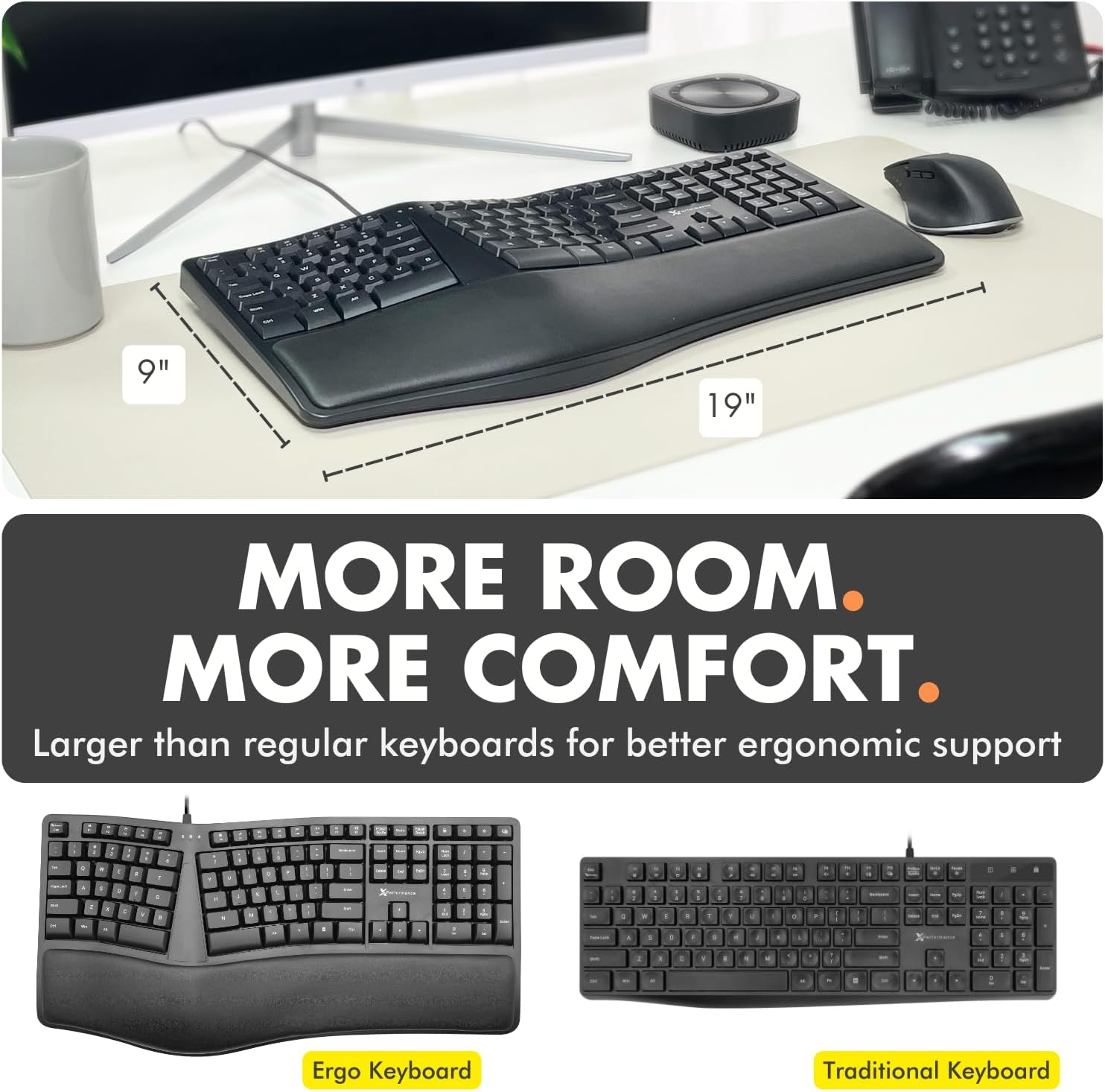
Figura 7.1: Approximate dimensions of the X9 Ergonomic Keyboard (19 inches length, 9 inches width).
8. Garantía y soporte
X9 Performance values your satisfaction. The X9 Wired Ergonomic Keyboard comes with a 2 año de garantía. In case of any issues or for support, please refer to the contact information provided with your product packaging or visit the official X9 Performance website for assistance and easy returns.
For the latest support information and FAQs, please visit the X9 Performance support page.


