Introducción
This manual provides detailed instructions for the POMIACAM VGA to USB 2.0 Video Capture Card. This device is designed to convert VGA signals from various sources into a USB 2.0 output for capture and recording on a computer. It supports UVC/UAC specifications and is compatible with Windows, Linux, and Android operating systems.

Figure 0: POMIACAM VGA to USB 2.0 Video Capture Card. Un general view of the capture card, highlighting its compact form factor and primary connection ports.
Qué incluye
El paquete incluye los siguientes artículos:
- VGA Capture Card
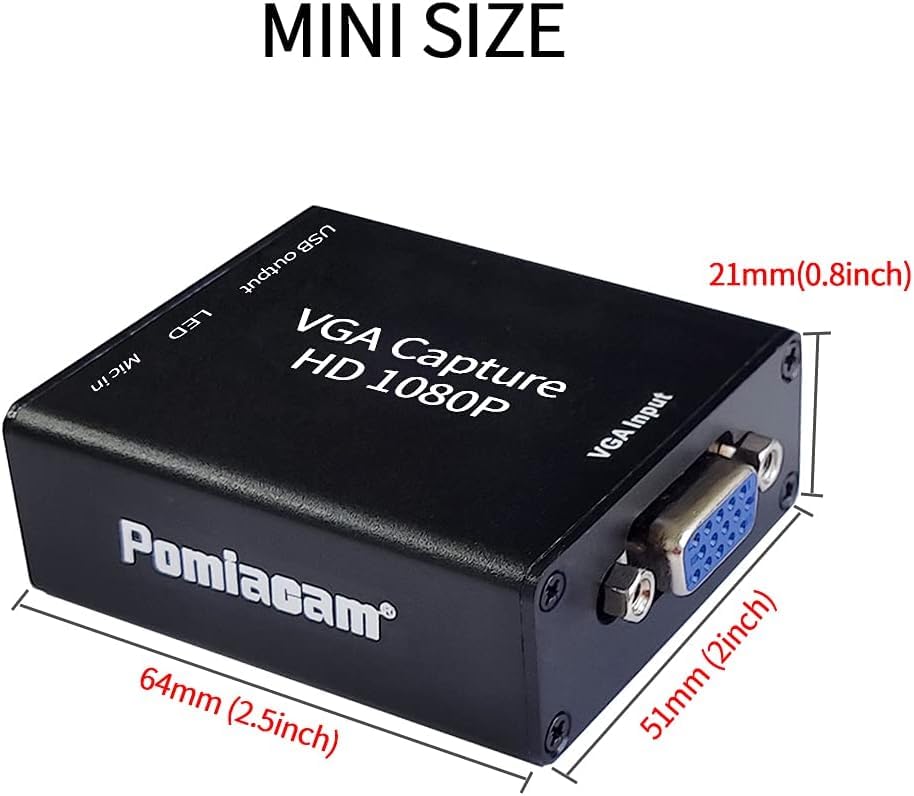
Figura 1: Contenido del paquete. This image displays the VGA Capture Card along with its included accessories: a VGA cable and a USB cable.
Características
- VGA to USB Conversion: Converts VGA signal input to USB 2.0 output.
- Audio and Video Capture: Functions as an audio and video capture device.
- Compatible con UVC/UAC: Adheres to USB Video Class and USB Audio Class specifications.
- Amplia compatibilidad: Supports Windows, Linux, and Android systems.
- Sin conductor: Plug-and-play functionality without the need for driver installation.
- Independent Audio Input: Allows for separate audio input via a microphone jack.
- Captura de alta definición: Captures 1080P at 30 frames/sec and 720P at 60 frames/sec.
- No requiere alimentación externa: Operates without an additional power supply.
- Diseño compacto: Mini size for portability and convenience.
Instrucciones de instalación
Follow these steps to set up your POMIACAM VGA to USB 2.0 Video Capture Card:
- Connect VGA Signal Source: Connect the VGA signal source (e.g., computer, ultrasound machine, industrial camera) to the VGA input interface on the capture card.
- Conectar a la computadora: Connect the USB output of the capture card to a USB port on your computer using the provided USB cable. The device is drive-free.
- Entrada de audio (opcional): For audio input, connect an audio signal source (e.g., microphone) to the "Mic in" port on the capture card.

Figure 2: VGA Signal Input Sources. This diagram shows common devices that can connect to the capture card's VGA input, including a laptop, an ultrasound machine, and a VGA industrial camera.

Figura 3: Diagrama de conexión. This illustration details the setup process, showing a VGA signal source connected to the capture card, an optional microphone connected for audio input, and the capture card's USB output connected to a laptop for data transfer.

Figure 4: USB Output Connection. Un detallado view of the capture card's USB output port connected to a laptop, emphasizing its USB 2.0 interface and driver-free operation.
Instrucciones de funcionamiento
Once the capture card is connected, follow these steps to begin capturing video:
- Open Acquisition Software: On your computer, open your preferred video acquisition software (e.g., OBS, Potplayer, AMCAP, VLC).
- Seleccione el dispositivo: Within the software, select the device named "AFN_Cap video" and activate it.
- Verificar señal: A red LED light on the capture card will flash, indicating successful signal acquisition.
- Iniciar grabación/transmisión: You can now use the software to record or stream the VGA input.
The capture card supports real-time capture of 1080P at 30 frames/second and 720P at 60 frames/second. The lowest supported resolution is 640x480p.

Figure 5: High-Definition Capture Exampel. This image illustrates the capture card's ability to capture high-definition video, showing a projector connected to a laptop, capable of real-time 1080P 30fps or 720P 60fps capture.
Aplicaciones
The POMIACAM VGA to USB 2.0 Video Capture Card is suitable for a variety of applications, including:
- Equipment video collection
- Corporate video conferencing
- Educational presentations (PTT)
- Church services and events
- Using a laptop/PC as a monitor for devices or game consoles
- Connecting a projector to a computer
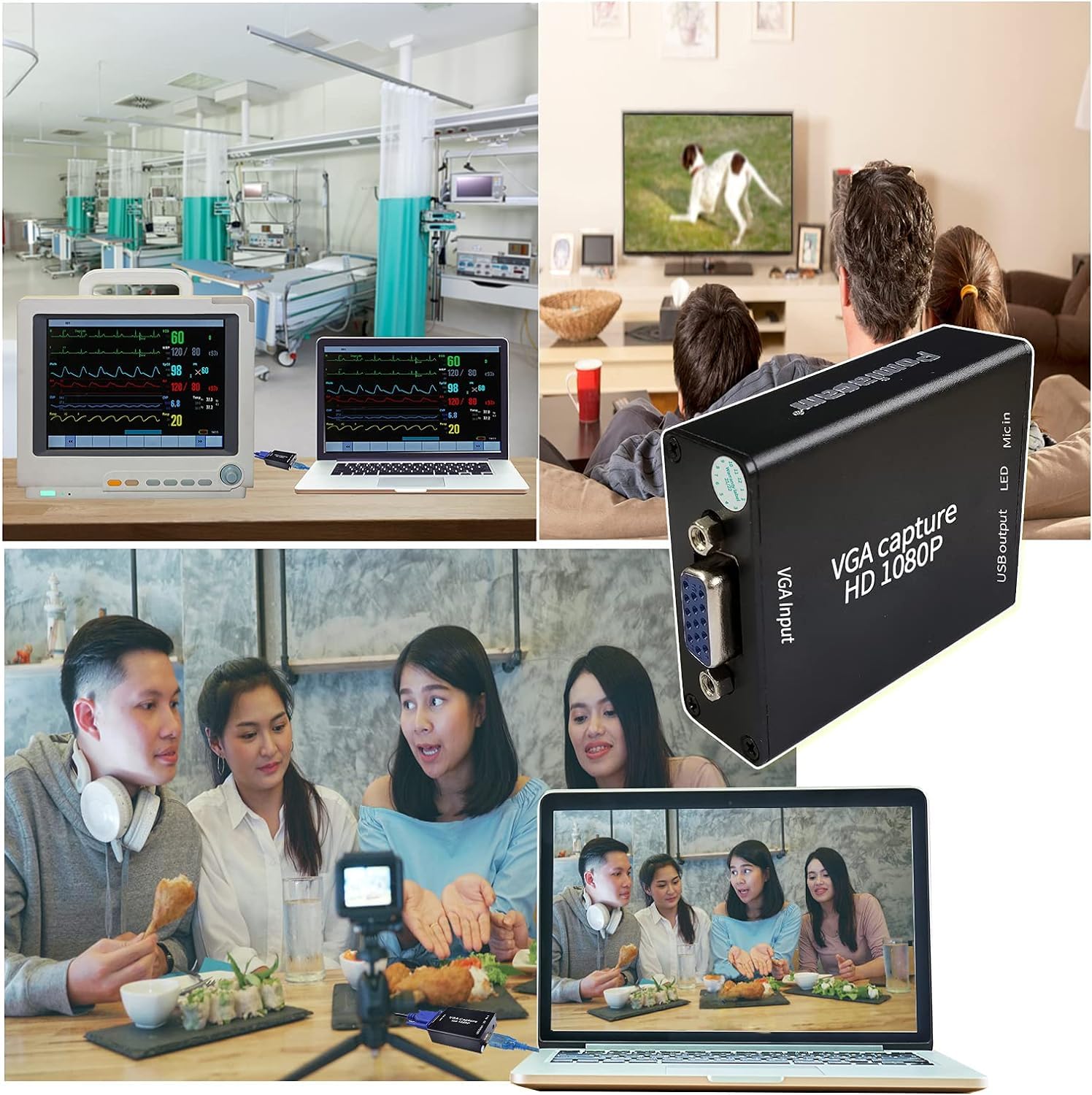
Figura 6: Diversas aplicaciones. A visual collage showcasing the versatility of the VGA Capture Card across different environments, such as medical facilities, home entertainment setups, and professional video conferencing or streaming.
Presupuesto
| Característica | Detalle |
|---|---|
| Dimensiones del producto | 2.56 x 2.17 x 0.98 pulgadas |
| Peso del artículo | 2.12 onzas |
| Interfaz de hardware | USB 2.0 |
| Resolución de captura de video | 1080p (30 fps), 720p (60 fps) |
| Compatibilidad del sistema operativo | Android, Linux, Windows |
| Minimum Resolution Supported | 640x480p |
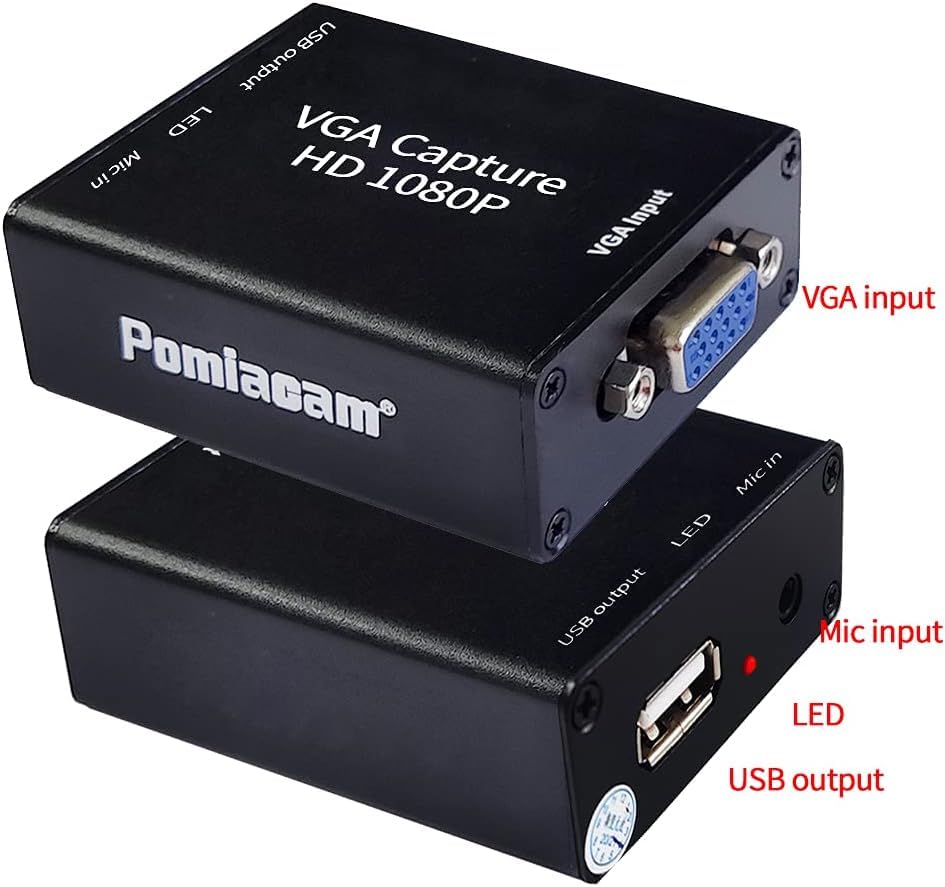
Figura 7: Dimensiones del producto. This image provides a clear visual of the capture card's compact size, with precise measurements for length, width, and height.
Solución de problemas
- Sin señal/pantalla negra:
- Ensure all cables (VGA and USB) are securely connected.
- Verify that the VGA source device is powered on and outputting a signal.
- Check your acquisition software settings to ensure the correct device ("AFN_Cap video") is selected and active.
- Confirm the red LED on the capture card is flashing, indicating signal acquisition.
- Sin audio:
- Ensure the audio source is properly connected to the "Mic in" port.
- Check audio settings within your acquisition software and computer's sound settings.
- Verify the audio source is active and producing sound.
- Mala calidad de video/retraso:
- Asegúrese de que su computadora cumpla con los requisitos mínimos del sistema para la captura de video.
- Cierre otras aplicaciones exigentes que se estén ejecutando en segundo plano.
- Pruebe con un puerto USB 2.0 diferente en su computadora.
- Reduce the capture resolution or frame rate in your software settings if your system struggles with higher settings.
- Dispositivo no reconocido:
- Try connecting the capture card to a different USB port.
- Reinicie su computadora.
- Although driver-free, ensure your operating system is up-to-date.
Garantía y soporte
The POMIACAM VGA to USB 2.0 Video Capture Card comes with a free one-year warranty. For any questions or support regarding the VGA capture card, please contact customer service. You can leave a message, and a response will be provided within 24 hours.
Demostración en vídeo del producto
Video 1: VGA to USB Adapter Converter Overview. Este vídeo ofrece una breve descripciónview of the POMIACAM VGA to USB adapter converter, demonstrating its physical connections and highlighting its mini size and plug-and-play features. It shows the VGA input and USB output connections.