1. Introducción
Thank you for choosing the NEC E438 43-inch LCD 4K UHD Commercial-Grade Monitor. This manual provides detailed instructions for the safe and efficient use of your display. Please read this manual thoroughly before operating the product and retain it for future reference.
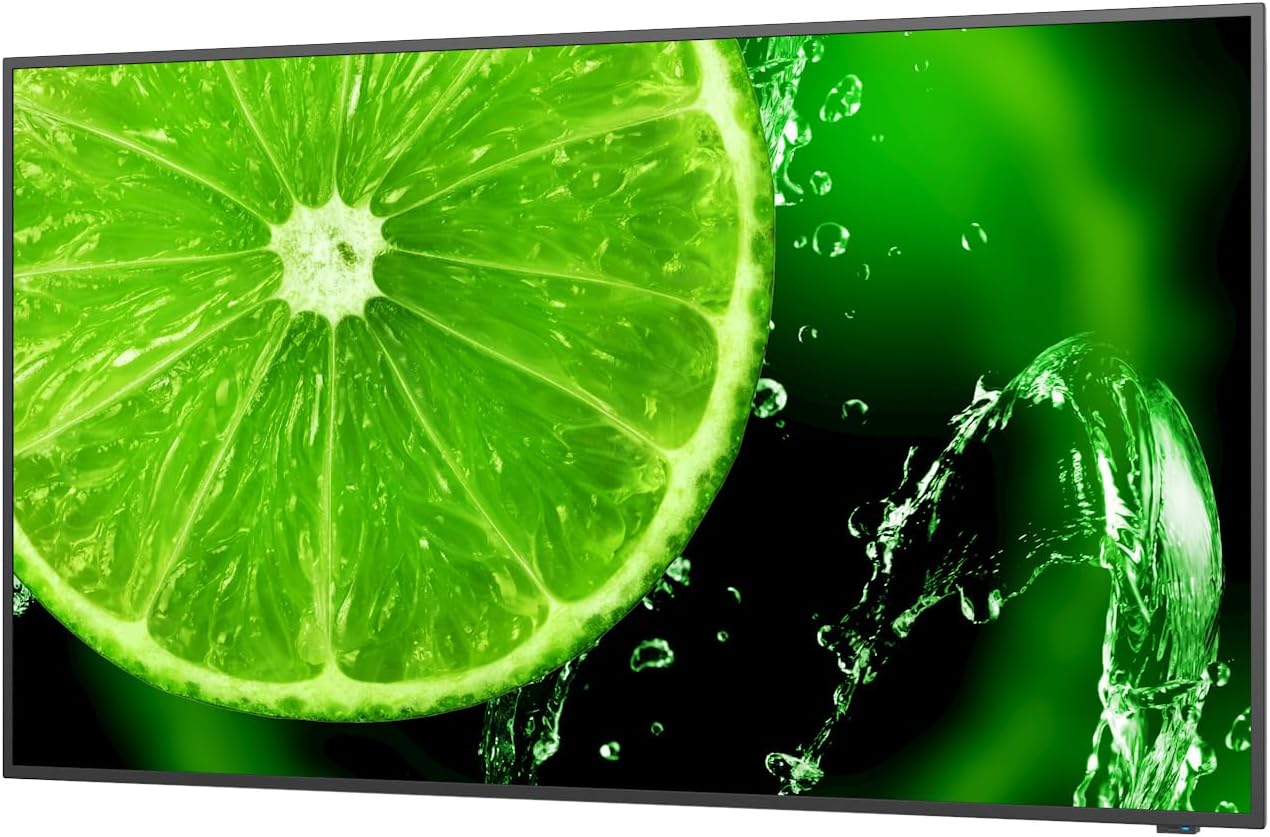
Figura 1: Frente view of the NEC E438 43-inch 4K UHD monitor.
2. Información de seguridad
Tenga en cuenta las siguientes precauciones de seguridad para evitar daños al producto y garantizar su seguridad:
- No exponga el monitor a la lluvia ni a la humedad para evitar incendios o descargas eléctricas.
- No abra el monitor casing. Deje todas las reparaciones a personal de servicio calificado.
- Asegúrese de que haya una ventilación adecuada. No bloquee las aberturas de ventilación.
- Use only the power cord supplied with the monitor or a suitable replacement.
- Place the monitor on a stable, level surface or mount it securely according to VESA standards.
- Desconecte el enchufe de alimentación de la toma de pared si no va a utilizar el monitor durante un período prolongado.
3. Contenido del paquete
Verifique que todos los artículos estén presentes en el paquete:
- NEC E438 43-inch LCD 4K UHD Monitor
- Cable de alimentación
- Cable HDMI
- Cable USB-C
- Mando a distancia (con pilas)
- Manual de usuario (este documento)
- Guía de configuración rápida
4. Configuración
4.1 Ubicación física
Place the monitor on a sturdy, flat surface or mount it using a VESA-compatible wall mount or stand. Ensure adequate space around the monitor for ventilation.
4.2 Cables de conexión
Connect the necessary cables to the corresponding ports on the monitor and your source device (e.g., computer, media player).

Figura 2: Posterior view of the monitor showing connection ports and mounting points.

Figura 3: Lado view of the monitor illustrating the input port cluster.
- Fuerza: Connect the power cord to the monitor's AC input and then to a grounded electrical outlet.
- Entrada de video: Use an HDMI, VGA, or USB-C cable to connect your source device to the monitor. The monitor supports multiple HDMI inputs.
- LAN: Conecte un cable Ethernet al puerto LAN para la conectividad de red.
- USB-C: For video, data, and power delivery (if supported by the source device).
5. Instrucciones de funcionamiento
5.1 Encendido y apagado
Press the power button located on the monitor or on the remote control to turn the display on or off. The power indicator light will illuminate when the monitor is on.
5.2 Selección de entrada
Use the 'Input' button on the remote control or the monitor's control panel to cycle through available input sources (HDMI 1, HDMI 2, HDMI 3, VGA, USB-C, etc.).
5.3 Menú de visualización en pantalla (OSD)
Access the OSD menu to adjust various display settings such as brightness, contrast, color temperature, aspect ratio, and audio settings. Navigate the menu using the directional buttons on the remote or monitor and confirm selections with the 'Enter' button.
Audio 5.4
The monitor includes integrated speakers. Adjust the volume using the remote control or through the OSD menu. You can also connect external audio devices if desired.
6. Mantenimiento
6.1 Limpieza del monitor
- Desenchufe siempre el monitor antes de limpiarlo.
- Utilice un paño suave y sin pelusa ligeramente seco.ampLimpiar con agua o un limpiador de pantalla suave, no abrasivo.
- No rocíe el limpiador directamente sobre la pantalla.
- Evite utilizar productos químicos agresivos, disolventes o materiales abrasivos.
6.2 Cuidados generales
- Mantenga el monitor alejado de la luz solar directa y de fuentes de calor.
- Asegúrese de que haya una ventilación adecuada para evitar el sobrecalentamiento.
- Evite colocar objetos pesados sobre el monitor o sus cables.
7. Solución de problemas
Si tiene problemas con su monitor, consulte los siguientes pasos de solución de problemas comunes:
| Problema | Posible solución |
|---|---|
| Sin poder | Compruebe que el cable de alimentación esté bien conectado tanto al monitor como a la toma de corriente. Asegúrese de que la toma de corriente funcione. |
| Sin señal | Verify that the video cable (HDMI, VGA, USB-C) is correctly connected to both the monitor and the source device. Select the correct input source using the 'Input' button. |
| La imagen está distorsionada o no es clara | Adjust resolution and refresh rate settings on your source device. Check cable connections for looseness or damage. Perform an auto-adjustment via the OSD menu if using VGA. |
| No hay sonido de los altavoces | Check the volume settings on the monitor and your source device. Ensure the audio output is correctly configured on your source device. |
If the problem persists after trying these steps, please contact NEC customer support.
8. Especificaciones
Key technical specifications for the NEC E438 monitor:
- Tamaño de pantalla: 43 pulgadas
- Resolución: 3840 x 2160 (4K UHD)
- Relación de aspecto: 16:9
- Tipo de panel: IPS (conmutación en el plano)
- Brillo de la imagen: 350 cd/m² (NITS)
- Entradas de video: HDMI (multiple), VGA, USB-C
- Otros puertos: LAN, Total 2 USB Ports
- Oradores: Integrado
- Dimensiones del producto: 2.8 x 38.2 x 22.04 pulgadas
- Peso del artículo: 19.58 libras
- Volumentage: 240 voltios
- Número de modelo: 60005045

Figure 4: Excerpt from the product data sheet.
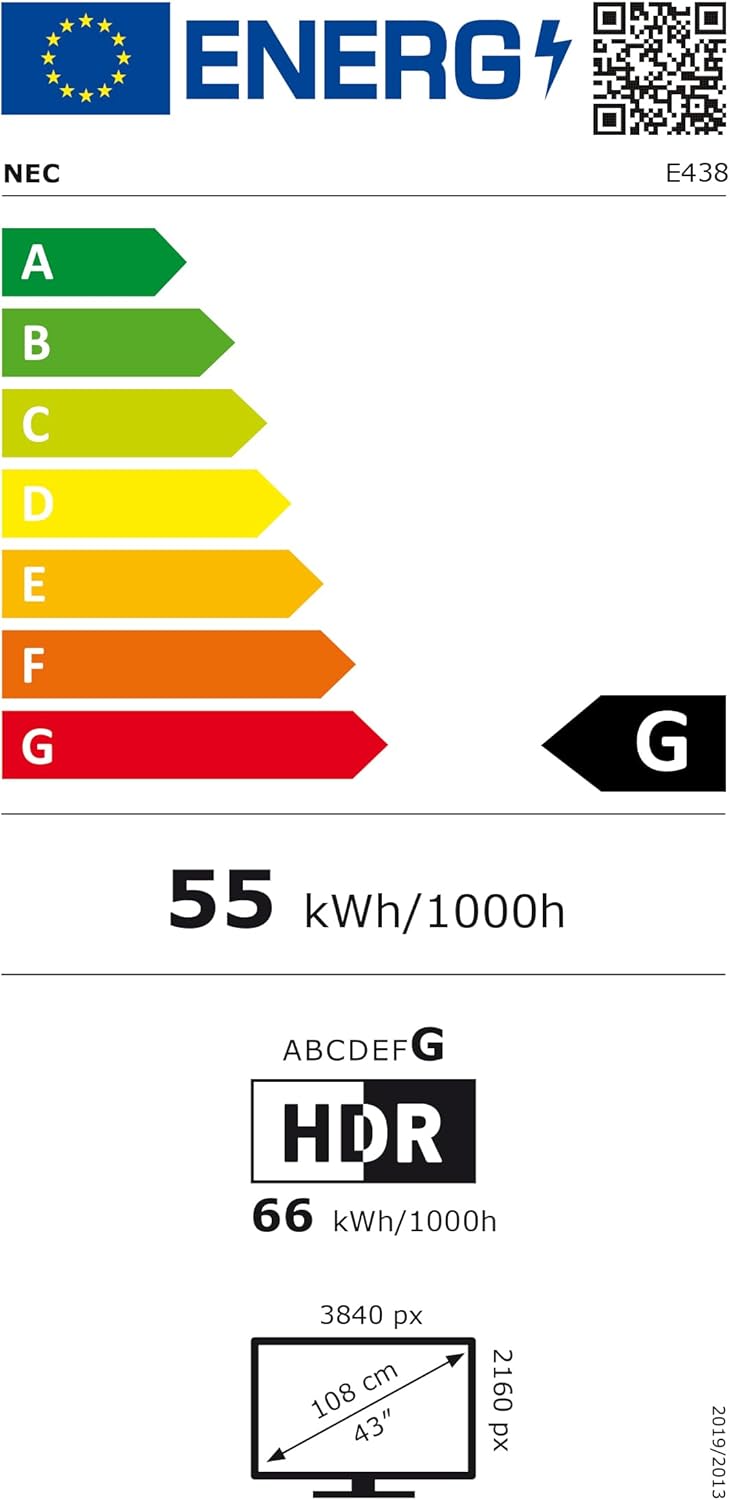
Figure 5: EU Energy Label for the NEC E438 monitor.
Para obtener información energética más detallada, visite la base de datos EPREL: https://eprel.ec.europa.eu/qr/429363
9. Garantía y soporte
9.1 Información de garantía
This NEC E438 monitor comes with a 3-year limited warranty. Please refer to the warranty card included in your package for specific terms and conditions. Keep your proof of purchase for warranty claims.
9.2 Atención al cliente
For technical assistance, service, or further inquiries, please contact NEC customer support. Visit the official NEC webSitio para obtener detalles de contacto y recursos de soporte.


