1. Introducción
Thank you for choosing the Moxee MT-T800 Tablet. This manual provides essential information to help you get started, understand the features, and maintain your device. Please read this manual carefully before using your tablet to ensure proper operation and to maximize its lifespan.
2. Información de seguridad
Para evitar dañar su dispositivo o causar lesiones a usted mismo o a otras personas, tenga en cuenta las siguientes precauciones de seguridad:
- No exponga la tableta a temperaturas extremas, luz solar directa o humedad alta.
- Evite dejar caer o someter la tableta a impactos fuertes.
- Utilice únicamente cargadores y accesorios aprobados.
- No intente desmontar ni reparar la tableta usted mismo. Consulte a personal de servicio técnico cualificado.
- Mantenga la tableta alejada de los dispositivos médicos, ya que puede interferir con su funcionamiento.
3. Contenido del paquete
Por favor, marque la casilla correspondiente a los siguientes artículos:
- Moxee MT-T800 Tablet
- Cable de carga USB
- Adaptador de corriente
- Case or Cover (if included with your specific package)
- Guía de inicio rápido
Si falta algún artículo o está dañado, comuníquese con su distribuidor.
4. Producto terminadoview
Familiarize yourself with the physical features of your Moxee MT-T800 Tablet.

Figura 4.1: En general view of the Moxee MT-T800 Tablet, showing both the front display and the textured back panel with the camera module.
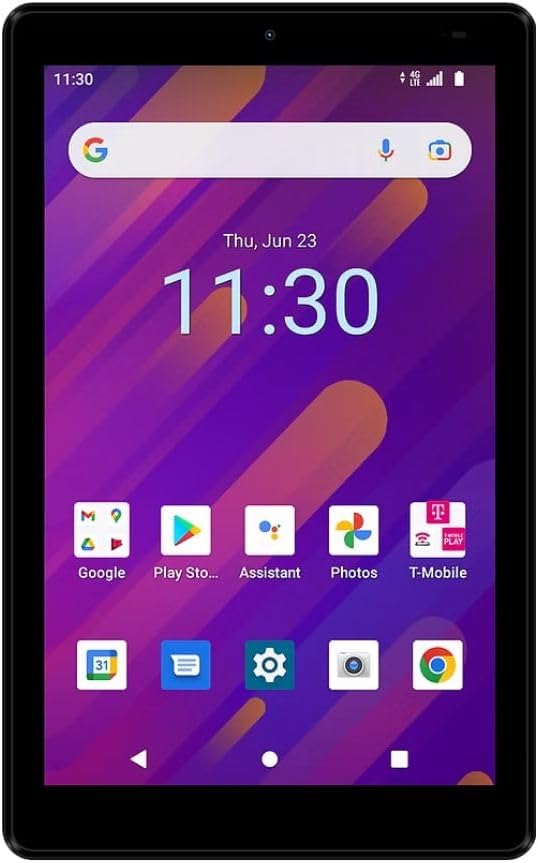
Figura 4.2: Frente view of the Moxee MT-T800 Tablet, displaying the 8-inch screen with the Android interface, including app icons and the date/time.

Figura 4.3: Trasero view of the Moxee MT-T800 Tablet, highlighting the textured back panel, the 'moxee' logo, and the rear camera module with 'AI CAMERA' text.
4.1. Componentes físicos
- Cámara frontal: Ubicado encima de la pantalla, se utiliza para videollamadas y selfies.
- Mostrar: 8-inch HD+ touchscreen for interaction and content viewEn.
- Botón de encendido: Typically on the side, used to turn the tablet on/off or wake/sleep the screen.
- Botones de volumen: Usually adjacent to the power button, for adjusting audio levels.
- Puerto USB-C: Para carga y transferencia de datos.
- Vocero: Para salida de audio.
- Cámara trasera: Ubicado en la parte posterior, se utiliza para tomar fotografías y videos.
- Ranura para tarjeta SIM/SD: (Location may vary) For inserting a SIM card for mobile data and an SD card for expandable storage.
5. Configuración
5.1. Carga inicial
Before first use, fully charge your tablet. Connect the USB charging cable to the tablet's USB-C port and the power adapter. Plug the adapter into a wall outlet. The charging indicator will show the charging status.
5.2. Encendido / apagado
- Para encender: Press and hold the Power button until the Moxee logo appears on the screen.
- Para apagar: Mantenga presionado el botón de encendido hasta que aparezca el menú de opciones de encendido. Toque "Apagar" y confirme.
5.3. Instalación de la tarjeta SIM y la tarjeta SD
The Moxee MT-T800 supports 4G LTE connectivity and expandable storage.
- Localice la bandeja de la tarjeta SIM/SD en el costado de la tableta.
- Inserte la herramienta de expulsión de SIM (o un clip pequeño) en el pequeño orificio al lado de la bandeja para abrirla.
- Place your Nano-SIM card and/or microSD card into the designated slots on the tray, ensuring correct orientation.
- Empuje suavemente la bandeja hacia la tableta hasta que encaje en su lugar.
5.4. Asistente de configuración inicial
Upon first power-on, the tablet will guide you through the initial setup process. This includes selecting your language, connecting to a Wi-Fi network, setting up your Google account, and configuring basic settings.
6. Funcionamiento de la tableta
6.1. Navegación con pantalla táctil
The tablet's primary interaction is through its capacitive touchscreen:
- Grifo: Para seleccionar un elemento o abrir una aplicación.
- Tocar y sostener: Para acceder a menús contextuales o mover elementos.
- Golpe fuerte: Para desplazarse por pantallas o listas.
- Pellizcar para hacer zoom: Para acercar o alejar las imágenes o web páginas.
6.2. Conectividad WiFi
Para conectarse a una red Wi-Fi:
- Ir a Ajustes > Red e internet > Wifi.
- Encienda el Wi-Fi.
- Seleccione la red que desee de la lista.
- Ingrese la contraseña si se le solicita y luego toque Conectar.
6.3. Mobile Data (4G LTE)
If you have an active SIM card with a data plan (for T-Mobile/Sprint Only):
- Ir a Ajustes > Red e internet > Red móvil.
- Asegurar Datos móviles está activado.
- Configure APN settings if necessary, as provided by your carrier.
6.4. Punto de acceso móvil
The tablet can act as a mobile hotspot, sharing its 4G LTE connection with up to 10 devices.
- Ir a Ajustes > Red e internet > Punto de acceso y anclaje a red.
- Grifo Punto de acceso wifi.
- Palanca Punto de acceso wifi en.
- You can configure the hotspot name (SSID) and password in this menu.
6.5. Uso de la cámara
Para utilizar las cámaras de la tableta:
- Abrir el Cámara solicitud.
- Toque el botón del obturador para tomar una foto.
- Cambie entre la cámara frontal y trasera usando el ícono de cambio de cámara.
- Seleccione el modo de vídeo para grabar vídeos.
6.6. Conectividad Bluetooth
Para conectarse a dispositivos Bluetooth (por ejemplo, auriculares, altavoces):
- Ir a Ajustes > Dispositivos conectados > Bluetooth.
- Activar Bluetooth.
- La tableta buscará los dispositivos disponibles. Seleccione el suyo de la lista para emparejarlo.
7. Mantenimiento
7.1. Limpieza de tu tableta
Use a soft, lint-free cloth to clean the screen and body of the tablet. Do not use abrasive cleaners or solvents.
7.2. Cuidado de la batería
- Evite descargar completamente la batería con frecuencia.
- No deje la tableta conectada al cargador durante períodos prolongados después de que esté completamente cargada.
- Guarde la tableta en un lugar fresco y seco si no la va a utilizar durante un tiempo prolongado.
7.3. Actualizaciones de software
Revise periódicamente las actualizaciones del sistema para garantizar un rendimiento y una seguridad óptimos. Vaya a Ajustes > Sistema > Actualización del sistema.
7.4. Gestión del almacenamiento
Para liberar espacio de almacenamiento, considere:
- Uninstalling unused applications.
- Deleting old photos and videos or moving them to cloud storage/SD card.
- Clearing cached data from apps (Ajustes > Aplicaciones y notificaciones > seleccionar aplicación > Almacenamiento y caché > Limpiar caché).
8. Solución de problemas
Si tiene problemas con su tableta, pruebe las siguientes soluciones:
8.1. La tableta no se enciende
- Asegúrese de que la batería esté cargada. Conecte el cargador y espere unos minutos antes de intentar encenderlo.
- Mantenga presionado el botón de encendido durante al menos 10 a 15 segundos para realizar un reinicio forzado.
8.2. Sin conexión Wi-Fi
- Asegúrese de que Wi-Fi esté habilitado en Configuración.
- Reinicie su enrutador Wi-Fi.
- Olvídate de la red y vuelve a conectarte (Ajustes > Red e internet > Wifi > toque red > Olvidar).
8.3. Rendimiento lento
- Cierre las aplicaciones no utilizadas que se ejecutan en segundo plano.
- Clear app caches and manage storage as described in Section 7.4.
- Reinicie la tableta.
8.4. Problemas de carga
- Asegúrese de que el cable de carga y el adaptador estén conectados de forma segura y sin daños.
- Pruebe con una toma de corriente diferente.
- Utilice únicamente accesorios de carga originales o compatibles certificados.
Si los problemas persisten, póngase en contacto con el servicio de atención al cliente.
9. Especificaciones
| Característica | Detalle |
|---|---|
| Nombre del modelo | MT-T800 |
| Mostrar | 8-inch HD+ (1280 x 800) |
| Sistema operativo | Androide 10 |
| Procesador | Octa-Core Processor (Qualcomm Chipset) |
| GPU | Adreno 505 |
| RAM | 3 GB |
| Almacenamiento interno | 32 GB |
| Almacenamiento expandible | Sí (microSD) |
| Cámara trasera | 5 MP |
| Cámara frontal | 5 MP |
| Conectividad inalámbrica | Wi-Fi (802.11g), Bluetooth, 4G LTE (T-Mobile/Sprint Only) |
| Punto de acceso móvil | Admite hasta 10 dispositivos |
| Dimensiones (LxAnxAl) | 8.57" x 4.89" x 0.35" (Product) / 6 x 4 x 8 inches (Shipping) |
| Peso | 14.3 onzas |
| Color | Negro |
| Batería | Se requiere 1 batería de iones de litio |
10. Garantía y soporte
This Moxee MT-T800 Tablet is covered by a limited warranty. For specific warranty terms and conditions, please refer to the documentation provided at the time of purchase or contact your retailer. For technical support, troubleshooting assistance, or service inquiries, please visit the official Moxee support websitio o póngase en contacto con su servicio de atención al cliente.