
1. Introducción
The Poly Voyager Focus 2 UC USB-A Headset is designed to create a focused audio environment, blocking out background noise for clear communication. Featuring three levels of hybrid Active Noise Canceling (ANC) and Poly Acoustic Fence technology, it ensures you hear your calls clearly and are heard without distractions. This headset offers all-day comfort and versatile connectivity for computers (via BT700 USB-A adapter) and mobile devices (via Bluetooth v5.1). This Microsoft Teams certified version includes a dedicated Teams button for enhanced collaboration.
2. ¿Qué hay en la caja?
- Voyager Focus 2 UC USB-A Headset
- Estuche de transporte
- BT700 USB-A Adapter
- Cable de carga
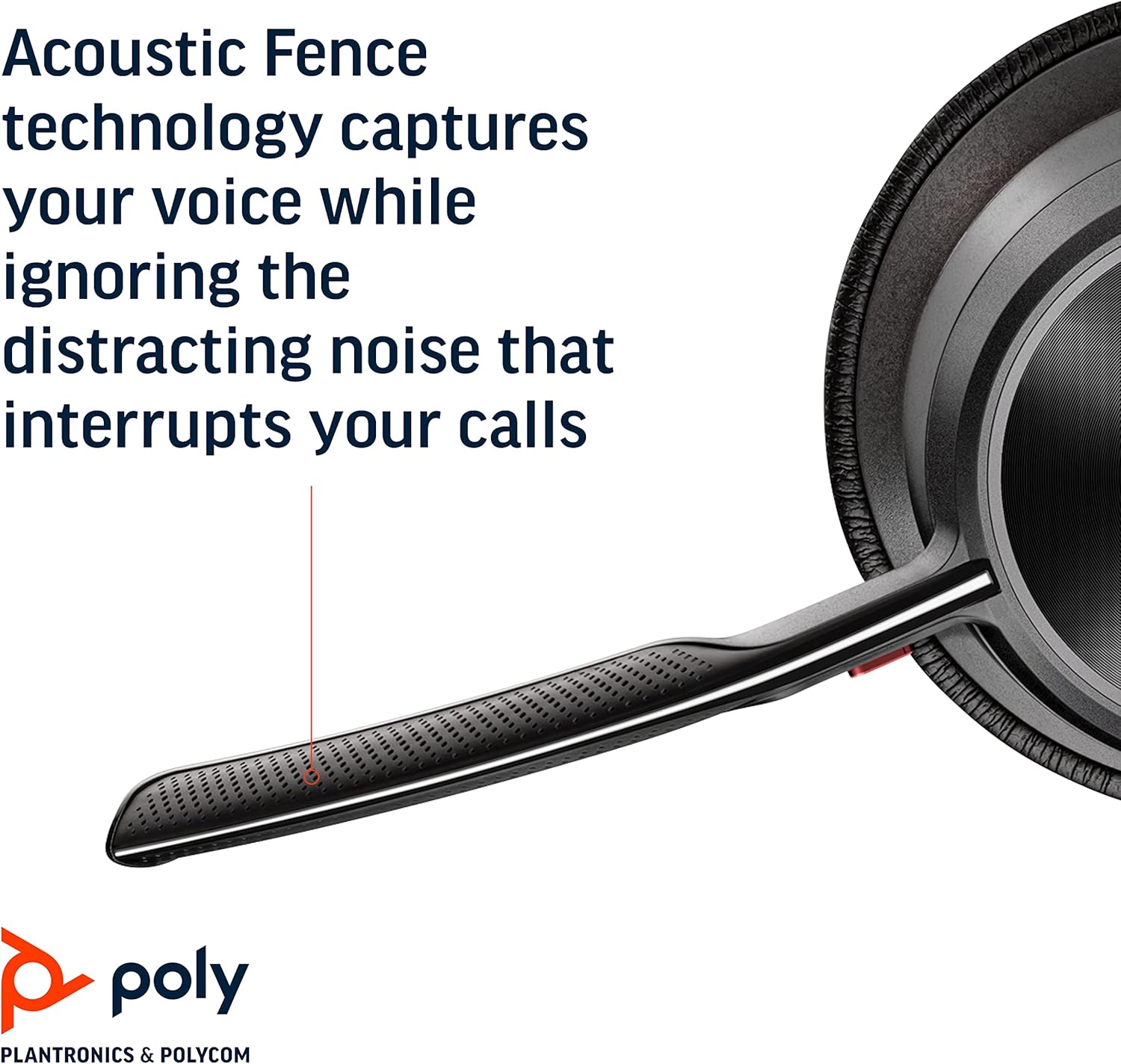
Image: Headset components including the BT700 USB-A adapter and charging cable.
3. Configuración
3.1 Carga de los auriculares
Connect the charging cable to the headset's USB port and to a power source. A full charge provides up to 19 hours of talk time. If using an optional charging stand, simply place the headset on the stand to charge.

Image: The Poly Voyager Focus 2 UC USB-A Headset placed on its charging stand.
3.2 Connecting to a Computer (USB-A Adapter)
- Inserte el adaptador USB-A BT700 en un puerto USB-A disponible en su computadora.
- Encienda sus auriculares.
- El LED del adaptador parpadeará en azul y luego se volverá azul fijo cuando se conecte al auricular.
3.3 Conexión a un dispositivo móvil (Bluetooth)
- With the headset powered off, slide and hold the Power switch towards the Bluetooth icon until the LED flashes red and blue.
- En su dispositivo móvil, vaya a la configuración de Bluetooth y seleccione “Poly Voyager Focus 2” de la lista de dispositivos disponibles.
- Once successfully paired, the headset LED will stop flashing.
3.4 Ajuste de los auriculares
Adjust the headband for a comfortable fit. Position the boom microphone approximately two finger-widths from the corner of your mouth. The microphone boom is flexible and can be rotated to either the left or right side, automatically adjusting audio channels.

Image: A woman wearing the headset, demonstrating a comfortable fit for work.
4. Instrucciones de funcionamiento
4.1 Encendido y apagado
Slide the Power switch to the 'On' position to power on the headset. Slide it to 'Off' to power off.
4.2 Control de volumen
Utilice los botones para subir el volumen (+) y bajar el volumen (-) ubicados en el auricular para ajustar el volumen de escucha.

Image: Close-up of the headset earcup with visible volume controls.
4.3 Silenciar/Activar silencio
Press the dedicated mute button on the microphone boom to mute or unmute your microphone. The Dynamic Mute Alert feature will notify you if you speak while muted.

Imagen: Detallada view of the headset's boom microphone.
4.4 Cancelación activa de ruido (ANC)
Adjust the noise canceling level (High, Low, or Off) using the ANC switch on the earcup to suit your environment and personal preference.
4.5 Gestión de llamadas
Press the Call button on the earcup to answer or end a call. For Microsoft Teams calls, use the dedicated Teams button for instant access to the Teams App and notifications.
5. Características
- Rendimiento de audio: Three options of Advanced Digital Hybrid Active Noise Canceling (ANC) – high, low, and off – for personalized noise control.
- Poly Acoustic Fence Technology: Advanced multi-microphone noise canceling ensures callers hear only your voice, not your surroundings.
- Tecnología inteligente: Dynamic Mute Alert notifies you if you speak while your microphone is muted.
- All-Day Wearing: Lightweight headband with a sling and plush ear cushions provide comfort for extended use. Up to 19 hours of talk time.
- Multiple Device Connections: Connects to a computer via the included BT700 USB-A adapter and to a mobile device via Bluetooth v5.1.
Vídeo: Un funcionario sobreview of the Poly Voyager Focus 2 headset, highlighting its key features and design.
6. Mantenimiento
6.1 Limpieza
Limpie los auriculares con un paño suave.amp cloth. Avoid using harsh chemicals or abrasive materials. Ensure the microphone and earcup surfaces are free from debris.
6.2 Almacenamiento
When not in use, store the headset in its provided carry case to protect it from dust and damage. Avoid storing in extreme temperatures.
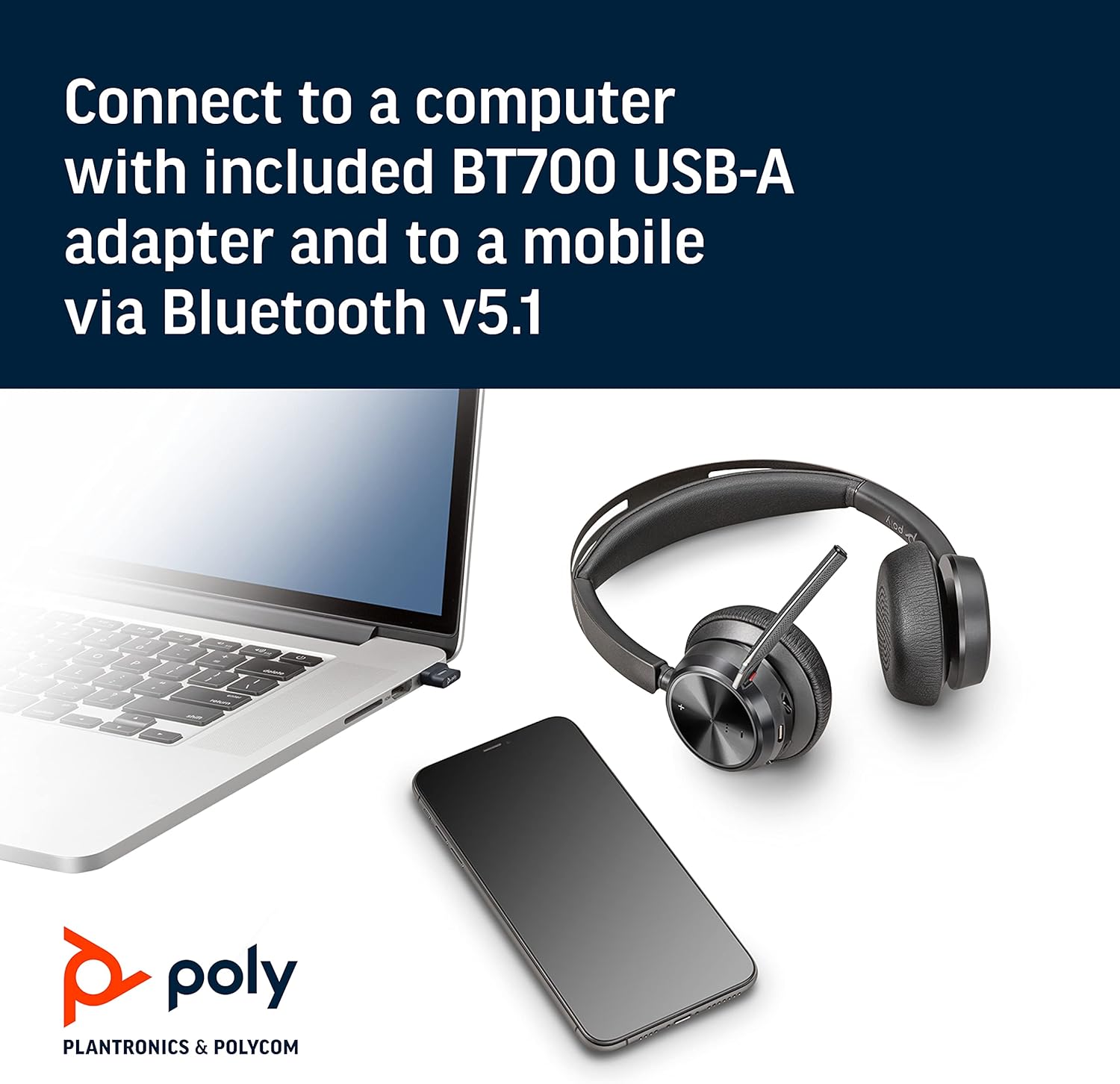
Image: The headset neatly folded and stored inside its carry case.
7. Solución de problemas
7.1 Sin sonido/mala calidad de audio
- Asegúrese de que los auriculares estén encendidos y completamente cargados.
- Check that the headset is correctly paired with your device (computer via USB adapter or mobile via Bluetooth).
- Verifique los niveles de volumen tanto en los auriculares como en el dispositivo conectado.
- If connected to a computer, ensure the Poly BT700 adapter is recognized as the default audio device in your system settings.
7.2 El micrófono no funciona
- Confirm the microphone is not muted (check the mute button and Dynamic Mute Alert).
- Asegúrese de que el brazo del micrófono esté colocado correctamente cerca de su boca.
- Verifique la configuración de audio de su dispositivo para asegurarse de que el micrófono del auricular esté seleccionado como dispositivo de entrada.
7.3 Problemas de conectividad
- Reinicie tanto el auricular como el dispositivo conectado.
- Move closer to your connected device to ensure you are within the Bluetooth range (up to 10 meters for mobile, 50 meters for BT700 adapter).
- If using the BT700 adapter, try plugging it into a different USB port.
- Unpair and re-pair the headset with your device.
8. Especificaciones
| Nombre del modelo | Voyager Focus 2 UC-M USB-A |
| Número de modelo del artículo | 213726-02 |
| Tecnología de conectividad | Bluetooth 5.1 |
| Control de ruido | Active Noise Cancellation (Hybrid Digital) |
| Tecnología de micrófono | Valla acústica polivinílica |
| Duración de la batería (tiempo de conversación) | Hasta 19 horas |
| Toma de auriculares | USB |
| Peso del artículo | 175 gramos (6.2 onzas) |
| Dimensiones del producto | 4 x 6 x 2.8 pulgadas |
| Dispositivos compatibles | PCs, Smartphones, Tablets, Laptops |
| Componentes incluidos | Headset, carry case, BT700 USB adapter and charging cable |
9. Garantía y soporte
For warranty information, technical support, or to register your product, please visit the official Poly website or refer to the documentation included with your purchase. You can also visit the Tienda POLY en Amazon para obtener recursos adicionales e información del producto.