Introducción
This user manual provides comprehensive instructions for the installation, operation, and maintenance of your Thinkware X1000 Dual Channel Dash Cam. The X1000 is designed to record high-quality video footage from both the front and rear of your vehicle, offering enhanced security and peace of mind. Please read this manual thoroughly before using the device to ensure proper functionality and safety.
¿Qué hay en la caja?
Verifique que todos los componentes estén presentes en el paquete:
- 2K QHD Main Unit (Front Dash Cam)
- 2K QHD Rear Cam
- Tarjeta Micro SD de 32 GB
- Cableado fijo
- Windshield Mount with 3M Tape
- (Optional: GPS Antenna, 12V Power Cable, Adhesive Wire Clips, Spare Mounting Tape, CS Info - may vary by package)

Image: Components included with the Thinkware X1000 Dash Cam system.
Producto terminadoview
The Thinkware X1000 is a high-performance dual-channel dash cam system. Key features include:
- Grabación dual 2K QHD: Captura imágenes claras y detalladas.tage from both front and rear cameras (2560 x 1440 resolution).
- Sony STARVIS IMX335 Sensor: Ensures sharp video quality even in low-light conditions.
- Night Vision 3.0 with Real DOL HDR: Advanced technology for improved visibility and color accuracy at night.
- Pantalla táctil IPS de 3.5": Proporciona en vivo view, playback, and easy access to settings directly on the device.
- Sensor G: Automatically detects impacts and saves footage a una carpeta protegida.
- Anti-File Corrupción: Safeguards recorded video files en la tarjeta microSD.
- Smart Parking Surveillance Suite: Includes motion and impact detection, Time Lapse, and Energy Saving 2.0 modes (requires hardwiring).
- Sistema avanzado de asistencia al conductor (ADAS): Provides alerts for Lane Departure, Forward Collision, and Front Vehicle Departure (requires optional GPS antenna).

Image: The Thinkware X1000 Dash Cam system, showing the main unit, rear camera, and hardwiring cable.

Imagen: Primer plano frontal view of the Thinkware X1000 main unit, highlighting the QHD recorder lens.
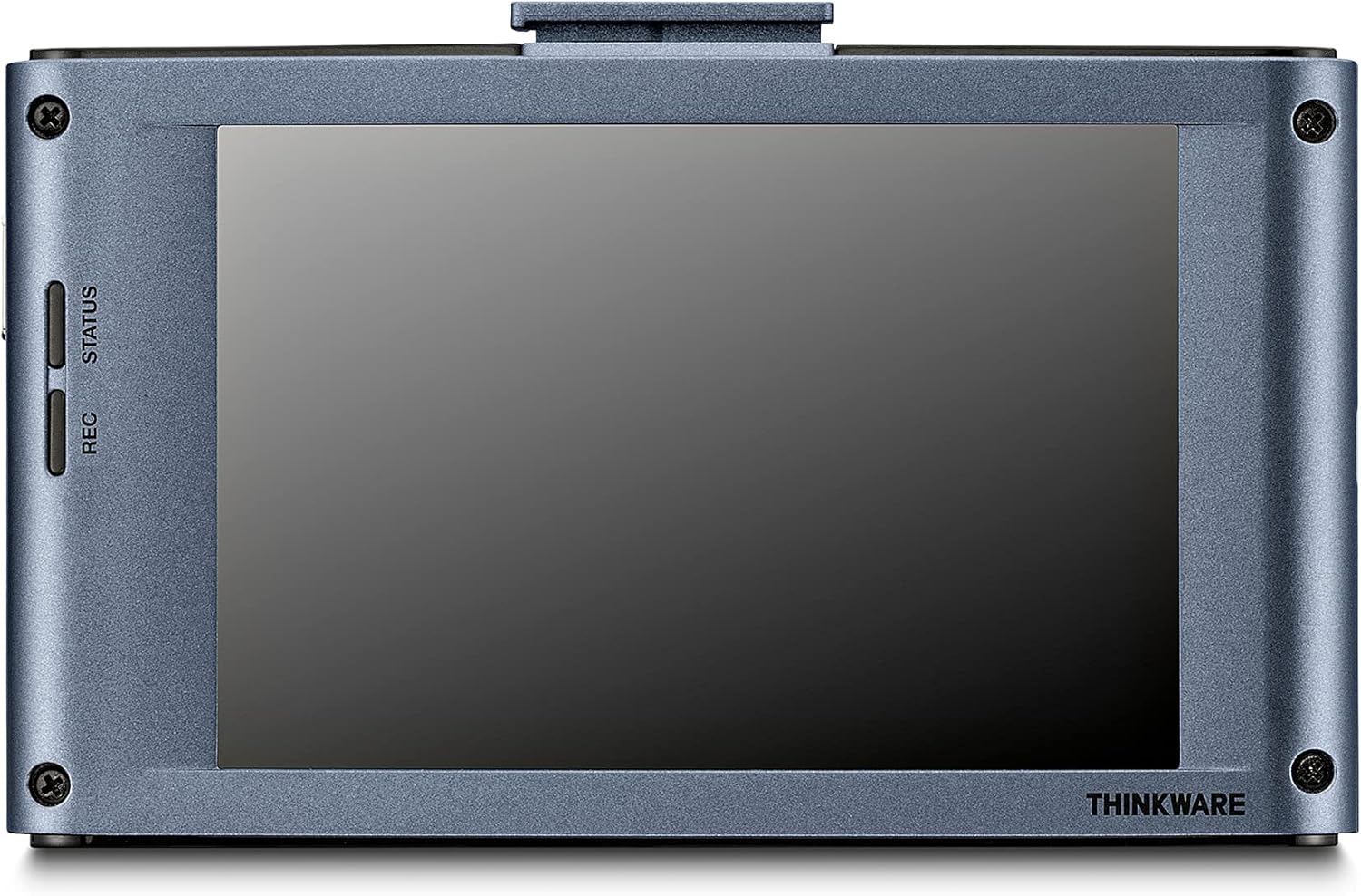
Imagen: Trasera view of the Thinkware X1000 main unit, displaying its 3.5-inch IPS touchscreen.
Configuración e instalación
1. Preparar la tarjeta MicroSD
Before first use, it is recommended to format the included 32GB MicroSD card using the dash cam's menu or the Thinkware PC Viewer software. This ensures optimal performance and compatibility.
2. Monte la cámara del tablero frontal
- Limpie la zona del parabrisas donde se instalará la cámara del tablero. Asegúrese de que esté libre de polvo y grasa.
- Attach the 3M adhesive tape to the windshield mount.
- Peel off the protective film from the adhesive tape and firmly press the mount onto the windshield, ideally behind the rearview espejo para una vista sin obstrucciones view. Hold for at least 30 seconds.
- Slide the main unit onto the mounted bracket.
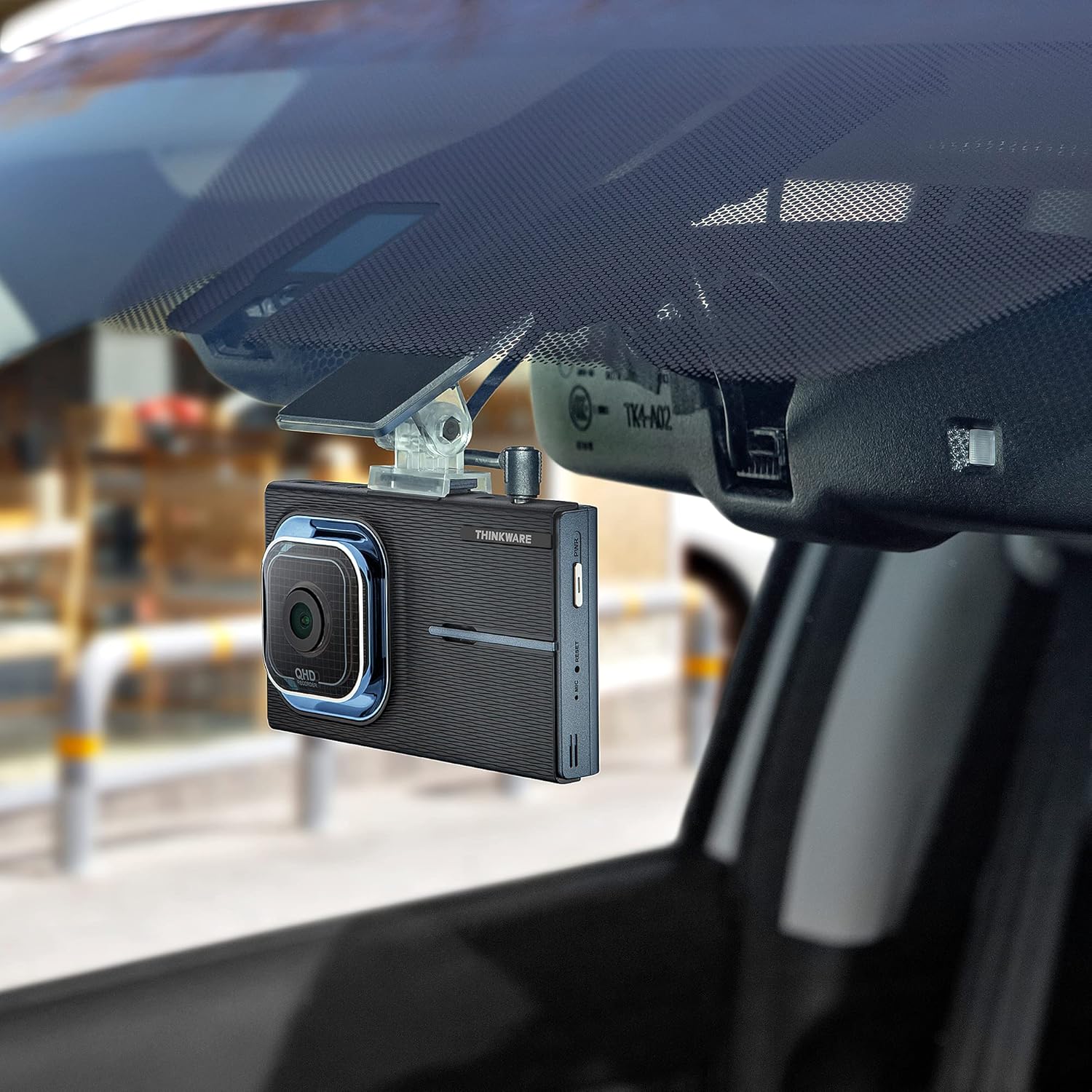
Image: The Thinkware X1000 main unit installed on a vehicle's windshield, positioned discreetly behind the rearview espejo.
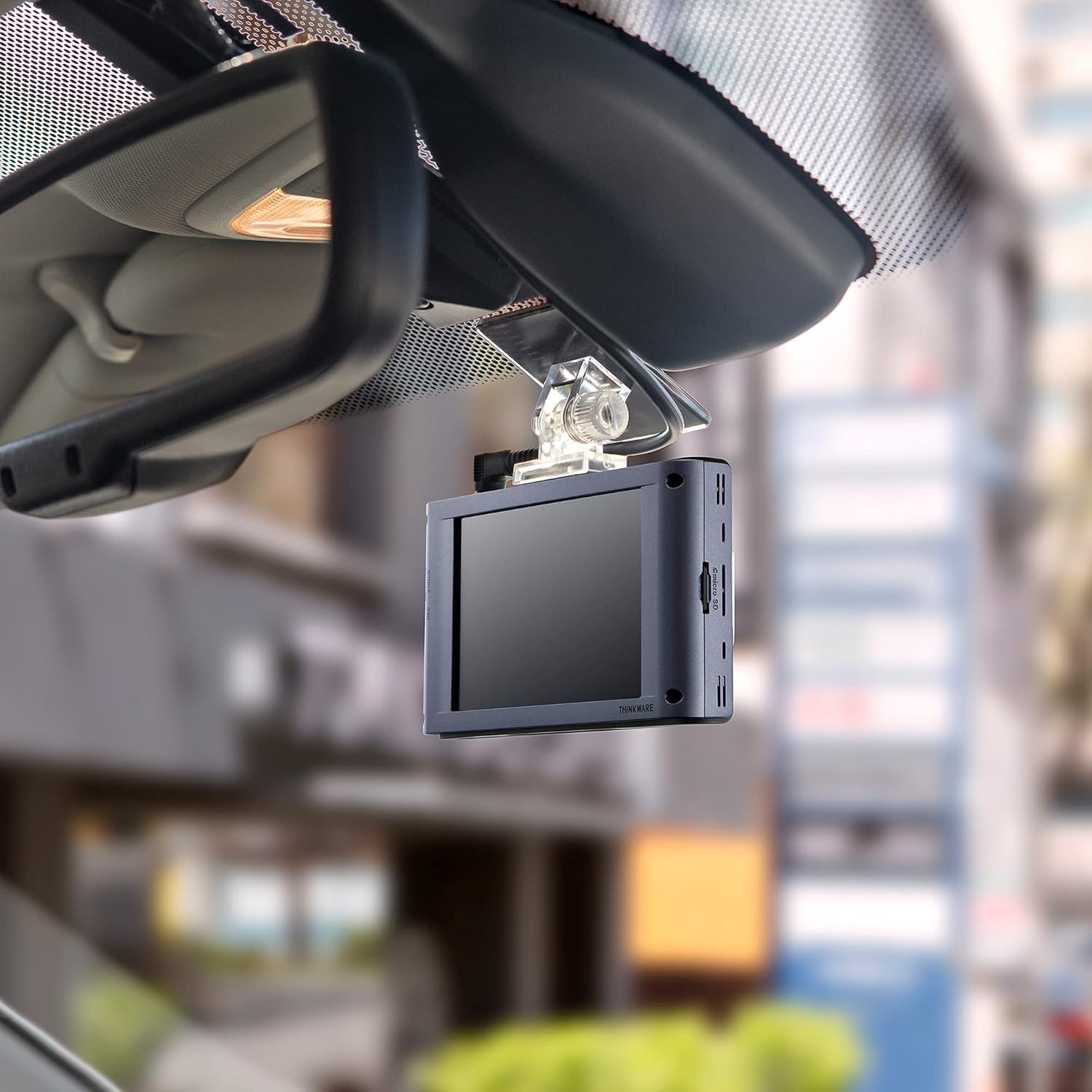
Imagen: Interior view of the Thinkware X1000 Dash Cam mounted on the windshield, displaying its screen.
3. Instalar la cámara trasera
- Monte la cámara trasera en el parabrisas trasero, asegurando una visión nítida. view.
- Connect the rear camera cable to the rear camera and route it neatly along the vehicle's headliner and A-pillars to the main unit.
- Plug the rear camera cable into the appropriate port on the main unit (usually labeled "V-IN" or "REAR CAM").
4. Power Connection (Hardwiring)
The X1000 includes a hardwiring cable for continuous power and parking surveillance features. Professional installation is recommended for hardwiring.
- Connect the yellow wire (BATT) to a constant power fuse (always on).
- Connect the red wire (ACC) to an accessory power fuse (on when ignition is on).
- Connect the black wire (GND) to a metal ground point on the vehicle chassis.
- Plug the hardwiring cable into the DC-IN port on the main unit.
Alternatively, a 12V power cable (cigarette lighter adapter) can be used for basic recording, but parking surveillance features will not be available.

Imagen: Arriba view of the Thinkware X1000 main unit, illustrating the various connection ports for power, GPS, and the rear camera.
5. Optional GPS Antenna Installation
If you have the optional GPS antenna, connect it to the GPS port on the main unit. This enables speed logging, route tracking, and ADAS features.
Instrucciones de funcionamiento
Encendido/apagado
- The dash cam will automatically power on when the vehicle's ignition is turned on (if hardwired) or when connected to a 12V power source.
- To manually power off, press and hold the PWR button on the side of the unit.
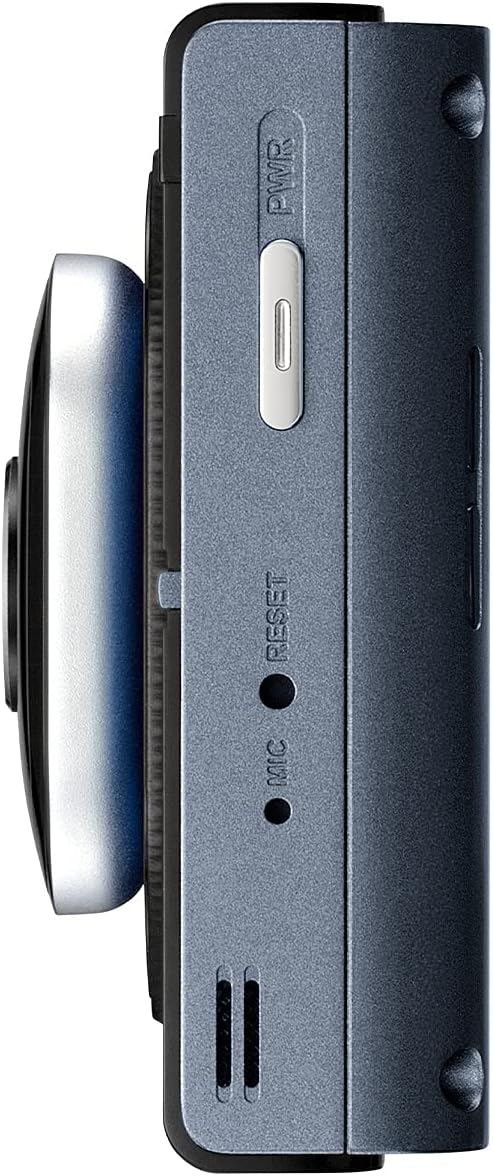
Imagen: Lateral view of the Thinkware X1000 main unit, indicating the power button and reset pinhole.
Modos de grabación
The X1000 supports various recording modes:
- Grabación continua: Records automatically when the vehicle is in operation. Footage se guarda en segmentos de 1 minuto.
- Registro de incidentes: Triggered by the G-sensor upon impact. These files are saved in a separate, protected folder and are not overwritten by continuous recording.
- Grabación manual: Press the REC button to manually initiate an event recording.
Uso de la pantalla táctil
The 3.5-inch IPS touchscreen allows for easy control:
- Vivir View: Muestra foo en tiempo realtage de las cámaras frontal y trasera.
- Reproducción: Review recorded videos directly on the device. Navigate through folders (Continuous, Incident, Manual, Parking).
- Ajustes: Access and adjust various settings such as recording quality, G-sensor sensitivity, parking mode options, and ADAS settings.

Image: Visual comparison demonstrating the superior viewing angles of an IPS panel compared to a standard panel, as featured on the X1000's touchscreen.
Modos de vigilancia de estacionamiento
When hardwired, the X1000 offers advanced parking surveillance features to protect your vehicle while parked:
- Detección de movimiento: Records 20-second video clips when motion is detected around the vehicle.
- Detección de impacto: Records 20-second video clips when an impact is detected while parked.
- Grabación de lapso de tiempo: Records continuously at 2 frames per second, compressing hours of footagy en minutos.
- Energy Saving 2.0: Extends parking coverage by putting the dash cam into a low-power standby mode, waking up to record only when an impact is detected.

Image: Depiction of the dash cam's parking surveillance mode, showing motion detection in a parking environment.

Image: A battery indicator symbolizing the energy-saving feature of the parking surveillance mode, designed to extend recording time.
Sistema avanzado de asistencia al conductor (ADAS)
With the optional GPS antenna, the X1000 provides ADAS features to enhance driving safety:
- Sistema de advertencia de cambio de carril (LDWS): Le avisa si su vehículo se sale de su carril.
- Sistema de advertencia de colisión frontal (FCWS): Warns you of an impending collision with the vehicle ahead.
- Advertencia de salida del vehículo delantero (FVDW): Notifies you when the vehicle in front starts to move from a standstill.

Image: A visual representation of the Advanced Driver Assistance System (ADAS) in action, showing alerts for lane departures and potential forward collisions.
Mantenimiento
- Gestión de tarjetas MicroSD: Regularly format the microSD card (e.g., once a month) to prevent data corruption and ensure optimal recording performance. The X1000 features Anti-File Corruption technology, but periodic formatting is still recommended.
- Limpieza: Use a soft, dry cloth to clean the dash cam lens and touchscreen. Avoid abrasive cleaners or solvents.
- Actualizaciones de firmware: Check the Thinkware webSitio periódicamente para actualizaciones de firmware para garantizar que su cámara de tablero tenga las últimas funciones y correcciones de errores.

Imagen: Lateral view of the Thinkware X1000 main unit, highlighting the microSD card slot for easy access and maintenance.

Image: A conceptual image representing the Anti-File Corruption technology, which protects recorded video files on the memory card from data loss.
Solución de problemas
| Problema | Posible causa | Solución |
|---|---|---|
| La cámara del tablero no se enciende. | Conexión de alimentación suelta, problema de alimentación del vehículo, cable defectuoso. | Check all power cable connections. Ensure vehicle's ignition is on if using ACC power. Test with a different power source if possible. |
| La grabación se detiene o se detienetage está dañado. | MicroSD card error, card full, incompatible card, card wear. | Format the microSD card. Try a new, high-quality microSD card. Ensure the card is Class 10 or higher. |
| La pantalla está en blanco o no responde. | Fallo de software, problema de energía. | Perform a soft reset using the reset pinhole (refer to side view image). Ensure stable power supply. |
| El modo de estacionamiento no funciona. | Not hardwired, incorrect hardwiring, low vehicle battery. | Ensure the dash cam is correctly hardwired to constant and accessory power. Check vehicle battery voltage. |
| ADAS features not active. | GPS antenna not connected or faulty, ADAS settings disabled. | Ensure the optional GPS antenna is securely connected. Enable ADAS features in the dash cam settings. |
Presupuesto
| Característica | Detalle |
|---|---|
| Nombre del modelo | TW-X1000D32H |
| Dimensiones del producto | 3.9 x 0.9 x 1.3 pulgadas |
| Peso del artículo | 1.25 libras |
| Resolución de captura de video | Front: 2K QHD (2560x1440p), Rear: 2K QHD (2560x1440p) |
| Campo de View | 156 grados (gran ángulo) |
| Sensor | Sony STARVIS IMX335 |
| Mostrar | Pantalla táctil IPS de 3.5" |
| Tecnología de conectividad | USB (para conexión a PC) |
| Características especiales | Night Vision 3.0, Real DOL HDR, G-Sensor, Anti-File Corruption, Smart Parking Surveillance Suite (Motion/Impact Detection, Time Lapse, Energy Saving 2.0), ADAS (LDWS, FCWS, FVDW - with optional GPS) |
| Componentes incluidos | Main Unit, Rear Cam, 32GB MicroSD Card, Hardwiring Cable, Windshield Mount with 3M Tape |
| Tipo de montaje | Soporte adhesivo |
| Color | Negro |
Información de seguridad
- Do not install the dash cam in a location that obstructs the driver's view o interfiere con el despliegue del airbag.
- Ensure all cables are routed safely and do not interfere with vehicle controls.
- Evite exponer el dispositivo a temperaturas extremas, luz solar directa durante períodos prolongados o humedad excesiva.
- No intente desmontar ni modificar el dispositivo. Esto anulará la garantía y podría causar daños.
- Use only genuine Thinkware accessories and power cables.
Garantía y soporte
For warranty information and technical support, please refer to the documentation included with your product or visit the official THINKWARE websitio. También puedes visitar el THINKWARE Store on Amazon Para obtener recursos adicionales e información de contacto.
The product is sold by THINKWARE USA, ensuring official support channels are available.


