1. Introducción
This manual provides detailed instructions for the setup, operation, and maintenance of your CHERRY DW 9100 Slim Wireless Keyboard and Mouse Set. This rechargeable desktop set offers both 2.4 GHz wireless and Bluetooth connectivity, featuring a slim design and silent keystroke SX Scissor Mechanism for comfortable and efficient use in various environments.

Image 1.1: The CHERRY DW 9100 Slim Wireless Keyboard and Mouse Set, including the USB nano receiver.
2. Contenido del paquete
Verifique el contenido del paquete al desembalarlo para asegurarse de que todos los componentes estén presentes:
- CHERRY DW 9100 Slim Wireless Keyboard
- CHERRY DW 9100 Slim Wireless Mouse
- Receptor Nano USB
- Cable de carga USB-C
- Manual de usuario (este documento)
3. Configuración
3.1 Carga de los dispositivos
Both the keyboard and mouse are equipped with rechargeable lithium batteries.
- Conecte el cable de carga USB-C suministrado al puerto USB-C del teclado y el mouse.
- Conecte el otro extremo del cable a un puerto USB con alimentación (por ejemplo, computadora, adaptador de pared USB).
- The status LED on each device will indicate the charging status. A full charge is indicated when the LED changes color or turns off (refer to Section 4.3 for LED indicators).
3.2 Conexión inalámbrica de 2.4 GHz
For a stable and fast wireless connection, use the included USB nano receiver.
- Locate the USB nano receiver.
- Conecte el receptor nano USB a un puerto USB disponible en su computadora.
- On both the keyboard and mouse, locate the connectivity switch. Set the switch to the 2.4 GHz position (often indicated by a receiver icon or "RF").
- Los dispositivos deberían conectarse automáticamente a su computadora.
3.3 Conexión mediante Bluetooth
The set supports Bluetooth connectivity for devices that have Bluetooth capabilities.
- On both the keyboard and mouse, locate the connectivity switch. Set the switch to the Bluetooth position (often indicated by a Bluetooth icon).
- On your computer or device, open the Bluetooth settings.
- Initiate the pairing process on your device. The keyboard and mouse should appear in the list of discoverable devices (e.g., "CHERRY DW 9100 Keyboard", "CHERRY DW 9100 Mouse").
- Select each device to pair them. Follow any on-screen prompts, such as entering a pairing code for the keyboard.
Nota: The keyboard and mouse can be paired with multiple Bluetooth devices. Use the connectivity switch to toggle between paired devices or 2.4 GHz mode.
4. Instrucciones de funcionamiento
4.1 Funciones del teclado
The CHERRY DW 9100 Slim Keyboard features a full-size layout with an SX Scissor Mechanism for silent and precise keystrokes.
- Teclas estándar: Todas las teclas alfanuméricas y de símbolos estándar funcionan como se espera.
- Teclas de función (F1-F12): Estas teclas pueden tener funciones secundarias (por ejemplo, control de medios, volumen, brillo) a las que se puede acceder presionando el Fn key simultaneously. Refer to your operating system's settings for specific function key behavior.
- Teclado numérico: Provides dedicated number entry.

Imagen 4.1: Vista lateralfile of the CHERRY DW 9100 Slim Keyboard, highlighting its thin design.

Image 4.2: Visual representation of the CHERRY SX Scissor Mechanism, responsible for silent and precise keystrokes.
4.2 Funciones del ratón
The CHERRY DW 9100 Slim Mouse features 6 buttons and a scroll wheel for versatile navigation.
- Clic izquierdo/derecho: Botones de ratón estándar.
- Rueda de desplazamiento: Para desplazamiento vertical y como botón de clic central.
- Botones laterales: Generalmente se utiliza para la navegación hacia adelante o hacia atrás en web navegadores.
- Interruptor DPI: A button, usually near the scroll wheel, allows adjustment of the mouse's sensitivity (DPI - Dots Per Inch). Pressing this button cycles through different DPI settings, indicated by the mouse's status LED.

Imagen 4.3: Arriba view of the CHERRY DW 9100 Slim Mouse, showing the left/right click buttons, scroll wheel, and DPI switch.
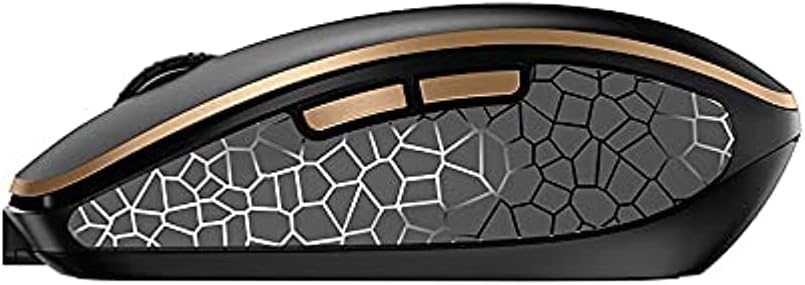
Imagen 4.4: Lateral view of the CHERRY DW 9100 Slim Mouse, illustrating the ergonomic design and side buttons.
4.3 LED de estado
Both the keyboard and mouse feature status LEDs to provide information on battery level, charging status, and mouse resolution.
- Batería baja: The LED will flash or illuminate in a specific color (e.g., red) when the battery level is low, indicating that charging is required.
- Cargando: The LED will illuminate while charging and typically change color or turn off when fully charged.
- Mouse Resolution (DPI): When adjusting the DPI, the mouse LED may briefly flash to indicate the current setting.
5. Mantenimiento
5.1 Limpieza
Para mantener el rendimiento y la apariencia de sus dispositivos:
- Desconecte los dispositivos de su computadora antes de limpiarlos.
- Utilice un paño suave y sin pelusa ligeramente seco.amplimpiado con agua o una solución de limpieza suave.
- Evite utilizar productos químicos agresivos, limpiadores abrasivos o disolventes, ya que pueden dañar las superficies.
- Para el teclado, utilice aire comprimido para eliminar el polvo y los residuos de entre las teclas.
5.2 Cuidado de la batería
The integrated lithium batteries are designed for long-term use.
- Recargue los dispositivos cuando aparezca el indicador de batería baja.
- Evite descargar completamente las baterías con frecuencia para prolongar su vida útil.
- If storing the devices for an extended period, charge them to approximately 50% before storage.
6. Solución de problemas
If you encounter issues with your CHERRY DW 9100 Slim set, refer to the following common solutions:
6.1 Problemas de conectividad
- No Connection (2.4 GHz):
- Asegúrese de que el receptor nano USB esté conectado de forma segura a un puerto USB que funcione.
- Verify the keyboard and mouse connectivity switches are set to the 2.4 GHz posición.
- Intente conectar el receptor a un puerto USB diferente.
- Asegúrese de que los dispositivos estén suficientemente cargados.
- Sin conexión (Bluetooth):
- Ensure the keyboard and mouse connectivity switches are set to the Bluetooth posición.
- Confirm Bluetooth is enabled on your computer/device.
- Elimine los emparejamientos anteriores de la configuración de Bluetooth de su dispositivo e intente volver a emparejarlo.
- Asegúrese de que los dispositivos estén suficientemente cargados.
6.2 Problemas de alimentación y carga
- Dispositivos que no se cargan:
- Check that the USB-C charging cable is properly connected to both the device and the power source.
- Pruebe con un cable USB-C diferente o una fuente de alimentación USB diferente.
- Asegúrese de que la fuente de alimentación esté activa.
- Duración corta de la batería:
- Asegúrese de que los dispositivos estén completamente cargados antes de usarlos.
- Battery life can vary based on usage patterns.
6.3 Problemas de seguimiento del ratón
- Inaccurate or No Tracking:
- Asegúrese de que el sensor del mouse esté limpio y libre de residuos.
- Use the mouse on a suitable surface (e.g., mouse pad). Highly reflective or transparent surfaces may cause issues.
- Adjust the DPI setting using the DPI switch on the mouse.
7. Especificaciones
| Característica | Detalle |
|---|---|
| Número de modelo | JD-9100US-2 |
| Dimensiones del producto | 17.32 x 5.12 x 0.59 pulgadas |
| Peso del artículo | 2.35 libras |
| Baterías | Rechargeable Lithium (USB-C) |
| Tecnología de conectividad | Bluetooth, 2.4 GHz Radio Frequency (USB) |
| Característica especial | Rechargeable, Silent Keystroke (SX Scissor Mechanism) |
| Dispositivos compatibles | Ordenador personal |
| Fabricante | CEREZA |
Note on Batteries: The product description indicates USB-C rechargeable lithium batteries. The specification "1 AA batteries required. (included)" in the source data appears to be a discrepancy. Please rely on the USB-C rechargeable feature for this model.
8. Garantía y soporte
CHERRY products are manufactured to high-quality standards. For detailed warranty information, including terms and conditions, please refer to the official CHERRY websitio o la tarjeta de garantía incluida con su producto.
For technical support, troubleshooting assistance beyond this manual, or to inquire about replacement parts, please visit the official CHERRY support portal or contact their customer service directly.
- Official CHERRY Websitio: www.cherry.de/en/ (o equivalente regional)
- Atención al cliente: Consulte la websitio para detalles de contacto.


