1. Introducción
This manual provides essential information for the proper use and maintenance of your Gateway 15.6-inch FHD Ultra Slim Laptop, Model GTW15G. This device is equipped with an AMD Ryzen 5 3450U Mobile Processor, 8GB of DDR4 RAM, and a 256GB Solid State Drive (SSD). It features a 15.6-inch Full HD (1920x1080) IPS display, a built-in fingerprint scanner, and runs on Windows 10, with an available free upgrade to Windows 11.
Please read this manual thoroughly before operating your laptop to ensure optimal performance and longevity.
2. Configuración
2.1 Desembalaje e inspección inicial
Carefully remove the laptop and all accessories from the packaging. Verify that all components are present and undamaged. The package should include the laptop, power adapter, and this user manual.
2.2 Conexión del adaptador de corriente
Before first use, connect the power adapter to the laptop's charging port and then to a power outlet. Allow the battery to charge for at least 30 minutes before powering on for the first time.

Figure 2.1: Gateway 15.6-inch Ultra Slim Laptop overview.
2.3 Primer encendido y configuración de Windows
Press the power button located on the keyboard. The laptop will boot up and guide you through the Windows 10 initial setup process. Follow the on-screen instructions to configure your region, language, network connection, and user account.
2.4 Fingerprint Scanner Setup (Windows Hello)
During or after the initial Windows setup, you can configure the built-in fingerprint scanner for secure login using Windows Hello. Navigate to Configuración > Cuentas > Opciones de inicio de sesión and follow the prompts to set up your fingerprint.
3. Instrucciones de funcionamiento
3.1 Encendido/apagado y modo de suspensión
- Encendido: Presione el botón de encendido.
- Cerrar: Haga clic en el Comenzar botón, luego Energía > Apagar.
- Modo de sueño: Cierre la tapa o haga clic en el Comenzar botón, luego Energía > Suspender.
3.2 Using the Precision Touchpad
The laptop features a precision touchpad for navigation. It supports multi-touch gestures for scrolling, zooming, and other functions. Refer to Windows settings for customizing touchpad gestures.
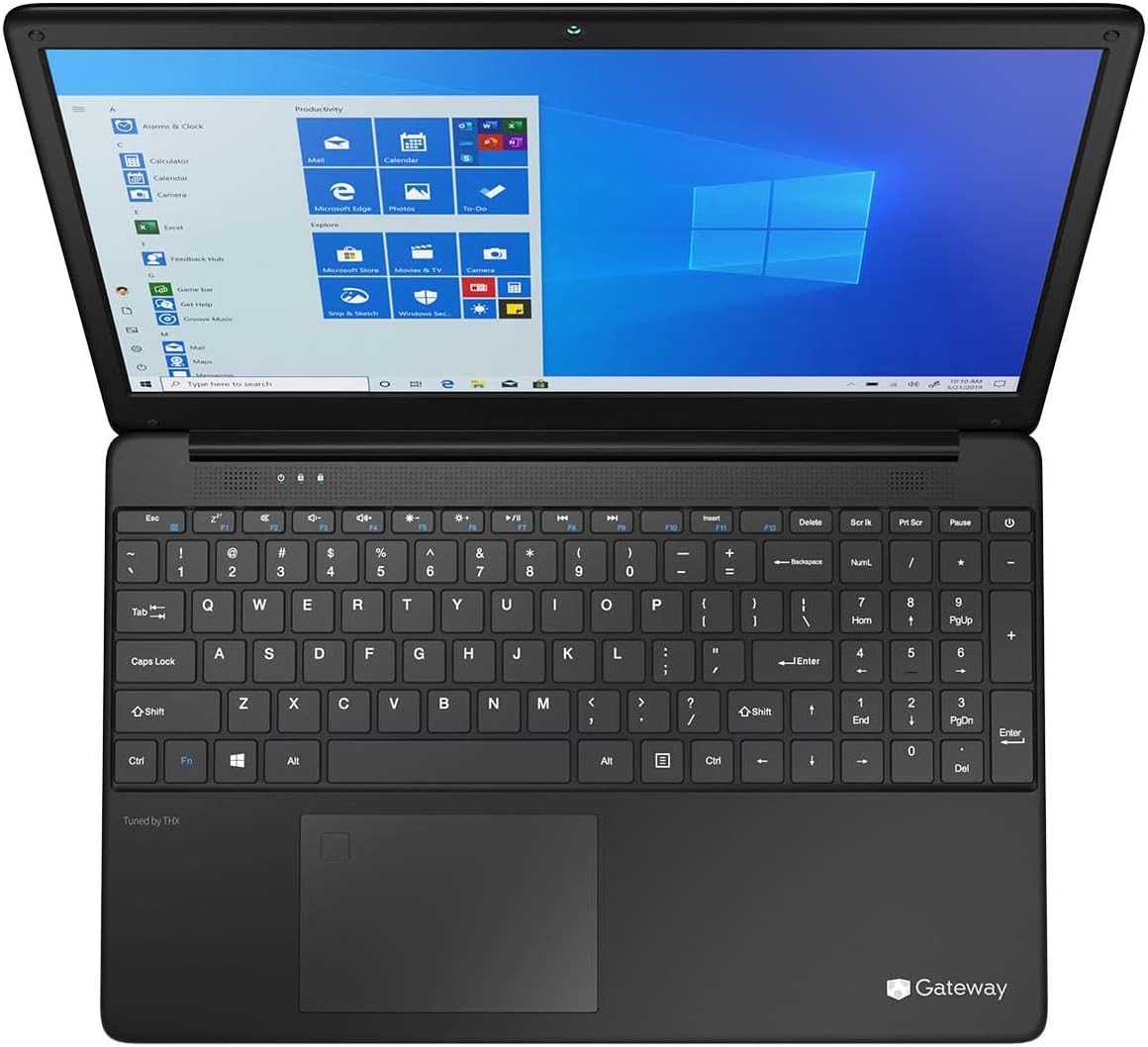
Figure 3.1: Keyboard and Precision Touchpad layout.
3.3 Conexión de dispositivos externos
El portátil dispone de varios puertos para conectar periféricos:
- Puertos USB 3.0 (x2): Para conectar dispositivos USB como discos duros externos, ratones o teclados.
- Puerto USB tipo C (x1): Supports both charging and data transfer.
- Salida HDMI (x1): Conectar a un monitor externo o TV.
- Micro SD Slot (x1): Supports Micro SD cards up to 512 GB for expanded storage.
- Cerradura Kensington: Por seguridad física.
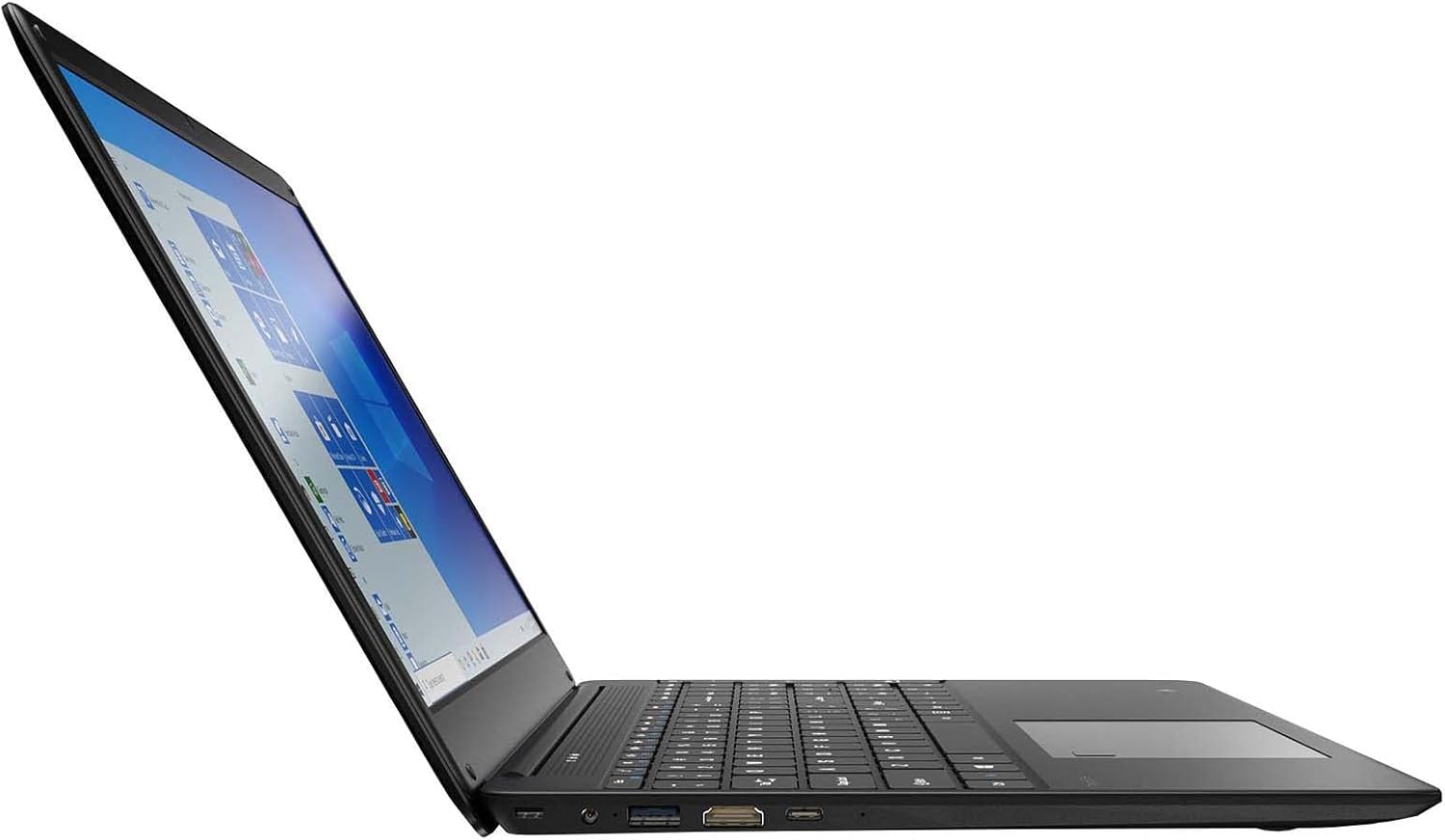
Figure 3.2: Left side ports (USB, HDMI, USB Type-C).
3.4 Conectividad inalámbrica
The laptop supports Wi-Fi and Bluetooth 5.1 for wireless connections. Access network settings via the Windows taskbar or Configuración> Red e Internet to connect to Wi-Fi networks or pair Bluetooth devices.
3.5 Funciones de audio
The built-in stereo speakers are tuned by THX Audio, providing enhanced sound quality. Adjust volume using the function keys on the keyboard or through Windows sound settings.
4. Mantenimiento
4.1 Limpieza de la computadora portátil
- Pantalla: Utilice un paño suave y sin pelusa ligeramente seco.ampLimpie con agua o un limpiador de pantallas. No rocíe el líquido directamente sobre la pantalla.
- Chasis y teclado: Utilice un paño suave y seco. Para la suciedad difícil, un paño ligeramente seco.amp Se puede usar un paño. Evite productos químicos agresivos.
- rejillas de ventilación: Limpie periódicamente las aberturas de ventilación con aire comprimido para evitar la acumulación de polvo, que puede afectar la refrigeración.
4.2 Cuidado de la batería
Para maximizar la vida útil y longevidad de la batería:
- Evite descargar completamente la batería con frecuencia.
- No exponga la computadora portátil a temperaturas extremas.
- Si va a guardar la computadora portátil durante un período prolongado, asegúrese de que la batería esté cargada aproximadamente entre el 50 y el 70 %.
- Optimize power settings in Windows to conserve battery power.
4.3 Actualizaciones de software
Regularly check for and install Windows updates to ensure your system has the latest security patches and performance improvements. Navigate to Configuración > Actualización y seguridad > Actualización de Windows.
4.4 Copia de seguridad de datos
Realice copias de seguridad periódicas de sus datos importantes en una unidad externa o en un almacenamiento en la nube para evitar la pérdida de datos.
5. Solución de problemas
Esta sección aborda problemas comunes que puede encontrar con su computadora portátil.
5.1 La computadora portátil no se enciende
- Asegúrese de que el adaptador de corriente esté conectado de forma segura tanto a la computadora portátil como a una toma de corriente que funcione.
- Verifique que la toma de corriente funcione enchufando otro dispositivo.
- Deje que la computadora portátil se cargue durante un tiempo antes de intentar encenderla nuevamente.
5.2 Problemas de conectividad Wi-Fi
- Compruebe si Wi-Fi está habilitado en la configuración de Windows.
- Reinicie su enrutador y módem.
- Asegúrese de estar dentro del alcance de la red Wi-Fi y de haber ingresado la contraseña correcta.
- Ejecute el Solucionador de problemas de red de Windows (Configuración > Red e Internet > Estado > Solucionador de problemas de red).
5.3 Rendimiento lento
- Cierre las aplicaciones innecesarias que se ejecutan en segundo plano.
- Busque e instale cualquier actualización de Windows pendiente.
- Asegúrese de que haya suficiente espacio libre en su SSD.
- Analizar en busca de malware o virus.
5.4 Sobrecalentamiento
If the laptop feels excessively warm, ensure that the ventilation vents are not blocked. Operate the laptop on a hard, flat surface to allow for proper airflow. Avoid using it on soft surfaces like beds or couches that can obstruct vents.
5.5 Otros asuntos
For issues not covered here, refer to the Windows help documentation or contact Gateway customer support.
6. Especificaciones
| Característica | Especificación |
|---|---|
| Nombre del modelo | Gateway GWTN156 (GTW15G) |
| Tamaño de la pantalla | 15.6 pulgadas |
| Resolución de pantalla | 1920 x 1080 píxeles (FHD) |
| Procesador | AMD Ryzen 5 3450U (2.1 GHz, Up to 3.50 GHz) |
| RAM | 8 GB DDR4 |
| Almacenamiento | SSD de 256 GB |
| Coprocesador gráfico | Gráficos AMD Radeon Vega 8 |
| Sistema operativo | Windows 10 (Free Upgrade to Windows 11) |
| Tipo inalámbrico | Wi-Fi, Bluetooth 5.1 |
| Puertos | 1x HDMI, 1x USB Type-C (Charge + Data), 2x USB 3.0, 1x Micro SD Slot (Up to 512 GB) |
| Características especiales | Built-in Fingerprint Scanner (Windows Hello), Stereo Speakers Tuned by THX Audio, HD Webleva |
| Peso del artículo | 5.5 libras |
| Dimensiones del paquete | 16.65 x 11.73 x 2.8 pulgadas |
7. Garantía y soporte
For warranty information and technical support, please refer to the official Gateway website or contact Gateway customer service directly. Keep your proof of purchase for warranty claims.
This product may be eligible for separate protection plans. Details regarding these plans are available from your retailer at the time of purchase.