1. Introducción
This manual provides instructions for the Akko ACR61 61-Key 60% RGB Hot-swappable Wired Mechanical Gaming Keyboard. It covers setup, operation, maintenance, and troubleshooting to ensure optimal performance and longevity of your device.
The Akko ACR61 keyboard features a 60% layout, RGB backlighting, and hot-swappable switches, allowing for customization and enhanced typing experiences. It utilizes PBT double-shot keycaps for durability and N-key rollover for precise input.
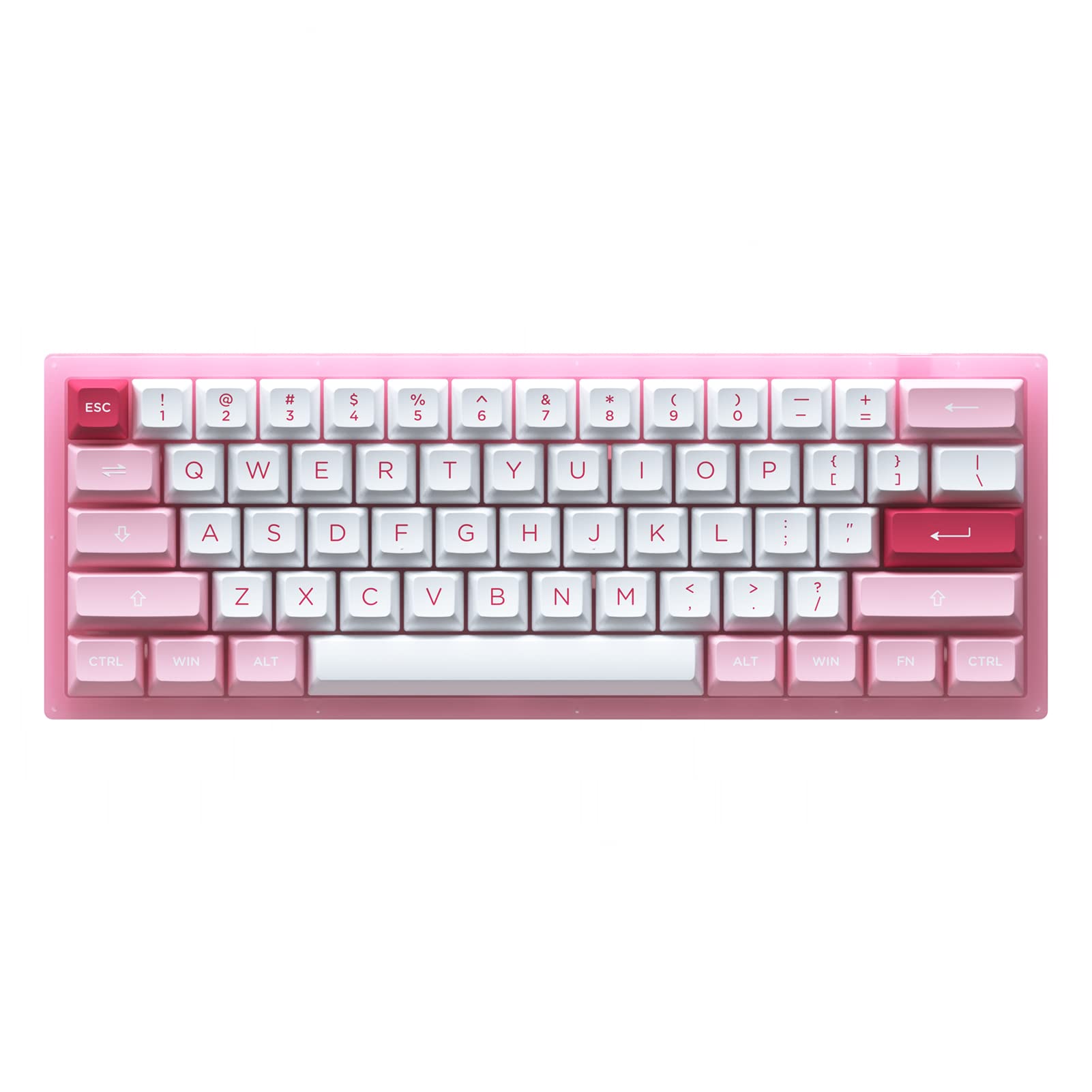
Image 1.1: Akko ACR61 keyboard showcasing the Prunus Lannesiana design and Jelly Pink switches.
2. Configuración
2.1 Contenido del paquete
- Akko ACR61 Mechanical Keyboard
- Cable USB-C a USB-A
- Extractor de teclas
- Extractor de interruptores
- Additional Keycaps (if included)
2.2 Conexión del teclado
- Locate the USB-C port on the back or side of the Akko ACR61 keyboard.
- Conecte el extremo USB-C del cable provisto al teclado.
- Conecte el extremo USB-A del cable a un puerto USB disponible en su computadora o dispositivo.
- The keyboard will be automatically recognized by most operating systems. No additional drivers are typically required for basic functionality.
3. Instrucciones de funcionamiento
3.1 Funciones básicas de las teclas
The Akko ACR61 is a 60% keyboard, meaning some functions are accessed via the 'Fn' key combined with other keys. Refer to the keycap legends for specific Fn combinations.
- Fn + [Tecla]: Accesses secondary functions printed on the front or side of keycaps (e.g., arrow keys, F-row keys, multimedia controls).
- Cambio de clave N (NKRO): The keyboard supports simultaneous key presses without conflicts, which is beneficial for fast typing and gaming.
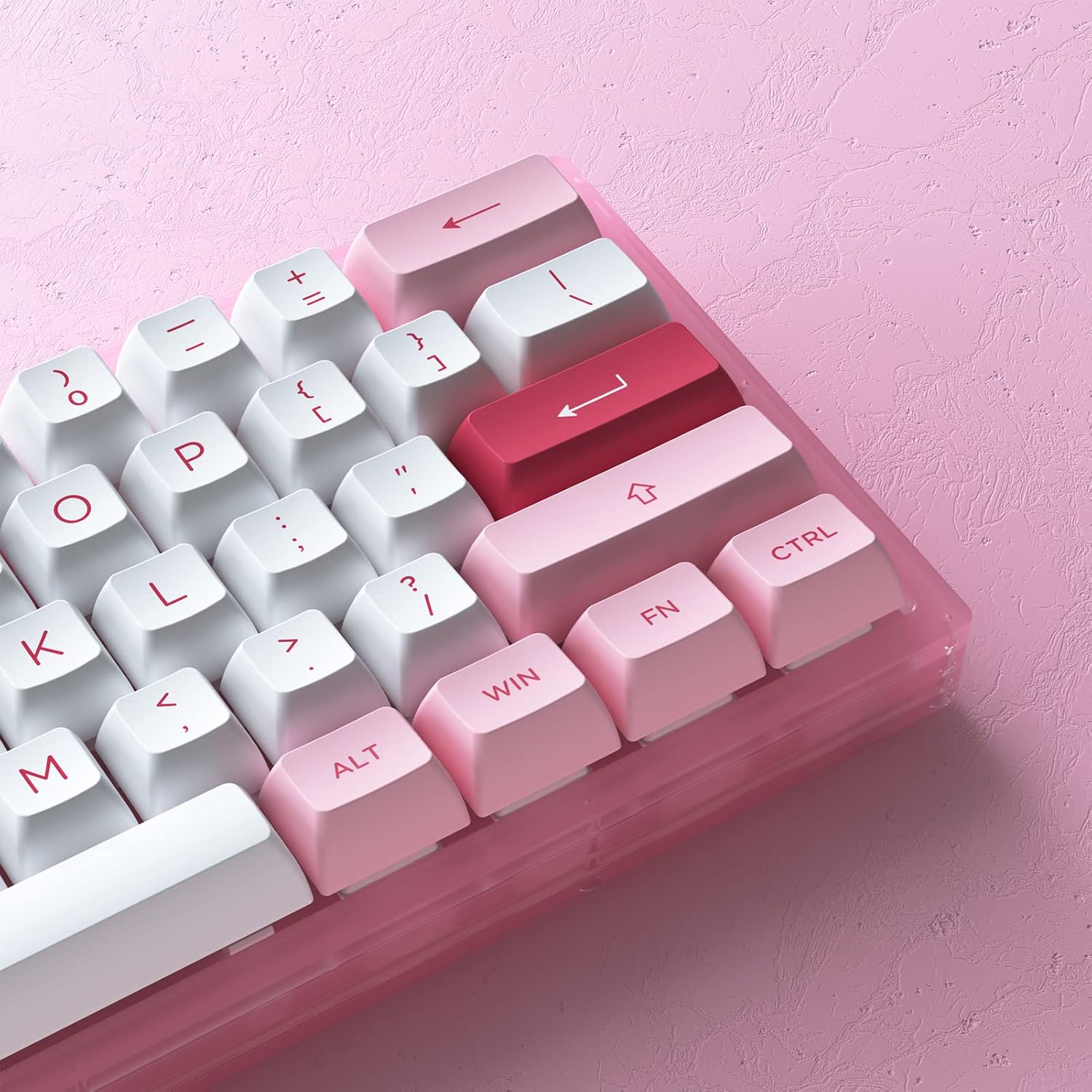
Imagen 3.1: Primer plano view of the Akko ACR61 keycaps, illustrating primary and secondary functions.
3.2 Control de retroiluminación RGB
The keyboard features built-in RGB backlighting with customizable light animation effects. Specific key combinations, often involving the 'Fn' key, are used to cycle through lighting modes, adjust brightness, and change colors.
- Fn + [Tecla]: Typically used to change RGB effects, speed, or direction. Consult the keyboard's specific keycap legends or software for exact combinations.
- LED de bajo brillo: The keyboard also features underglow LED lighting, which can be controlled independently or in conjunction with the main RGB backlighting.
3.3 Programabilidad
The Akko ACR61 keyboard is programmable, allowing users to remap keys and create macro sequences. This functionality is typically managed through dedicated software provided by Akko. Keys used for controlling Macro mode (Esc/Win/Fn) cannot be remapped.
- Reasignación de teclas: Assign different functions to individual keys.
- Grabación de macros: Record a sequence of keystrokes and assign it to a single key for quick execution.
4. Mantenimiento
4.1 Limpieza del teclado
La limpieza regular ayuda a mantener la apariencia y la funcionalidad del teclado.
- Desconecte el teclado de su computadora.
- Utilice un cepillo suave o aire comprimido para eliminar el polvo y los residuos entre las teclas.
- For keycap cleaning, gently remove keycaps using a keycap puller. Wash them with mild soap and water, then ensure they are completely dry before reattaching.
- Limpie la superficie del teclado con un paño ligeramente húmedo.ampPaño sin pelusa. Evite la humedad excesiva.
4.2 Conmutadores intercambiables en caliente
The Akko ACR61 features premium TTC gaming 5-pin hot-swappable sockets, allowing you to change switches without soldering.

Image 4.1: A Jelly Pink mechanical switch, illustrating the hot-swappable design.
- Quitar un interruptor: Use the provided switch puller to carefully grip the top and bottom clips of the switch. Gently pull the switch straight up and out of the socket. Avoid bending the pins.
- Installing a Switch: Align the pins of the new switch with the holes in the PCB socket. Ensure the pins are straight. Gently push the switch straight down until it clicks into place. Do not force the switch; if resistance is met, check pin alignment.
5. Solución de problemas
5.1 El teclado no responde
- Asegúrese de que el cable USB esté conectado de forma segura tanto al teclado como a la computadora.
- Intente conectar el teclado a un puerto USB diferente en su computadora.
- Pruebe el teclado en otra computadora para descartar problemas específicos del sistema.
- Si usa un concentrador USB, intente conectarlo directamente a la computadora.
5.2 La iluminación RGB no funciona o es incorrecta
- Asegúrese de que el teclado esté conectado y encendido correctamente.
- Use the designated Fn key combinations to cycle through lighting modes or adjust brightness.
- If using Akko software, ensure it is running and configured correctly.
5.3 Teclas específicas que no funcionan
- For hot-swappable switches, carefully remove the keycap and then the switch for the affected key. Reinstall the switch, ensuring the pins are straight and fully seated.
- Test with a known working switch in the problematic socket to determine if the issue is with the switch or the socket.
- Asegúrese de que no haya residuos que obstruyan el mecanismo del interruptor.
6. Especificaciones
| Característica | Detalle |
|---|---|
| Modelo | ACR61 |
| Disposición | 61-Key (60%) |
| Conectividad | Con cable (USB-C) |
| Interruptores | Hot-swappable TTC Gaming 5-pin sockets (Jelly Pink Switches included) |
| Teclas | PBT Double Shot ASA Profile |
| Contraluz | RGB with Underglow LED |
| Anti-efecto fantasma | Cambio de clave N (NKRO) |
| Programabilidad | Yes (via software, excluding Esc/Win/Fn) |
| Material | Tereftalato de polibutileno (teclas) |
| Peso del artículo | 15.5 onzas |
| Dimensiones del paquete | 13.7 x 8.78 x 1.93 pulgadas |
7. Garantía y soporte
Para obtener información sobre la garantía y soporte técnico, consulte el sitio web oficial de Akko. webSitio web o contacte directamente con el servicio de atención al cliente. Conserve su comprobante de compra para cualquier reclamación de garantía.
Tienda oficial de Akko: Tienda Akko en Amazon


