1. Producto terminadoview
The HUAWEI WiFi AX2 is a high-performance wireless router designed to provide fast and reliable internet connectivity throughout your home. It supports Wi-Fi 6 technology, offering speeds up to 1500 Mbps, with a 5GHz band supporting up to 1201 Mbps and a 2.4GHz band supporting up to 300 Mbps. This router features HarmonyOS Mesh+ for seamless multi-router setups, comprehensive parental controls, and an advanced antenna design for stable connections.
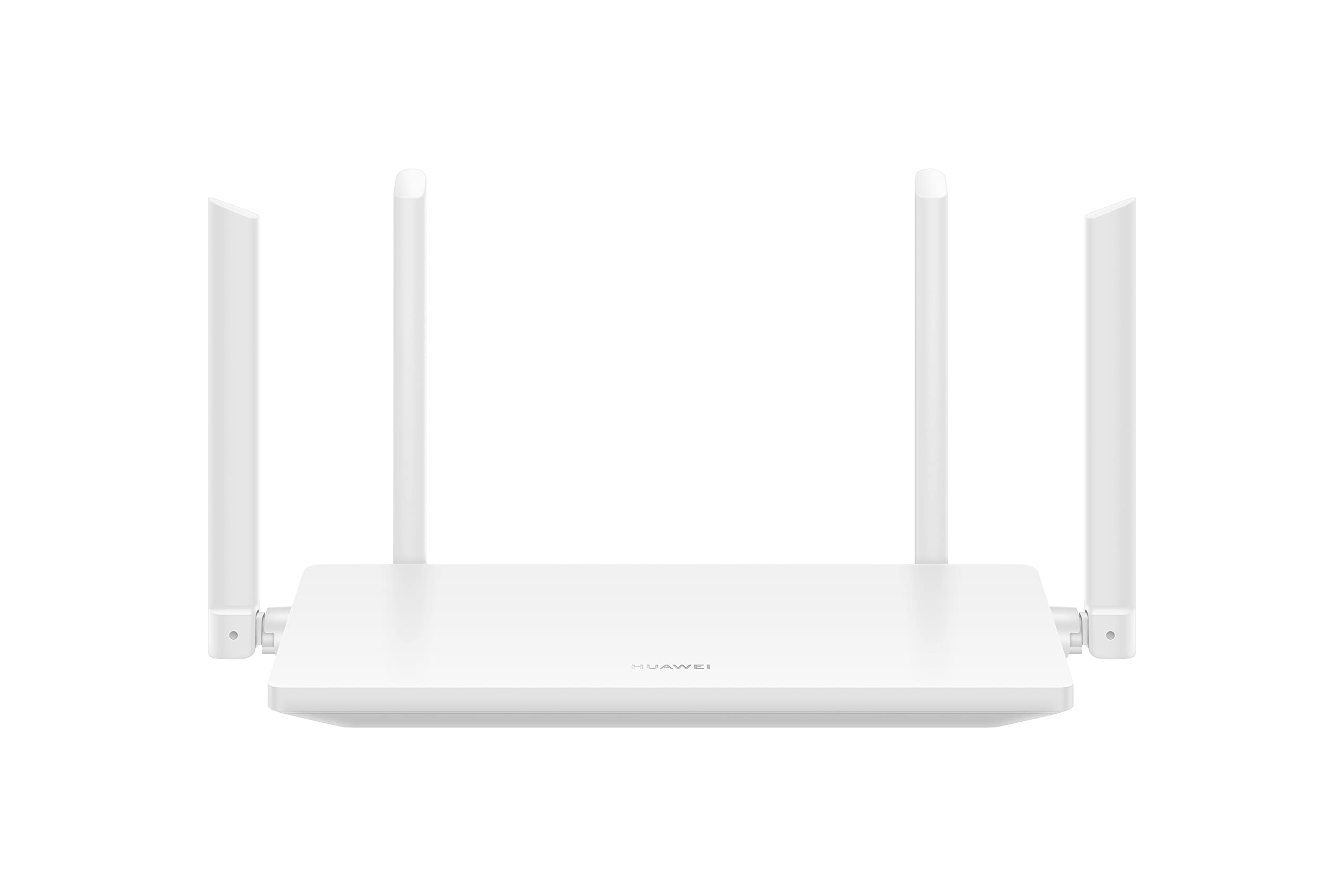
Imagen 1.1: Frente view of the HUAWEI WiFi AX2 Wireless Router, showing its sleek white design and four external antennas.
2. Contenido del paquete
Antes de continuar con la instalación, asegúrese de que todos los elementos estén presentes en el paquete:
- HUAWEI WiFi AX2 Wireless Router (WS7001-20)
- Adaptador de corriente
- Cable Ethernet
- Guía de inicio rápido
- Tarjeta de garantía
3. Instrucciones de configuración
Follow these steps to set up your HUAWEI WiFi AX2 Router:
- Conecte el adaptador de corriente: Conecte el adaptador de corriente al puerto de alimentación del router y luego a una toma de corriente. El indicador de encendido del router debería encenderse.
- Conectarse a Internet: Connect one end of the Ethernet cable to the WAN port (usually labeled 'WAN' or a globe icon) on your router and the other end to your modem's LAN port.
- Conecte sus dispositivos:
- Conexión por cable: Connect your computer or other network devices to any of the LAN ports (labeled 1, 2, 3) on the router using an Ethernet cable.
- Conexión inalámbrica: En su dispositivo con Wi-Fi (smartphone, tableta, portátil), busque el nombre de la red Wi-Fi (SSID) impreso en la etiqueta en la parte inferior del router. Selecciónelo e introduzca la contraseña Wi-Fi (también en la etiqueta).
- Acceder a la Web-based Management Page: Abrir una web navegador en un dispositivo conectado e ingrese 192.168.3.1 in the address bar. Follow the on-screen instructions to complete the initial setup, including setting up your Wi-Fi name and password.
- Download the HUAWEI AI Life App: For easier management and advanced features, download the HUAWEI AI Life app from your device's app store. Use the app to configure settings, manage connected devices, and utilize parental controls.

Imagen 3.1: Trasera view of the HUAWEI WiFi AX2 Router, showing the power port, three LAN/WAN ports, and the WPS/Reset button.
4. Instrucciones de funcionamiento
4.1 Dual-Band Automatic Switching
The HUAWEI WiFi AX2 operates on both 2.4GHz and 5GHz bands simultaneously. It intelligently switches your devices between these bands to ensure optimal connection quality and speed at all times. This means you don't need to manually select between 2.4GHz and 5GHz networks.
4.2 HarmonyOS Mesh+
If you have multiple HUAWEI routers that support HarmonyOS Mesh+, you can group them under a single Wi-Fi name. This creates a unified mesh network, allowing your devices to automatically switch between routers as you move around your home, ensuring continuous and strong Wi-Fi coverage.
4.3 Comprehensive Parental Control
Manage your family's internet usage with the built-in parental control features. Through the HUAWEI AI Life app, you can:
- Bloquear el acceso a contenido inapropiado websitios.
- Limit internet access time for specific devices.
- View internet usage statistics for connected devices.
5. Mantenimiento
Para garantizar un rendimiento óptimo y la longevidad de su enrutador, tenga en cuenta los siguientes consejos de mantenimiento:
- Colocación: Place the router in a central location, away from obstructions, large metal objects, and other electronic devices that may cause interference. Ensure adequate ventilation around the router.
- Actualizaciones de firmware: Regularly check for and install firmware updates through the HUAWEI AI Life app or the web-based management page. Updates often include performance improvements and security patches.
- Reiniciando: Si experimenta problemas de red, intente reiniciar el enrutador desenchufando el adaptador de corriente durante 10 segundos y luego volviéndolo a enchufar.
- Limpieza: Mantenga el router limpio y sin polvo. Utilice un paño suave y seco para limpiar el exterior. No utilice limpiadores líquidos.

Imagen 5.1: Lateral view of the HUAWEI WiFi AX2 Router, highlighting the ventilation slots for proper heat dissipation.
6. Solución de problemas
If you encounter issues with your HUAWEI WiFi AX2 Router, refer to the following common problems and solutions:
| Problema | Posible causa | Solución |
|---|---|---|
| Sin acceso a Internet | Incorrect cable connection, modem issue, or incorrect router settings. | Check that the Ethernet cable is securely connected to the WAN port and your modem. Reboot both the modem and the router. Verify internet settings via the web-based management page or AI Life app. |
| Velocidad lenta de Wi-Fi | Interference, too many connected devices, outdated firmware, or poor router placement. | Ensure the router is placed optimally (see Maintenance section). Reduce the number of active devices. Update router firmware. Consider if your internet service provider (ISP) speed is the bottleneck. |
| El Wi-Fi se desconecta con frecuencia | Signal interference, distance from router, or channel congestion. | Move closer to the router. Check for sources of interference (e.g., microwaves, cordless phones). Use the AI Life app to analyze Wi-Fi channels and switch to a less congested one. |
| No se puede acceder a la página de configuración del enrutador | Incorrect IP address, device not connected to router, or browser issue. | Ensure your device is connected to the router's Wi-Fi or via an Ethernet cable. Verify you are entering 192.168.3.1 correctly. Try a different web navegador. |
If the problem persists, perform a factory reset by pressing and holding the WPS/Reset button on the back of the router for approximately 10 seconds until the indicator light flashes. Note that a factory reset will erase all your custom settings.
7. Especificaciones
| Característica | Detalle |
|---|---|
| Marca | HUAWEI |
| Nombre del modelo | WS7001-20 |
| Número de modelo del artículo | WS7001-20 |
| Dimensiones del producto | 25.76 x 16.35 x 2.9 cm |
| Peso del artículo | 580 gramos |
| Tipo inalámbrico | 802.11ax (Wi-Fi 6) |
| Clase de banda de frecuencia | Doble banda (2.4 GHz y 5 GHz) |
| Tecnología de conectividad | Wifi |
| Sistema operativo | Sistema operativo RouterOS |
| Número de puertos | 3 (LAN/WAN auto-sensing) |
| Características especiales | Modo de punto de acceso |
| Dispositivos compatibles | Teléfono inteligente, tableta |
| Usos recomendados del producto | Hogar |
| Pilas incluidas | No |
| Fecha de primera disponibilidad | 7 de septiembre de 2023 |
8. Garantía y soporte
8.1 Información de garantía
For detailed warranty information, please refer to the warranty card included in your product package or visit the official HUAWEI webSitio. Los términos y condiciones de la garantía pueden variar según la región y el minorista.
8.2 Soporte técnico
If you require further assistance or have technical questions not covered in this manual, please contact HUAWEI customer support. You can find contact details on the official HUAWEI website or through the HUAWEI AI Life app.


