Introducción
This manual provides essential information for setting up, operating, maintaining, and troubleshooting your HP 15 Laptop. Please read this guide thoroughly to ensure proper use and to maximize the performance and longevity of your device.
Primeros pasos: configuración
1. Desempaquetado de su computadora portátil
Carefully remove the laptop and all accessories from the packaging. Ensure all components are present: the HP 15 Laptop, AC power adapter, and any included documentation.
2. Conexión a la energía
Connect the AC power adapter to the laptop's power port and then plug it into a wall outlet. It is recommended to fully charge the battery before the first use.
3. Arranque inicial y configuración de Windows
Press the power button located on the keyboard deck. The laptop will power on, and you will be guided through the Windows 11 Home setup process. Follow the on-screen instructions to configure your language, region, network, and user account.
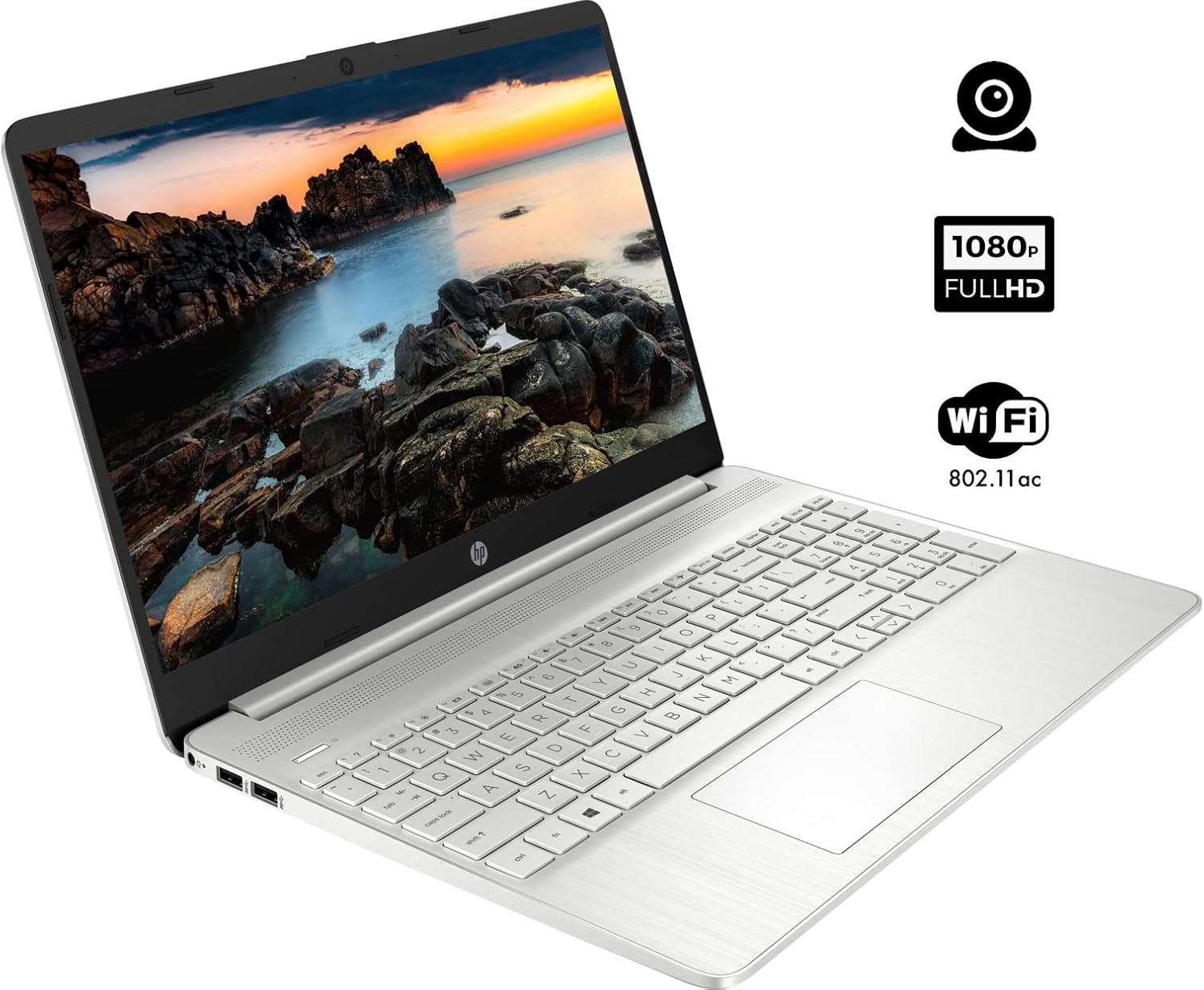
The HP 15 Laptop, ready for initial setup. Ensure the power adapter is connected before first use.
Operación de su computadora portátil
1. Encendido y apagado
- Encendido: Presione el botón de encendido.
- Apagado: Click the Windows Start button, then select Energía > Apagar. Avoid forced shutdowns by holding the power button unless necessary.
2. Uso del teclado y el panel táctil
- Teclado: Use the integrated keyboard for typing. Function keys (F1-F12) often have secondary actions (e.g., volume, brightness) accessible by pressing the Fn tecla simultáneamente.
- Panel táctil: The touchpad functions as a mouse. Tap to click, use two fingers to scroll, and pinch to zoom.
3. Conexión de periféricos
Your HP 15 Laptop features various ports for connecting external devices:
- Puertos USB tipo A: Para conectar dispositivos USB estándar como ratones, teclados o unidades externas.
- Puerto USB tipo C: A versatile port for data transfer.
- Puerto HDMI: Conectarse a pantallas externas o proyectores.
- Conector combinado de auriculares y micrófono: Para salida de audio a auriculares o entrada de un micrófono.
- Lector de tarjetas SD: Inserte una tarjeta SD para la transferencia de datos.

This diagram illustrates the various ports available on your HP 15 Laptop, including USB-C, USB-A, HDMI, audio jack, SD card reader, and the power input.
4. Conexión a Wi-Fi
Para conectarse a una red inalámbrica:
- Haga clic en el icono de Wi-Fi en la barra de tareas.
- Seleccione la red que desee de la lista.
- Enter the network password if prompted, then click Conectar.
5. Conexión de dispositivos Bluetooth
Para emparejar un dispositivo Bluetooth:
- Ir a Configuración > Bluetooth y dispositivos.
- Asegúrese de que el Bluetooth esté activado On.
- Seleccionar Agregar dispositivo and follow the on-screen instructions to pair your device.

The HP 15 Laptop features an integrated webcam for video calls and supports Wi-Fi 802.11ac for wireless internet connectivity.
Mantenimiento
1. Limpieza de su computadora portátil
- Pantalla: Utilice un paño suave y sin pelusa ligeramenteampLimpiar con agua o un limpiador de pantallas. Evitar productos químicos agresivos.
- Teclado y chasis: Utilice un paño suave para limpiar las superficies. El aire comprimido puede eliminar el polvo entre las teclas.
2. Actualizaciones de software
Regularly update your operating system and drivers to ensure optimal performance and security. Windows Update typically handles this automatically, but you can manually check via Configuración > Actualización de Windows.
3. Cuidado de la batería
- Evite descargar completamente la batería con frecuencia.
- If storing the laptop for an extended period, charge the battery to about 50% and store it in a cool, dry place.
Solución de problemas
Esta sección aborda problemas comunes que podrías encontrar.
Sin poder
- Asegúrese de que el adaptador de CA esté conectado de forma segura tanto a la computadora portátil como a una toma de corriente que funcione.
- Compruebe si la toma de corriente funciona enchufando otro dispositivo.
- Si la batería está completamente agotada, déjela cargar durante unos minutos antes de intentar encenderla.
Problemas de visualización
- If the screen is blank, try adjusting the brightness using the function keys (e.g., F2/F3).
- Connect an external monitor via the HDMI port to check if the issue is with the laptop's display or graphics output.
- Asegúrese de que los controladores gráficos estén actualizados.
Problemas de conectividad wifi
- Verifique que Wi-Fi esté habilitado en la configuración de Windows.
- Reinicie su enrutador y módem.
- Asegúrese de estar dentro del alcance de la red Wi-Fi.
- Check for updated network drivers.
Rendimiento lento
- Cierre las aplicaciones innecesarias que se ejecutan en segundo plano.
- Ensure your operating system and drivers are updated.
- Check for sufficient free space on your storage drive.
- Run a scan for malware or viruses.
Presupuesto
Below are the technical specifications for the HP 15 Laptop (Model 15):
| Característica | Detalle |
|---|---|
| Tamaño de pantalla de pie | 15.6 pulgadas |
| Resolución de pantalla | 1920 x 1080 píxeles (FHD) |
| Procesador | AMD Ryzen 5 5500U (6 núcleos, 12 subprocesos, hasta 4.0 GHz) |
| RAM | 12 GB DDR4 |
| Disco duro | SSD PCIe NVMe M.2 de 1 TB |
| Coprocesador gráfico | Gráficos integrados AMD Radeon |
| Sistema operativo | Inicio de Windows 11 |
| Puertos USB 3.0 | 3 (2x Type-A, 1x Type-C) |
| Puerto HDMI | 1 (HDMI 1.4b) |
| Conectividad | Wi-Fi 802.11ac, Bluetooth |
| Webleva | Integrado Webcámara con micrófono |
| Peso del artículo | 3.74 libras |
| Dimensiones del producto | 14.11 x 9.53 x 0.7 pulgadas |
| Color | Plata |

The HP 15 Laptop in its closed state, highlighting its sleek silver design and the HP branding.
Información de garantía
Su portátil HP 15 incluye una garantía estándar del fabricante. Para obtener información detallada sobre los términos, condiciones y duración de la garantía, consulte la tarjeta de garantía incluida con su producto o visite el soporte técnico oficial de HP. websitio.
Apoyo
For further assistance, technical support, or to download updated drivers and software, please visit the official HP support webSitio. También puede encontrar preguntas frecuentes y foros de la comunidad para obtener ayuda adicional.
Soporte HP Websitio: soporte.hp.com