1. Introducción
This manual provides detailed instructions for the installation, operation, and maintenance of your NUTOMO Fingerprint Entry Door Handle Lock. Please read this manual thoroughly before installation and use to ensure proper function and safety.
The NUTOMO smart lock offers multiple access methods including fingerprint, user passcode, IC card, and traditional physical keys, providing enhanced security and convenience for your home, hotel, or office.
2. Información de seguridad
- No intente desmontar ni reparar la cerradura usted mismo. Contacte con atención al cliente para obtener ayuda.
- Utilice únicamente las pilas especificadas (4 pilas AA). No mezcle pilas nuevas y usadas ni pilas de distintos tipos.
- Mantenga las llaves físicas en un lugar seguro fuera de la propiedad.
- Avoid exposing the lock to direct sunlight or extreme temperatures for prolonged periods.
- Ensure the door frame and door are properly aligned and free of obstructions for smooth operation.
3. Contenido del paquete
Verifique que todos los componentes estén presentes antes de comenzar la instalación:
- Conjunto del panel frontal (con teclado y sensor de huellas dactilares)
- Conjunto del panel posterior (con compartimento de batería)
- Mecanismo de cierre
- Placa de impacto
- Tornillos y herrajes de montaje
- Llaves físicas (2)
- Tarjetas IC (2)
- Manual de usuario
- Plantilla de instalación
Note: 4 AA batteries are required but not included.
4. Configuración e instalación
4.1 Preparación de la puerta
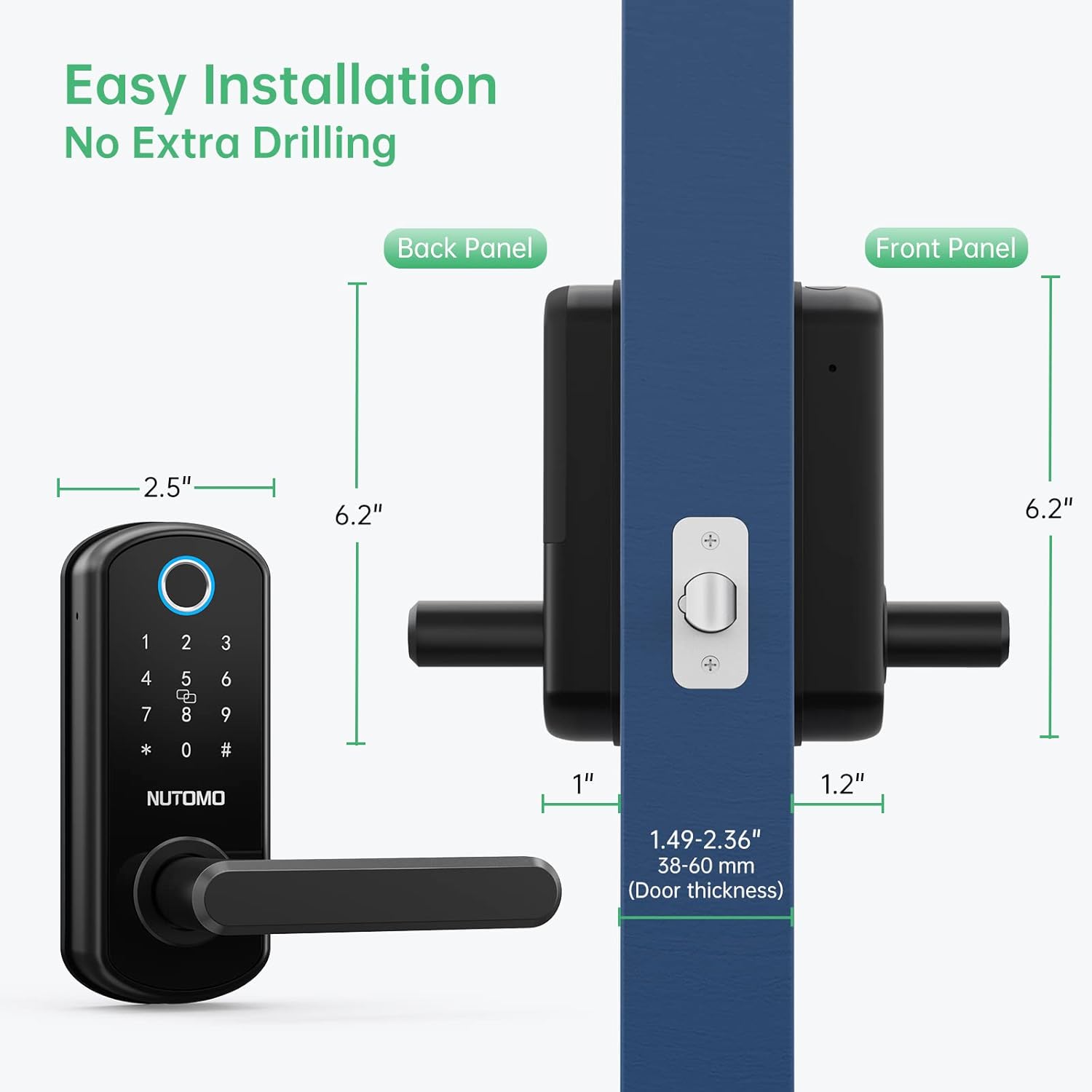
Asegúrese de que su puerta cumpla con las siguientes especificaciones:
- Door thickness: 1.49-2.36 inches (38-60 mm)
- Backset: 2-3/8 inches or 2-3/4 inches (60mm or 70mm)
If replacing an existing lock, ensure the door holes are compatible. If the door has two holes, you may need to seal one or use a deadbolt in conjunction with this lock if the holes are too close.
4.2 Instalación del pestillo
Adjust the latch length if necessary and install it into the door edge. Secure with screws.
4.3 Ajuste de la dirección del mango
The handle direction can be adjusted for left-hand or right-hand doors. Turn the front handle to the Left and the back handle to the Right for a left-hand door. For a right-hand door, turn the front handle to the Right and the back handle to the Left.

4.4 Front Panel and Mounting Plate Installation
Install the front panel, routing the IC wire under the latch. Then, install the mounting plate and connect the IC wire.
4.5 Instalación de la batería
Insert 4 AA batteries into the battery compartment on the back panel. Ensure correct polarity. Close the battery cover securely.

5. Instrucciones de funcionamiento
5.1 Métodos de desbloqueo
- Desbloqueo de huella digital: Coloque su dedo registrado en el sensor.
- Desbloqueo de contraseña: Enter your registered passcode followed by '#'.
- Desbloqueo de tarjeta IC: Tap your registered IC card on the keypad.
- Desbloqueo de llave física: Use the provided physical key for manual override.

5.2 Función de bloqueo automático
The lock is equipped with an auto-lock feature that engages after a short period (typically 5 seconds) once the door is closed. This ensures your door is always secured.

5.3 Anti-Peeping Virtual Code
To enhance security, you can enter random digits before or after your actual passcode. This prevents others from guessing your code by observing your finger movements.

5.4 Emergency Power and Key Access
In case of battery depletion, the lock features a USB charging port for emergency power. Additionally, physical keys are provided for manual access.

5.5 Función de timbre
After waking up the keypad, press '#', and the doorbell will sound three times.
6. Programming and Management
6.1 Setting the Management Passcode
To enter the menu, input "*#". Then, press '1' for Management Setting, and '1' again to set the management passcode. Input your desired code twice, ending with '#'.
6.2 Adding Fingerprints and IC Cards
After setting the management passcode, you can add fingerprints and IC cards. Enter the management menu, select the appropriate option, and follow the voice prompts. For fingerprints, input your finger 5 times. For IC cards, tap the card once.
6.3 Sharing Passcodes
The lock supports up to 300 sets of passwords, allowing you to share access with multiple users.

6.4 Restablecimiento del bloqueo
To reset the lock to factory settings, remove the battery cover while the lock is powered on. Press and hold the reset button for approximately 5 seconds until you hear "Initializing". Release the button, and the lock will reset.
7. Mantenimiento
- Reemplazo de batería: Replace all 4 AA batteries when the low battery alarm sounds.
- Limpieza: Limpie el teclado y el sensor de huellas dactilares con un paño suave y seco. Evite usar limpiadores abrasivos o disolventes.
- Condiciones ambientales: The lock is designed to withstand temperatures from -13°F to 149°F and has an IP63 rating for dust and water resistance.

8. Solución de problemas
- La cerradura no responde: Check battery levels. Use emergency USB power or physical key.
- Huella dactilar no reconocida: Ensure your finger is clean and dry. Try re-registering your fingerprint. Cold weather can sometimes affect fingerprint reader performance; use a passcode or key fob as an alternative.
- El código de acceso no funciona: Ensure you are entering the correct passcode followed by '#'. Try resetting the lock if issues persist.
- El bloqueo automático no se activa: Verify the door is fully closed and aligned.
9. Especificaciones
| Característica | Detalle |
|---|---|
| Marca | NUTOMO |
| Número de modelo | B0B7S2DMPM |
| Tipo de bloqueo | Biométrico, teclado |
| Características especiales | Fingerprint, Smart Lock |
| Material | Aluminio |
| Color | Negro |
| Dimensiones del artículo (largo x ancho x alto) | 2.5 x 1.2 x 6.2 pulgadas |
| Peso del artículo | 3.56 libras |
| Método de control | Tocar |
| Protocolo de conectividad | Wifi |
| Usos recomendados | Seguridad del hogar |
| ¿Baterias incluidas? | No (Requires 4 AA batteries) |
10. Garantía y soporte
For warranty information, technical support, or any inquiries regarding your NUTOMO Fingerprint Entry Door Handle Lock, please refer to the product packaging or visit the official NUTOMO website. Contact details for customer service are typically provided with your purchase.


