Introducción
This manual provides comprehensive instructions for the NOVOO 11-in-1 USB-C Triple Display Docking Station. This device expands the connectivity of your USB-C enabled laptop, offering multiple display outputs, high-speed data transfer ports, network connectivity, and power delivery capabilities. Please read this manual thoroughly before use to ensure proper operation and to maximize the benefits of your docking station.

Imagen: Más alláview of the NOVOO 11-in-1 USB-C Triple Display Docking Station, showcasing its compact design and various ports including USB, HDMI, DisplayPort, Ethernet, and card reader slots.
Características del producto
The NOVOO 11-in-1 USB-C Triple Display Docking Station offers the following features:
- Salida de pantalla triple: Two HDMI ports (up to 4K@60Hz) and one DisplayPort (up to 8K@30Hz or 4K@120Hz, depending on laptop DP version).
- Transferencia de datos de alta velocidad: Two USB 3.0 ports (up to 5Gbps) and two USB 2.0 ports (for peripherals like keyboard/mouse).
- Lector de tarjetas de memoria: SD and TF card slots (up to 104Mbps).
- Gigabit Ethernet: RJ45 port for stable wired network connection (up to 1000Mbps).
- La entrega de energía: USB-C PD charging port (up to 100W input) to power your laptop.
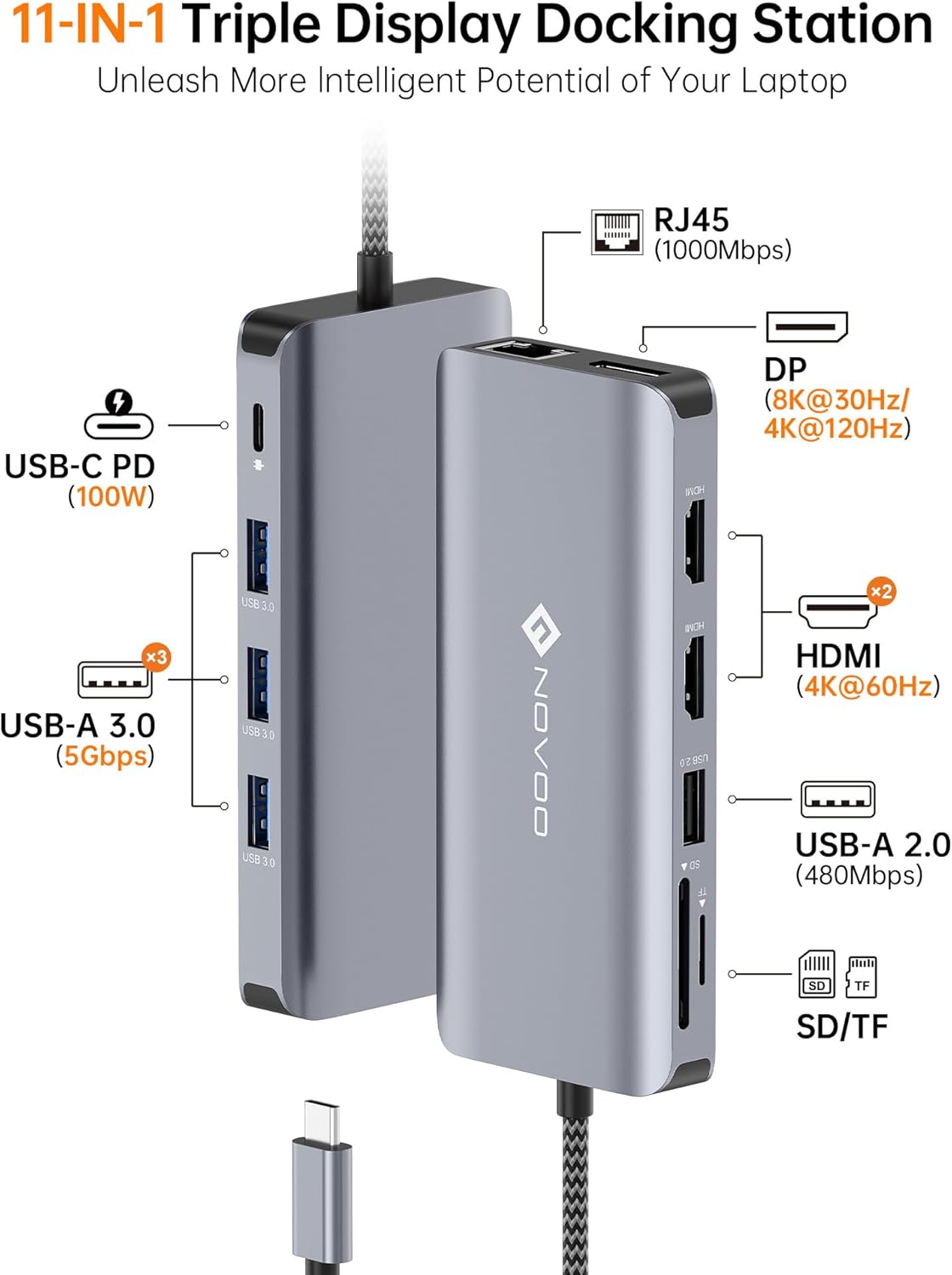
Image: Detailed diagram illustrating each port on the docking station, including USB-C PD, USB-A 3.0, USB-A 2.0, SD/TF card slots, HDMI, DisplayPort, and RJ45 Ethernet, along with their respective specifications.
Instrucciones de instalación
- Verify Laptop Compatibility: Ensure your laptop's USB-C port supports full functionality (Power Delivery + DisplayPort Alt Mode + Data Transfer). Refer to your laptop's specifications or user manual. Ports that only support charging or data transfer will not enable all docking station features.
- Conectar a la computadora portátil: Plug the integrated USB-C cable from the docking station into your laptop's compatible USB-C port.
- Conectar el adaptador de corriente (opcional pero recomendado): For optimal performance and to charge your laptop, connect your laptop's original USB-C power adapter (up to 100W) to the docking station's USB-C PD input port.
- Conectar pantallas externas:
- Para pantallas HDMI, conecte los cables HDMI de sus monitores a los puertos HDMI en la estación de acoplamiento.
- Para pantallas DisplayPort, conecte un cable DisplayPort desde su monitor al puerto DP en la estación de acoplamiento.
- Conectar periféricos: Plug your USB devices (e.g., keyboard, mouse, external hard drives, USB flash drives) into the available USB 3.0 and USB 2.0 ports.
- Conecte el cable de red: For a wired internet connection, plug an Ethernet cable into the RJ45 port on the docking station.
- Insertar tarjetas de memoria: Si es necesario, inserte tarjetas SD o TF en sus respectivas ranuras.

Image: Visual guide for checking laptop USB-C port compatibility, distinguishing between full-function ports (Data + PD + DisplayPort Alt) and limited ports (Charging only, Data only, Data + charging only).
Instrucciones de funcionamiento
Configuración de pantalla
The docking station supports various display modes depending on your operating system and laptop capabilities.
- Sistemas Windows: Supports both Mirror Mode (AAAA) and Extend Mode (ABBB/ABCD) for dual or triple displays (MST mode).
- Sistemas macOS: Supports Mirror Mode (AAAA) and Extend Mode (ABBB). Due to macOS limitations, all extended monitors will display the same content.
Para configurar sus pantallas, acceda a la configuración de pantalla de su sistema operativo:
- Ventanas: Right-click on the desktop, select "Display settings," then choose your preferred display mode (Duplicate these displays, Extend these displays).
- Mac OS: Go to "System Settings" > "Displays," then arrange or mirror displays as desired.

Image: Visual representation of different display configurations (Mirror Mode, Extend Mode) for both Windows and macOS, highlighting the differences in multi-monitor support between operating systems.
Transferencia de datos
Utilize the USB 3.0 ports for high-speed data transfer and the USB 2.0 ports for connecting standard peripherals.
- Puertos USB 3.0 (x2): Ideal for external hard drives, SSDs, and other devices requiring fast data transfer (up to 5Gbps).
- Puertos USB 2.0 (x2): Suitable for keyboards, mice, printers, and other low-bandwidth devices.
- Lector de tarjetas SD / TF: Insert your SD or TF (MicroSD) cards to access photos and videos directly (up to 104Mbps).

Image: A laptop connected to the docking station, demonstrating the use of USB 3.0 ports for external storage and SD/TF card slots for memory cards, emphasizing high-speed data transfer capabilities.
Entrega de potencia
The USB-C PD port allows you to charge your laptop while using the docking station. Connect your laptop's power adapter to this port.
- Supports up to 100W power input.
- Actual power output to the laptop depends on the connected power adapter and the power consumption of the docking station and connected peripherals.
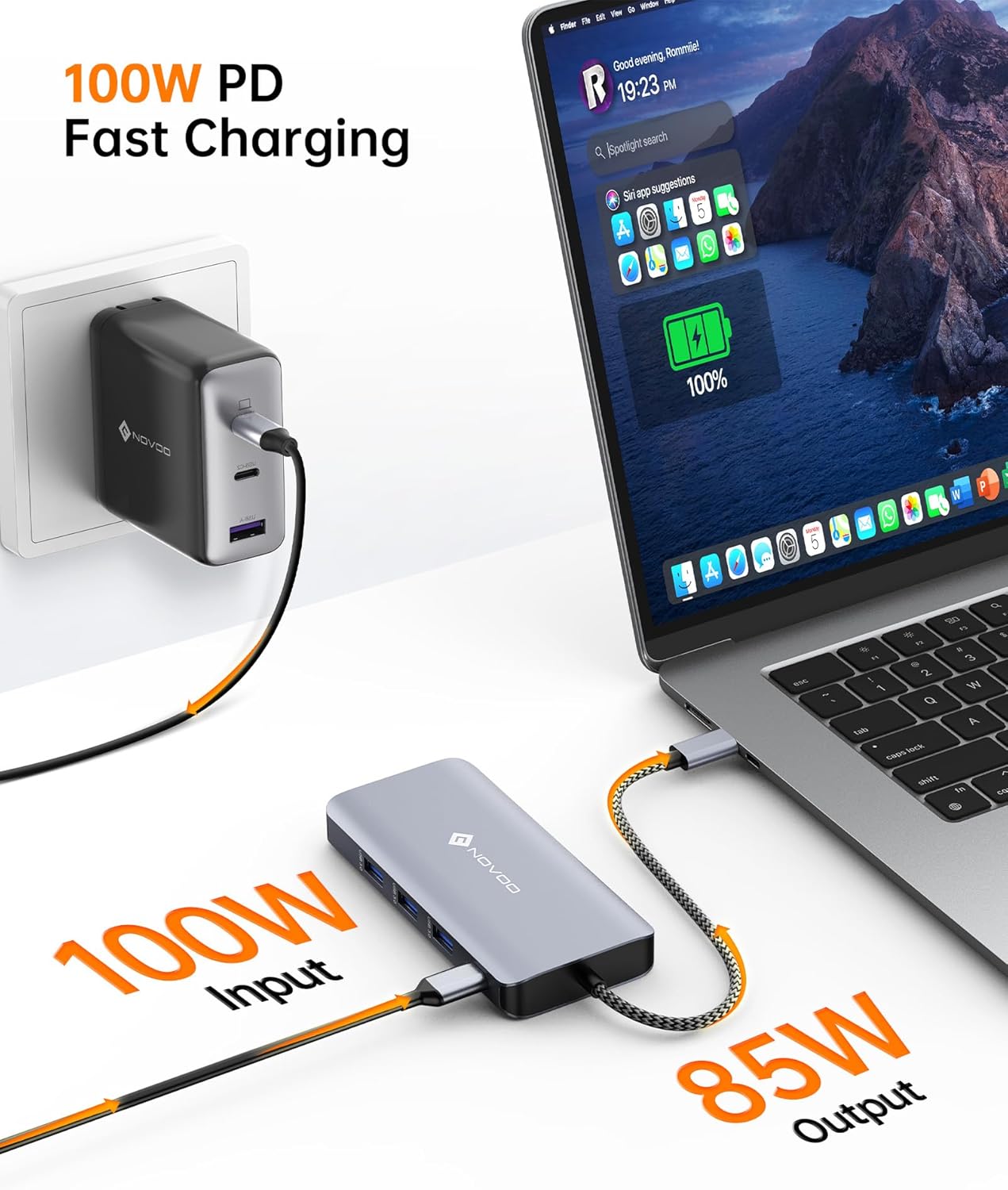
Image: A NOVOO docking station connected to a laptop and a wall charger, illustrating the 100W Power Delivery feature for fast charging the laptop.
Conexión de red
El puerto Gigabit Ethernet proporciona una conexión de red cableada estable y rápida.
- Supports speeds up to 1000Mbps (1 Gigabit per second).
- Ensures reliable internet access, especially beneficial for large file transferencias o juegos en línea.

Image: A close-up of the docking station's RJ45 Ethernet port with a connected network cable, indicating a stable 1000Mbps Gigabit Ethernet connection.
Mantenimiento
- Mantenga la estación de acoplamiento limpia y sin polvo. Utilice un paño suave y seco para limpiarla.
- Evite exponer el dispositivo a temperaturas extremas, humedad o luz solar directa.
- Do not attempt to disassemble or repair the docking station yourself. This may void the warranty and cause damage.
- Ensure cables are connected securely but without excessive force to prevent port damage.
Solución de problemas
- Sin salida de pantalla:
- Asegúrese de que el puerto USB-C de su computadora portátil admita el modo alternativo DisplayPort.
- Verifique todas las conexiones de cables (USB-C a computadora portátil, HDMI/DP a monitores).
- Verifique que la fuente de entrada del monitor esté seleccionada correctamente.
- Reinicie su computadora portátil y vuelva a conectar la estación de acoplamiento.
- Actualice los controladores gráficos de su computadora portátil.
- La computadora portátil no se carga:
- Confirme que el puerto USB-C de su computadora portátil sea compatible con Power Delivery.
- Ensure your power adapter is connected to the docking station's PD port and is functioning correctly.
- Check if the power adapter provides sufficient wattage for your laptop and the docking station.
- Dispositivos USB no reconocidos:
- Vuelva a conectar el dispositivo USB.
- Pruebe con un puerto USB diferente en la estación de acoplamiento.
- Conecte el dispositivo directamente a su computadora portátil para confirmar que funciona de forma independiente.
- Problemas de conexión Ethernet:
- Verifique la conexión del cable Ethernet tanto a la estación de acoplamiento como a su enrutador/módem.
- Verifique la configuración de red en su computadora portátil.
- Pruebe con un cable Ethernet diferente.
- Intermittent Connectivity / Device Gets Warm:
- Ensure adequate ventilation around the docking station.
- Reduce the number of high-power devices connected simultaneously if possible.
- Ensure the power adapter is connected for stable operation, especially with multiple displays and peripherals.
Presupuesto
| Característica | Detalle |
|---|---|
| Modelo | 11 in 1 DP |
| Dimensiones del producto | 3.94 x 1.57 x 0.39 pulgadas |
| Peso del artículo | 0.705 onzas |
| Interfaz de hardware | Ethernet, HDMI, MicroSD, USB 2.0, USB 3.0, USB Type C |
| Salida HDMI | 2x HDMI (hasta 4K a 60 Hz) |
| Salida DisplayPort | 1x DP (up to 8K@30Hz / 4K@120Hz with DP 1.4 HBR3 DSC enabled) |
| Puertos USB 3.0 | 2x USB-A (up to 5Gbps) |
| Puertos USB 2.0 | 2x USB-A (for keyboard/mouse) |
| Lector de tarjetas | SD/TF (up to 104Mbps) |
| Puerto Ethernet | RJ45 Gigabit Ethernet (hasta 1000 Mbps) |
| Entrega de potencia | USB-C PD (entrada de hasta 100 W) |
| Dispositivos compatibles | Laptops with full-featured USB Type-C port (e.g., M1/M2 MacBook Pro/Air, Dell XPS, Lenovo Yoga, Microsoft Surface, HP Spectre/Elite) |
Garantía y soporte
NOVOO products are designed for reliability and performance. For warranty information and technical support, please refer to the warranty card included with your product or visit the official NOVOO websitio. Guarde su recibo de compra para reclamos de garantía.
For further assistance, you may contact NOVOO customer support through their official channels.


