1. Introducción
Thank you for choosing the Cherry KW 9100 Slim Wireless Keyboard. This manual provides essential information for setting up, operating, and maintaining your new keyboard. The KW 9100 Slim is designed for both work and home office environments, offering flexible connectivity options and a comfortable typing experience with its silent SX Scissor Mechanism.

Figura 1.1: De arriba hacia abajo view of the Cherry KW 9100 Slim Wireless Keyboard, showcasing su distribución completa y diseño elegante.
2. Contenido del paquete
Por favor verifique que todos los artículos estén presentes en su paquete:
- Cherry KW 9100 Slim Wireless Keyboard
- Cable USB (USB-A a USB-C)
- USB Receiver (2.4 GHz RF dongle)
- Manual de instrucciones (este documento)
- Magnetic Support Bar (pre-attached or separate)
3. Características principales
- Conectividad dual: Seamlessly switch between wireless RF (2.4 GHz) and Bluetooth transmission modes.
- Batería recargable: Built-in lithium rechargeable battery with USB-C connection for convenient charging.
- SX Scissor Mechanism: Cherry's proprietary low-profile scissor technology ensures a quiet and precise typing experience.
- Slim and Stable Design: Cuenta con una delgada profile with a built-in metal plate for maximum stability and rigidity.
- Ángulo de escritura ajustable: Includes a removable magnetic support bar for a steeper typing angle preference.
- LED de estado: Integrated LEDs for CAPS LOCK, NUM, and SCROLL keys.
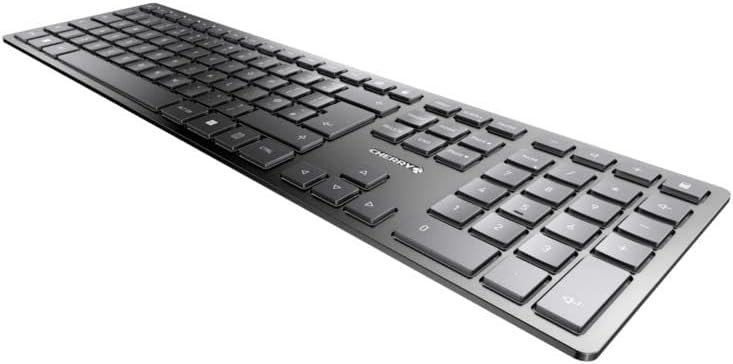
Figura 3.1: Angulado view highlighting the slim profile and key layout of the keyboard.

Figura 3.2: Primer plano view of the keys, illustrating the low-profile design and quiet SX Scissor Mechanism.
4. Configuración y conexión
4.1 Carga del teclado
Before first use, it is recommended to fully charge the keyboard.
- Connect the supplied USB-A to USB-C cable to the USB-C port on the keyboard.
- Connect the other end of the cable to a USB-A port on your computer or a compatible USB power adapter.
- The charging indicator LED will illuminate. The keyboard can be used while charging.

Figure 4.1: Location of the USB-C charging port on the Cherry KW 9100 Slim keyboard.
4.2 Connecting via 2.4 GHz RF Wireless
For a stable and fast wireless connection, use the included USB receiver.
- Locate the USB receiver (dongle) in the package.
- Conecte el receptor USB a un puerto USB-A disponible en su computadora.
- On the keyboard, locate the connectivity switch (usually on the back or side) and set it to the "RF" or 2.4 GHz icon position.
- El teclado debería conectarse automáticamente a su computadora.
4.3 Conexión mediante Bluetooth
The keyboard supports Bluetooth connectivity for devices with Bluetooth capabilities.
- On the keyboard, set the connectivity switch to the "Bluetooth" icon position.
- The Bluetooth indicator LED on the keyboard will start blinking, indicating it's in pairing mode.
- En su computadora o dispositivo, abra la configuración de Bluetooth.
- Buscar new devices and select "Cherry KW 9100 Slim" from the list.
- Siga las instrucciones en pantalla para completar el proceso de emparejamiento.
4.4 Attaching the Magnetic Support Bar
The keyboard comes with a magnetic support bar that can be attached to adjust the typing angle.
- Locate the magnetic support bar.
- Align the bar with the magnetic strip on the underside of the keyboard.
- The magnets will snap the bar into place, providing an elevated typing angle.
- To remove, simply pull the bar away from the keyboard.

Figura 4.2: Lado view of the keyboard demonstrating the elevated angle with the magnetic support bar attached.

Figure 4.3: Illustration of how the magnetic support bar attaches to the keyboard's underside.
5. Operación
5.1 Uso básico
Once connected, the Cherry KW 9100 Slim functions as a standard keyboard. Type as you normally would.

Figure 5.1: A user demonstrating typing on the Cherry KW 9100 Slim keyboard in an office setting.
5.2 Function Keys (F-Keys)
The F-keys (F1-F12) on the top row may have secondary functions accessible by pressing the Fn key simultaneously. Refer to the keycap legends for specific functions such as media control, volume adjustment, or brightness control.
5.3 LED de estado
The keyboard features indicator LEDs for:
- BLOQ MAYÚS: Se ilumina cuando la tecla Bloq Mayús está activa.
- NUM: Se ilumina cuando Num Lock está activo.
- DESPLAZARSE: Se ilumina cuando Scroll Lock está activo.
- Battery/Charging: Indicates charging status or low battery.
6. Mantenimiento
6.1 Limpieza del teclado
Para mantener la apariencia y la funcionalidad del teclado:
- Desconecte el teclado de su computadora antes de limpiarlo.
- Utilice un paño suave y sin pelusa ligeramente seco.amplimpiado con agua o una solución de limpieza suave.
- Evite la humedad excesiva y no rocíe limpiadores directamente sobre el teclado.
- Para eliminar el polvo y los residuos entre las teclas, utilice aire comprimido.
6.2 Cuidado de la batería
The built-in rechargeable battery is designed for long life.
- Recharge the keyboard when the battery indicator shows low power.
- Evite descargar completamente la batería con frecuencia para prolongar su vida útil.
- Guarde el teclado en un lugar fresco y seco si no lo utiliza durante períodos prolongados.
7. Solución de problemas
| Problema | Posible causa | Solución |
|---|---|---|
| Keyboard not responding (RF) | USB receiver not plugged in; keyboard not in RF mode; low battery. | Ensure USB receiver is securely plugged in. Set keyboard switch to RF mode. Charge the keyboard. Try a different USB port. |
| El teclado no responde (Bluetooth) | Keyboard not in Bluetooth mode; not paired; out of range; low battery. | Set keyboard switch to Bluetooth mode. Ensure keyboard is paired with the device. Move keyboard closer to the device. Charge the keyboard. |
| Las teclas están pegajosas o no responden | Debris under keys; liquid spill. | Clean the keyboard using compressed air. If liquid spill, disconnect immediately and allow to dry completely before use. Do not attempt to disassemble. |
| La batería no se carga | Faulty USB cable or port; power source issue. | Try a different USB cable and/or USB port. Ensure the power source is active. |
8. Especificaciones
| Característica | Detalle |
|---|---|
| Número de modelo | JK-9100US-2 |
| Conectividad | Bluetooth, 2.4 GHz RF (with USB receiver), USB-C (for charging) |
| Descripción del teclado | Wireless, Full-size |
| Mecanismo clave | SX Scissor Mechanism |
| Número de llaves | 108 |
| Color | Negro |
| Material | Metal (built-in plate) |
| Peso del artículo | 1.49 libras (aprox. 676 gramos) |
| Dimensiones del paquete | 18.19 x 6.69 x 1.26 pulgadas |
| Fabricante | CEREZA |
| Dispositivos compatibles | PC |
| Usos recomendados | Gaming, Office, Work |
9. Garantía y soporte
For warranty information and technical support, please refer to the official Cherry website or contact Cherry customer service. Keep your proof of purchase for warranty claims.
Official Cherry Websitio: www.cherry.de/en/
Servicio al cliente: Consulte la sección de contacto en el sitio oficial. webSitio para obtener detalles de soporte regional.


