1. Introducción
This manual provides essential information for setting up, operating, maintaining, and troubleshooting your HP 17 Laptop, Model 17t. Please read these instructions carefully to ensure proper use and longevity of your device.
2. ¿Qué hay en la caja?
- HP 17 Laptop (Model 17t)
- Adaptador de alimentación de CA inteligente de 45 W
- HD incorporado Webcam with integrated dual-array digital microphones (integrated into laptop)
3. Producto terminadoview
The HP 17 Laptop features a 17.3-inch HD+ touchscreen display, powered by a 12th Gen Intel Core i7-1255U processor. It includes 64GB DDR4 RAM and a 2TB PCIe NVMe M.2 Solid State Drive for high performance and ample storage. Key features include Wi-Fi 6 connectivity, a backlit keyboard, and a fingerprint reader for enhanced security.
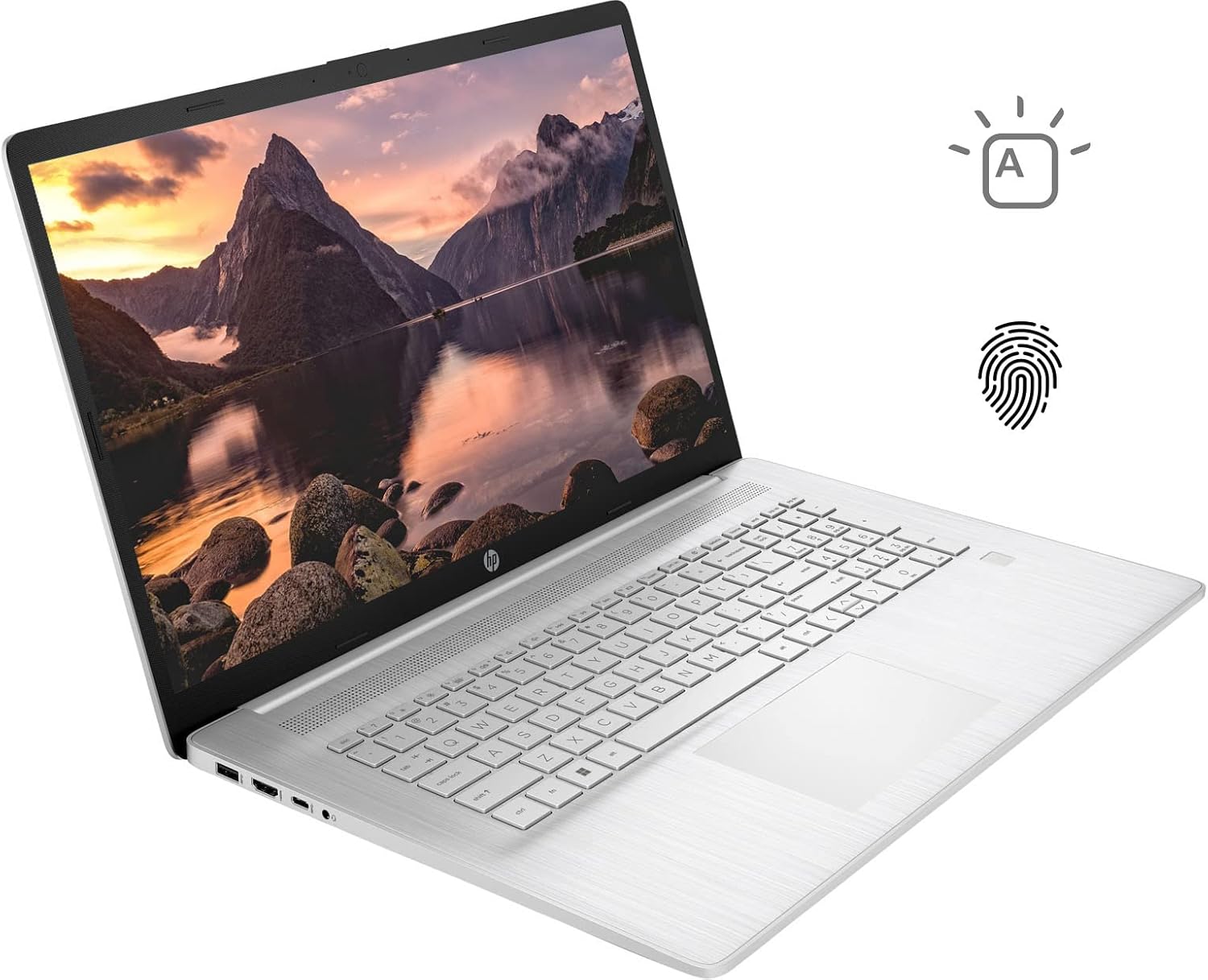
Figure 3.1: HP 17 Laptop with screen displaying a landscape image and keyboard visible.
3.1. Puertos del lado izquierdo
The left side of the laptop provides essential connectivity options.
- Puerto USB tipo A: Para conectar dispositivos USB.
- Puerto HDMI: Para conectar a pantallas externas.
- Puerto USB tipo C: Para transferencia de datos y conexión de dispositivos compatibles.
- Conector combinado de auriculares y micrófono: Para entrada y salida de audio.

Figure 3.2: Left side of the HP 17 Laptop, detailing the USB Type-A, HDMI, USB Type-C, and headphone/microphone combo ports.
3.2. Puertos del lado derecho
The right side of the laptop includes additional ports and indicators.
- Conector de alimentación: Para conectar el adaptador de corriente CA.
- Luz indicadora de carga: Muestra el estado de carga.
- Puerto USB tipo A: Para conectar dispositivos USB.

Figure 3.3: Right side of the HP 17 Laptop, showing the power connector, charging indicator, and USB Type-A port.
4. Configuración
4.1. Encendido inicial
- Connect the 45 W Smart AC power adapter to the power connector on the right side of the laptop and then to a power outlet.
- Abra la tapa de la computadora portátil.
- Presione el botón de encendido, normalmente ubicado en la parte superior derecha del teclado.
- Siga las instrucciones en pantalla para completar la configuración de Windows 11 Home, incluido el idioma, la región, la conexión de red y la creación de la cuenta de usuario.
4.2. Conexión de periféricos
Use the available USB ports (Type-A and Type-C) to connect external devices such as a mouse, external keyboard, or USB storage devices. The HDMI port allows connection to an external monitor or TV.
5. Funcionamiento de su portátil HP 17
5.1. Funcionalidad de la pantalla táctil
The 17.3-inch HD+ display supports touch input. You can interact with Windows 11 and applications directly using your fingers for navigation, scrolling, and selection.
5.2. Teclado retroiluminado
The keyboard features backlighting for use in low-light conditions. To toggle the backlight, press the F4 key. Repeated presses may cycle through different brightness levels or turn the backlight off.
5.3. Lector de huellas dactilares
For enhanced security and quick login, configure the integrated fingerprint reader through Windows Hello settings. Access these settings via Configuración > Cuentas > Opciones de inicio de sesión.
5.4. Conectividad inalámbrica
The laptop supports Wi-Fi 6 and Bluetooth 5.2. To connect to a Wi-Fi network, click the network icon in the taskbar, select your desired network, and enter the password if required. Bluetooth devices can be paired via Configuración > Bluetooth y dispositivos.
5.5. Webcámara y micrófonos
El HD integrado webcam and dual-array digital microphones are suitable for video conferencing and online communication. Ensure privacy settings are configured correctly in Windows to control application access to the camera and microphone.
6. Mantenimiento
6.1. Limpieza
- Pantalla: Utilice un paño suave y sin pelusa ligeramenteampLimpiar con agua o un limpiador de pantallas. Evitar productos químicos agresivos.
- Teclado y chasis: Utilice un paño suave y seco. Una lata de aire comprimido puede ayudar a eliminar el polvo entre las teclas.
- Asegúrese de que la computadora portátil esté apagada y desenchufada antes de limpiarla.
6.2. Cuidado de la batería
- Evite temperaturas extremas.
- For optimal battery life, avoid constantly keeping the laptop at 100% charge or letting it fully discharge frequently.
- Guarde la computadora portátil con una carga parcial (alrededor del 50%) si no la va a utilizar durante períodos prolongados.
6.3. Actualizaciones de software
Compruebe e instale periódicamente las actualizaciones de Windows a través de Configuración > Actualización de Windows. Also, ensure HP drivers and firmware are up to date using the HP Support Assistant application or HP's official websitio.
7. Solución de problemas
7.1. La computadora portátil no se enciende
- Asegúrese de que el adaptador de CA esté conectado de forma segura tanto a la computadora portátil como a una toma de corriente que funcione.
- Check the charging indicator light on the right side of the laptop. If it's not lit, try a different outlet or adapter if available.
- Perform a hard reset: Disconnect the AC adapter, press and hold the power button for 15 seconds, then reconnect the adapter and try to power on.
7.2. Problemas de visualización
- Sin pantalla: If the laptop powers on but the screen remains black, try connecting an external monitor via HDMI to check if the issue is with the laptop's internal display.
- La pantalla táctil no responde: Restart the laptop. If the issue persists, check for updated display drivers or run Windows Troubleshooter for hardware and devices.
7.3. Problemas de conectividad Wi-Fi
- Asegúrese de que Wi-Fi esté habilitado en la configuración de Windows.
- Reinicie su enrutador y módem.
- Ejecute el solucionador de problemas de red de Windows.
- Actualice los controladores de su adaptador inalámbrico.
8. Especificaciones
| Nombre del modelo | HP 17t Notebook |
| Mostrar | 17.3" HD+ (1600 x 900) BrightView Pantalla táctil |
| Procesador | Intel Core i7-1255U de 12.ª generación (10 núcleos, hasta 4.70 GHz) |
| Gráficos | Gráficos Intel Iris Xe (integrados) |
| RAM | 64 GB DDR4 |
| Almacenamiento | SSD PCIe NVMe M.2 de 2 TB |
| Sistema operativo | Inicio de Windows 11 |
| Conectividad inalámbrica | Wi-Fi 6 (2x2), Bluetooth 5.2 |
| Puertos | 1x USB Type-C (5Gbps), 2x USB Type-A (5Gbps), 1x HDMI 1.4b, 1x Headphone/Microphone Combo |
| Teclado | Backlit Keyboard, Numeric Keyboard |
| Seguridad | Lector de huellas dactilares |
| Cámara | HD incorporado Webcam with dual-array digital microphones |
| Batería | Batería prismática de iones de litio de 3 celdas y 41 Wh |
| Adaptador de corriente | Adaptador de alimentación de CA inteligente de 45 W |
| Peso | 5.25 libras (aprox. 2.38 kg) |
| Dimensiones (LxAnxAl) | 15.78 x 10.15 x 0.78 pulgadas (aprox. 40.08 x 25.78 x 1.98 cm) |
| Color | Plata |
9. Garantía y soporte
Para obtener información sobre la garantía, consulte la documentación incluida con su producto o visite el soporte técnico oficial de HP. website. If you encounter issues not covered in this manual or require further assistance, please contact HP customer support.
You can find support resources, drivers, and contact information on the official HP websitio: www.hp.com/support