Introducción
Thank you for choosing the Silvergear Smart Food Scale. This electronic kitchen scale is designed to help you accurately track your nutritional intake, including calories, proteins, fats, and more, through its dedicated mobile application. With a precision of 0.1g and a maximum capacity of 5kg, it provides reliable measurements for your dietary needs.
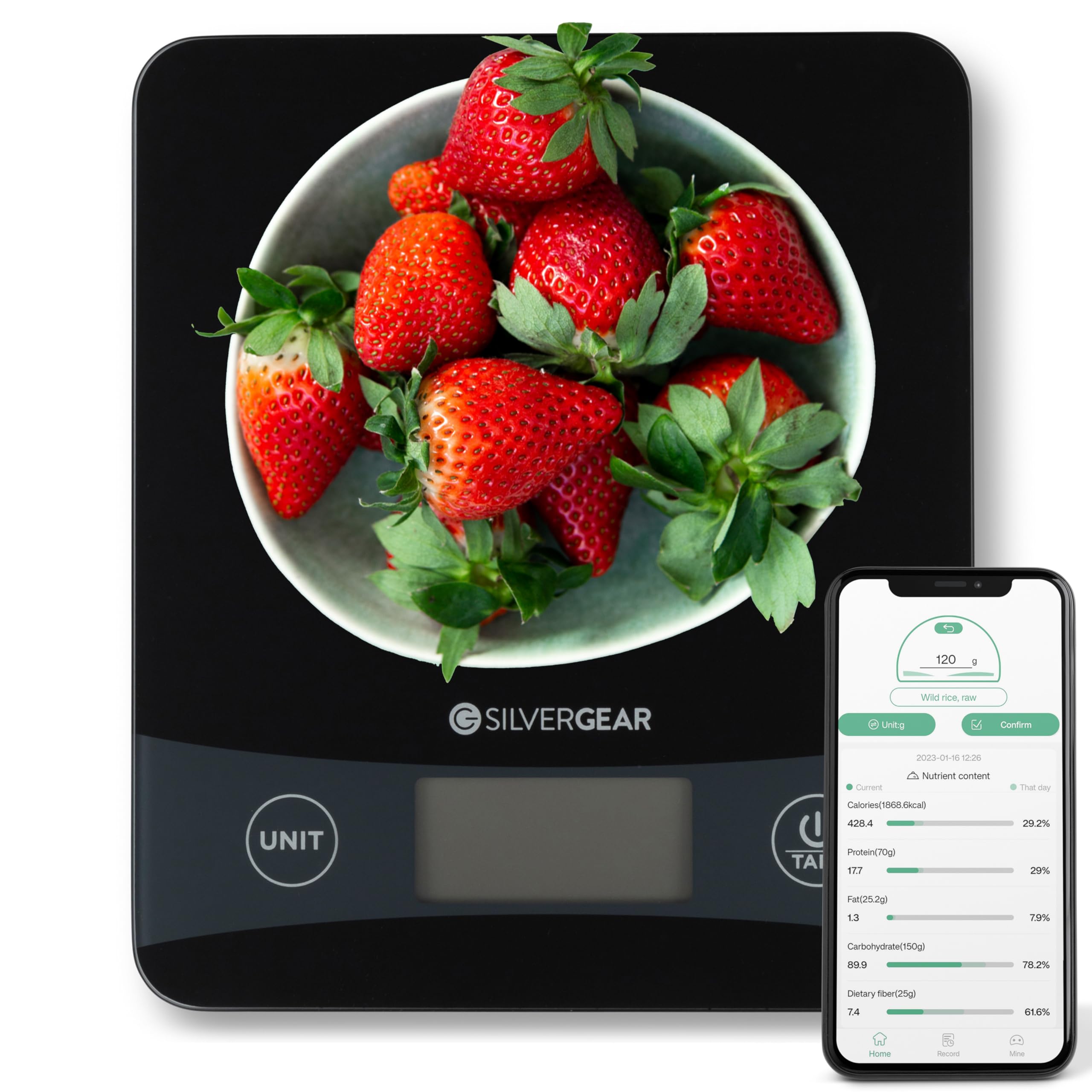
Image: The Silvergear Smart Food Scale, black with a digital display and 'UNIT' and 'TARE' buttons, positioned centrally on a speckled kitchen counter. Various fresh food items such as bananas, apples, carrots, and rice in bowls are arranged around the scale.
Información de seguridad
- No sumerja la báscula en agua ni en otros líquidos.
- Limpiar la báscula con adamp paño; no utilice limpiadores abrasivos.
- Coloque la báscula sobre una superficie plana y estable para obtener mediciones precisas.
- No sobrecargue la báscula más allá de su capacidad máxima de 5 kg.
- Mantener fuera del alcance de los niños.
Configuración
1. Instalación de la batería
The scale requires batteries (type not specified, typically AAA or AA). Open the battery compartment on the underside of the scale and insert the batteries, ensuring correct polarity.
2. Instalación y emparejamiento de la aplicación
- Download the companion nutrition tracking app (e.g., "NutriDiary" or similar, as suggested by packaging image) from your smartphone's app store (iOS or Android).
- Asegúrese de que Bluetooth esté habilitado en su teléfono inteligente.
- Open the app and follow the on-screen instructions to pair your Silvergear Smart Food Scale. The app will guide you through the connection process.

Image: The Silvergear Smart Food Scale, black with a digital display, positioned next to a smartphone. The smartphone screen shows the user interface of the nutrition tracking app, displaying various nutrient values and progress graphs.
Instrucciones de funcionamiento
1. Encendido y apagado
Presione el TARA button to turn on the scale. The display will light up. To turn off, press and hold the TARA button for a few seconds, or the scale will automatically shut off after a period of inactivity.
2. Cambio de unidades
Presione el UNIDAD button to cycle through available measurement units (e.g., grams (g), ounces (oz), pounds (lb), milliliters (ml)). The selected unit will be displayed on the LCD screen.
3. Uso de la función de tara
The Tare function allows you to weigh ingredients in a container by subtracting the container's weight.
- Coloque un recipiente vacío en la báscula.
- Presione el TARA Botón. La pantalla se reiniciará a cero.
- Add your ingredients to the container. The scale will display only the weight of the ingredients.
4. Tracking Nutrition with the App
Once the scale is paired with the app:
- Place the food item or container with food on the scale.
- The weight will be sent directly to the app.
- In the app, select the type of food you are weighing. The app will then calculate and display detailed nutritional information, including calories, proteins, fats, carbohydrates, and more.
- Record your meal in the app to track your daily intake and monitor your progress over time through graphs and summaries.
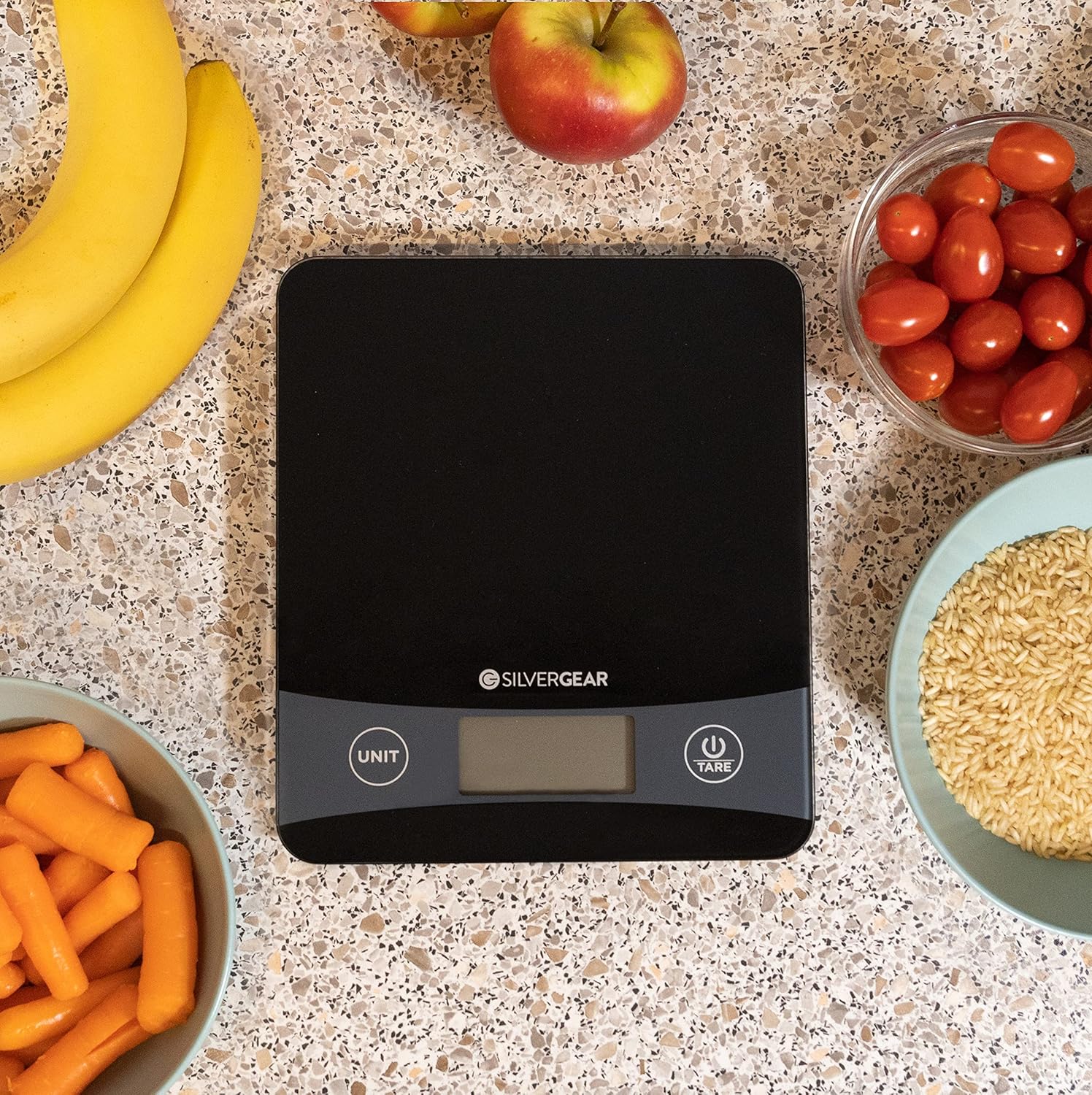
Image: A person's hands are shown pouring brown rice from a glass bowl into a light blue bowl placed on the Silvergear Smart Food Scale. The scale displays a weight of 69.1. A smartphone next to the scale shows the companion app, which is tracking the nutritional content of the rice.

Image: A person's hands are shown holding a smartphone displaying the nutrition tracking app, while a bowl of baby carrots rests on the Silvergear Smart Food Scale. The scale shows a weight of 287.1, and the app displays detailed nutritional data for the carrots.

Image: A person's hand holds a smartphone displaying the nutrition tracking app, which shows nutrient content for "Bananas, raw" with a weight of 263g. A bowl of sliced bananas is on the Silvergear Smart Food Scale, which also displays a weight of 263.
Mantenimiento
Limpieza
Limpie la superficie de la báscula con un paño suave.amp cloth. Do not use harsh chemicals or abrasive cleaning agents. Ensure the scale is dry before storage or next use.
Almacenamiento
Store the scale in a cool, dry place. Avoid extreme temperatures and direct sunlight. If not used for an extended period, it is recommended to remove the batteries.
Solución de problemas
- La báscula no se enciende: Verifique la instalación de las baterías y asegúrese de que no estén agotadas. Reemplácelas si es necesario.
- Lecturas inexactas: Ensure the scale is on a flat, stable surface. Avoid placing it near vibrating appliances. Do not exceed the maximum weight capacity.
- La aplicación no se conecta: Ensure Bluetooth is enabled on your phone and the scale is turned on. Restart both the app and the scale, then attempt to re-pair.
- No nutritional data in app: Ensure you have selected the correct food item in the app after weighing. Check for app updates.
Presupuesto
| Marca | Engranaje plateado |
| Número de modelo | 3315 |
| Nombre del producto | Smart Food Scale with Nutrition Tracking App |
| Capacidad máxima | 5 kilogramos |
| Precisión | 0.1 gramos |
| Conectividad | Bluetooth (para conexión de aplicaciones) |
| Fuente de poder | Batteries (not included, type typically AAA or AA) |
| País natal | Porcelana |
Garantía y soporte
Para obtener información sobre la garantía y atención al cliente, consulte la documentación incluida con su compra o visite el sitio web oficial de Silvergear. webSitio. Conserve su comprobante de compra para cualquier reclamación de garantía.
For further assistance, you may contact the manufacturer, Karsten International.