Keychron Q6P-M1

Manual de usuario del teclado mecánico personalizado de aluminio Keychron Q6 Pro

Model: Q6P-M1

1. Introducción

Welcome to the user manual for your Keychron Q6 Pro Full Aluminum QMK/VIA Programmable Knob Bluetooth Custom Mechanical Keyboard. This keyboard is designed to provide an exceptional typing experience with its full-size layout, durable aluminum body, and advanced customization options. It features hot-swappable Keychron K Pro Red mechanical switches, KSA double-shot PBT keycaps, a double-gasket design, screw-in stabilizers, and south-facing RGB backlighting.

The Q6 Pro offers both wireless (Bluetooth 5.1) and wired (USB Type-C) connectivity, making it versatile for various devices including laptops, phones, and tablets. Its QMK/VIA compatibility allows for extensive key remapping and macro creation, powered by an ultra-low-power ARM Cortex-M4 32-bit STM32L432 chip.

Keychron Q6 Pro keyboard with red switch detail

Image 1.1: Keychron Q6 Pro Full Aluminum Custom Mechanical Keyboard with a close-up of a red switch.

2. Contenido del paquete

Por favor verifique que todos los artículos estén presentes en su paquete:

  • 1x teclado completamente ensamblado
  • 1x caja de aluminio
  • 1x PCB (Printed Circuit Board)
  • 1 placa de ordenador.
  • 1 espuma absorbente de sonido.
  • 1x estuche de espuma
  • 16 juntas (12 instaladas y 4 en la caja)
  • 8 juegos x estabilizadores
  • 1 juego de teclas (PBT KSA de doble inyección)
  • 1 juego x interruptores
  • 1x cable tipo C a tipo C
  • 1 adaptador de tipo A a tipo C.
  • 1 extractor de interruptor.
  • 1x extractor de teclas
  • 1x destornillador
  • 1x llave hexagonal
Diagram showing contents of the Keychron Q6 Pro package

Image 2.1: Visual representation of the Keychron Q6 Pro package contents, including the keyboard, cables, and tools.

3. Configuración

3.1 Carga inicial

Before first use, it is recommended to fully charge the keyboard. Connect the provided USB Type-C cable to the keyboard's Type-C port and the other end to a USB power source (e.g., computer, wall adapter). The keyboard contains a 4000 mAh rechargeable Li-polymer battery.

3.2 conexiones cableadas

To use the keyboard in wired mode, connect the USB Type-C cable from the keyboard to your computer. The keyboard will automatically detect the wired connection. The polling rate in wired mode is 1000 Hz.

3.3 Conexión inalámbrica Bluetooth

The Q6 Pro can connect to up to 3 devices wirelessly via Bluetooth 5.1.

  1. Asegúrese de que el teclado esté cargado.
  2. Toggle the switch on the back of the keyboard to the Bluetooth (BT) mode.
  3. En su dispositivo (computadora portátil, teléfono, tableta), habilite Bluetooth y busque los dispositivos disponibles.
  4. Select "Keychron Q6 Pro" from the list of devices.
  5. Si se le solicita, ingrese el código de emparejamiento que se muestra en la pantalla.
  6. To switch between paired devices, use the designated function keys (refer to the keyboard layout or QMK/VIA software for specific key combinations). The polling rate in wireless mode is 90 Hz.
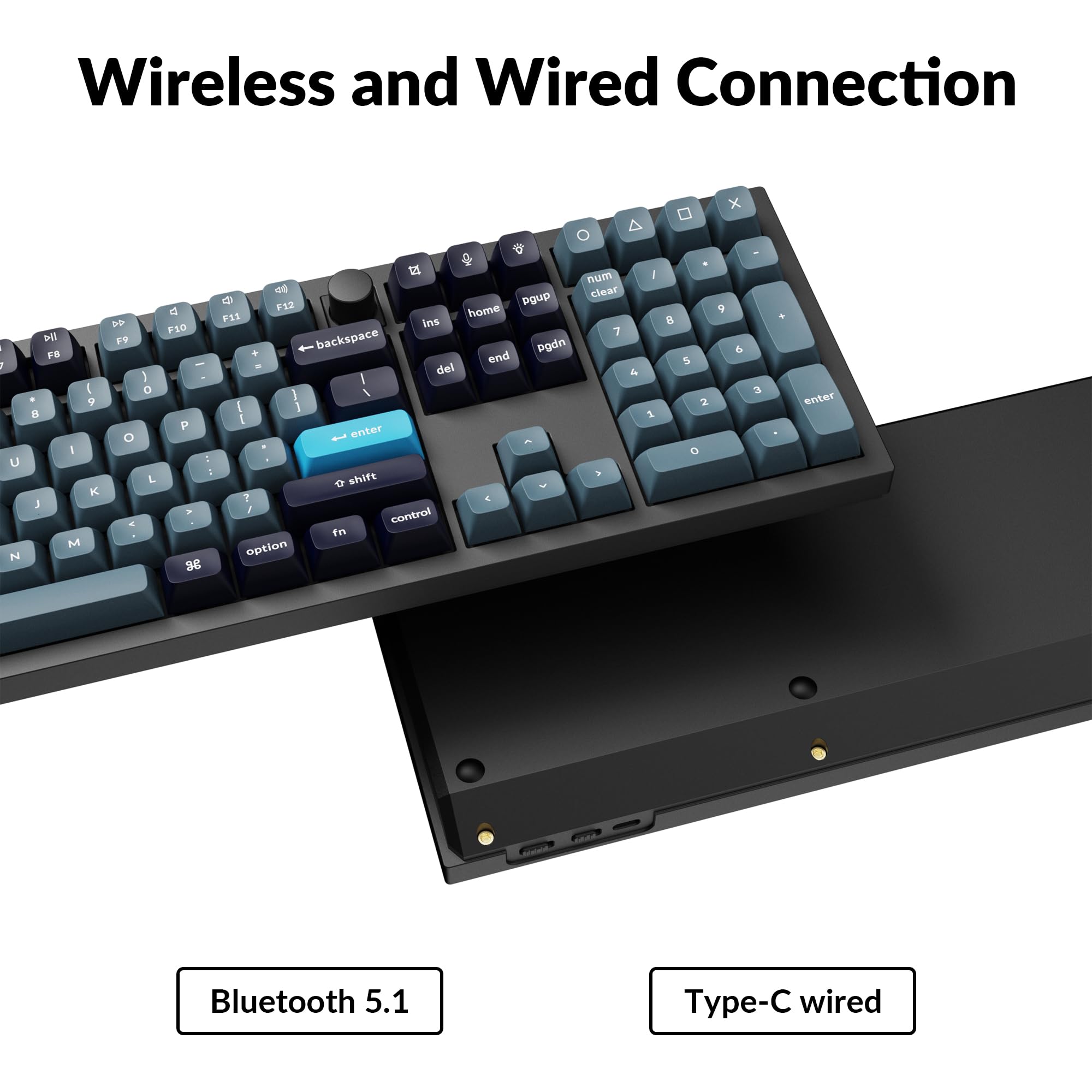
Close-up of Keychron Q6 Pro's USB-C port and wireless switch

Image 3.1: The USB Type-C port and the wireless/wired mode switch on the Keychron Q6 Pro keyboard.

3.4 Cambio de sistema operativo

The keyboard is compatible with both Mac and Windows operating systems. Use the OS switch located on the back of the keyboard to select the appropriate mode for your system. This ensures correct key mapping for modifier keys like Command/Alt.

4. Instrucciones de funcionamiento

4.1 Personalización de QMK/VIA

The Keychron Q6 Pro supports QMK/VIA firmware, allowing extensive customization of key functions, macros, and lighting effects. To use VIA:

  1. Descargue el software VIA desde el sitio oficial de Keychron websitiowww.keychron.com/pages/qmk-via).
  2. Connect your keyboard to your computer via the USB Type-C cable.
  3. Launch the VIA application. The software should automatically detect your Q6 Pro keyboard.
  4. You can now remap any key, create complex macros, and customize lighting settings across multiple layers.
Captura de pantalla de la interfaz del software VIA para la personalización del teclado

Image 4.1: The VIA software interface demonstrating key remapping and layer management.

4.2 Retroiluminación RGB

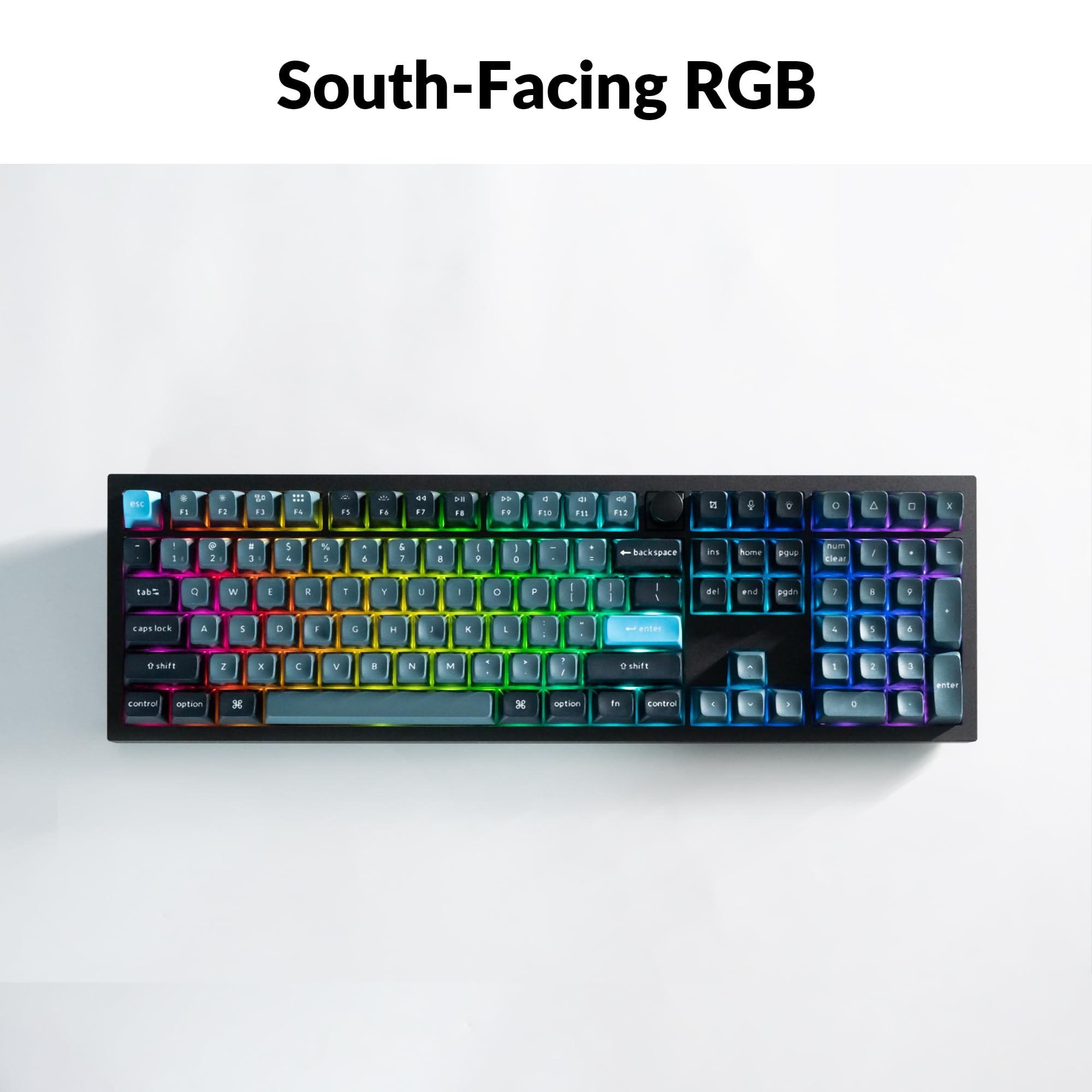
The Q6 Pro features south-facing RGB backlighting with 22 types of preset effects. You can adjust the RGB hue, saturation, brightness, and effect speed directly on the keyboard using specific key combinations (refer to the keyboard's default layout or VIA software for details). These settings can also be remapped via QMK/VIA.

Keychron Q6 Pro keyboard displaying vibrant RGB backlighting

Image 4.2: The Keychron Q6 Pro keyboard illuminated with south-facing RGB backlighting.

4.3 Perilla programable

The integrated programmable knob typically controls volume by default (turn to adjust, press to mute/unmute). Its function can be fully customized using the QMK/VIA software to perform other actions such as scrolling, zooming, or switching applications.

5. Mantenimiento

5.1 Limpieza del teclado

Para mantener un rendimiento y una apariencia óptimos, limpie periódicamente su teclado:

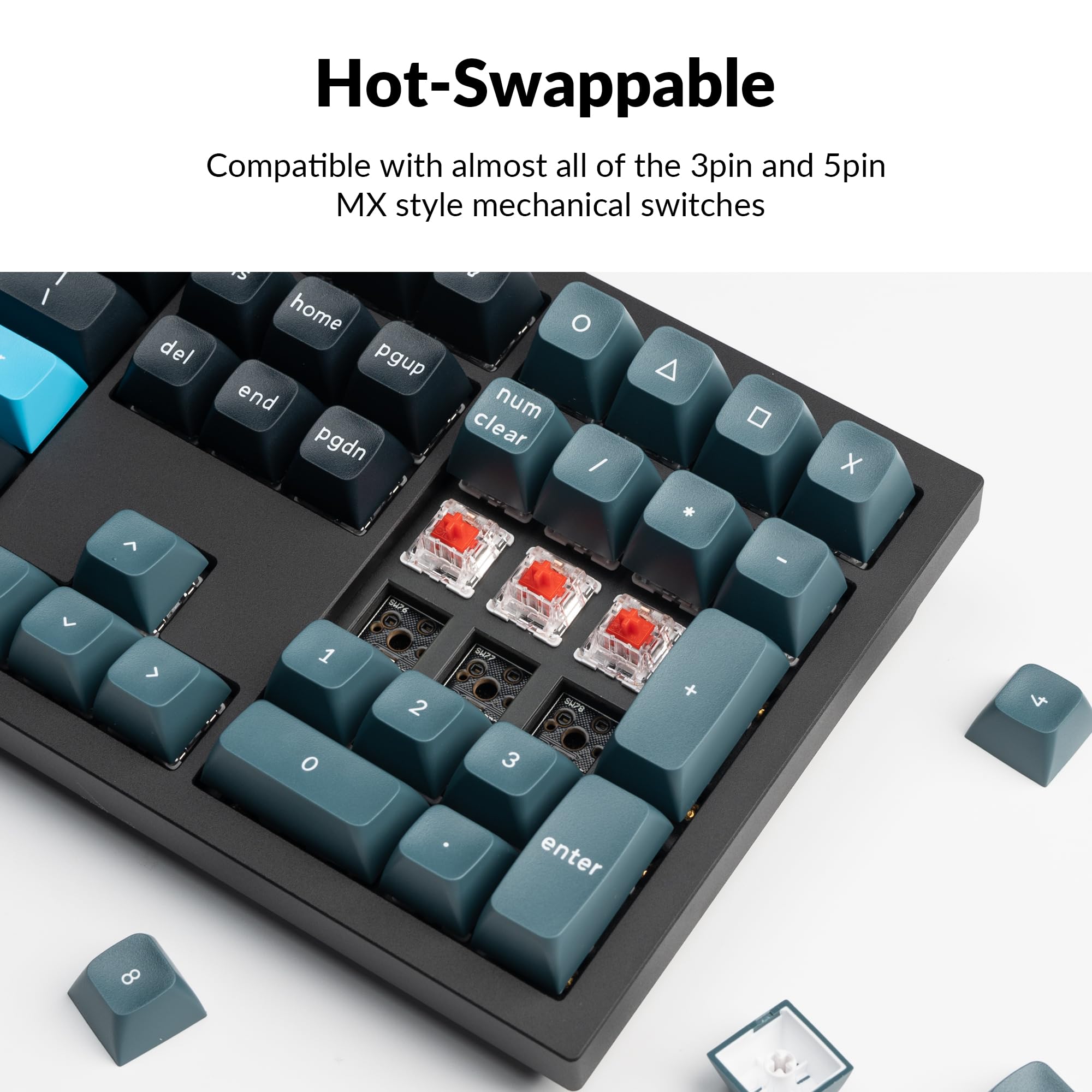
5.2 Conmutadores intercambiables en caliente

The Q6 Pro features hot-swappable sockets, allowing you to change switches without soldering. It is compatible with most 3-pin and 5-pin MX-style mechanical switches.

  1. Quitar la tecla: Utilice el extractor de teclas para quitar con cuidado la tecla deseada.
  2. Quitar interruptor: Utilice el extractor de interruptores para sujetar con cuidado los clips superior e inferior del interruptor y tirar de él hacia arriba.
  3. Instalar nuevo conmutador: Alinee los pines del nuevo interruptor con los orificios de la placa de circuito impreso. Asegúrese de que los pines estén rectos para evitar que se doblen. Presione el interruptor firmemente hasta que encaje en su lugar.
  4. Vuelva a colocar la tecla: Place the keycap onto the new switch stem and press down gently.

Always ensure the keyboard is disconnected from power before hot-swapping switches to prevent damage.

Close-up of hot-swappable switches on the Keychron Q6 Pro keyboard

Image 5.1: Demonstrating the hot-swappable feature of the Keychron Q6 Pro, showing switches being removed and inserted.

6. Solución de problemas

6.1 El teclado no responde

6.2 Problemas de conectividad Bluetooth

6.3 Teclas que no se registran o se escriben dos veces

6.4 La retroiluminación RGB no funciona

7. Especificaciones

Table of Keychron Q6 Pro technical specifications

Image 7.1: Detailed technical specifications for the Keychron Q6 Pro keyboard.

Keychron Q6 Pro Technical Specifications
CaracterísticaDetalle
ModeloQ6P-M1
Dimensiones (L x An x Al)17.56 x 5.39 x 1.28 pulgadas (446 x 137 x 32.6 mm)
Peso6.69 libras (3034 g)
Material del cuerpoFull CNC machined aluminum
TeclasKSA double-shot PBT (not shine-through)
InterruptoresKeychron K Pro Red Mechanical Switches (Hot-swappable)
Iluminar desde el fondoLED RGB orientado al sur
ConectividadBluetooth 5.1 / USB Type-C wired
Tasa de sondeo1000 Hz (wired) / 90 Hz (wireless)
Batería4000 mAh Rechargeable Li-polymer battery
Battery Life (Backlight off)Hasta 300 horas
Battery Life (RGB)Hasta 100 horas (brillo mínimo)
Sistemas compatiblesmac OS/Windows/Linux
MCUARM Cortex-M4 de 32 bits STM32L432 de consumo ultrabajo (Flash de 128 KB)
Cambio de clave N (NKRO)Yes (both wireless and wired modes)
Entorno operativo-10 a 50°C

8. Garantía y soporte

Keychron products are manufactured with high-quality standards. For warranty information, technical support, or to access additional resources (such as firmware updates or VIA keymap files), please visit the official Keychron websitio:

www.keychron.com

También puede considerar comprarasing extended protection plans for your device. Details on available protection plans can be found where you purchased the product or through authorized retailers.

Documentos relacionados - Q6P-M1

Preview Teclado mecánico Bluetooth Keychron Q2 Pro: manual de usuario, configuración y características
Guía completa del teclado mecánico Bluetooth Keychron Q2 Pro. Descubre sus características, configuración, reasignación de teclas VIA, capas, conectividad, resolución de problemas, especificaciones e información de seguridad.
Preview Guía de inicio rápido de Keychron C2 Pro: configuración, software VIA y personalización
Una guía de inicio rápido completa para el teclado mecánico Keychron C2 Pro, que cubre el cambio de sistema, la configuración del software VIA, la reasignación de teclas, los ajustes de retroiluminación y los procedimientos de restablecimiento de fábrica.
Preview Manual de usuario y guía del teclado mecánico Bluetooth Keychron Q5 Pro
Manual de usuario completo para el teclado mecánico Bluetooth Keychron Q5 Pro, que cubre configuración, conectividad, personalización con el software VIA, controles de retroiluminación, resolución de problemas y especificaciones.
Preview Guía de inicio rápido del teclado mecánico inalámbrico Keychron K2 Pro QMK/VIA
Guía de inicio rápido para el teclado mecánico inalámbrico Keychron K2 Pro QMK/VIA, que cubre la conexión por Bluetooth y cable, reasignación de teclas con el software VIA, controles de retroiluminación, garantía y restablecimiento de fábrica.
Preview Manual de usuario y guía del teclado mecánico Bluetooth Keychron K2 Pro
Un manual de usuario completo para el teclado mecánico Bluetooth Keychron K2 Pro. Esta guía abarca la configuración, la conectividad (Bluetooth y con cable), la personalización del mapa de teclas con el software VIA, la gestión de capas, los controles de retroiluminación, la resolución de problemas, las especificaciones y las precauciones de seguridad.
Preview Manual de usuario del teclado mecánico inalámbrico Keychron K10 versión 2
Este documento proporciona un manual de usuario completo para el teclado mecánico inalámbrico Keychron K10 versión 2, que abarca la configuración, las características, la resolución de problemas y las especificaciones. Aprenda a conectarlo por Bluetooth o con cable, personalizar la retroiluminación, gestionar capas y usar la aplicación Keychron Launcher.