1. Producto terminadoview
The FITNATE Smart Door Knob offers convenient keyless entry with biometric fingerprint recognition and remote app control. Designed for enhanced security and ease of use, it is suitable for various indoor applications such as bedrooms, apartments, hotels, and offices. This smart lock combines modern design with advanced security features, including unlock records and automatic locking.

Figure 1: FITNATE Smart Door Knob with app interface and traditional keys.
2. Contenido del paquete
- FITNATE Smart Door Knob (Exterior and Interior Knobs)
- Mecanismo de cierre
- Tornillos de montaje
- Llaves mecánicas (2)
- Plantilla de instalación
- Manual de usuario (este documento)
3. Especificaciones
| Característica | Detalle |
|---|---|
| Marca | AJUSTE |
| Nombre del modelo | Door Knob (HS0396K-BDFBA) |
| Tipo de bloqueo | Biométrico |
| Característica especial | Huella dactilar |
| Material | Metal |
| Color | Negro mate |
| Dimensiones del artículo (largo x ancho x alto) | 7.95 x 3.23 x 3.23 pulgadas |
| Peso del artículo | 2 libras |
| Método de control | Aplicación, toque |
| Protocolo de conectividad | Bluetooth |
| Fuente de poder | 4 pilas AA (no incluidas) |
4. Guía de instalación
Before installation, ensure your door meets the required dimensions:
- Door Hole Diameter: 2-1/8" (54mm)
- Door Thickness: 1-3/8" to 2-1/8" (35-54mm)
- Backset: Adjustable for 2-3/8" or 2-3/4" (60 or 70mm)

Figura 2: Requisitos de dimensión de la puerta para la instalación.
4.1 Instalación paso a paso
- Prepara la puerta: If replacing an existing knob, remove it. Use the provided template to mark and drill holes if installing on a new door.
- Instale el pestillo: Insert the latch into the door edge hole. Ensure the latch bolt faces the correct direction for your door swing. Secure it with screws.
- Instalar la perilla exterior: Pass the spindle and power cable from the exterior knob through the latch and door hole.
- Instalar la perilla interior: Connect the power cable from the exterior knob to the interior knob. Align the interior knob with the exterior knob and secure it with the long screws. Ensure the power cable is not pinched.
- Inserte las baterías: Open the battery cover on the interior knob. Insert 4 AA alkaline batteries, ensuring correct polarity (+/-).
- Coloque la tapa de la batería: Coloque de forma segura la tapa de la batería.

Figure 3: Visual guide for easy installation, showing components and suitable door types.
4.2 Guía de instalación en vídeo
For a detailed visual guide on installation, please refer to the official video below:
Video 1: "How to Install - FITNATE Door Knob HS0396". This video provides a comprehensive step-by-step guide for installing the smart door knob.
5. Instrucciones de funcionamiento
5.1 Descarga y configuración de la aplicación
To utilize the smart features of your FITNATE door knob, download the "TUYA SMART" or "SMART LIFE" app from your device's app store (iOS App Store or Google Play Store).

Figure 4: The smart lock integrates with the app for user management and tracking unlock history.
- Crear una cuenta: Abra la aplicación y cree una nueva cuenta de usuario o inicie sesión si ya tiene una.
- Agregar dispositivo: Click the "+" icon in the upper right corner of the app. Ensure Bluetooth is enabled on your phone. Touch the fingerprint screen of the lock to enable Bluetooth for easier connection.
- Discover & Add: The app will discover the "JB-ZAM" device. Click "Add" to pair.
- Rename Lock: Once successfully connected, you can click the device icon (e.g., "KNOB LOCK") to rename your lock for easy identification.
For a visual guide on app setup and usage, refer to the videos below:
Video 2: "FITNATE Fingerprint Door Knob with App Control". This video demonstrates the app control features of the smart door knob.
Video 3: "FITNATE HS0396 Door Knob - How to Use the APP". This video provides instructions on how to effectively use the app with your smart door knob.
5.2 Gestión de huellas dactilares
The lock supports storing up to 20 fingerprints for various users.

Figure 5: The smart door knob supports multiple user fingerprints for access.
- Agregar huella digital: In the app, navigate to "Member Management". Choose "Admin" or another user, then click "Fingerprint" and "Add".
- Inscribir Huella Dactilar: Follow the on-screen prompts to place your finger on the sensor multiple times, adjusting the angle slightly for comprehensive enrollment. Ensure your finger is clean and dry.
- Rename Fingerprint: After successful enrollment, you can name the fingerprint for easy identification.
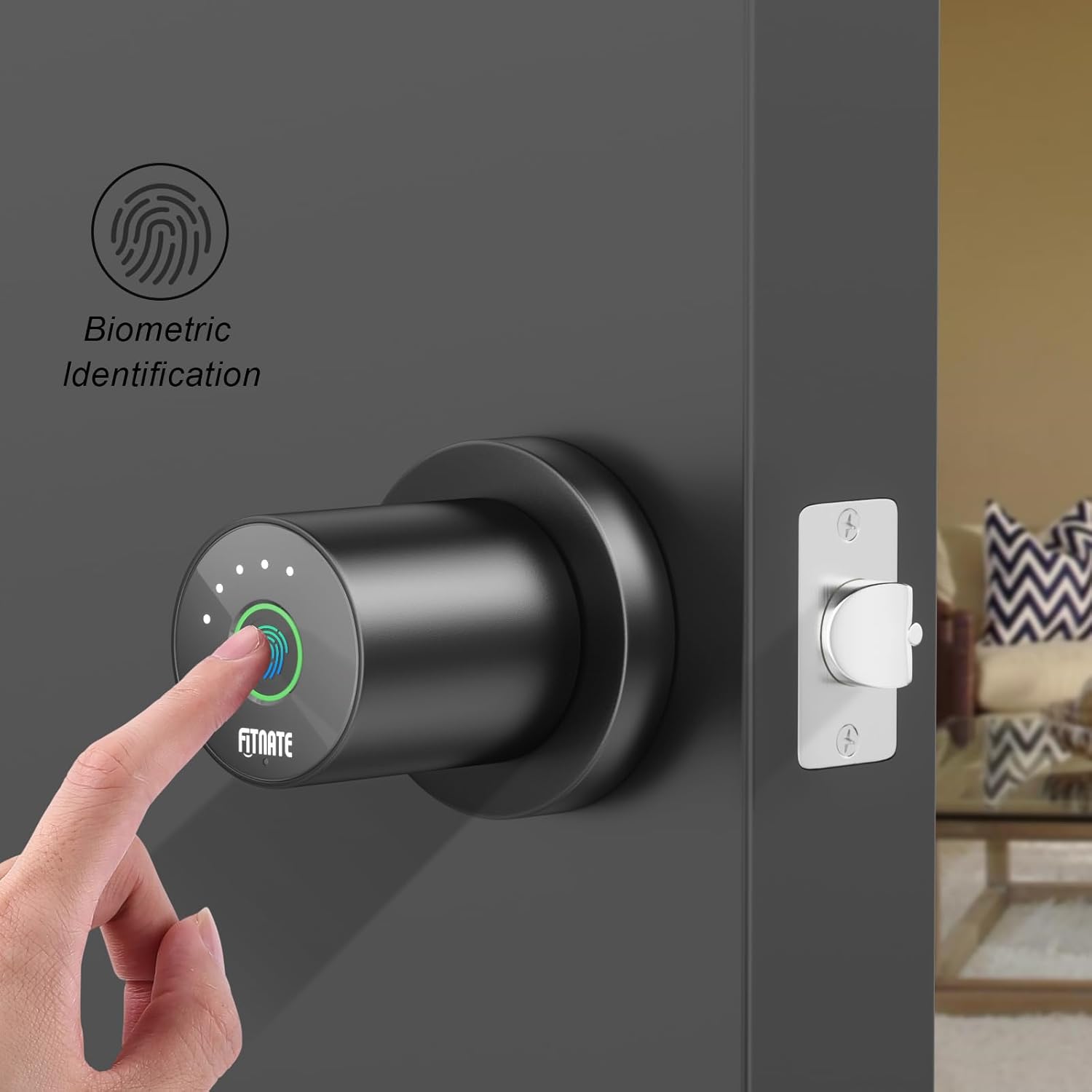
Figure 6: Biometric identification in action on the smart door knob.
5.3 Métodos de desbloqueo
- Desbloqueo de huella digital: Place your enrolled finger on the sensor. The light will turn green, and the lock will unlock.
- Desbloqueo de aplicaciones: Open the app, and on the main lock page, hold and drag the key icon to the unlocked padlock icon to unlock the door remotely.
- Desbloqueo con llave mecánica: In case of battery depletion or electronic malfunction, use the provided mechanical keys to unlock the door. The keyhole is located at the bottom of the knob.

Figure 7: The smart door knob offers convenient one-touch fingerprint unlocking.

Figure 8: The lock features a low battery alarm and a mechanical key for backup access.
5.4 Funciones avanzadas de la aplicación
- Desbloquear historial: View a record of when the lock was opened and by which user. Access this by entering the lock page and clicking "Unlock Record" at the bottom.
- Modo de paso: Enable this mode in the app (under "More") to keep the lock in a normally open state, allowing free passage without requiring a fingerprint or app unlock.
- Mute Lock Volume: Adjust or mute the lock's sound volume through the app settings (under "More" > "Lock Volume").
- Desbloqueo remoto: The app allows for remote unlocking, enabling you to grant access from anywhere.
- Bloqueo automático: Configure automatic locking settings to ensure the door is secured after a set period.
6. Mantenimiento
- Reemplazo de batería: The door lock requires four LR6/AA/1.5V alkaline batteries. When a low battery reminder occurs (battery icon red with continuous beeping), replace the batteries within a week to ensure proper functionality.
- Limpieza: Limpie la superficie de la cerradura con un paño suave y seco. Evite usar limpiadores abrasivos o disolventes que puedan dañar el acabado o los componentes electrónicos.
- Cuidado del sensor de huellas dactilares: Mantenga el sensor de huellas dactilares limpio y seco para un rendimiento óptimo.
7. Solución de problemas
- La cerradura no responde:
- Verifique el nivel de la batería y reemplácela si está baja.
- Ensure the power cable connection inside the interior knob is secure.
- Huella dactilar no reconocida:
- Asegúrese de que su dedo esté limpio y seco.
- Try re-enrolling your fingerprint, adjusting the angle during the process.
- Asegúrese de que el sensor de huellas dactilares esté limpio.
- Problemas de conexión de la aplicación:
- Asegúrese de que Bluetooth esté habilitado en su teléfono.
- Reinicie la aplicación e intente volver a conectarse.
- Touch the fingerprint sensor on the lock to activate Bluetooth pairing mode.
- La puerta no se bloquea/desbloquea correctamente:
- Check for any obstructions in the door frame or latch.
- Verify that the latch mechanism is installed correctly and moves freely.
- Ensure the interior and exterior knobs are properly aligned and secured.
- Red light on fingerprint sensor: Indicates an unlock failed. Re-attempt with an enrolled fingerprint.
8. Garantía y soporte
FITNATE products are designed for durability and performance. For warranty information, technical support, or assistance with your Smart Door Knob (Model: HS0396K-BDFBA), please refer to the contact information provided on the product packaging or the official FITNATE websitio.
También puede encontrar ayuda adicional y preguntas frecuentes en FITNATE Store on Amazon.


