1. Introducción
Thank you for choosing the Qulose Wireless Bluetooth Keyboard. This manual provides essential information for setting up, operating, and maintaining your new keyboard. Please read it carefully before use.
1.1 producto másview
This wireless keyboard is designed to enhance your Microsoft Surface Pro experience, transforming your tablet into a versatile laptop. It features a magnetic attachment, Bluetooth 5.1 connectivity, a precision trackpad, and a built-in pen holder.

Imagen: de arriba hacia abajo view of the Qulose Wireless Bluetooth Keyboard, showcasing its full QWERTY layout and integrated trackpad.
1.2 Compatibilidad
This keyboard is compatible with the following Microsoft Surface Pro models:
- Surface Pro 11 (2024) 13"
- Surface Pro 10 (2024 new release) 13"
- Surface Pro 9 (2022) 13"
- Surface Pro 8 (2021) 13"
- Surface Pro X (2019-2021) 13"
Note: This Bluetooth keyboard is NOT compatible with Surface Go series or Surface Pro 7+/7/6/5/4/3 tablets.

Image: A visual chart detailing compatible and incompatible Microsoft Surface Pro models for the keyboard.
2. ¿Qué hay en la caja?
- Qulose Wireless Bluetooth Keyboard for Surface Pro
- Type-C Charging Cable (Charger not included)
- Manual de usuario
3. Instrucciones de configuración
3.1 Carga del teclado
Before initial use, fully charge the keyboard. Connect the provided Type-C charging cable to the keyboard's charging port and a suitable USB power source (e.g., computer USB port, USB wall adapter). The battery status indicator will show charging status.
- Capacidad de la batería: iones de litio de 180 mAh
- Tiempo de carga: Aproximadamente 3 horas
- Battery Life: Up to 6 months on a single charge (based on typical usage)
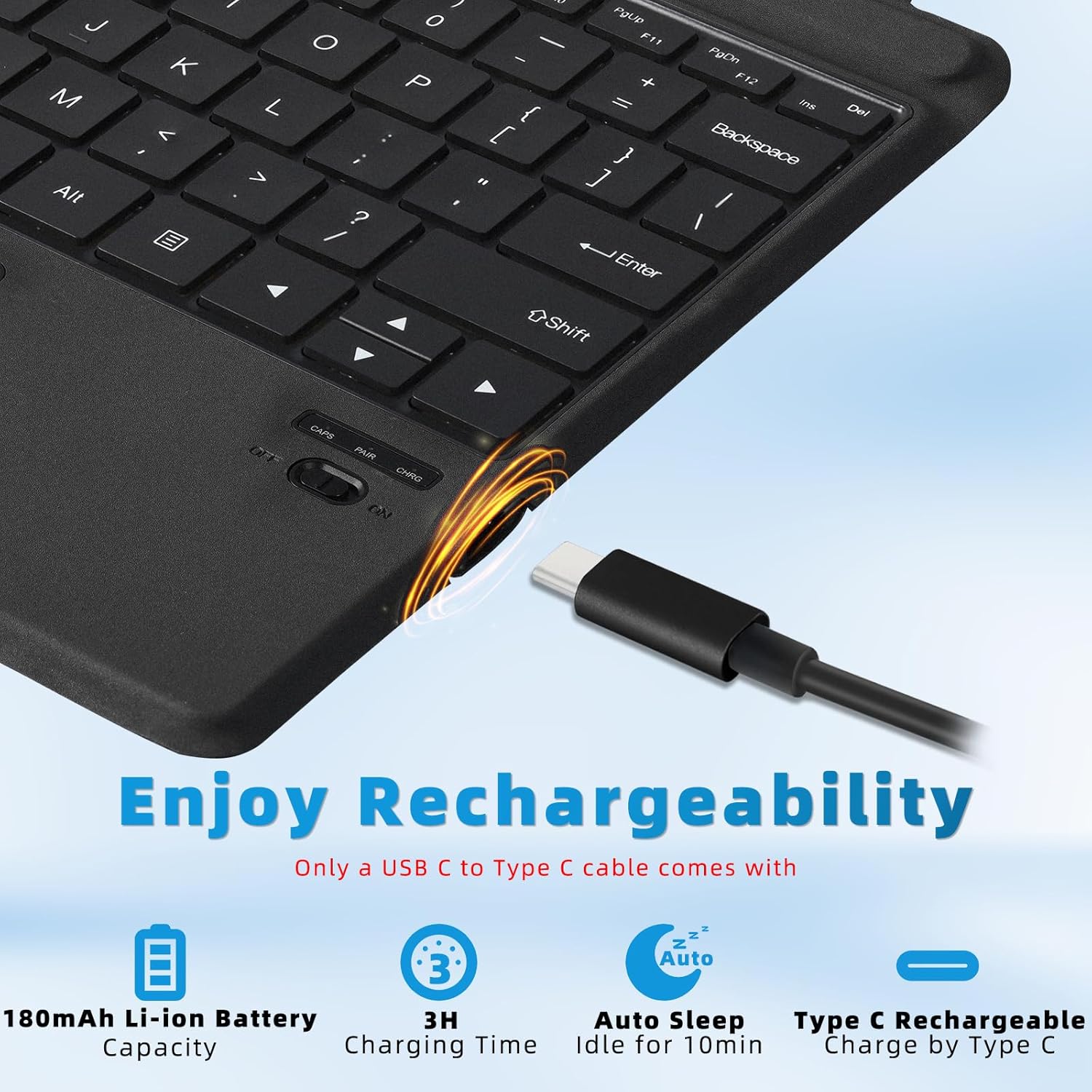
Imagen: Primer plano view of the keyboard's Type-C charging port and battery indicators.
3.2 Attaching the Keyboard to your Surface Pro
The keyboard features a powerful magnetic attachment strip. Align the top edge of the keyboard with the magnetic connector on your Surface Pro. The keyboard will snap securely into place, transforming your device into a laptop-like setup.

Image: Illustration showing the magnetic attachment of the keyboard to a Surface Pro tablet, highlighting the strong magnetic connection.
3.3 Emparejamiento Bluetooth
Follow these steps to pair your Qulose keyboard with your Surface Pro:
- Encienda el interruptor de encendido: Localice el interruptor de encendido en el costado del teclado y deslícelo a la posición “ENCENDIDO”.
- Activar el emparejamiento Bluetooth: Press the "Fn" + "C" keys simultaneously on the keyboard to activate Bluetooth pairing mode. The Bluetooth LED indicator will start blinking.
- Enable Bluetooth on your Surface Pro: En tu Surface Pro, ve a Ajustes > Bluetooth y dispositivos and ensure Bluetooth is turned 'On'.
- Seleccione el teclado: In the list of available Bluetooth devices, select "Bluetooth Keyboard" to initiate pairing.
- Confirmar conexión: Once paired, the Bluetooth LED indicator on the keyboard will stop blinking and remain solid for a few seconds, then turn off. Your device will show "Connected".

Image: A four-step visual guide demonstrating how to connect the Qulose keyboard via Bluetooth, from turning on the power to selecting the device on the Surface Pro.
The keyboard uses Bluetooth 5.1 for a strong and stable connection, effective within a range of up to 33 feet (10 meters).
4. Operación
4.1 Keyboard Layout and Shortcut Keys
The keyboard features a full QWERTY layout with ergonomic scissors-switch keys for comfortable and fluid typing. It also includes a row of shortcut keys for quick access to various functions.
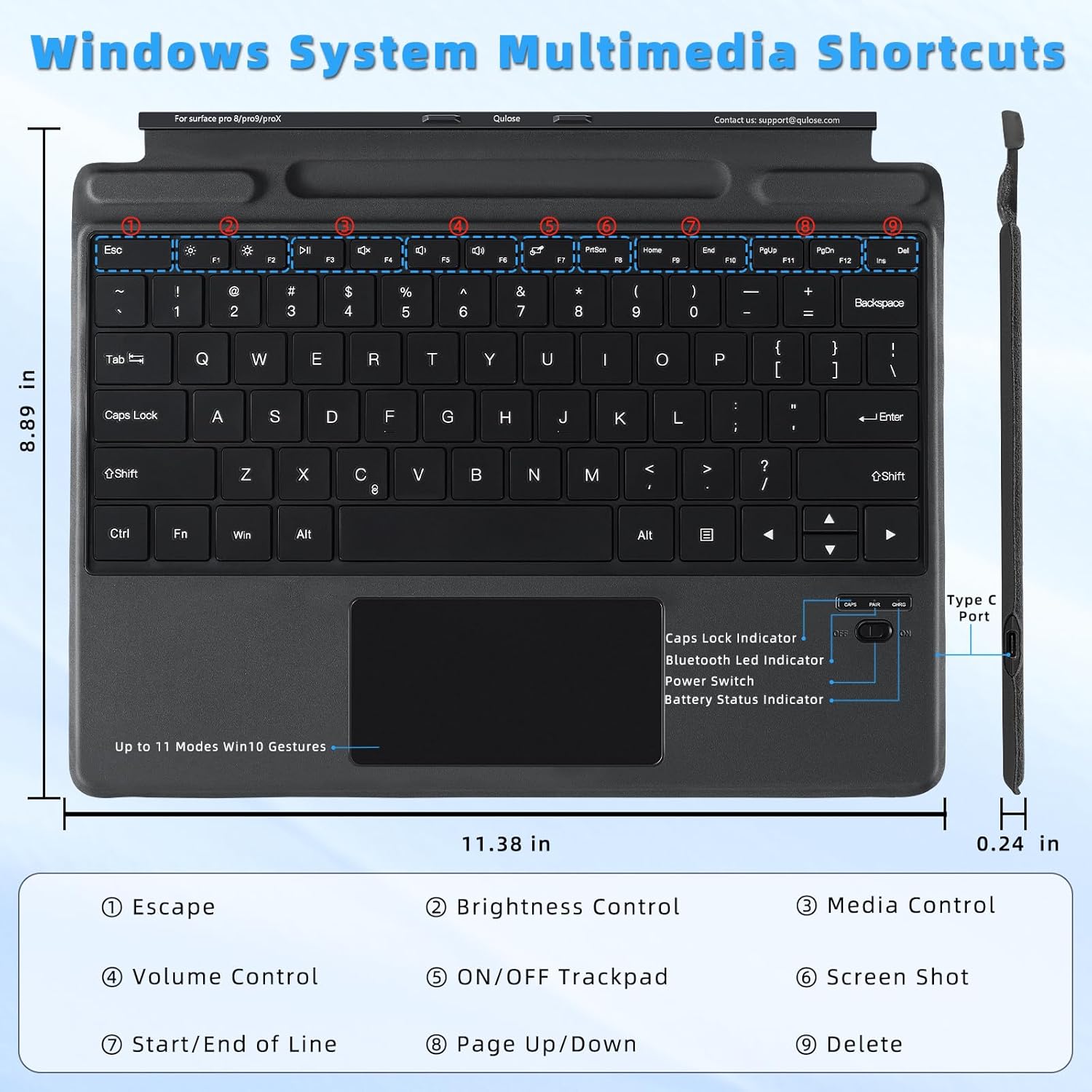
Image: Detailed diagram of the keyboard layout, highlighting the function keys and their corresponding actions such as brightness control, media control, and volume control.
Common shortcut functions include:
- Fn+F1: Escapar
- Fn + F2/F3: Control de brillo
- Fn + F4/F5/F6: Media Control (Previous, Play/Pause, Next)
- Fn+F7: Trackpad ON/OFF
- Fn+F8: Captura de pantalla
- Fn + F9/F10: Start/End of Line
- Fn + F11/F12: Página arriba/abajo
- Fn + Supr: Borrar
4.2 Funcionalidad del panel táctil
The precision trackpad supports multi-touch gestures, allowing for intuitive navigation within Windows. You can customize these gestures in your Windows settings.

Image: A diagram illustrating various multi-point touchpad gestures for Windows, including drag, one-finger click, two-finger click, two-finger slide, three-finger click, and three-finger swipe.
To prevent accidental touches while typing, you can enable or disable the trackpad function by pressing "Fn" + "F7".

Image: An illustration showing how to press "Fn" + "F7" to lock or unlock the trackpad, preventing unintended input during typing.
4.3 Portalápices
The keyboard includes a built-in pen holder for convenient storage of your stylus. This helps prevent loss and keeps your pen accessible.
Notice: The pen slot is for storage only and does not support charging. Pen is not included.

Imagen: Un primer plano view of the keyboard's integrated magnetic pen holder, designed for secure storage of a stylus.
4.4 ajustable Viewángulos de ing
The Surface Pro's built-in kickstand, combined with the keyboard, allows for multiple viewing angles. Adjust the kickstand to find the most comfortable position for typing or viewcontenido.

Image: Two illustrations demonstrating the ergonomic design of the keyboard and Surface Pro, showing flexible and stable adjustable viewÁngulos de inclinación para un uso cómodo.
5. Mantenimiento
5.1 Limpieza
To clean the keyboard, gently wipe the keys and trackpad with a soft, damp, lint-free cloth. Avoid using harsh chemicals or abrasive materials that could damage the surface.
5.2 Cuidado de la batería
Para prolongar la vida útil de la batería:
- Evite descargar completamente la batería con frecuencia.
- Guarde el teclado en un lugar fresco y seco cuando no lo utilice durante períodos prolongados.
- Cargue el teclado periódicamente, incluso si no lo utiliza a diario.
5.3 Gestión de energía
The keyboard features an auto-sleep function to conserve energy:
- If the keyboard is not used for 10 minutes, it will enter sleep mode.
- To reactivate, press any key.
- The keyboard will automatically switch off when your connected Surface Pro is turned off.
6. Solución de problemas
6.1 El teclado no se conecta a través de Bluetooth
- Asegúrese de que el teclado esté cargado y encendido.
- Verifique que Bluetooth esté habilitado en su Surface Pro.
- Press "Fn" + "C" on the keyboard to re-enter pairing mode.
- Remove any previous "Bluetooth Keyboard" entries from your Surface Pro's Bluetooth device list and attempt to pair again.
- Asegúrese de que el teclado esté dentro del rango operativo de 10 metros (33 pies).
6.2 El panel táctil no responde
- Press "Fn" + "F7" to ensure the trackpad is not locked.
- Reinicie el teclado apagándolo y encendiéndolo nuevamente.
- Check your Surface Pro's Windows settings for trackpad configurations.
6.3 Keys Not Responding or Lagging
- Asegúrese de que el teclado esté completamente cargado. Una batería baja puede afectar su rendimiento.
- Compruebe si hay obstrucciones debajo de las teclas.
- Reconnect the Bluetooth connection by turning the keyboard off and on, and re-pairing if necessary.
- Ensure there are no other devices causing Bluetooth interference nearby.
7. Especificaciones
| Característica | Detalle |
|---|---|
| Dimensiones del producto | 13.8" de largo x 9.78" de ancho x 0.7" de alto (35.05 x 24.84 x 1.78 cm) |
| Peso del artículo | 1.3 libras (0.59 kg) |
| Tecnología de conectividad | Bluetooth 5.1 |
| Descripción del teclado | Inalámbrico |
| Batería | Batería de iones de litio de 180 mAh (incluida) |
| Puerto de carga | Tipo C |
| Material | Plástico |
| Color | Negro |
| Características especiales | Bluetooth keyboard with touchpad, Magnetic detachable, Rechargeable, Ergonomic design, Pen holder |
| Dispositivos compatibles | Microsoft Surface Pro 11/10/9/8/X |
8. Garantía y soporte
8.1 Información de garantía
Please refer to the product packaging or the Qulose official websitio para conocer los términos y detalles específicos de la garantía.
8.2 Atención al cliente
For any questions, technical assistance, or support needs, please contact Qulose customer service:
- Correo electrónico: soporte@qulose.com
- En línea: Visita el Qulose Store on Amazon para obtener más información y recursos de soporte.


