1. Introducción
This manual provides detailed instructions for the setup, operation, maintenance, and troubleshooting of your Qulose Ultra-Slim Wireless Bluetooth Keyboard. This keyboard is designed for seamless compatibility across iOS, iPadOS, Android, and Windows operating systems, offering a comfortable and efficient typing experience for various devices including tablets, smartphones, desktops, and laptops.

Image: The Qulose Ultra-Slim Wireless Bluetooth Keyboard, showcasing its compact and sleek design in white silver.
2. Información de seguridad
- Do not expose the keyboard to liquids, moisture, or extreme temperatures.
- Evite dejar caer o someter el teclado a impactos fuertes.
- Mantener fuera del alcance de los niños.
- Deseche la batería según la normativa local. No la incinere.
- Utilice únicamente el cable USB tipo C proporcionado para cargar.
3. Contenido del paquete
Por favor, marque la casilla correspondiente a los siguientes artículos:
- 1 x Qulose Ultra-Slim Wireless Bluetooth Keyboard
- 1 cable de carga USB-A a tipo C.
- 1 x Manual de usuario (este documento)
4. Producto terminadoview y características
The Qulose Ultra-Slim Wireless Bluetooth Keyboard features a compact layout with responsive scissor-switch keys for a comfortable and quiet typing experience. It includes dedicated multimedia keys for quick access to various functions.
4.1 Características principales
- Compatibilidad universal: Automatically recognizes iOS, iPadOS, Android, and Windows systems.
- Conexión Bluetooth 5.0 estable: Provides a reliable connection up to 33 feet (10 meters).
- Responsive Scissor-Switch Keys: Diseñado para una escritura silenciosa y cómoda.
- Batería recargable incorporada: 300mAh Lithium-ion battery for long standby time.
- Función de suspensión automática: Conserva energía entrando en modo de suspensión después de 30 minutos de inactividad.
- Compacto y portátil: Slim design (11.29 x 5 x 0.77 inches) and lightweight (12 ounces).
4.2 Multimedia Keys Overview
The top row of keys provides quick access to various functions. These functions may vary slightly depending on the operating system.
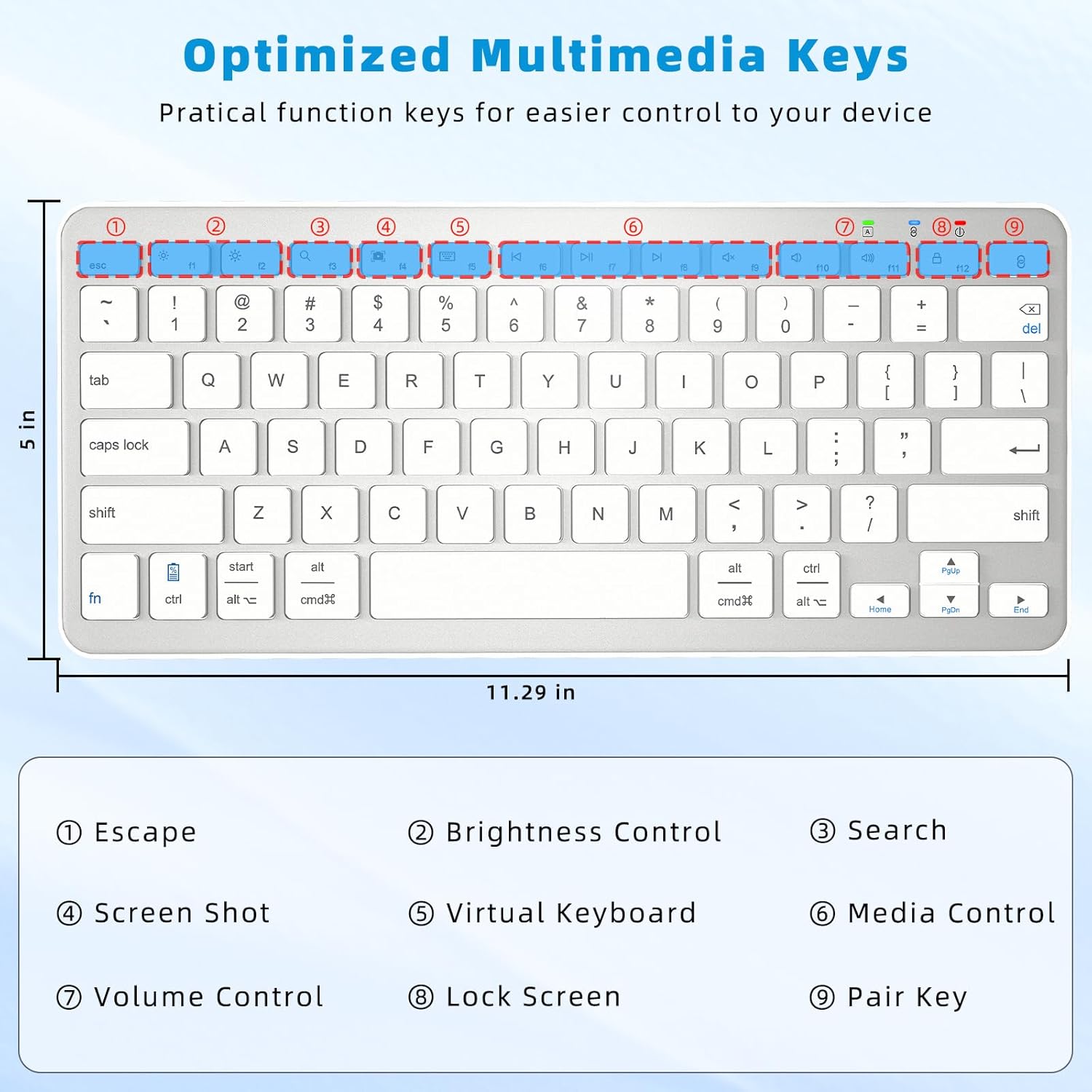
Image: A diagram highlighting the multimedia keys on the keyboard, including Escape, Brightness Control, Search, Screenshot, Virtual Keyboard, Media Control, Volume Control, Lock Screen, and Pair Key.
- Escapar: Functions as an Escape key. Note: This is not a home screen function for iOS. For iOS, use Command + H to return to the home screen.
- Control de brillo: Ajusta el brillo de la pantalla.
- Buscar: Abre la función de búsqueda.
- Captura de pantalla: Captura una captura de pantalla.
- Teclado virtual: Toggles the on-screen virtual keyboard.
- Control de medios: Reproducir/Pausa, Pista anterior, Pista siguiente.
- Control de volumen: Silencio, Bajar volumen, Subir volumen.
- Bloquear pantalla: Bloquea la pantalla del dispositivo.
- Clave de par: Inicia el modo de emparejamiento Bluetooth.
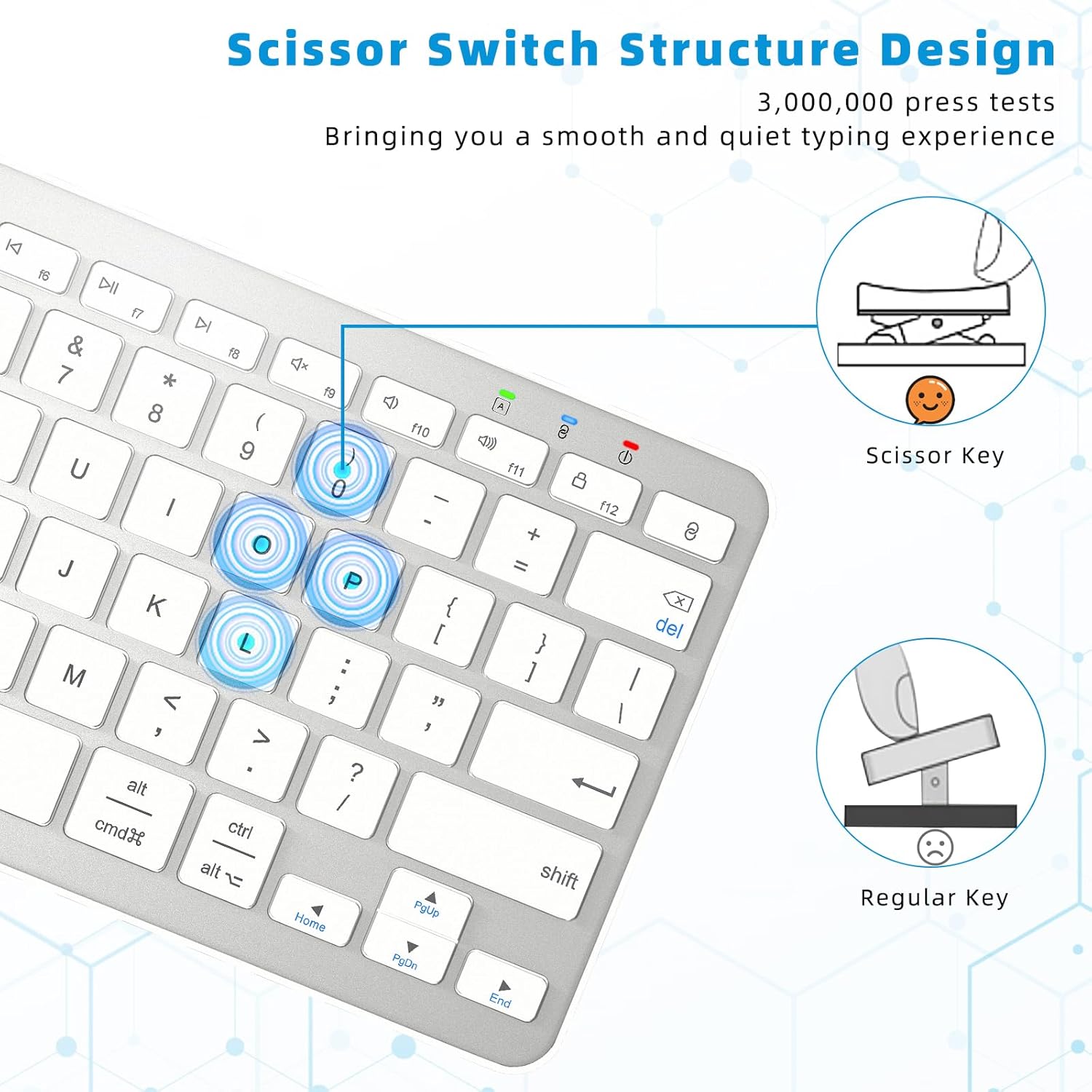
Image: A close-up diagram comparing the scissor-switch key structure, which provides a smooth and quiet typing experience, to a regular key mechanism.
5. Configuración
5.1 Carga del teclado
Before first use, or when the battery indicator light flashes red, charge the keyboard fully.
- Locate the USB Type-C charging port on the keyboard (typically on the top edge).
- Connect the provided USB-A to Type-C cable to the keyboard and a USB power source (e.g., computer USB port, USB wall adapter).
- La luz indicadora de carga se iluminará durante la carga y se apagará cuando esté completamente cargada.
- A full charge takes approximately 3-4 hours and provides over 100 hours of continuous use or about 150 days of standby time.
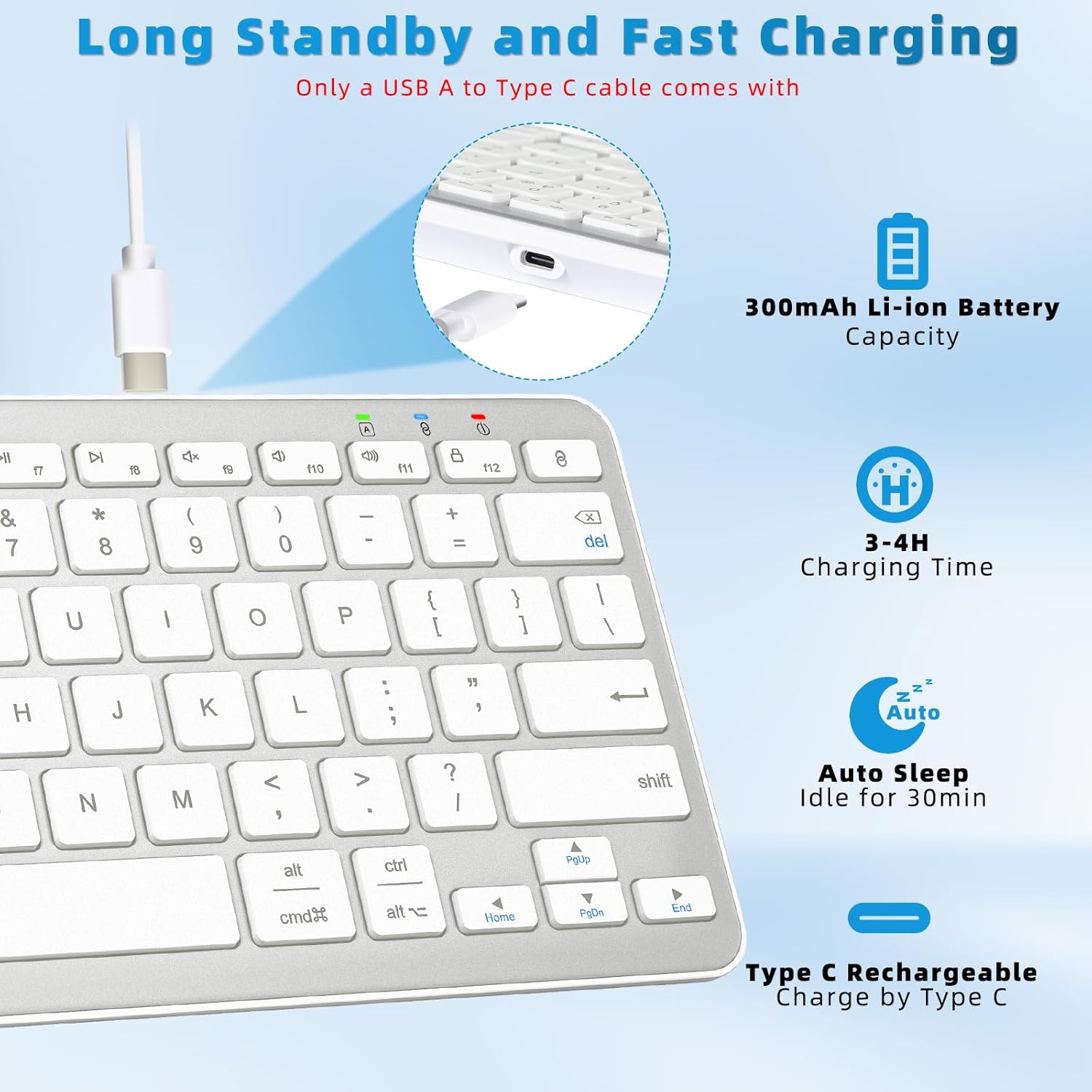
Image: A diagram illustrating the Type-C charging port, the 300mAh Li-ion battery capacity, 3-4 hour charging time, and 30-minute auto-sleep feature.
5.2 Instrucciones de emparejamiento por Bluetooth
Follow these steps to connect your keyboard to your device via Bluetooth:

Image: A visual guide demonstrating the four steps to connect the Qulose Bluetooth keyboard to a device.
- Encendido: Locate the ON/OFF switch on the back of the keyboard and slide it to the "ON" position. The power indicator light will briefly illuminate.
- Activar el modo de emparejamiento: Mantenga pulsado el Llave de par (usually marked with a Bluetooth symbol or '8' on the F-row) for 3 seconds. The Bluetooth indicator light will start flashing, indicating it's in pairing mode.
- Habilite Bluetooth en su dispositivo: On your device (iPad, phone, computer), go to Settings > Bluetooth and ensure Bluetooth is turned ON.
- Seleccionar teclado: In the list of available Bluetooth devices, select "Qulose Keyboard" (or similar name). Your device will indicate when the pairing is successful.
Nota: This wireless Bluetooth keyboard can only be connected to one device at a time. If your desktop computer/PC does not have Bluetooth functionality, an additional Bluetooth receiver (not included) is required.
6. Funcionamiento del teclado
6.1 Compatibilidad del sistema
The keyboard automatically recognizes the operating system of the connected device (iOS, iPadOS, Android, Windows), so you do not need to manually select compatibility modes. This ensures optimal functionality across different platforms.
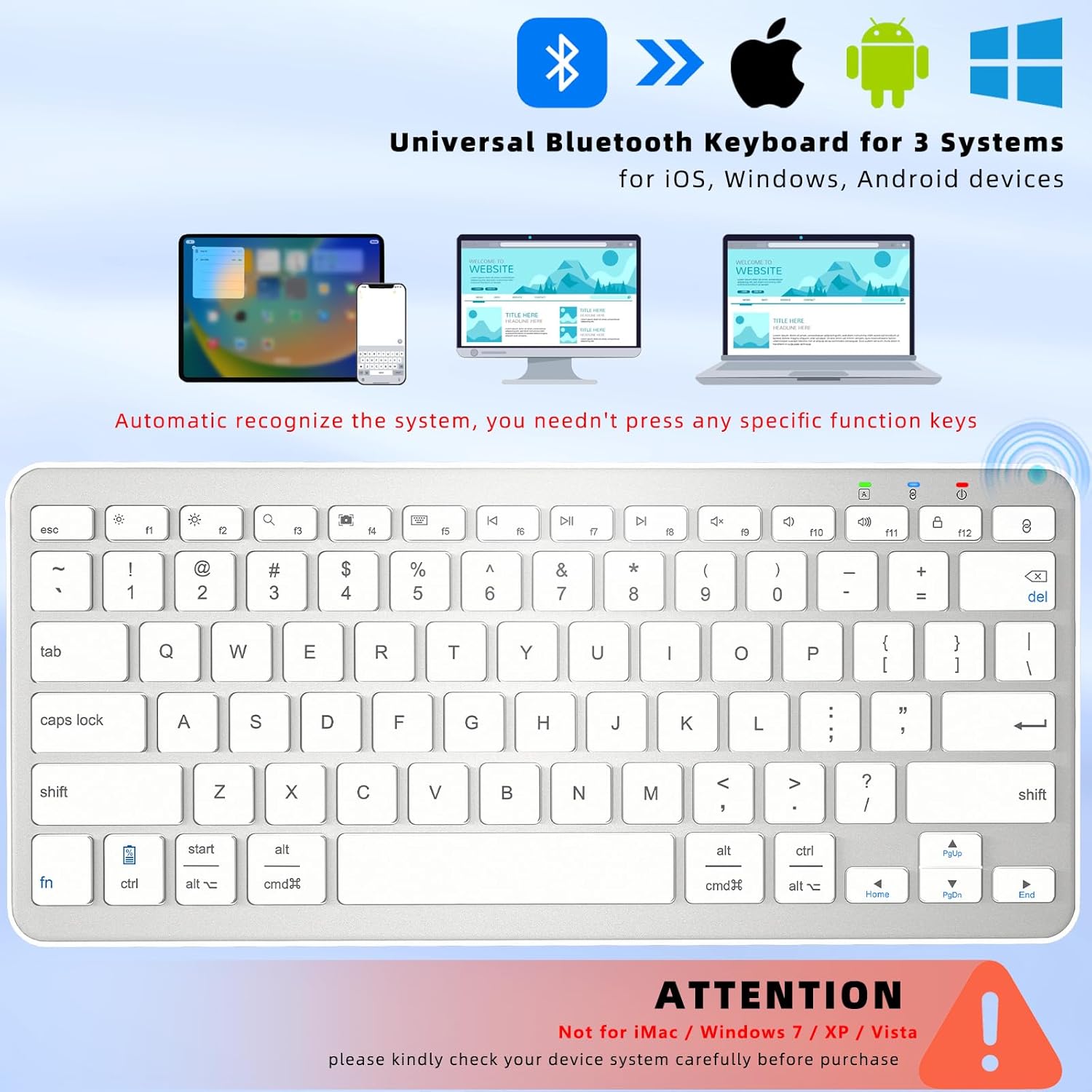
Image: A visual representation of the keyboard's universal compatibility with iOS, Android, and Windows operating systems, showing it can connect to iPads, smartphones, and laptops.
Nota importante: El teclado es no compatible with iMac, Windows 7, Windows XP, or Windows Vista systems. Please verify your device's operating system before purchase.
6.2 Función de suspensión automática
To conserve battery life, the keyboard features an intelligent auto-sleep mode. If left inactive for 30 minutes, it will automatically enter sleep mode. To wake the keyboard, simply press any key and wait for 2-3 seconds for it to reconnect to your device.
7. Mantenimiento
7.1 Limpieza
- Gently wipe the keyboard surface with a soft, lint-free cloth.
- Para suciedad difícil, ligeramente dampLimpie el paño con agua o un limpiador suave no abrasivo.
- No rocíe limpiadores directamente sobre el teclado.
- Utilice aire comprimido para eliminar los residuos entre las teclas.
7.2 Almacenamiento
- Guarde el teclado en un lugar fresco y seco, alejado de la luz solar directa y de temperaturas extremas.
- If storing for an extended period, ensure the keyboard is fully charged before storage and recharge it every few months to maintain battery health.
8. Solución de problemas
Si tiene problemas con su teclado, consulte los siguientes problemas y soluciones comunes:
| Problema | Posible causa | Solución |
|---|---|---|
| El teclado no se enciende. | La batería está agotada. | Charge the keyboard for 3-4 hours. |
| El teclado no se conecta a través de Bluetooth. | Bluetooth is off on device; keyboard not in pairing mode; device already connected to another keyboard; incompatible OS. | Ensure Bluetooth is ON on your device. Put keyboard in pairing mode (hold Pair Key for 3s). Disconnect other Bluetooth keyboards. Check OS compatibility (not compatible with Windows 7/XP/Vista, iMac). |
| Las teclas no responden o se escriben incorrectamente. | Batería baja; problema de conexión; falla de software. | Recharge the keyboard. Re-pair the keyboard with your device. Restart your device. |
| El teclado se desconecta con frecuencia. | Batería baja; demasiado lejos del dispositivo; interferencia. | Recharge the keyboard. Ensure keyboard is within 33 feet (10m) of your device. Move away from other wireless devices that may cause interference. |
9. Especificaciones
| Característica | Detalle |
|---|---|
| Modelo | B0C9959R94 |
| Dimensiones | 11.29 x 5 x 0.77 pulgadas (28.68 x 12.7 x 1.96 cm) |
| Peso | 12 onzas (340 gramos) |
| Tecnología de conectividad | Bluetooth 5.0 |
| Rango de operación | Hasta 33 pies (10 metros) |
| Tipo de batería | Batería recargable de iones de litio de 300 mAh incorporada |
| Tiempo de carga | 3-4 horas |
| Tiempo de funcionamiento | Aprox. 100 horas (uso continuo) |
| Tiempo de espera | Aprox. Días 150 |
| Tipo de clave | Interruptor de tijera |
| Número de llaves | 78 |
| Sistemas compatibles | iOS, iPadOS, Android, Windows (excluding Windows 7/XP/Vista, iMac) |
10. Garantía y soporte
Qulose products are designed for reliability and performance. For specific warranty details, please refer to the warranty card included with your product packaging or visit the official Qulose website. If you require technical assistance or have questions not covered in this manual, please contact Qulose customer support through the following channels:
- Qulose Store on Amazon: Visit the Qulose Store
- Consultas generales: Refer to the contact information provided on your product packaging or the Qulose brand store for the most up-to-date support options.


