Introducción
This manual provides essential information for the setup, operation, and maintenance of your InfinityPro X Series Interactive Touch Display Panel. Designed for collaborative environments, this display offers advanced features for presentations, meetings, and interactive learning. Please read this manual thoroughly before using the product to ensure optimal performance and safety.

Imagen: Frente view of the InfinityPro X Series Interactive Touch Display Panel, showcasing su elegante diseño y pantalla vibrante.
1. Configuración
1.1 Desembalaje e inspección
Carefully remove the display panel from its packaging. Inspect all components for any signs of damage. Retain the packaging for future transport or storage.
1.2 Instalación
The InfinityPro X Series display can be installed using a compatible wall mount or a mobile stand (sold separately). Ensure the mounting solution is appropriate for the display's size and weight. Follow the instructions provided with your chosen mounting hardware for secure installation.
1.3 Conexión de la alimentación
Connect the power cable to the display's power input and then to a grounded electrical outlet. Press the power button to turn on the display.
1.4 Configuración inicial
Upon first power-on, the display will guide you through initial setup steps, including language selection, network connection (Wi-Fi), and basic system settings.

Image: Diagram highlighting various ports and features on the InfinityPro X Series display, including Type-C, USB, PC-USB, Touch, HDMI, and built-in speakers.
2. Instrucciones de funcionamiento
2.1 Navegación básica
The display runs on Android 12, providing a user-friendly interface. Navigate using touch gestures similar to a tablet or smartphone. The included stylus pen enhances precision for interactive tasks.
2.2 pizarra interactiva
Access the advanced interactive whiteboard application from the main menu. This feature allows users to:
- Share content directly on the board.
- Convert handwritten shapes to text.
- Annotate directly within various file tipos.
- Utilize multi-touch capabilities for up to 40 points of touch.

Image: A woman presenting a 'Tower plan' on the InfinityPro X Series interactive whiteboard, demonstrating its use in a meeting setting.
2.3 Compartir pantalla inalámbrica
The display supports wireless screen sharing, allowing you to project content from mobile phones, tablets, notebooks, and desktops without cable clutter. Follow the on-screen instructions within the sharing application to connect your devices.

Image: An illustration showing various devices (smartphone, tablet, laptop, desktop) wirelessly casting their screens to the InfinityPro X Series display, highlighting multi-platform compatibility.
2.4 Multitasking Capability
The InfinityPro X Series allows users to open multiple applications simultaneously, including a picture-in-picture mode for enhanced productivity. This feature facilitates seamless switching and interaction between different tasks.
2.5 User Management and App Lock
The display includes enhanced user management features, allowing administrators to create user accounts with specific restrictions and permissions. Additionally, the App Lock function provides security by preventing unauthorized access to selected applications.
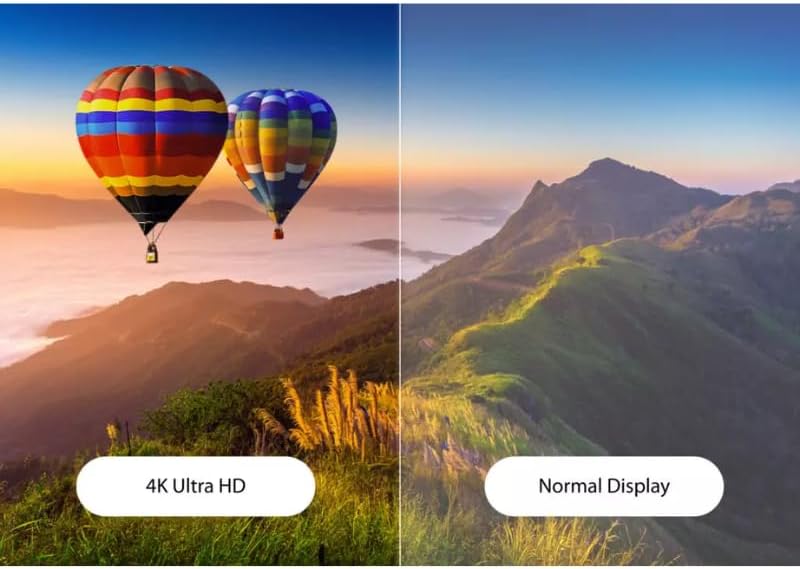
Image: A screenshot of the system settings interface, showing options for 'System security', 'Lock screen with USB', 'USB permissions', 'Channel permission', 'APP Lock', and 'FILE MANAGER INSTALL Lock'.
2.6 Conectividad
The display offers comprehensive connectivity options:
- Inalámbrico: Built-in Wi-Fi (6G/6G) and Bluetooth 5.0 for seamless network and peripheral connections.
- Wired: Multiple USB 3.0 ports, HDMI, VGA, and an OPS (Open Pluggable Specification) slot for an optional slot-in PC.
3. Mantenimiento
3.1 Limpieza de la pantalla
To clean the screen, power off the display and gently wipe it with a soft, lint-free cloth. For stubborn marks, use a screen-cleaning solution specifically designed for electronic displays. Avoid abrasive cleaners or solvents.
3.2 Actualizaciones de software
The InfinityPro X Series supports Over-the-Air (OTA) firmware updates. Ensure your display is connected to the internet to receive and install the latest software versions, which provide performance enhancements and new features. Check for updates periodically in the system settings.
4. Solución de problemas
4.1 Sin energía
- Ensure the power cable is securely connected to both the display and a working electrical outlet.
- Verifique que la toma de corriente funcione enchufando otro dispositivo.
4.2 No hay imagen en la pantalla
- Compruebe si la pantalla está encendida.
- If using an external source (e.g., PC via HDMI), ensure the source device is on and the correct input is selected on the display.
4.3 La función táctil no responde
- Asegúrese de que la pantalla esté limpia y libre de obstrucciones.
- Reiniciar la pantalla.
- If connected to an external PC, ensure the USB touch cable is properly connected.
4.4 Problemas de conectividad inalámbrica
- Verify that Wi-Fi or Bluetooth is enabled in the system settings.
- Check your network router or access point for proper operation.
- Ensure the display is within range of the wireless signal.
5. Especificaciones
| Característica | Detalle |
|---|---|
| Marca | infinitopro |
| Serie modelo | InfinityPro X Series |
| Procesador (CPU) | 8 Core A55, 1.2GHz |
| Gráficos (GPU) | Quad-core MaliG52 600MHz |
| RAM | 4 GB DDR4 |
| Almacenamiento interno (ROM) | Memoria EMMC de 32 GB |
| Sistema operativo | Androide 12 |
| Tamaño de pantalla | 55 Inches (available in 55-98" range) |
| Resolución | UHD 4K (3840 x 2160) |
| Tecnología de visualización | Pantalla LCD |
| Conectividad inalámbrica | Wi-Fi (6G/6G), Bluetooth 5.0 |
| Conectividad por cable | HDMI, VGA, USB 3.0 (1 port), OPS Slot |
| Puntos de contacto | Hasta 40 puntos |
| Product Dimensions (55") | 10.92 x 120.9 x 68.02 cm |
| Características especiales | Anti-Glare, Multitasking, User Management, App Lock, Energy Saving |

Image: A side-by-side comparison illustrating the superior clarity and detail of a 4K Ultra HD display compared to a normal display.
6. Garantía y soporte
For warranty information and technical support, please refer to the documentation included with your purchase or visit the official InfinityPro website. If you encounter issues not covered in this manual, please contact InfinityPro customer service for assistance.


