Introducción
This manual provides detailed instructions for the Qulose Wireless Bluetooth Keyboard. Designed for versatility and comfort, this ultra-thin, ergonomic keyboard offers a quiet and responsive typing experience across multiple operating systems. Please read this manual thoroughly before using the product to ensure proper operation and longevity.
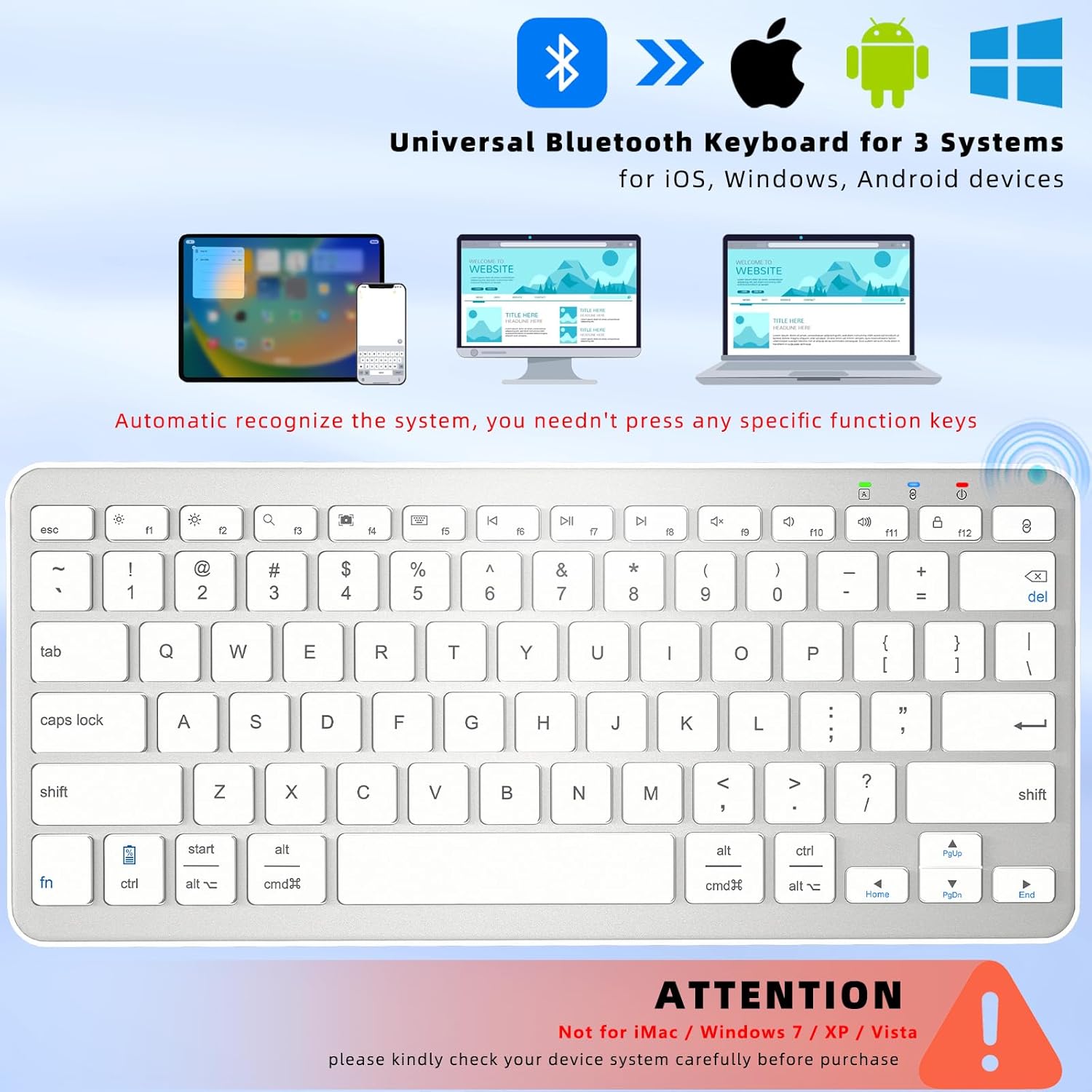
Image: The Qulose Wireless Bluetooth Keyboard demonstrating compatibility with iOS, Android, and Windows devices. The keyboard automatically recognizes the system, eliminating the need for manual selection.
Contenido del paquete
Por favor revise el paquete para ver los siguientes artículos:
- 1 x Qulose Wireless Bluetooth Keyboard
- 1 x USB Type-C Charging Cable (charger not included)
- 1 x Manual de usuario
Instrucciones de instalación
1. Carga del teclado
Before initial use, fully charge the keyboard. Connect the provided USB Type-C charging cable to the keyboard's charging port and the other end to a USB power source (e.g., computer, USB wall adapter). The charging indicator light will illuminate during charging and turn off when fully charged. A full charge typically takes 3-4 hours and provides over 100 hours of usage.
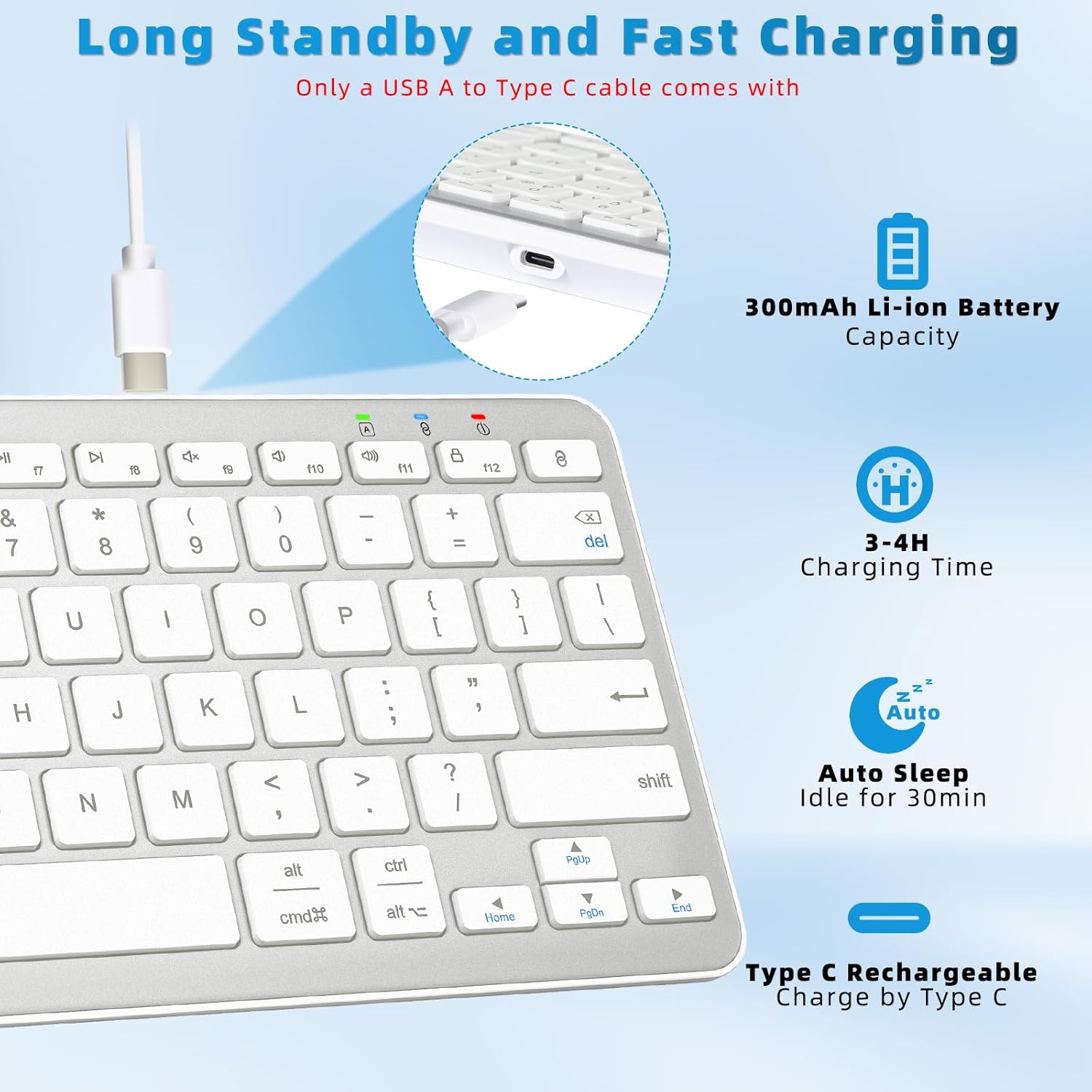
Image: The Qulose Wireless Bluetooth Keyboard connected to a USB-C charging cable, highlighting the charging port and battery capacity of 300mAh.
2. Encendido / apagado
Locate the ON/OFF switch on the keyboard. Slide the switch to the "ON" position to power on the keyboard. Slide it to "OFF" when not in use to conserve battery.
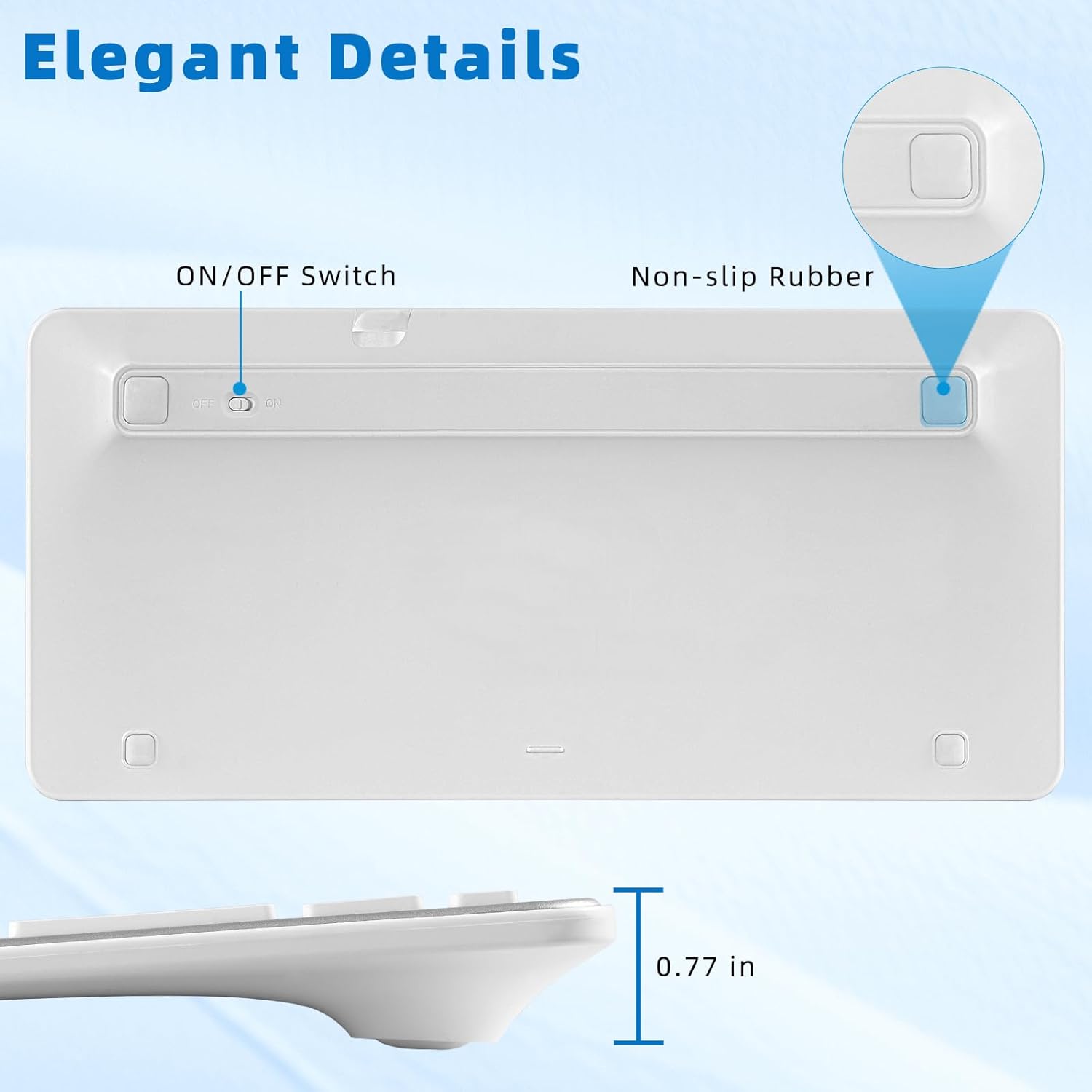
Image: The underside of the Qulose Wireless Bluetooth Keyboard, showing the ON/OFF switch and non-slip rubber pads for stability.
3. Emparejamiento Bluetooth
- Asegúrese de que el teclado esté cargado y encendido.
- Presione el "Par" button on the keyboard. This will activate Bluetooth pairing mode, and an indicator light may flash.
- On your device (tablet, smartphone, PC, laptop), go to the Bluetooth settings.
- Buscar available Bluetooth devices. The keyboard should appear as "Qulose Keyboard" or a similar name.
- Select the keyboard from the list to initiate the connection. Your device may display a pairing code; enter this code on the Qulose keyboard and press Ingresar.
- Once successfully paired, the indicator light on the keyboard will stop flashing, and your device will confirm the connection.
Nota: The keyboard supports connection to one device at a time. When connecting to a new device, you must restart the pairing process. The keyboard will automatically remember and reconnect to the last used device when powered on.
Important Compatibility Note: This keyboard is not compatible with iMac, Windows 7, Windows XP, or Windows Vista.
Instrucciones de funcionamiento
System Recognition
The Qulose Wireless Bluetooth Keyboard automatically recognizes the operating system of the connected device (iOS, Android, Windows). You do not need to manually select compatibility modes.
Teclas multimedia y de función
The keyboard features optimized multimedia keys for quick access to various functions. These keys are typically accessed by pressing the Fn tecla en combinación con la tecla de función correspondiente (F1-F12).
- F1: Escapar
- F2: Brightness Control (Decrease)
- F3: Brightness Control (Increase)
- F4: Buscar
- F5:Captura de pantalla
- F6: Virtual Keyboard
- F7: Pista anterior
- F8: Reproducir/Pausa
- F9: Siguiente pista
- F10: Silenciar
- F11: Bajar volumen
- F12: Sube el volumen
- Llave de par: Initiates Bluetooth pairing.
- Tecla de bloqueo de pantalla: Locks the device screen.
Nota: For Android and iOS users, the F1-F12 keys may not be fully functional as standard function keys and are primarily designed for multimedia shortcuts.
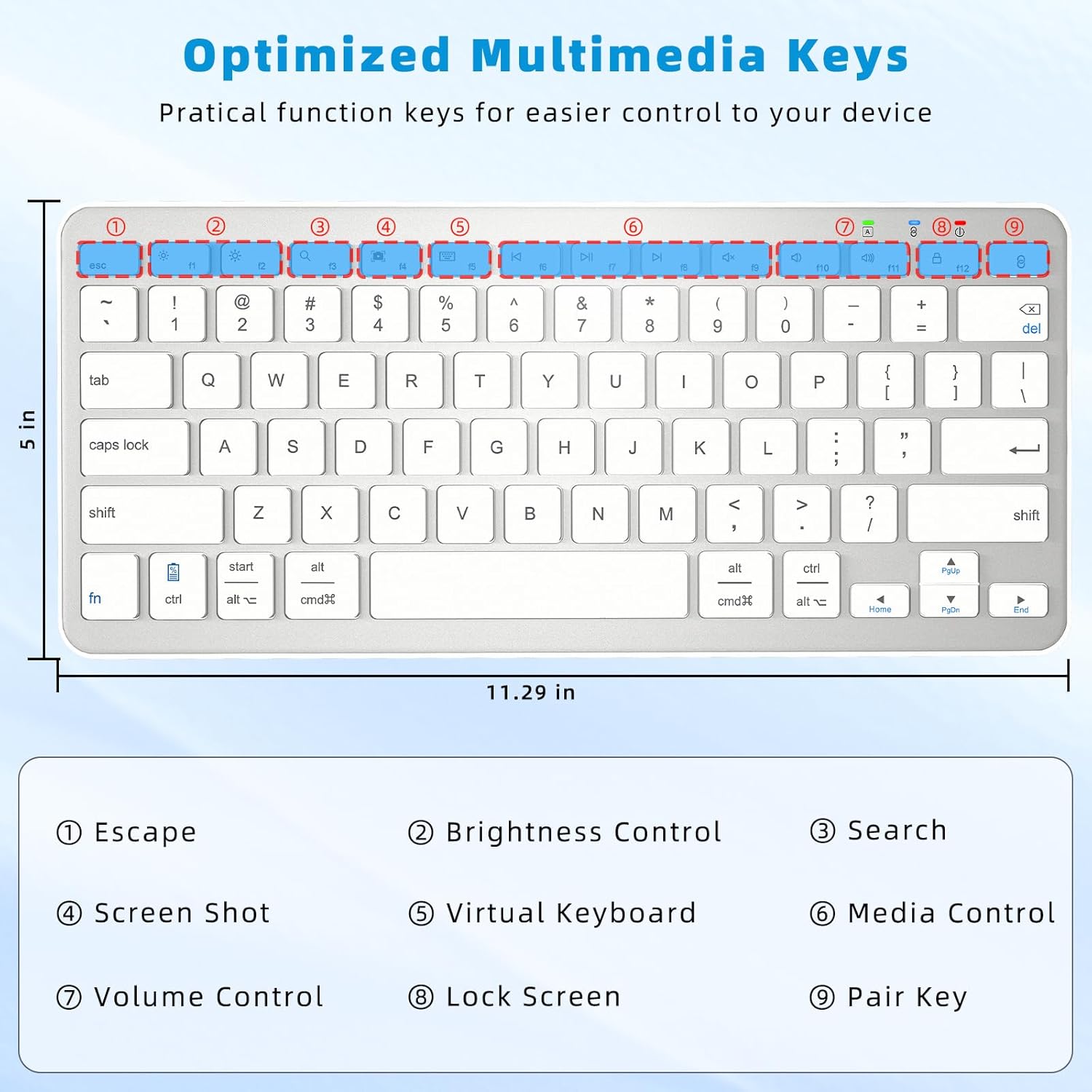
Image: Close-up of the Qulose Wireless Bluetooth Keyboard highlighting the optimized multimedia keys and their corresponding functions, such as Escape, Brightness Control, Search, Screenshot, Virtual Keyboard, Media Control, Volume Control, Lock Screen, and Pair Key.
Función de suspensión automática
To conserve battery, the keyboard will automatically enter sleep mode after 30 minutes of inactivity. To wake it up, simply press any key and wait for 2-3 seconds for it to reconnect and become active.
Diseño ergonómico y experiencia de escritura
The keyboard features a scissor-switch key structure, providing a smooth, quiet, and responsive typing experience. Its ergonomic design helps maintain a comfortable wrist posture during extended use. The effective working distance for Bluetooth connectivity is up to 10 meters (33 feet).
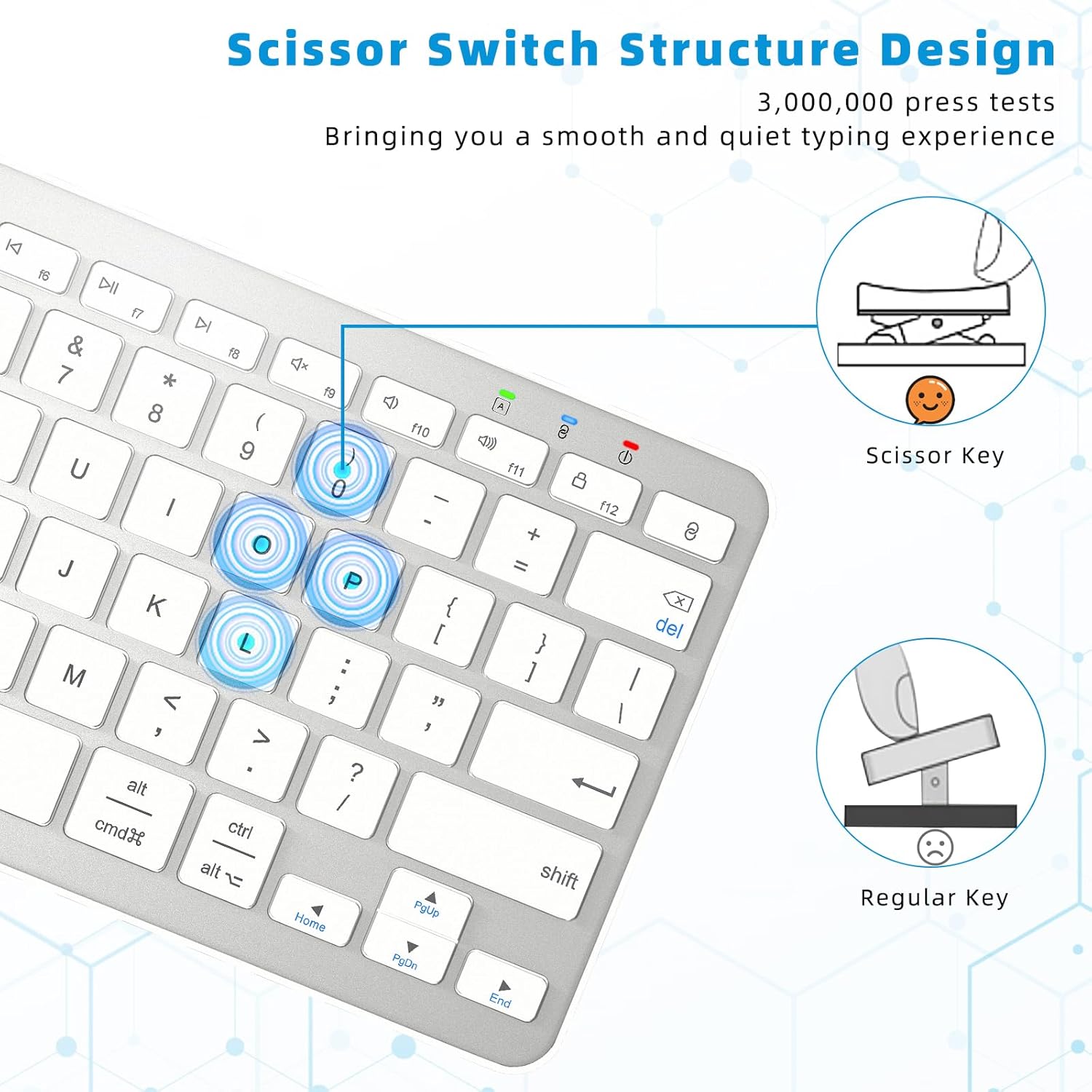
Image: Diagram illustrating the scissor-switch key structure of the Qulose Wireless Bluetooth Keyboard, emphasizing its smooth and quiet typing benefits compared to regular keys.
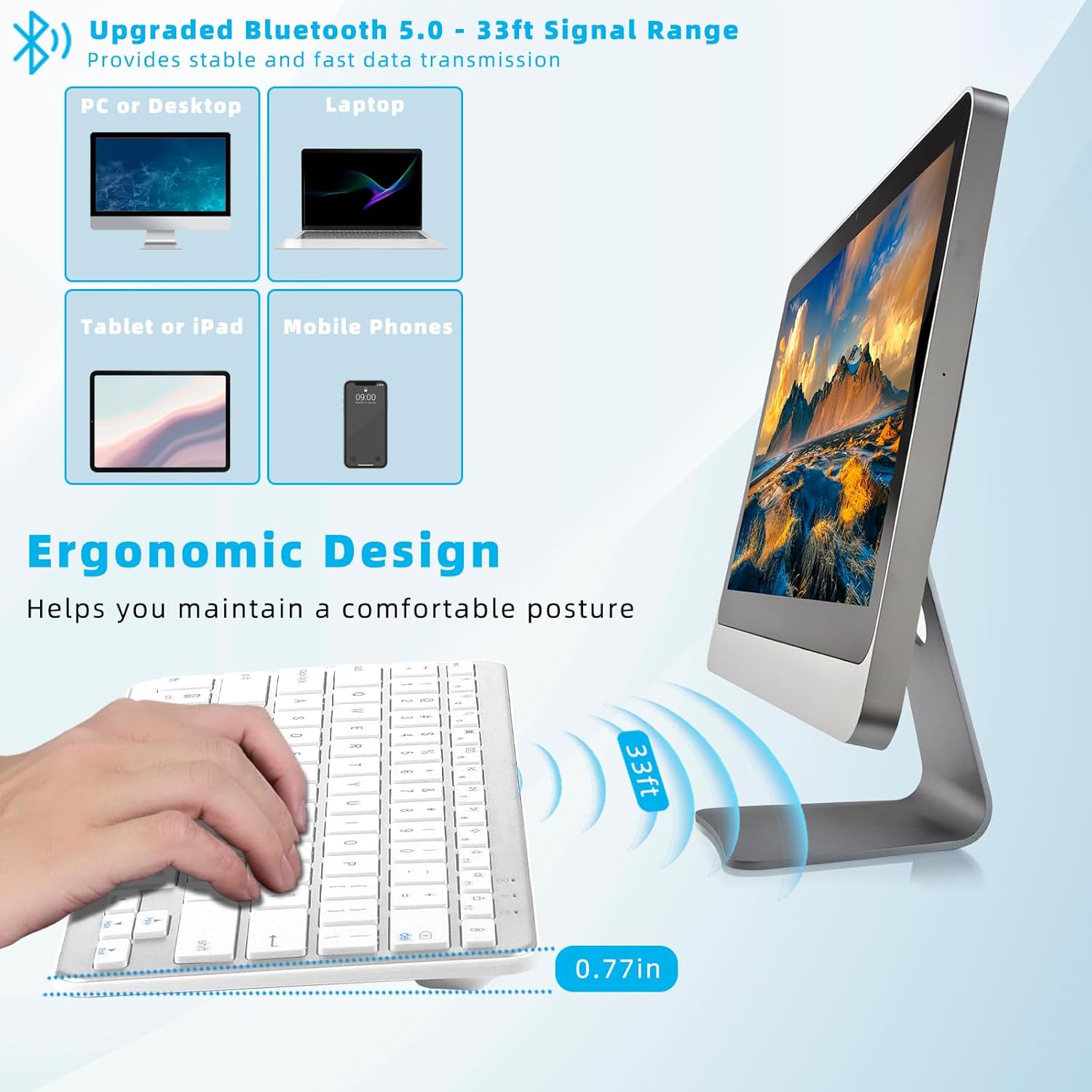
Image: A user typing on the Qulose Wireless Bluetooth Keyboard, showcasing its ergonomic design and the 33ft Bluetooth 5.0 signal range for stable and fast data transmission across various devices like PCs, laptops, tablets, and mobile phones.
Mantenimiento
Limpieza
Para limpiar el teclado, frote suavemente la superficie con un paño suave.amp cloth. Avoid using harsh chemicals or abrasive cleaners, as these can damage the finish. Ensure the keyboard is powered off before cleaning.
Cuidado de la batería
To prolong battery life, avoid completely draining the battery frequently. Recharge the keyboard when the low battery indicator appears. Store the keyboard in a cool, dry place when not in use for extended periods.
Solución de problemas
El teclado no se conecta/no responde
- Comprobar potencia: Asegúrese de que el teclado esté encendido y tenga suficiente batería. Recárguela si es necesario.
- Despierta: If the keyboard is in auto-sleep mode, press any key and wait 2-3 seconds for it to wake up.
- Reparar: If the connection is lost, go to your device's Bluetooth settings, forget the keyboard, and then re-initiate the pairing process as described in the "Bluetooth Pairing" section.
- Dispositivo Bluetooth: Asegúrese de que Bluetooth esté habilitado en su dispositivo y que sea detectable.
- Distancia: Make sure the keyboard is within the 10-meter (33-foot) effective range of your device.
Las teclas no funcionan correctamente
- Teclas F1-F12: Note that for Android and iOS devices, the F1-F12 keys are primarily designed for multimedia shortcuts and may not function as standard F-keys.
- Compatibilidad del sistema: Confirm your device's operating system is compatible (Windows 10 or later, Android 8.0 or later, iOS 16.0 or later). The keyboard is not compatible with older Windows versions (7, XP, Vista) or iMac.
Problemas de carga
- Verificación de cables: Ensure the USB Type-C charging cable is securely connected to both the keyboard and the power source.
- Fuente de energía: Try a different USB power source or adapter to rule out issues with the current one.
Especificaciones del producto
| Marca | Qulosé |
| Modelo | Teclado inalámbrico Bluetooth |
| Color | Blanco plateado |
| Tecnología de conectividad | Bluetooth 5.0 |
| Compatibilidad del sistema operativo | Windows 10 or later, Android 8.0 or later, iOS 16.0 or later |
| Sistemas incompatibles | iMac, Windows 7, Windows XP, Windows Vista |
| Dispositivos compatibles | Portátil, PC, teléfono inteligente, tableta |
| Descripción del teclado | Ergonomic, Scissor-switch keys |
| Tipo de batería | Iones de litio (300 mAh) |
| Tiempo de carga | 3-4 horas |
| Tiempo de uso | 100+ horas |
| Función de suspensión automática | Después de 30 minutos de inactividad |
| Dimensiones (L x An x Al) | 28.7 x 12.7 x 2 cm (11.29 x 5 x 0.77 pulgadas) |
| Peso | 420.1 gramos |
| Material | Acrilonitrilo butadieno estireno (ABS) |
Garantía y soporte
Qulose is committed to providing quality products and customer satisfaction. While specific warranty details are not provided in this manual, if you encounter any questions or concerns regarding your Qulose Wireless Bluetooth Keyboard, please contact our customer support. We will endeavor to respond and resolve your issues promptly.
Consulte la documentación de compra o la del minorista. website for any applicable warranty information.


