1. Introducción
Thank you for choosing the NOVOO 11-in-1 USB-C Docking Station. This device is designed to expand the connectivity of your USB-C enabled laptop, providing multiple ports for display, data transfer, networking, and power delivery. Please read this manual carefully to ensure proper setup and operation.

Image 1.1: The NOVOO 11-in-1 USB-C Docking Station with connected peripherals.
2. Producto terminadoview
The NOVOO 11-in-1 USB-C Docking Station provides a comprehensive solution for expanding your laptop's connectivity. It features the following ports:
- 2 puertos HDMI: For connecting external displays (HDMI 1: up to 4K@30Hz, HDMI 2: up to 4K@60Hz).
- 1 puerto VGA: For connecting external displays (up to 1080P@60Hz).
- 1 puerto Gigabit Ethernet (RJ45): For stable wired network connection (up to 1Gbps).
- 2 puertos USB-A 3.0: Para transferencia de datos de alta velocidad (hasta 5 Gbps).
- 2 puertos USB-A 2.0: For connecting peripherals like keyboards and mice (up to 480Mbps).
- 1 x USB-C PD Port: For power delivery to your laptop (up to 100W).
- 1 x lector de tarjetas SD: For accessing SD memory cards.
- 1 x Lector de tarjetas TF (Micro SD): For accessing Micro SD memory cards.

Image 2.1: Labeled diagram of the 11-in-1 docking station ports.
3. Instrucciones de configuración
Follow these steps to set up your NOVOO 11-in-1 USB-C Docking Station:
- Verify Laptop Compatibility: Ensure your laptop's USB-C port supports video output (DisplayPort Alternate Mode) and power delivery. Refer to your laptop's manual or the port symbols shown below. Ports that only support charging or data transfer will not enable full docking station functionality.
- Conectar a la computadora portátil: Conecte el cable USB-C integrado de la estación de acoplamiento a un puerto USB-C compatible en su computadora portátil.
- Conectar el adaptador de corriente (opcional pero recomendado): For optimal performance, especially when using multiple peripherals or monitors, connect a 100W or higher-rated USB-C power adapter (not included) to the docking station's USB-C PD port. This ensures stable power delivery to your laptop and connected devices.
- Conectar pantallas externas: Conecte sus monitores a los puertos HDMI y/o VGA en la estación de acoplamiento utilizando cables adecuados.
- Conectar periféricos: Plug in your USB devices (keyboard, mouse, external drives, etc.) into the USB-A 3.0 and USB-A 2.0 ports. Insert SD or TF cards into their respective slots if needed.
- Conectar el cable Ethernet: For a wired network connection, plug an Ethernet cable into the RJ45 port on the docking station.

Image 3.1: USB-C port symbol guide for compatibility check.

Imagen 3.2: Example setup of the docking station with a laptop and multiple displays.
4. Instrucciones de funcionamiento
4.1 modos de visualización
La estación de acoplamiento admite varias configuraciones de pantalla según su sistema operativo.
Windows OS:
- Modo espejo: Muestra el mismo contenido en todas las pantallas conectadas (computadora portátil y monitores externos).
- Modo extendido: Amplía tu escritorio a través de múltiples pantallas, lo que permite más espacio de trabajo.
- MST (Multi-Stream Transport) Mode: Allows for independent display output to multiple external monitors. This mode supports extending to up to 3 displays simultaneously, provided your laptop's USB-C port supports DP1.4 or Thunderbolt 3/4.
Resolution Support for Windows:
- Single Display: HDMI 1 (4K@30Hz), HDMI 2 (4K@60Hz), VGA (1920x1080@60Hz).
- Dual Display: Up to 4K@30Hz (HDMI 1) + 1080P@60Hz (HDMI 2 or VGA). May vary to dual 1080P@60Hz depending on monitor capabilities.
- Triple Display: Up to 1920x1080@60Hz on all three external displays (HDMI 1, HDMI 2, VGA). Requires DP1.4 or Thunderbolt 3/4.

Image 4.1: Single Display Configurations (Windows/Mac OS).

Image 4.2: Windows Dual Display Configurations.

Image 4.3: Windows Triple Display Configurations.
Mac OS:
Due to macOS system limitations, only screen mirroring is supported for multiple external displays. MST (Multi-Stream Transport) is not supported by macOS, resulting in identical images displayed on external monitors.
Resolution Support for macOS:
- Mirror & Extend Mode: Supports 4K@30Hz.
- Dual Display: Up to 4K@30Hz (HDMI 1) + 4K@30Hz (HDMI 2) or 1920x1080@60Hz (HDMI 1/2) + 1920x1080@60Hz (VGA).
- Triple Display: Up to 1920x1080@60Hz on all three external displays (HDMI 1, HDMI 2, VGA) in mirror or extend mode (extended desktop on all external monitors will show the same content).

Image 4.4: Mac OS Dual Display Configurations.

Image 4.5: Mac OS Triple Display Configurations.
4.2 Transferencia de datos
Utilize the USB-A ports and card readers for efficient data management:
- USB-A 3.0: Connect external hard drives, USB flash drives, or other high-speed devices for data transfer up to 5Gbps.
- USB-A 2.0: Ideal para conectar periféricos estándar como teclados, ratones e impresoras.
- Lectores de tarjetas SD/TF: Inserte sus tarjetas de memoria para acceder rápidamente a fotos y files.
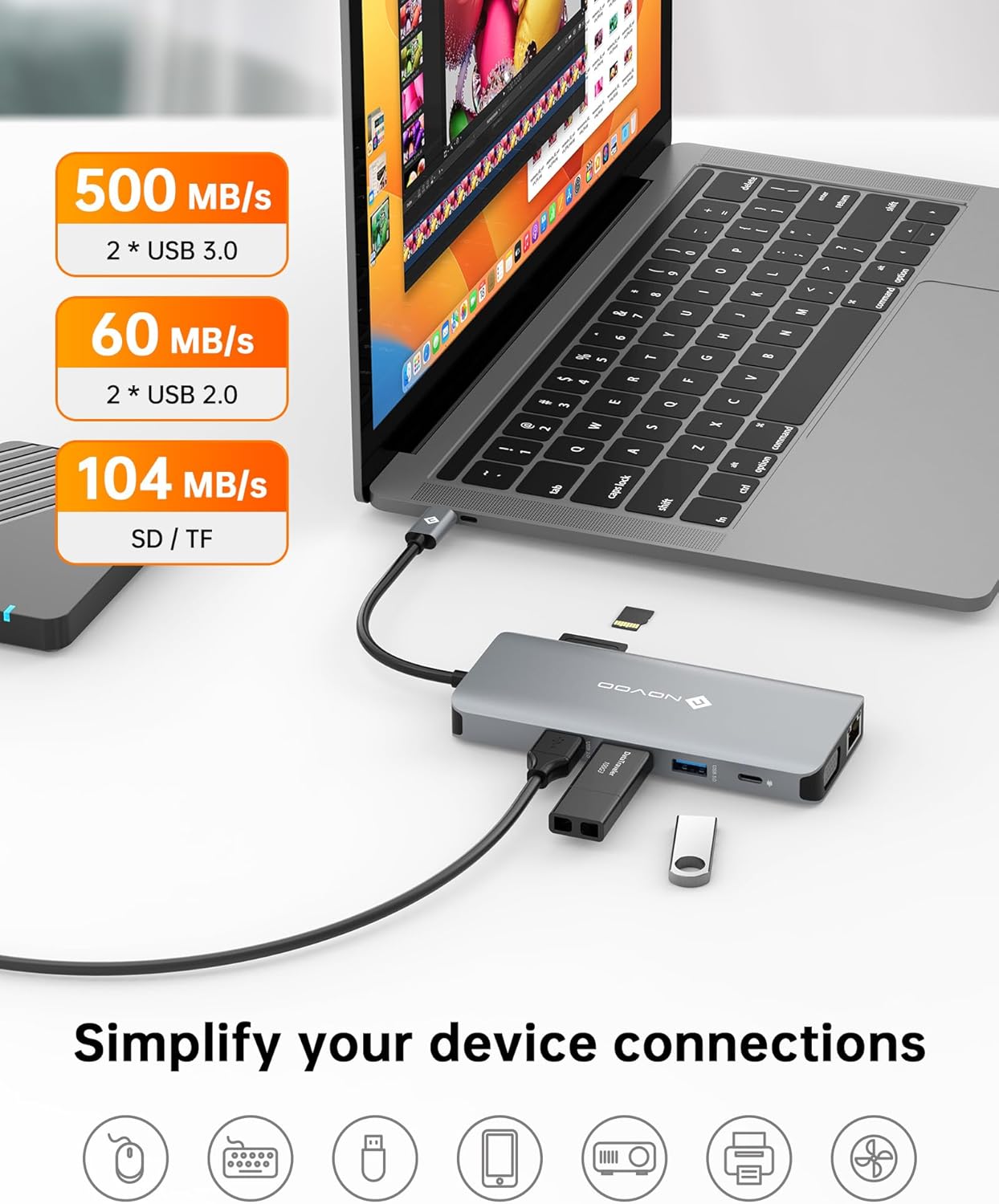
Image 4.6: Data transfer capabilities with USB 3.0, USB 2.0, and SD/TF card slots.
4.3 Conectividad de red
The Gigabit Ethernet port provides a reliable and fast internet connection:
- Connect an Ethernet cable to the RJ45 port for speeds up to 1Gbps, offering a more stable connection than Wi-Fi.

Image 4.7: Gigabit Ethernet port for stable internet connection.
4.4 Suministro de potencia
The USB-C PD port allows you to charge your laptop while using the docking station:
- Connect your laptop's original USB-C power adapter (or a compatible 100W+ USB-C PD charger) to the docking station's PD port. This will pass power through to your laptop, ensuring it remains charged during use.

Image 4.8: 100W Power Delivery feature.
5. Mantenimiento
Para garantizar la longevidad y el rendimiento óptimo de su estación de acoplamiento, siga estas pautas de mantenimiento:
- Limpieza: Utilice un paño suave y seco para limpiar el exterior de la estación de acoplamiento. Evite limpiadores líquidos o materiales abrasivos.
- Almacenamiento: Guarde la estación de acoplamiento en un lugar fresco y seco, alejado de la luz solar directa y de temperaturas extremas.
- Manejo: Evite dejar caer el dispositivo o someterlo a impactos fuertes. No intente desmontarlo.
- Sistema de organización de cables: Asegúrese de que los cables no estén excesivamente doblados o tensados, ya que esto puede provocar daños con el tiempo.
6. Solución de problemas
Si tiene problemas con su estación de acoplamiento, consulte los siguientes problemas y soluciones comunes:
| Problema | Posible causa | Solución |
|---|---|---|
| No display output on external monitor(s). |
|
|
| External monitors are mirroring instead of extending (macOS). | macOS limitation. | This is expected behavior for macOS when connecting multiple external displays via a single MST-enabled hub. macOS does not support MST for extended displays. |
| Velocidades de transferencia de datos lentas. | Dispositivo conectado al puerto USB 2.0 en lugar de USB 3.0. | Ensure high-speed devices are connected to the blue USB-A 3.0 ports. |
| La computadora portátil no carga o carga lentamente. |
|
|
| Problemas de conexión Ethernet. |
|
|
7. Especificaciones
| Característica | Detalle |
|---|---|
| Número de modelo | NHM11D-111S2 |
| Dimensiones del producto | 2.2 x 0.6 x 5.1 pulgadas |
| Peso del artículo | 3.84 onzas |
| Color | Gris plata |
| Interfaz de hardware | USB tipo C |
| Salida HDMI 1 | Hasta 4K a 30 Hz |
| Salida HDMI 2 | Hasta 4K a 60 Hz |
| Salida VGA | Hasta 1080P@60Hz |
| Transferencia de datos USB-A 3.0 | Hasta 5 Gbps |
| Transferencia de datos USB-A 2.0 | Hasta 480 Mbps |
| Velocidad de Ethernet | 10/100/1000 Mbps (Gigabit) |
| Entrada USB-C PD | Hasta 100W |
| Lector de tarjetas | SD/TF (Micro SD) |
| Dispositivos compatibles | Laptops with full-function USB-C ports (DisplayPort Alt Mode, Power Delivery) |
| Fabricante | NUEVO |
8. Garantía y soporte
NOVOO provides a Servicio posventa de 2 años for this product. If you encounter any issues or require assistance, please contact NOVOO customer support. We are committed to ensuring customer satisfaction.
For support, please refer to the contact information provided with your product packaging or visit the official NOVOO websitio.


